How to Configure Codex CLI with a Custom API Endpoint (2026 Guide)
TL;DR
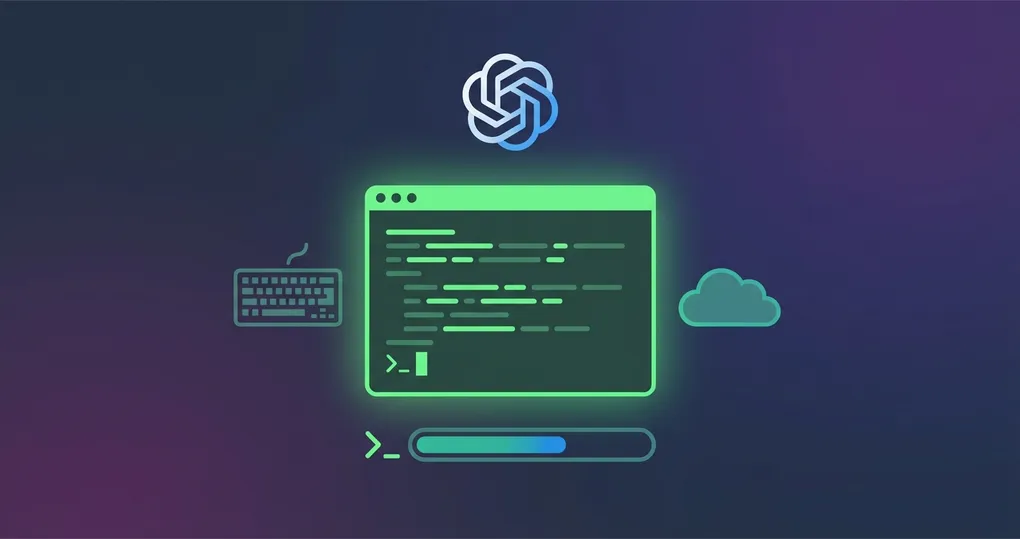
Codex CLI is OpenAI’s command-line AI coding tool. It runs in your terminal, takes natural language instructions, and generates or modifies code directly in your project. Since OfoxAI is fully compatible with the OpenAI protocol, you can integrate seamlessly with just two environment variables. This guide covers installation, configuration with OfoxAI, model selection, and verification.
For the official integration reference, see the OfoxAI Codex integration docs.
What Is Codex CLI
Codex CLI is a command-line tool published by OpenAI for AI-assisted coding. Unlike IDE extensions, it has no graphical interface. You type a natural language instruction in your terminal, and it generates code, modifies files, or performs refactors.
Typical use cases:
- Scaffolding: Generate project structures and configuration files from a description
- Refactoring: Describe the change you want and Codex CLI edits your source files
- Batch operations: Rename, reformat, or apply consistent changes across files
- Code explanation: Point it at unfamiliar code and ask for a walkthrough
Why Use a Custom API Endpoint
Codex CLI connects to OpenAI’s API by default. Routing through a provider like OfoxAI offers practical advantages:
Unified billing. If you use multiple AI tools, adding Codex CLI to the same endpoint means one API key, one invoice, and one usage dashboard.
Model access. An aggregation platform may provide access in regions where direct OpenAI connectivity is unreliable.
Cost management. Consolidating tools under one provider simplifies cost tracking.
Installation
npm install -g @openai/codexAfter installation, the codex command should be available in your terminal. If it is not found, verify that npm’s global bin directory is in your $PATH.
Configuration
Codex CLI uses the OpenAI protocol — just configure two environment variables.
Step 1: Edit Your Shell Configuration
Add these lines to ~/.zshrc (or ~/.bashrc on Linux):
export OPENAI_API_KEY=<your OFOXAI_API_KEY>
export OPENAI_BASE_URL=https://api.ofox.ai/v1
Key points:
OPENAI_API_KEYis the key from your OfoxAI dashboard, not an OpenAI keyOPENAI_BASE_URLmust include the/v1path- No spaces around the
=sign
Step 2: Reload the Configuration
source ~/.zshrcOr open a new terminal window.
Step 3: Verify
Run a simple test:
codex "Create a Hello World Python script"If Codex CLI generates code without errors, the configuration is working.
Model Selection
You can specify the model using command-line arguments:
# Use Codex default model
codex --model openai/gpt-5.4-mini-codex "Refactor this function"

# Use Codex Max (complex tasks)
codex --model openai/gpt-5.1-codex-max "Fix this bug"
Recommended Models
| Scenario | Model |
|---|---|
| Code generation | openai/gpt-5.4-mini-codex |
| Complex refactoring | openai/gpt-5.1-codex-max |
For most day-to-day work, gpt-5.4-mini-codex is the practical choice — lower cost and faster responses. Reach for gpt-5.1-codex-max when you need the model to reason across multiple files or handle architectural decisions.
Practical Examples
Project scaffolding
codex "Create an Express.js project with TypeScript, ESLint, and a health check endpoint"File conversion
codex --model openai/gpt-5.1-codex-max "Convert all JavaScript files in src/utils/ to TypeScript"Test generation
codex "Write comprehensive Jest tests for src/services/auth.ts"Troubleshooting
”Invalid API Key” error
Confirm that OPENAI_API_KEY in your shell profile is the key from your OfoxAI dashboard. Check for trailing spaces or line breaks in the copied value.
Connection timeout
Verify that OPENAI_BASE_URL is set to https://api.ofox.ai/v1. The protocol must be https and the path must include /v1.
Environment variables not loaded
Run echo $OPENAI_BASE_URL in your terminal. If the output is empty, run source ~/.zshrc again or open a new terminal.
Model not found
When using a custom provider, model IDs include a prefix. Use openai/gpt-5.4-mini-codex, not gpt-5.4-mini-codex.
A Note on Versioning
Codex CLI configuration options may change with version updates. See the Codex CLI official documentation for the latest information.
Summary
Configuring Codex CLI with a custom API endpoint takes two environment variables and under five minutes. Install the npm package, set OPENAI_API_KEY and OPENAI_BASE_URL in your shell profile, reload, and you are coding from the terminal with AI assistance.
For full integration documentation, see the OfoxAI Codex integration guide.