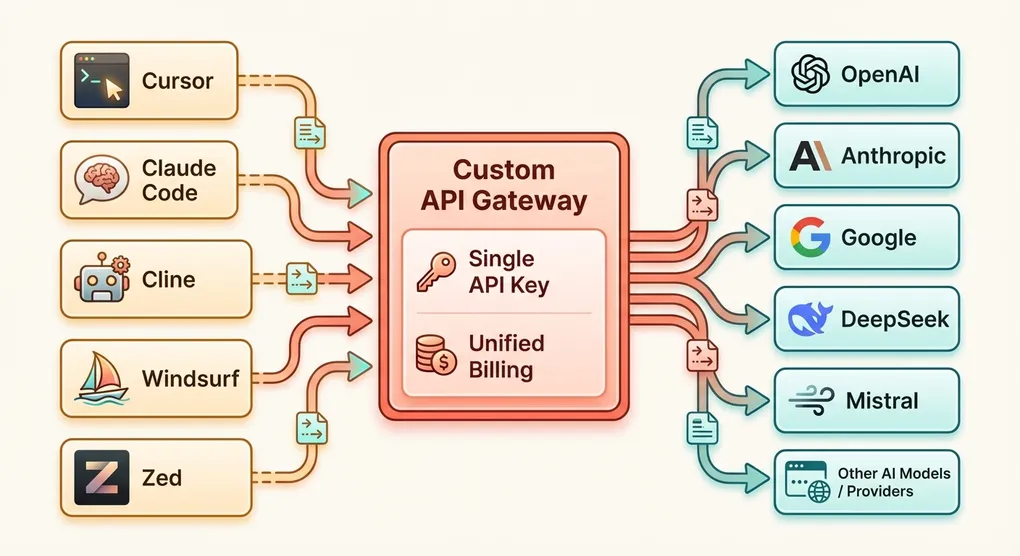
How to Set Up Custom API Endpoints for Cursor, Claude Code, Cline & More (2026)
TL;DR
Every major AI coding tool in 2026 supports custom API endpoints, letting you swap the default provider for any OpenAI-compatible gateway. This guide walks through exact configuration steps for Cursor, Claude Code, Cline, Windsurf, and Zed — covering settings paths, environment variables, and verification commands. You will also learn when and why custom endpoints make sense, along with troubleshooting steps for the most common issues.
Why Use a Custom API Endpoint?
Most AI coding tools ship with a built-in connection to one or two model providers. Cursor defaults to OpenAI. Claude Code connects directly to Anthropic. Cline supports multiple providers but requires individual setup for each.
This works fine for getting started, but production teams and power users quickly hit limitations.
Cost Savings
Direct provider pricing is non-negotiable. You pay whatever OpenAI, Anthropic, or Google charges. Third-party gateways and aggregation platforms often offer volume discounts, credit-based billing, or lower per-token rates on certain models. Even a 10-15% discount compounds quickly when your team generates millions of tokens per day across multiple tools.
Model Flexibility
When you point your tool at a custom endpoint, you are no longer limited to that tool’s default model list. Want to use DeepSeek V3 in Cursor? Mistral Large in Cline? A fine-tuned Llama model in Windsurf? If your endpoint serves it, your tool can use it.
Unified Billing
Running five AI tools with five different API keys from three different providers means five separate invoices, five sets of usage dashboards, and five credit balances to monitor. A single aggregation endpoint consolidates everything into one bill.
Privacy and Compliance
Some organizations need to route API traffic through specific regions, use private endpoints, or ensure that prompts never leave a particular jurisdiction. Custom endpoints let you insert a proxy layer that handles data residency, logging policies, and compliance requirements without modifying the tools themselves.
Self-Hosted Models
If you are running models locally via Ollama, vLLM, or another inference server, a custom endpoint lets your coding tools connect to those local models using the same familiar interface.
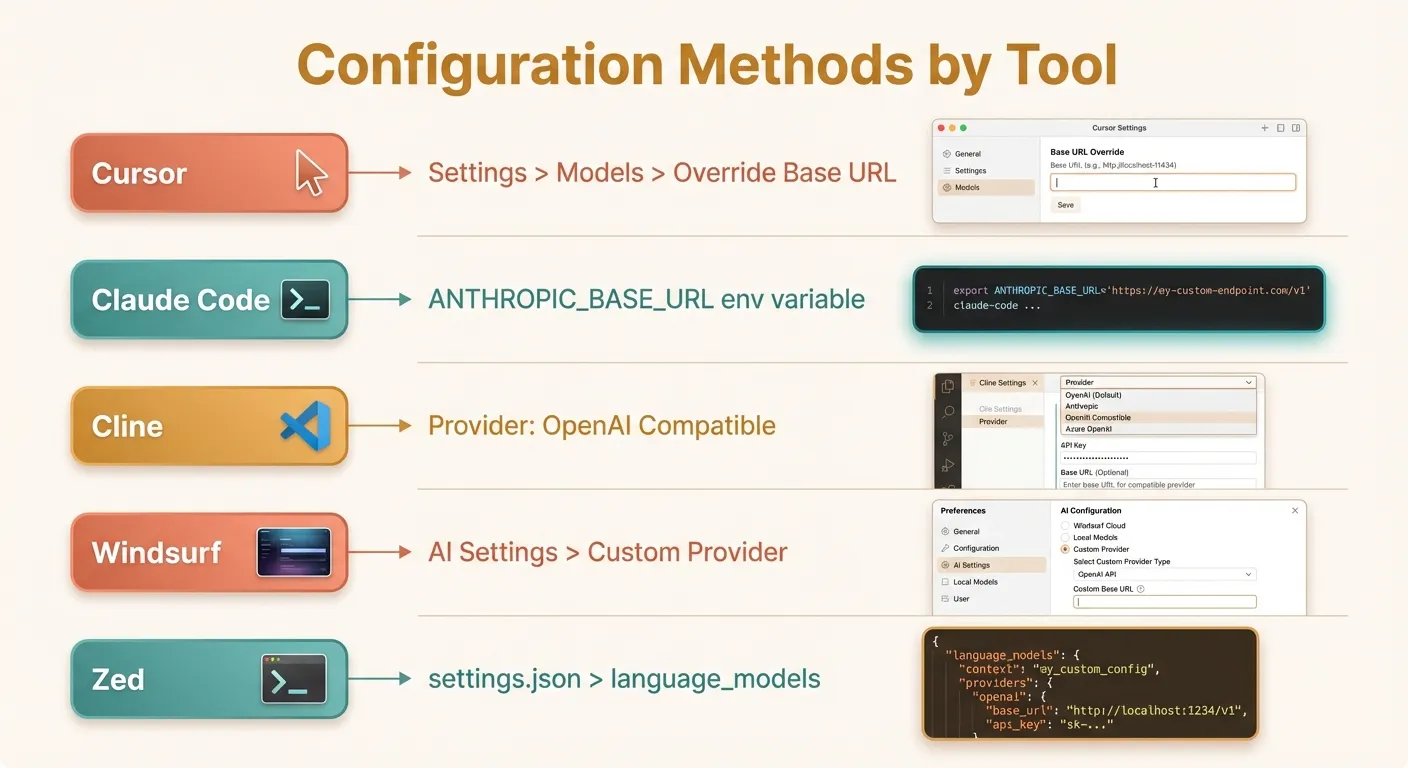
Cursor Setup
Cursor is arguably the most popular AI-powered code editor in 2026, and its custom endpoint support is straightforward.
Step 1: Open Settings
Launch Cursor and open Settings with Cmd+, (macOS) or Ctrl+, (Windows/Linux). Alternatively, click the gear icon in the bottom-left corner.
Step 2: Navigate to Model Configuration
In the Settings panel, click on Models in the left sidebar. This section lists all configured model providers.
Step 3: Override the Base URL
At the top of the Models section, you will see an “Override OpenAI Base URL” field. This is where you enter your custom endpoint.
Enter your endpoint URL. It should look something like:
https://api.yourprovider.com/v1Make sure to include the /v1 path suffix — Cursor appends /chat/completions to whatever you provide here.
Step 4: Set Your API Key
Below the base URL field, enter your API key in the “OpenAI API Key” field. Despite the label saying “OpenAI,” this key is sent to whatever endpoint you configured above.
Step 5: Add Models
Click ”+ Add Model” and type the model identifier your endpoint expects. For example:
claude-sonnet-4-20250514gpt-4odeepseek-chatgemini-2.5-pro
The model name must exactly match what your API provider expects in the model field of the request body.
Step 6: Verify
Open a new Cursor Chat (Cmd+L), select your newly added model from the dropdown, and ask a simple question like “What is 2+2?” If you get a coherent response, the setup is complete.
Cursor Configuration Tips
- Cursor uses the OpenAI format for all custom endpoints, including for Claude models. Your endpoint must translate between formats if needed.
- The “Anthropic API Key” field in Cursor settings is separate and only used for direct Anthropic connections. If your aggregation endpoint serves Claude via the OpenAI format, use the OpenAI fields instead.
- Long-running requests: Cursor has a default timeout. If your endpoint serves slower models, you may see timeout errors. There is no user-facing timeout setting — this is a known limitation.
Claude Code Setup
Claude Code is Anthropic’s official CLI tool for interacting with Claude directly in your terminal. It uses the Anthropic API format (not OpenAI), but fully supports custom base URLs.
Environment Variables
Claude Code reads two environment variables:
export ANTHROPIC_BASE_URL="https://api.yourprovider.com"
export ANTHROPIC_API_KEY="your-api-key-here"
Note that ANTHROPIC_BASE_URL should not include a trailing path like /v1. Claude Code constructs the full URL internally based on the Anthropic API spec.
Persistent Configuration
Add these to your shell profile so they persist across sessions:
For zsh (~/.zshrc):
# Claude Code custom endpoint
export ANTHROPIC_BASE_URL="https://api.yourprovider.com"
export ANTHROPIC_API_KEY="your-api-key-here"
For bash (~/.bashrc):
# Claude Code custom endpoint
export ANTHROPIC_BASE_URL="https://api.yourprovider.com"
export ANTHROPIC_API_KEY="your-api-key-here"
After editing, reload your shell:
source ~/.zshrc # or source ~/.bashrcPer-Project Configuration
If you need different endpoints for different projects, use a .env file in your project root or a tool like direnv:
# .envrc (used by direnv)
export ANTHROPIC_BASE_URL="https://api.yourprovider.com"
export ANTHROPIC_API_KEY="project-specific-key"
Verification
Run Claude Code and ask it a simple question:
claude "What model are you?"If the response comes from the expected model through your custom endpoint, the configuration is working. You can also check your provider’s dashboard to confirm that requests are being received.
Claude Code Configuration Tips
- Your endpoint must speak the Anthropic API format, not the OpenAI format. The request structure uses
messageswith a different schema than OpenAI, and responses include Anthropic-specific fields likestop_reasoninstead offinish_reason. - Streaming is essential: Claude Code uses streaming by default. Your endpoint must support Server-Sent Events (SSE) for the Anthropic messages API.
- Model selection: Claude Code selects its model internally. If your endpoint only serves specific models, ensure it handles the model names Claude Code sends (e.g.,
claude-sonnet-4-20250514).
Cline Setup
Cline is an open-source AI coding assistant that runs as a VS Code extension. Its provider configuration is one of the most flexible among AI coding tools.
Step 1: Open Cline Settings
In VS Code, open the Cline sidebar panel (click the Cline icon in the Activity Bar). Click the gear icon at the top of the panel to access provider settings.
Step 2: Select Provider Type
Cline offers several provider options:
- OpenAI Compatible — for any endpoint following the OpenAI API format
- Anthropic — for direct Anthropic connections
- OpenRouter — pre-configured for OpenRouter
- Custom providers
For a custom endpoint, select “OpenAI Compatible”.
Step 3: Configure the Endpoint
Fill in the following fields:
- Base URL: Your endpoint URL (e.g.,
https://api.yourprovider.com/v1) - API Key: Your authentication key
- Model ID: The model identifier (e.g.,
gpt-4o,claude-sonnet-4-20250514)
Step 4: Test the Connection
Cline typically shows a green checkmark or connection status indicator after you save the settings. Send a test message in the Cline chat to confirm everything works.
Advanced Cline Configuration
Cline stores its configuration in VS Code’s settings. You can also edit settings.json directly:
{
  "cline.apiProvider": "openai-compatible",
  "cline.openAiCompatible.baseUrl": "https://api.yourprovider.com/v1",
  "cline.openAiCompatible.apiKey": "your-api-key-here",
  "cline.openAiCompatible.modelId": "claude-sonnet-4-20250514"
}
Cline Configuration Tips
- Cline sends the full OpenAI-format request, including
toolsdefinitions for function calling. Your endpoint must support tool use / function calling if you want Cline’s agentic features (file editing, terminal commands) to work. - Token tracking: Cline displays token usage per message. If your endpoint returns
usagedata in the response, Cline will track costs accurately. - Multiple configurations: You can switch providers in Cline’s settings without losing previous configurations — it remembers settings per provider type.
Windsurf Setup
Windsurf (formerly Codeium) is an AI-powered IDE with deep integration for code generation and chat. It supports custom model endpoints through its settings.
Step 1: Open Windsurf Settings
Open Settings via Cmd+, (macOS) or Ctrl+, (Windows/Linux). Navigate to the AI or Models section.
Step 2: Add a Custom Provider
In the AI settings section, look for “Custom Model Provider” or “External API” options. Windsurf allows you to configure:
- Endpoint URL: The base URL for your API provider
- API Key: Your authentication credential
- Model name: The model identifier to use
Step 3: Configure the Connection
Enter your endpoint details:
Base URL: https://api.yourprovider.com/v1
API Key: your-api-key-here
Model: gpt-4o
Step 4: Select the Custom Model
After saving, the custom model should appear in Windsurf’s model selector dropdown. Select it for both Chat and Inline Completions if available.
Windsurf Configuration Tips
- Windsurf may require specific response fields that some minimal API proxies don’t return. If you encounter issues, ensure your endpoint returns
id,object,created,model,choices, andusagefields in the response. - Autocomplete vs. Chat: Windsurf uses different request patterns for autocomplete (Fill-in-the-Middle) and chat. Not all custom endpoints support FIM. If autocomplete does not work, the chat endpoint may still function correctly.
- Windsurf’s Cascade feature uses an internal orchestration layer. Custom endpoints work reliably with direct chat, but Cascade’s agentic capabilities may have reduced compatibility with some third-party endpoints.
Zed Setup
Zed is a high-performance code editor built in Rust, with first-class support for multiple AI providers through its settings file.
Step 1: Open Zed Settings
Open your Zed settings with Cmd+, (macOS). This opens settings.json directly — Zed uses a JSON configuration file rather than a graphical settings UI.
Step 2: Configure the Language Model Provider
Add or modify the language_models section in your settings.json:
{
  "language_models": {
    "openai": {
      "api_url": "https://api.yourprovider.com/v1",
      "api_key": "your-api-key-here",
      "available_models": [
        {
          "name": "claude-sonnet-4-20250514",
          "display_name": "Claude Sonnet 4",
          "max_tokens": 8192,
          "max_output_tokens": 8192
        },
        {
          "name": "gpt-4o",
          "display_name": "GPT-4o",
          "max_tokens": 128000,
          "max_output_tokens": 16384
        },
        {
          "name": "deepseek-chat",
          "display_name": "DeepSeek V3",
          "max_tokens": 65536,
          "max_output_tokens": 8192
        }
      ]
    }
  }
}
Step 3: Select the Model
Open Zed’s AI panel (Cmd+Shift+? or through the command palette) and select your custom model from the model dropdown. The display_name field controls what appears in the selector.
Alternative: Anthropic Provider in Zed
If your endpoint speaks the Anthropic API format, you can configure it under the anthropic key instead:
{
  "language_models": {
    "anthropic": {
      "api_url": "https://api.yourprovider.com",
      "api_key": "your-api-key-here"
    }
  }
}
Zed Configuration Tips
- Zed’s
available_modelsarray is important. Without it, Zed won’t know what models are available at your endpoint and nothing will appear in the model selector. - The
max_tokensfield tells Zed the model’s context window, which affects how much context it sends. Set this accurately to avoid over-truncating or exceeding limits. - Zed also supports Ollama natively for local models, which may be simpler than setting up a custom OpenAI-compatible endpoint for local inference.
Verification and Troubleshooting
Once you have configured your custom endpoint in any tool, systematic verification helps catch issues early.
Quick Verification with curl
Before configuring any IDE, test your endpoint directly:
curl -X POST https://api.yourprovider.com/v1/chat/completions \
  -H "Content-Type: application/json" \
  -H "Authorization: Bearer your-api-key-here" \
  -d '{
    "model": "gpt-4o",
    "messages": [{"role": "user", "content": "Say hello"}],
    "max_tokens": 50
  }'
A successful response looks like:
{
  "id": "chatcmpl-abc123",
  "object": "chat.completion",
  "model": "gpt-4o",
  "choices": [
    {
      "index": 0,
      "message": {
        "role": "assistant",
        "content": "Hello! How can I help you today?"
      },
      "finish_reason": "stop"
    }
  ],
  "usage": {
    "prompt_tokens": 10,
    "completion_tokens": 9,
    "total_tokens": 19
  }
}
Quick Verification with Python
import openai

client = openai.OpenAI(
    base_url="https://api.yourprovider.com/v1",
    api_key="your-api-key-here"
)

response = client.chat.completions.create(
    model="gpt-4o",
    messages=[{"role": "user", "content": "Say hello"}],
    max_tokens=50
)

print(response.choices[0].message.content)
Common Issues and Fixes
Issue: “Connection refused” or timeout
Cause: The URL is incorrect, the service is down, or a firewall is blocking the connection.
Fix: Double-check the URL. Try opening it in a browser. Ensure your network allows outbound HTTPS connections to the endpoint’s domain.
Issue: “401 Unauthorized”
Cause: Invalid API key, or the key is not being sent correctly.
Fix: Verify your API key in the provider’s dashboard. Ensure there are no extra spaces or newline characters in the key. Some tools URL-encode the key — try regenerating it if it contains special characters.
Issue: “404 Not Found”
Cause: The base URL path is wrong. You might have /v1 when it should be omitted, or vice versa.
Fix: Check your provider’s documentation for the exact base URL. Try both https://api.provider.com/v1 and https://api.provider.com.
Issue: “Model not found” or “Invalid model”
Cause: The model identifier doesn’t match what the endpoint expects.
Fix: Check your provider’s model list. Model names are case-sensitive and format-specific. claude-sonnet-4-20250514 is different from claude-4-sonnet or anthropic/claude-sonnet.
Issue: Streaming not working
Cause: The tool expects Server-Sent Events (SSE) streaming, but the endpoint doesn’t support it or returns chunked responses in an unexpected format.
Fix: Test streaming directly with curl:
curl -X POST https://api.yourprovider.com/v1/chat/completions \
  -H "Content-Type: application/json" \
  -H "Authorization: Bearer your-api-key-here" \
  -d '{
    "model": "gpt-4o",
    "messages": [{"role": "user", "content": "Count to 5"}],
    "stream": true
  }'
You should see a series of data: {...} lines. If not, your endpoint may not support streaming.
Issue: Tool/function calling not working in Cline or Cursor
Cause: The endpoint doesn’t support the tools parameter in requests, or returns tool calls in an incompatible format.
Fix: Agentic features (file editing, terminal commands) depend on function calling. Ensure your endpoint provider supports OpenAI-compatible tool use. Not all providers implement this — check their docs.
Issue: Response seems truncated
Cause: The endpoint or the tool is setting a low max_tokens value.
Fix: Some endpoints have default max_tokens limits. Check if your provider has a configurable default. In the IDE tool, look for output length settings.
Network Debugging
If issues persist, use verbose logging to see exact requests:
# For Claude Code — enable debug logging
ANTHROPIC_LOG=debug claude "test message"

# For Cline — check VS Code's Output panel
# Select "Cline" from the dropdown in the Output panel
Choosing an API Gateway
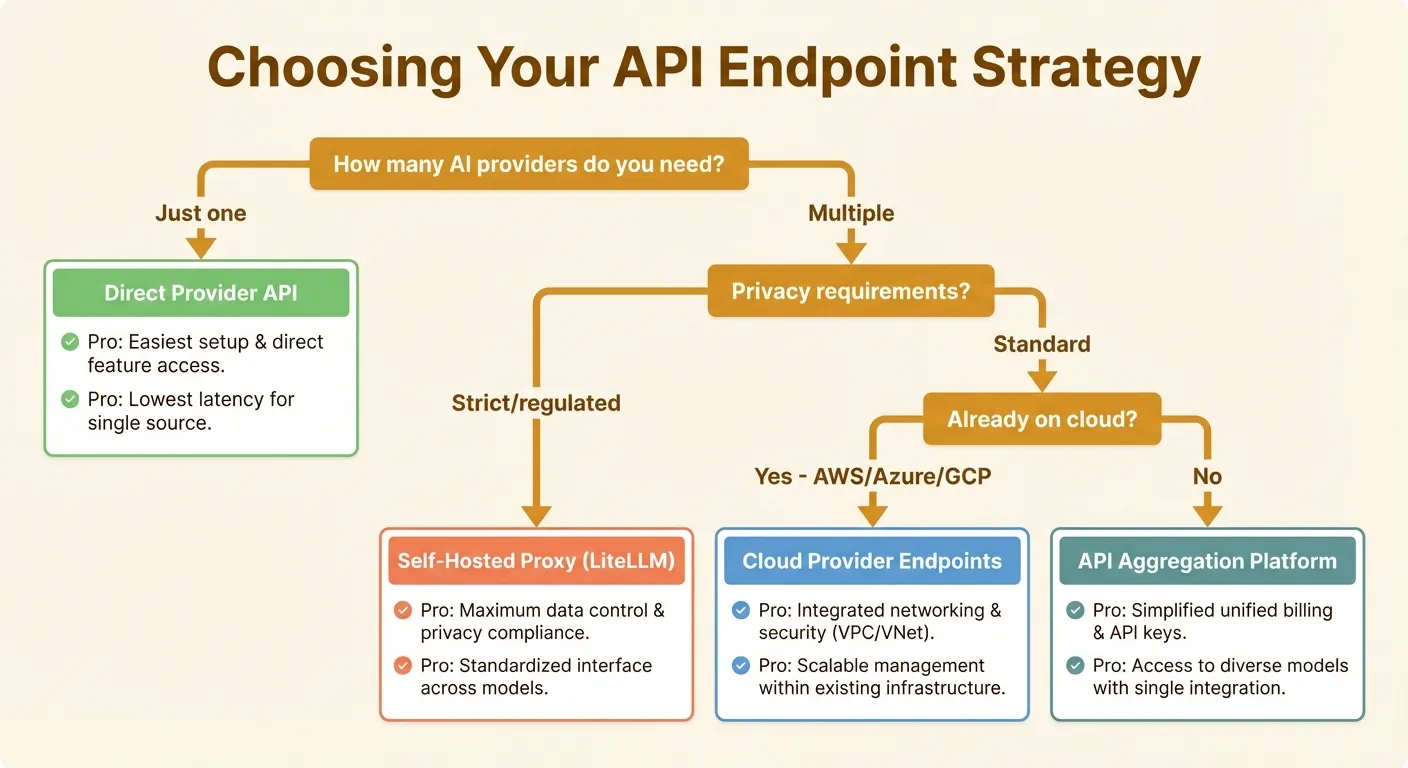
Not all custom endpoints are created equal. Here is a framework for choosing the right approach.
Direct Provider APIs
Best for: Teams committed to a single provider, maximum reliability needed.
Using OpenAI, Anthropic, or Google’s APIs directly gives you the lowest latency, highest reliability, and most complete feature support. The downsides: you are locked to one provider’s models, and pricing is non-negotiable.
| Provider | Base URL | Format |
|---|---|---|
| OpenAI | https://api.openai.com/v1 | OpenAI |
| Anthropic | https://api.anthropic.com | Anthropic |
https://generativelanguage.googleapis.com/v1beta | Gemini |
Self-Hosted Proxies
Best for: Privacy-sensitive organizations, teams running local models.
Tools like LiteLLM let you spin up an OpenAI-compatible proxy that routes to any backend:
# LiteLLM proxy example
litellm --model anthropic/claude-sonnet-4-20250514 --port 8000
This gives you full control over logging, caching, and data routing. The downside is operational overhead — you’re responsible for uptime, scaling, and updates.
API Aggregation Platforms
Best for: Teams using multiple models, developers who want simplicity.
Aggregation platforms provide a single endpoint and API key that routes to dozens of providers. Instead of managing separate accounts with OpenAI, Anthropic, Google, Mistral, and others, you get one dashboard, one bill, and one integration point.
Several platforms serve this niche. OpenRouter is widely known and offers a broad model selection with pay-per-token pricing. Ofox.ai provides access to over 100 models through a single OpenAI-compatible endpoint, with particular appeal for teams that want consolidated billing across all their AI coding tools. Other options include Portkey (focused on observability and reliability) and Martian (focused on intelligent model routing).
When evaluating aggregation platforms, consider:
- Model coverage: Does it offer all the models you need?
- API compatibility: Does it support both OpenAI and Anthropic formats?
- Latency overhead: How much delay does the proxy layer add?
- Pricing transparency: Are per-token costs clearly listed, or are there hidden markups?
- Rate limits: What are the request-per-minute limits?
- Uptime and reliability: What is the platform’s track record?
- Data privacy: Does it log prompts? Where is data processed?
Cloud Provider Endpoints
Best for: Enterprises already on AWS, Azure, or GCP.
Major cloud providers offer AI model access through their own endpoints:
- Azure OpenAI: Same models as OpenAI, deployed in Azure regions
- AWS Bedrock: Access to Claude, Llama, and other models through AWS
- Google Vertex AI: Gemini and third-party models on GCP
These are OpenAI-compatible (or close to it) and integrate with existing cloud IAM, VPC, and billing. The setup is more complex, but enterprises often prefer this for compliance reasons.
Decision Matrix
| Factor | Direct API | Self-Hosted | Aggregation | Cloud Provider |
|---|---|---|---|---|
| Setup complexity | Low | High | Low | Medium |
| Model flexibility | Single provider | Any | Many providers | Limited set |
| Latency | Lowest | Low | Low-Medium | Low |
| Privacy control | Provider-dependent | Full | Provider-dependent | High |
| Cost | List price | Infra + list price | Varies | Premium |
| Billing | Per provider | Per provider | Unified | Cloud bill |
Putting It All Together: A Unified Team Setup
Here is an example of how a small development team might configure all their tools to use a single custom endpoint:
1. Set Team-Wide Environment Variables
Create a shared .env.ai file (distributed securely, not committed to git):
# Shared AI endpoint configuration
AI_BASE_URL="https://api.yourprovider.com/v1"
AI_API_KEY="team-api-key-here"

# Claude Code specific (Anthropic format)
ANTHROPIC_BASE_URL="https://api.yourprovider.com"
ANTHROPIC_API_KEY="team-api-key-here"
2. Add to Shell Profile
Each developer adds to their ~/.zshrc:
source ~/.env.ai3. Configure Each Tool
Cursor: Settings > Models > Override Base URL with $AI_BASE_URL
Claude Code: Already configured via ANTHROPIC_BASE_URL and ANTHROPIC_API_KEY environment variables.
Cline: VS Code Settings > Cline > OpenAI Compatible > Base URL: use the value from $AI_BASE_URL
Zed: settings.json with api_url pointing to $AI_BASE_URL
4. Monitor Usage
Check your provider’s dashboard regularly to track per-developer and per-tool usage. Most aggregation platforms like Ofox.ai and OpenRouter provide detailed breakdowns by API key, model, and time period.
Summary
Custom API endpoints are no longer an edge case — they are a practical necessity for any team or developer using multiple AI coding tools. The configuration process is straightforward in every major tool:
- Cursor: Override Base URL in Settings > Models
- Claude Code: Set
ANTHROPIC_BASE_URLandANTHROPIC_API_KEYenv vars - Cline: Select “OpenAI Compatible” provider in extension settings
- Windsurf: Add custom provider in AI settings
- Zed: Edit
language_modelsinsettings.json
The hardest part is not the tool configuration — it is choosing the right endpoint strategy for your needs. Start with a direct provider API if you only need one model family. Move to an aggregation platform when you need flexibility across providers. Consider self-hosted proxies when privacy and control are paramount.
Whatever you choose, test thoroughly with curl first, verify streaming works, confirm tool/function calling support, and monitor your usage dashboards. A well-configured custom endpoint setup pays for itself in flexibility, cost savings, and reduced operational friction across your entire AI toolkit.