Zed Editor AI Setup: Configure Custom LLM Providers and External Agents
What This Guide Covers
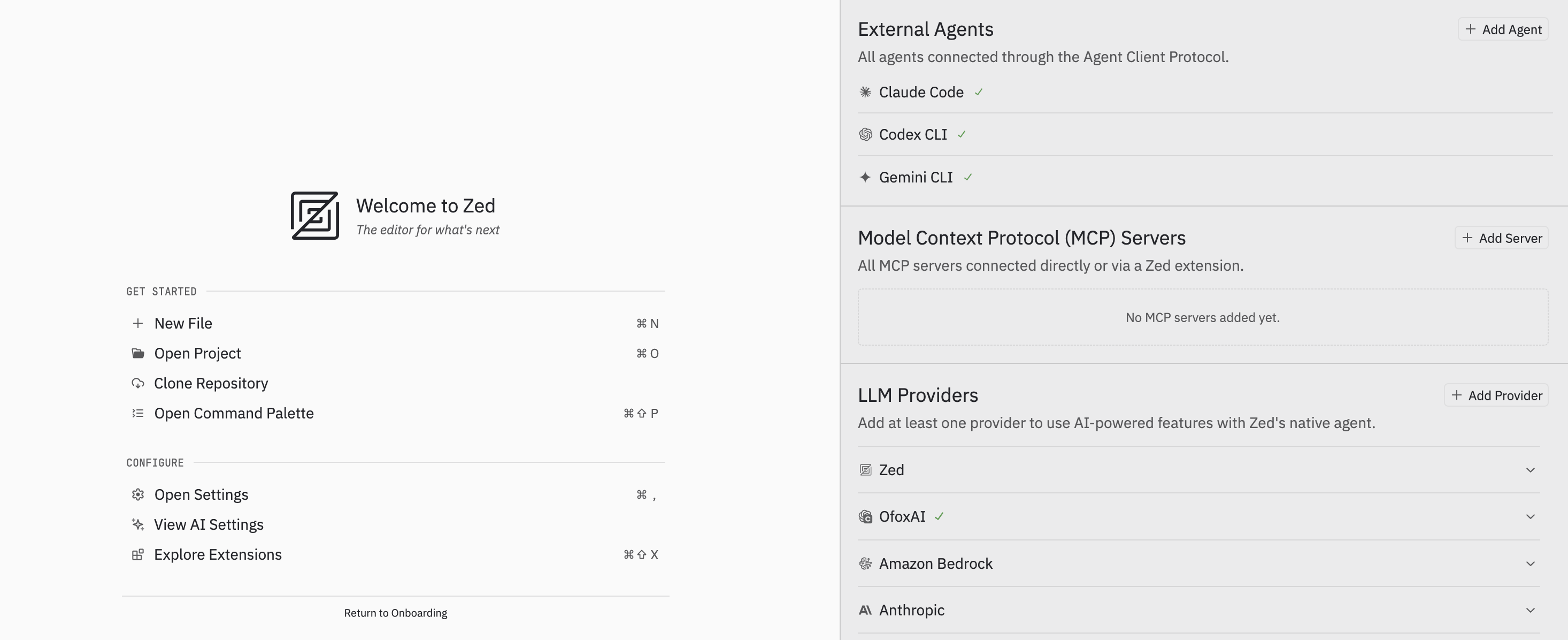
Zed is a high-performance code editor built in Rust with native AI features. It offers one of the most complete AI coding experiences available: a built-in agent, support for external agents like Claude Code and Codex CLI, and custom LLM provider configuration via the OpenAI-compatible protocol.
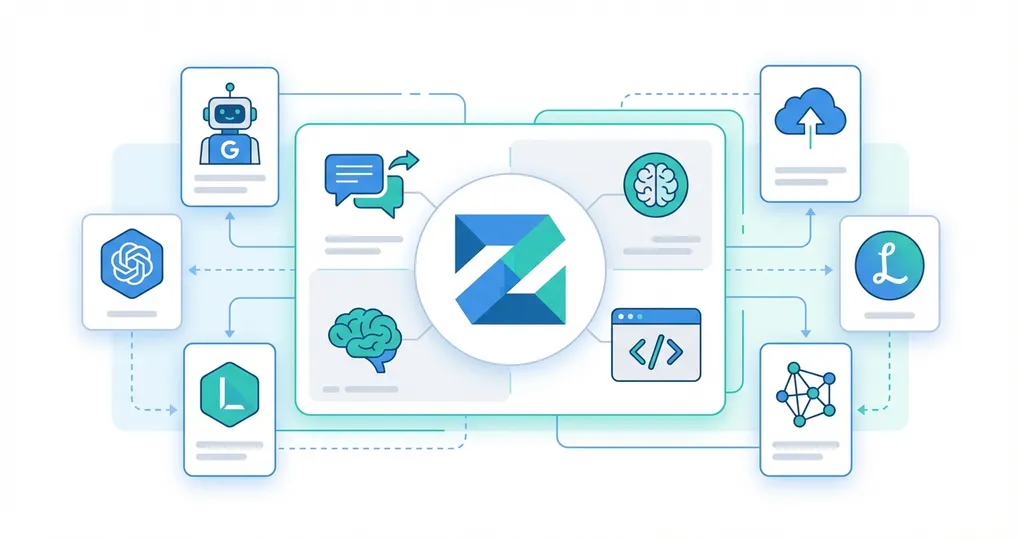
This guide walks through configuring Zed to use OfoxAI as a custom LLM provider, giving you access to GPT, Claude, Gemini, Qwen, Kimi, and other models through a single API endpoint.
For the official integration reference, see the OfoxAI Zed integration docs.
Why Use a Custom LLM Provider in Zed
Paired with OfoxAI, one API Key gives you access to 100+ mainstream LLMs in Zed. Benefits include:
- One API key for all models — Access OpenAI, Anthropic, Google, Alibaba, Moonshot, and others without managing separate accounts
- Unified billing and usage tracking — One dashboard for everything
- Model flexibility — Add new models by editing your configuration, no waiting for Zed to add native support
Prerequisites
Go to the OfoxAI Console to create an API Key.
Two Ways to Add a Provider
Method 1: Agent Panel (Recommended)
Add visually through the Agent Panel without editing JSON:
- Press
Cmd+Shift+Ato open the Agent Panel - Click + Add Provider in the LLM Providers area
- Fill in the configuration:
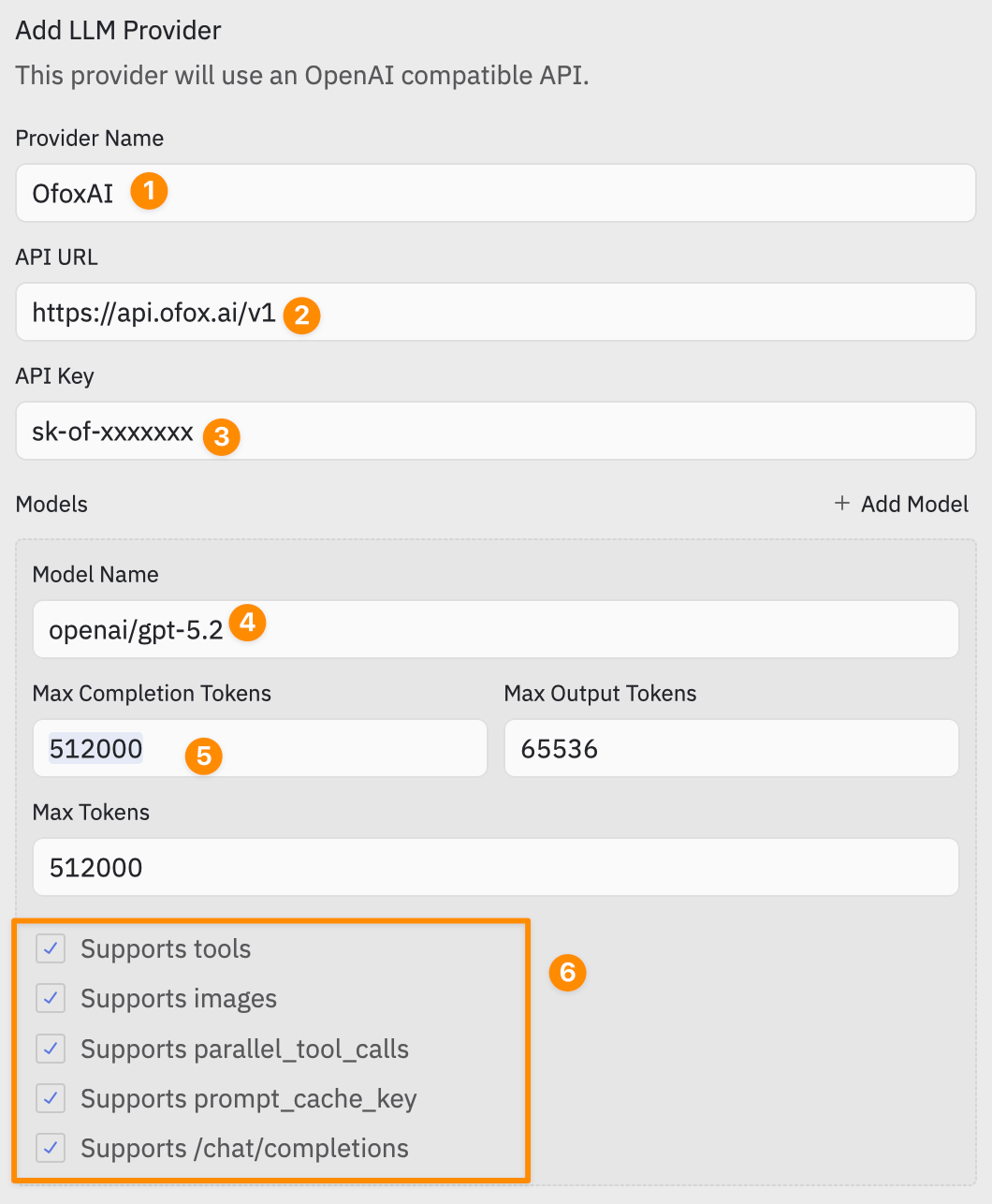
| Label | Field | Value |
|---|---|---|
| 1 | Provider Name | OfoxAI |
| 2 | API URL | https://api.ofox.ai/v1 |
| 3 | API Key | Your OfoxAI API Key |
| 4 | Model Name | openai/gpt-5.4-mini |
| 5 | Max Completion Tokens | 512000 |
| 6 | Capabilities | Check the capabilities supported by the model |
Click + Add Model to add more models.
Method 2: settings.json
Batch-configure all models via the settings file. This is ideal for sharing configurations across machines or managing multiple models.
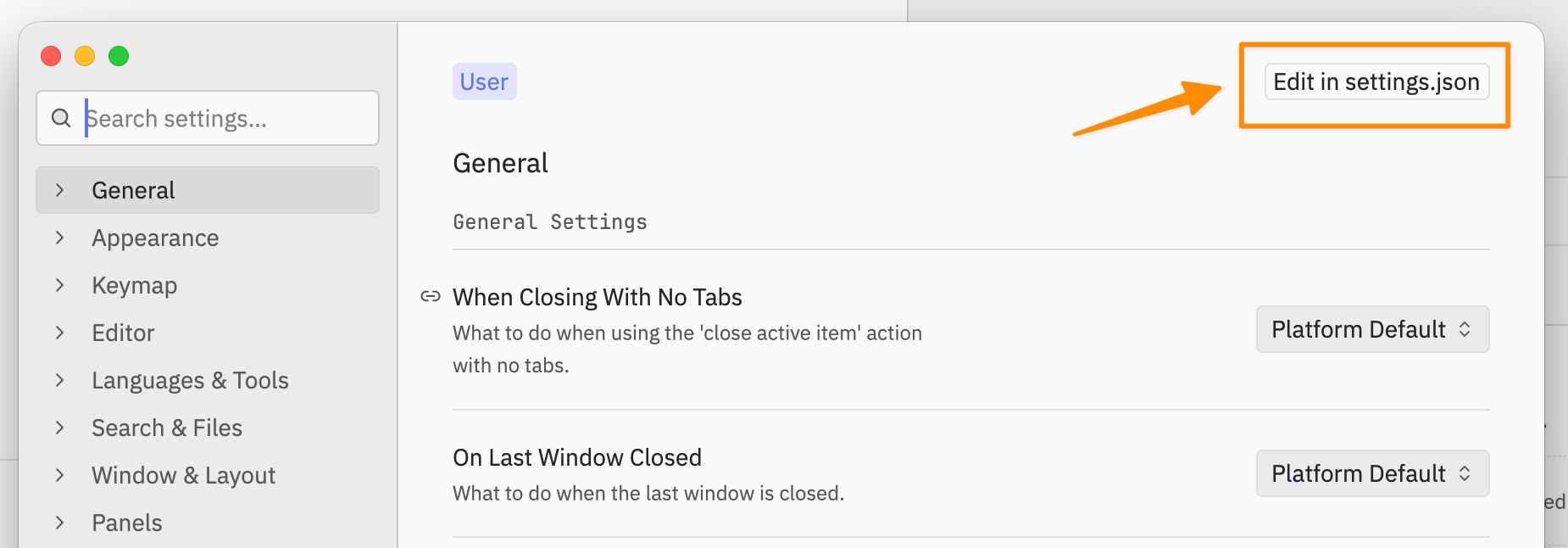
- Press
Cmd+,to open settings, click Edit in settings.json in the top right
 2. Add the following configuration:
{
  "language_models": {
    "openai_compatible": {
      "OfoxAI": {
        "api_url": "https://api.ofox.ai/v1",
        "available_models": [
          {
            "name": "openai/gpt-5.3-codex",
            "display_name": "GPT-5.3 Codex",
            "max_tokens": 512000,
            "max_output_tokens": 65536,
            "capabilities": {
              "tools": true,
              "images": true
            }
          },
          {
            "name": "openai/gpt-5-mini",
            "display_name": "GPT-5 Mini",
            "max_tokens": 256000,
            "max_output_tokens": 32768,
            "capabilities": {
              "tools": true,
              "images": true
            }
          },
          {
            "name": "moonshotai/kimi-k2.5",
            "display_name": "Kimi K2.5",
            "max_tokens": 262144,
            "max_output_tokens": 262144,
            "capabilities": {
              "tools": true,
              "images": true
            }
          },
          {
            "name": "bailian/qwen3-max",
            "display_name": "Qwen3 Max",
            "max_tokens": 256000,
            "max_output_tokens": 64000,
            "capabilities": {
              "tools": true,
              "images": false
            }
          }
        ]
      }
    }
  }
}- After saving, Zed will prompt you to enter your API Key
The API Key is securely stored in the system keychain (macOS Keychain / Linux Secret Service) and is never written in plaintext to config files.
Getting Started with the Agent Panel
Zed’s Agent Panel has two modes:
| Mode | Description |
|---|---|
| Zed Agent | Built-in AI assistant using your configured LLM Provider (e.g., OfoxAI) |
| External Agents | External agents (Claude Code, Codex CLI, Gemini CLI) that run independently |
To start a conversation with Zed Agent:
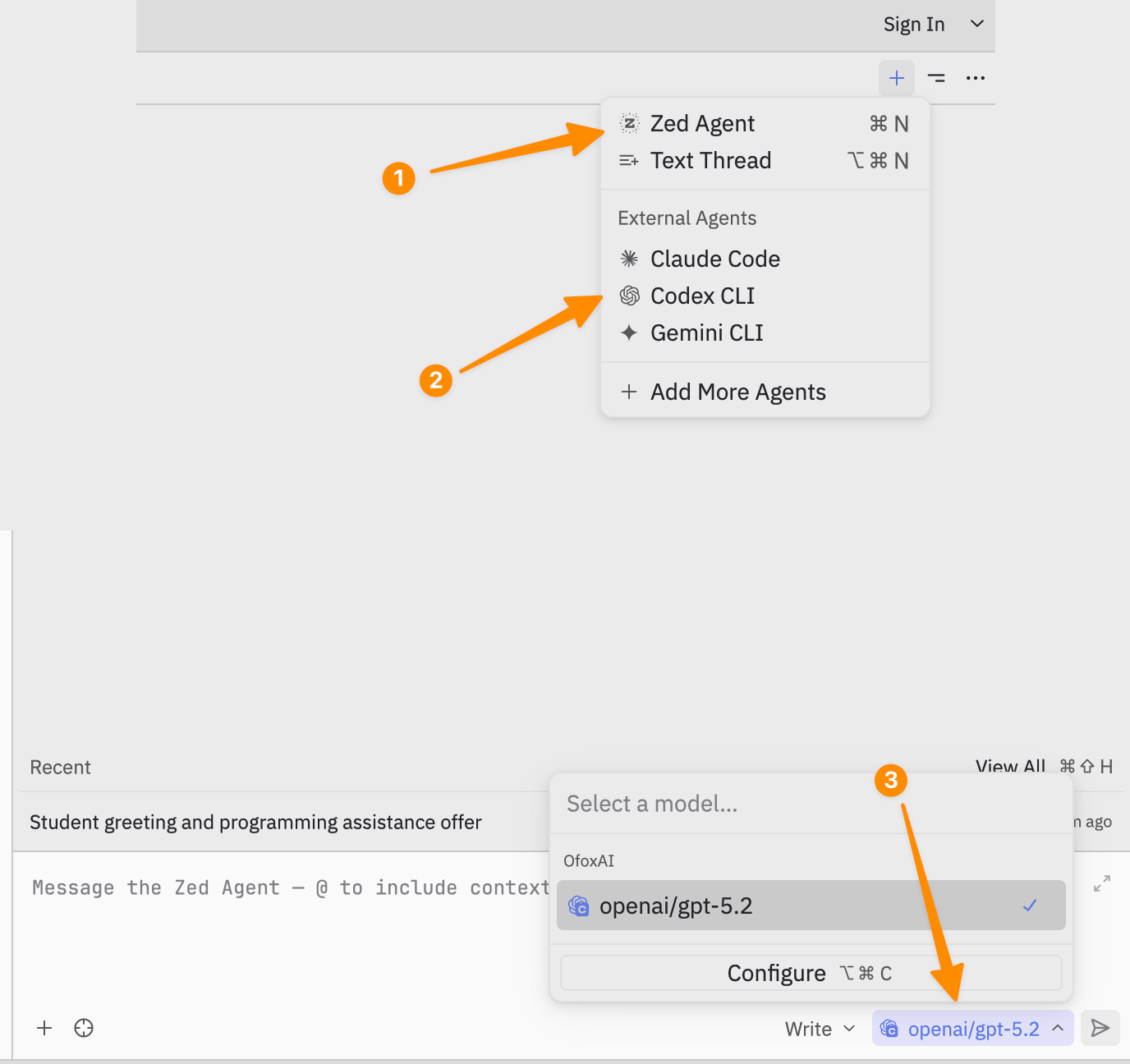
- Click + then select Zed Agent (
Cmd+N) - In the bottom-right model selector, look under the OfoxAI group and select your model
- Type your prompt and send
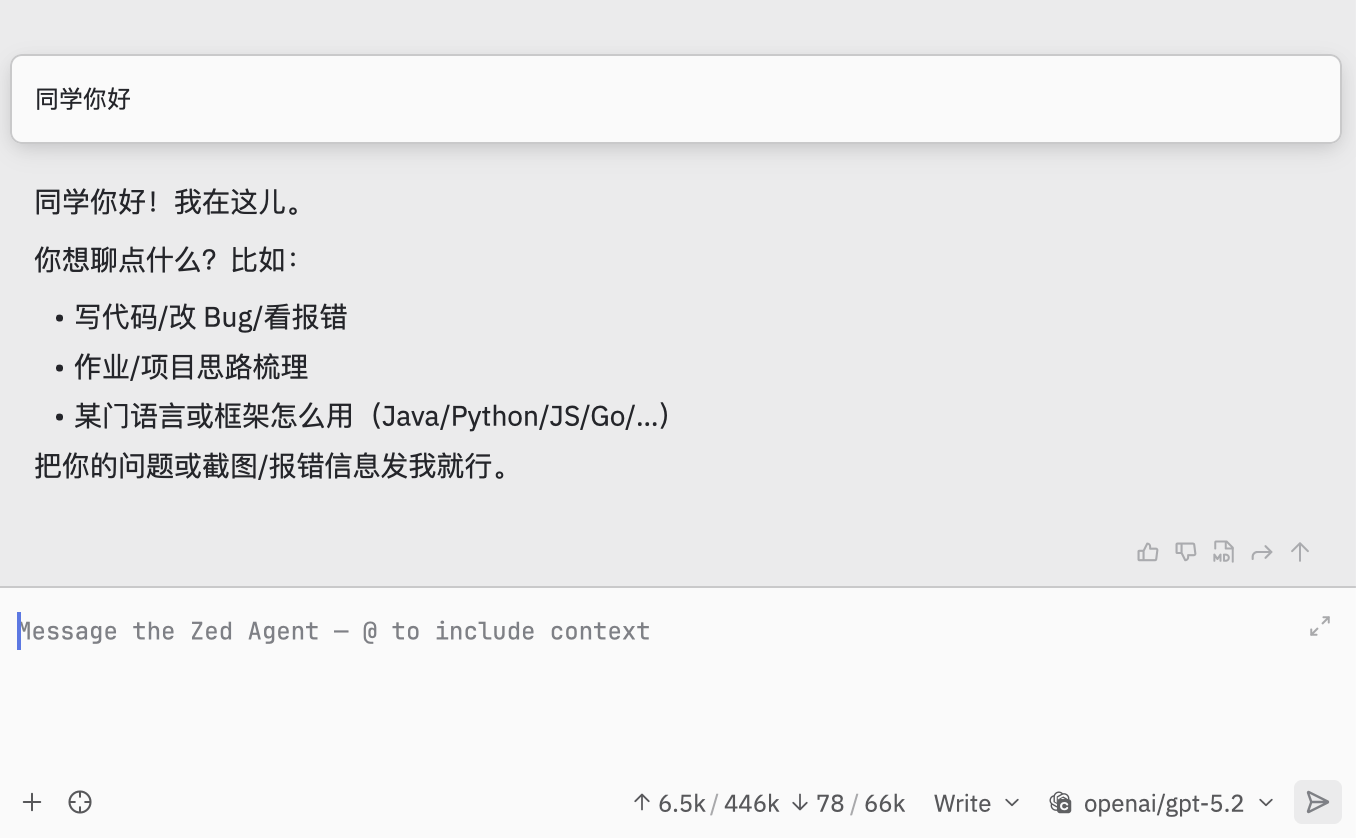
External agents appear in the External Agents area and have their own credentials, model access, and billing — separate from your configured LLM provider.
Recommended Models
| Scenario | Model | Description |
|---|---|---|
| Agent coding | openai/gpt-5.4-mini | 512K context, strongest overall |
| Quick Q&A | openai/gpt-5-mini | 256K context, fast and low cost |
| Long output | moonshotai/kimi-k2.5 | 262K context / 262K output |
| Chinese scenarios | bailian/qwen3-max | 256K context, bilingual Chinese/English |
See the Model Catalog for the full model list.
Adding More Models
Each model entry requires the following parameters:
| Field | Required | Description |
|---|---|---|
name | Yes | Model ID, e.g., openai/gpt-5.4-mini |
display_name | No | UI display name |
max_tokens | Yes | Context window size |
max_output_tokens | No | Maximum output token count |
capabilities.tools | No | Whether Function Calling is supported |
capabilities.images | No | Whether image input is supported |
Add or remove models by editing the available_models array in settings.json.
Pro Tip: Manually filling parameters too slow? Send the Zed integration docs page URL along with https://api.ofox.ai/v1/models to an AI and have it auto-generate the complete settings.json configuration.
Troubleshooting
OfoxAI not showing in model list
Verify settings.json format is correct (watch for missing commas or brackets), then restart Zed.
Authentication error
Open the Command Palette Cmd+Shift+P, search for language model: reset credentials, and re-enter your API Key.
Model does not support tool calling
Set capabilities.tools to false for that model in your configuration. If you leave it as true for a model that does not actually support function calling, requests may fail.
Responses are empty or cut off
Check your max_output_tokens setting. If it is too low, the model may truncate its response. For coding tasks, 16384 or higher is recommended.
Connection timeouts
Confirm that the API URL is exactly https://api.ofox.ai/v1 — no trailing slash, no missing /v1 suffix.
Summary
Zed’s native AI support makes it straightforward to connect a custom LLM provider. Configure OfoxAI through either the Agent Panel GUI or settings.json, add the models you want, and you have a fully functional AI coding assistant running inside a fast, modern editor. For tasks that need specialized agents, Zed’s External Agent support lets you run Claude Code, Codex CLI, or Gemini CLI alongside the built-in agent.
For the full provider documentation and the latest supported models, see the OfoxAI Zed integration docs.