Cline VS Code AI Plugin: Complete API Configuration Guide with OfoxAI
What This Guide Covers
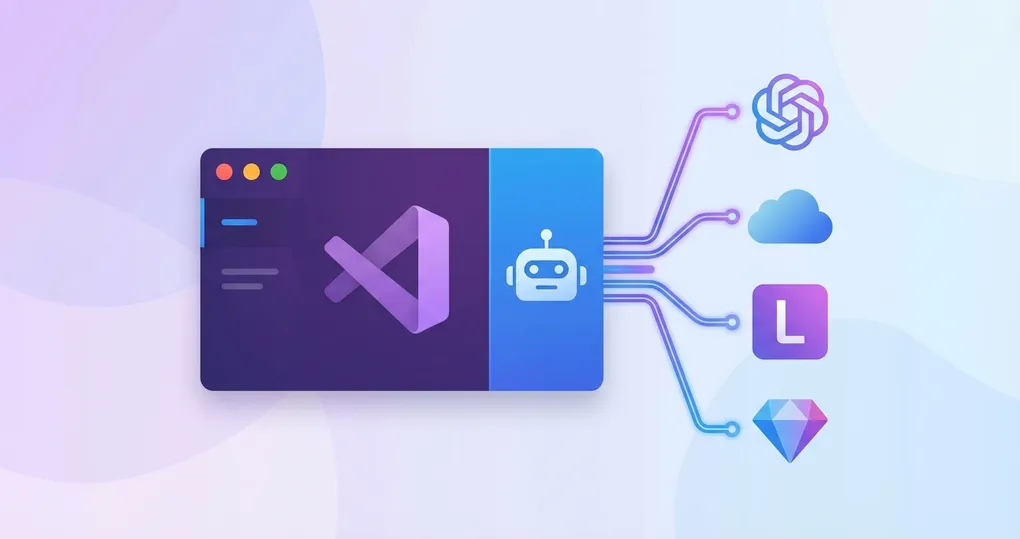
Cline (formerly Claude Dev) is a popular VS Code AI coding extension. It reads your project files, suggests code changes, runs terminal commands, and uses tools to interact with your development environment. With OfoxAI, you can use multiple models through a single API key.
This guide walks through two configuration methods: OpenAI Compatible (works with any model) and Anthropic Provider (recommended for Claude models with full Tool Use support).
For official documentation, see the OfoxAI Cline integration guide.
Why Configure a Custom API Provider for Cline
One API key for all models. Instead of maintaining separate accounts with Anthropic, OpenAI, and Google, you configure one endpoint and one key. Cline can then access Claude, GPT, Gemini, and dozens of other models.
Switch models without reconfiguring. Testing whether GPT-4o handles a refactoring task better than Claude Sonnet? Change the model ID in Cline’s settings. No need to swap API keys or switch provider configurations.
Unified usage tracking. All token consumption across all models appears in one dashboard with one balance.
Installing Cline
- Open VS Code
- Go to the Extensions panel (
Cmd+Shift+Xon macOS,Ctrl+Shift+Xon Windows/Linux) - Search for Cline in the marketplace
- Click Install
After installation, you will see the Cline icon in the VS Code sidebar. Click it to open the Cline panel.
Method 1: OpenAI Compatible Provider
The OpenAI Compatible method is the most universal option. It works with any model available through the API, not just OpenAI models.
Step 1: Open Provider Settings
In the Cline sidebar panel, click the settings icon.
Step 2: Select OpenAI Compatible
Under API Provider, select OpenAI Compatible.
Step 3: Enter Connection Details
| Setting | Value |
|---|---|
| Base URL | https://api.ofox.ai/v1 |
| API Key | Your OfoxAI API Key |
| Model ID | anthropic/claude-sonnet-4.6 |
The Model ID must include the provider prefix (anthropic/, openai/, etc.). This prefix tells the gateway which upstream provider to route the request to.
Step 4: Verify
Send a test message in the Cline chat panel. If Cline responds, the connection is working.
Method 2: Anthropic Provider (Recommended)
If you primarily use Claude models, selecting the Anthropic Provider is recommended. This uses the native Anthropic API format, which gives full access to Anthropic native protocol features including Tool Use — the mechanism that allows Cline to read files, write code, run commands, and interact with your development environment as an agent.
Step 1: Select Anthropic as the Provider
In the Cline provider settings, under API Provider, select Anthropic.
Step 2: Enter Connection Details
| Setting | Value |
|---|---|
| API Provider | Anthropic |
| Base URL | https://api.ofox.ai/anthropic |
| API Key | Your OfoxAI API Key |
| Model | anthropic/claude-sonnet-4.6 |
Note the different Base URL compared to Method 1. The /anthropic endpoint speaks the native Anthropic API protocol, not the OpenAI-compatible format.
Step 3: Verify Tool Use
To confirm that Tool Use is working, ask Cline to perform an action that requires tool interaction:
- “List the files in my current project directory”
- “Read the contents of package.json”
If Cline executes these actions (with your approval), Tool Use is functioning correctly. If it only responds with text descriptions instead of actually performing the actions, double-check that you selected the Anthropic provider and used the /anthropic base URL.
Recommended Models
| Scenario | Model | Description |
|---|---|---|
| Daily coding | anthropic/claude-sonnet-4.6 | Balanced coding performance |
| Complex refactoring | anthropic/claude-opus-4.6 | Deep understanding and reasoning |
| Quick Q&A | openai/gpt-4o-mini | Fast responses |
| Long file analysis | google/gemini-3.1-flash-lite-preview | Large context window |
To switch models, change the Model ID in the provider settings. You do not need to change the Base URL or API key.
Configuration Comparison
| Aspect | OpenAI Compatible | Anthropic Provider |
|---|---|---|
| Base URL | https://api.ofox.ai/v1 | https://api.ofox.ai/anthropic |
| Supported models | All models (Claude, GPT, Gemini, etc.) | Claude models |
| Tool Use support | Partial | Full |
| Best for | Multi-model workflows | Claude-focused workflows with agent features |
For most users, the practical recommendation is: use the Anthropic Provider method as your primary configuration for Claude models with full agent capabilities, and set up the OpenAI Compatible method as a secondary option when you want to use non-Claude models.
Troubleshooting
Model not supported error
Make sure the model ID format is correct with the provider/ prefix. Use anthropic/claude-sonnet-4.6, not claude-sonnet-4.6.
Tool Use feature not working
Use the Anthropic Provider configuration for full Tool Use support. Set the Base URL to https://api.ofox.ai/anthropic and select Anthropic as the API Provider.
Authentication errors (401 or 403)
Verify your API key is correct and has not expired. Check that you copied the full key without trailing spaces.
Slow responses
Response time depends on the model. Claude Opus is slower than Sonnet by nature since it performs more reasoning. For faster responses on simple tasks, switch to openai/gpt-4o-mini or google/gemini-3.1-flash-lite-preview.
Summary
Cline transforms VS Code into an AI-powered coding environment with agent capabilities. The Anthropic Provider method (https://api.ofox.ai/anthropic) is the recommended setup for Claude models because it provides full Tool Use support. The OpenAI Compatible method (https://api.ofox.ai/v1) serves as a versatile alternative when you need to use non-Claude models.
For the complete integration documentation, visit the OfoxAI Cline integration guide.