Cline Configuration
Cline is a popular VS Code AI coding plugin (formerly Claude Dev). By integrating with OfoxAI, you can use a variety of models.
This tool still uses manual setup. Ofox Desktop does not auto-configure Cline yet. If you also use Codex, Claude Code, Gemini CLI, OpenCode, OpenClaw or Hermes on an Apple silicon Mac, Ofox Desktop can detect and configure those supported tools .
Prerequisites
- Registered OfoxAI account with an API Key (Get one here )
- VS Code installed
Configuration Steps
Step 1: Install Cline
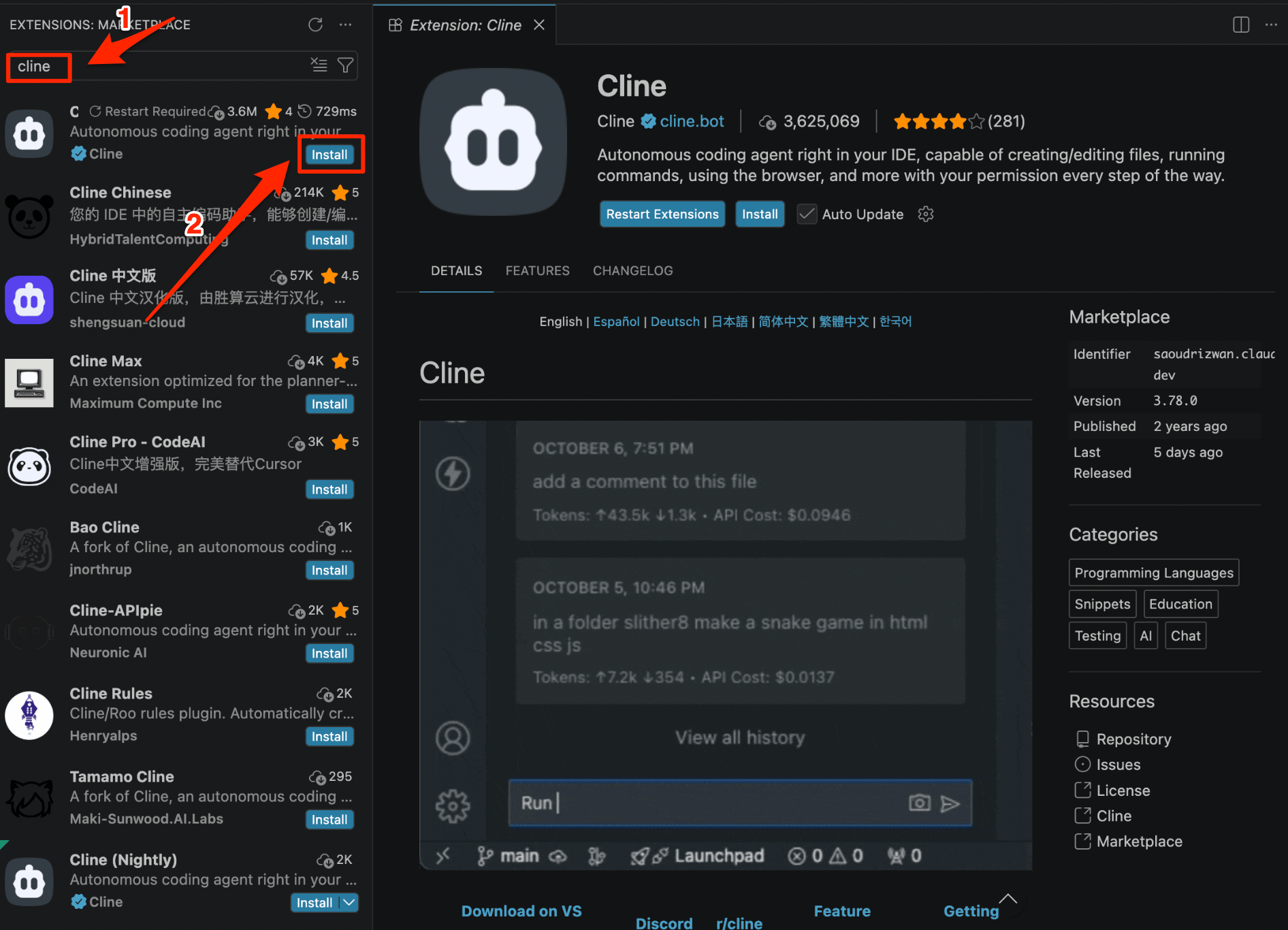
Search for Cline in the VS Code Extension Marketplace and install it.
Step 2: Open Settings
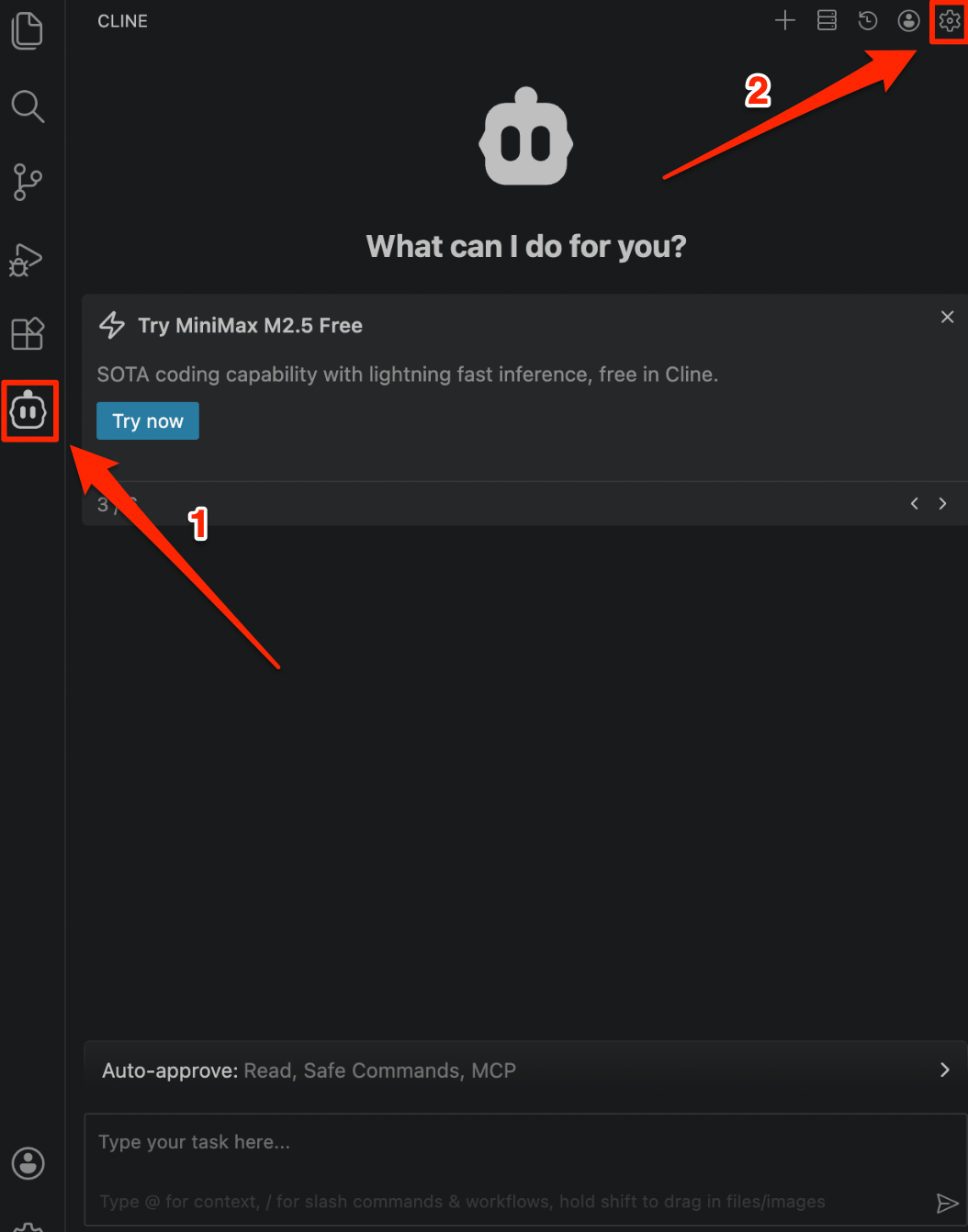
Click the Cline icon in the left activity bar to open the Cline panel, then click the Settings icon in the top right corner.
Step 3: Fill in Configuration and Save
Fill in the following information on the API Configuration page, then click Done in the top right corner:
| Field | Value |
|---|---|
| API Provider | OpenAI Compatible |
| Base URL | https://api.ofox.ai/v1 |
| OpenAI Compatible API Key | Your OfoxAI API Key |
| Model ID | Model ID (see Model Marketplace ) |
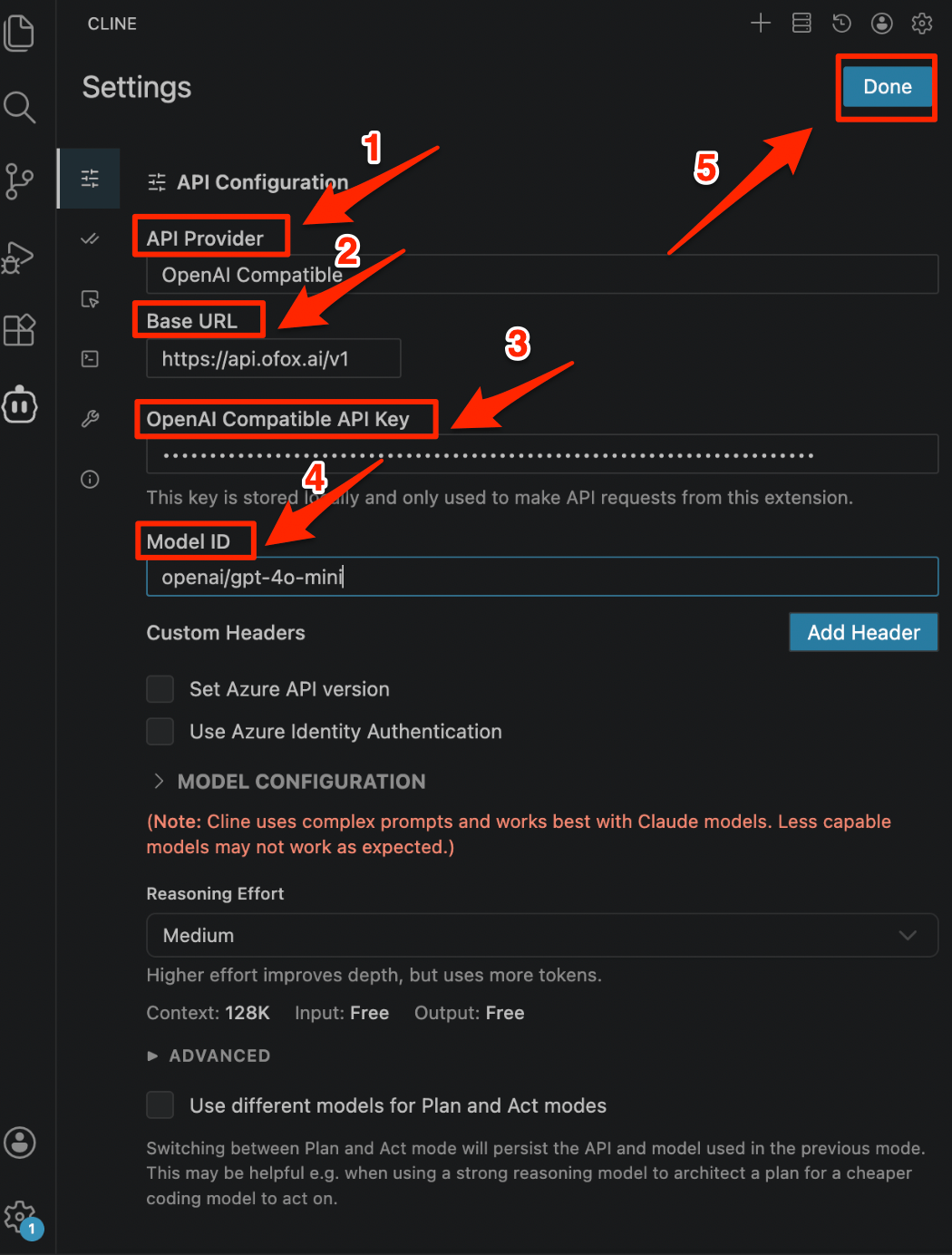
Use OpenAI Compatible as the API Provider and do not switch to the Anthropic or Google Gemini Provider. These two providers do not allow custom model names and only support selecting from their built-in official model list. The model names in the built-in list do not match OfoxAI’s model IDs, which will cause requests to fail.
Recommended Models
For recommended models, see the Model Marketplace .
FAQ
Q: Model not supported error
Make sure the Model ID format is correct. When using OpenAI Compatible, the model name must include the vendor/ prefix. See the Model Marketplace for all available model IDs.
Q: Unable to use Tool Use feature
Keep the API Provider as OpenAI Compatible and choose a model that supports tool use from the Model Marketplace .