Gemini CLI Configuration Guide: Set Up Google's Command-Line Tool With a Custom API
Summary
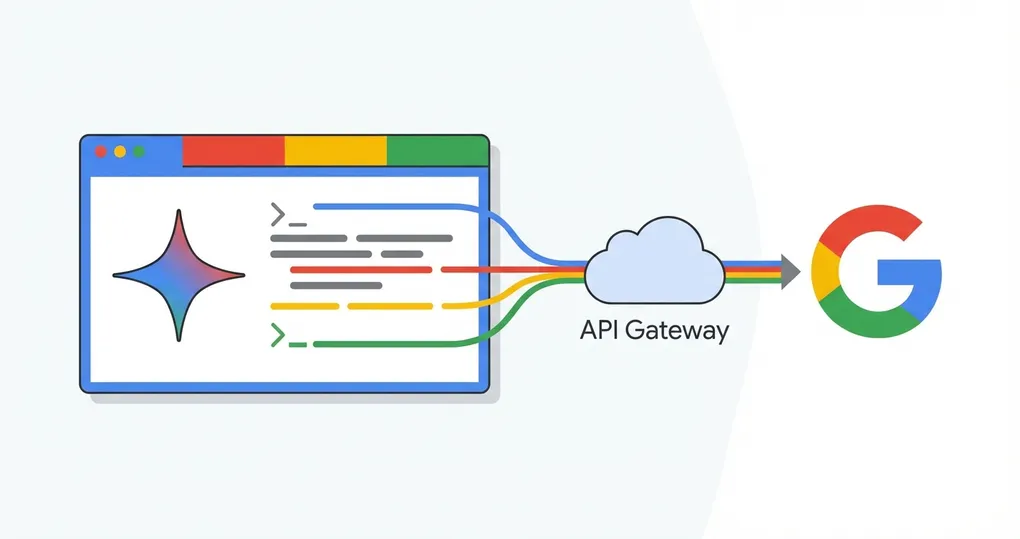
Gemini CLI is Google’s official command-line tool for Gemini models. It brings code generation, file analysis, and multimodal capabilities directly into your terminal. With OfoxAI, you can use the Gemini protocol while gaining access to a broader model selection and the benefits of fallback and routing optimization.
For the official integration reference, see the OfoxAI Gemini CLI integration docs.
What Is Gemini CLI
Gemini CLI is a command-line client for Google’s Gemini family of models. It lets you interact with an LLM without leaving the terminal, with access to Gemini’s specific strengths: a large context window for processing big files and multimodal support for images and PDFs.
Core capabilities:
- Code generation and review — Gemini models excel at code understanding
- Long file analysis — Leverage the 1M token context window
- Multimodal tasks — Analyze images, PDFs, and other files
- Terminal-native workflow — Works alongside git, make, npm, and other CLI tools
Installation
Gemini CLI is distributed via npm:
npm install -g @google/gemini-cliConfiguring the API Through OfoxAI
Gemini CLI uses the Gemini native protocol. You can point it to OfoxAI via the configuration file or environment variables.
Method 1: Settings File (Recommended)
Create or edit ~/.gemini/settings.json:
{
  "apiKey": "<your OFOXAI_API_KEY>",
  "baseUrl": "https://api.ofox.ai/gemini"
}
Getting your API key: Sign up at OfoxAI and create a key. A single key gives you access to Gemini, GPT, Claude, and other models.
About the baseUrl field: This routes Gemini CLI requests through the OfoxAI endpoint, which provides failover and routing optimization on top of the standard Gemini API. The base URL configuration method may change with version updates — if the above method does not work, refer to the latest Gemini CLI documentation.
Method 2: Environment Variable
Add the API key to your shell profile:
export GEMINI_API_KEY=<your OFOXAI_API_KEY>Apply the change:
source ~/.zshrcThe environment variable approach works well for CI/CD pipelines. However, if you need to configure the base URL, you will still need the settings.json file.
Verify the Connection
gemini "Hello, tell me about yourself"If you get a coherent response, the setup is working.
Available Models
| Model | Description |
|---|---|
google/gemini-3.1-pro-preview | Most capable reasoning |
google/gemini-3.1-flash-lite-preview | Fast and cost-effective |
google/gemini-3-pro-preview | Multimodal fast model |
When to use which:
- For everyday coding tasks, start with
gemini-3.1-flash-lite-preview. It responds quickly and keeps costs down. - For complex reasoning — debugging tricky issues, architecture discussions, non-trivial code generation — switch to
gemini-3.1-pro-preview. - For anything involving images or PDFs, use
gemini-3-pro-previewfor multimodal capabilities.
Practical Use Cases
Code Generation
gemini "Write a TypeScript function that debounces async calls with configurable delay and cancellation support"Long File Analysis
Gemini’s large context window is a standout feature for processing files that other tools cannot handle in a single pass:
gemini "Analyze this log file, identify all errors, and suggest root causes" < production.logMultimodal Tasks
With a multimodal-capable model, process images alongside text:
gemini "Describe the architecture shown in this diagram and suggest improvements" --file system-architecture.pngBenefits of Using OfoxAI
Using Gemini CLI through OfoxAI gives you the benefits of fallback and routing optimization:
- Failover: If an upstream node becomes unavailable, OfoxAI automatically routes requests to a backup
- Routing optimization: Requests take the lowest-latency path
- Unified billing: One account, one dashboard, one invoice across all models and tools
- Multi-provider access: The same API key works across other tools to access GPT, Claude, and more alongside Gemini
Things to Keep in Mind
- Version changes: Gemini CLI is under active development. Configuration options — particularly how the base URL is specified — may change between versions. Check the official docs after updates.
- Model ID format: When using OfoxAI, model IDs follow the
google/model-nameformat. - Network access: Ensure your terminal can reach
api.ofox.ai. If you use a proxy or VPN, configure your terminal’s proxy settings accordingly.
Conclusion
Gemini CLI brings Google’s Gemini models into the terminal, fitting naturally into command-line development workflows. Configuring it through OfoxAI takes one JSON file and an API key. The large context window makes it particularly useful for analyzing big files and codebases, while multimodal support handles images and documents.
For detailed integration instructions, see the OfoxAI Gemini CLI integration docs.