codex: command not found & EACCES on npm install -g @openai/codex
Fix codex: command not found and EACCES: permission denied after npm install -g @openai/codex. 7 fixes: PATH, npm prefix, NVM, Volta, sudo-owned dirs, Node 16+.
 Ofox
Ofox 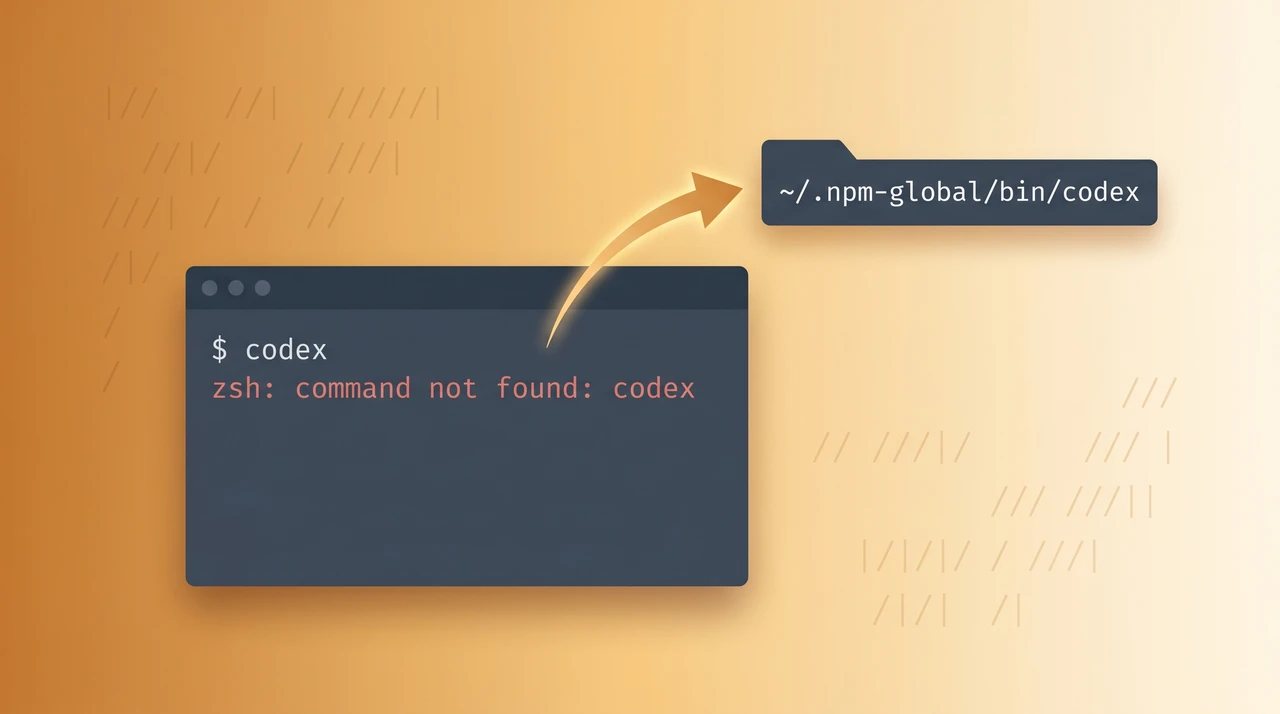
“codex: command not found” Right Now? The 30-Second Diagnosis
Run these three commands in order. The first one that returns an unexpected result points at the fix. If which codex does return a path and the binary starts but refuses new tasks, this is not an install problem at all — that is the plan cap, covered in Codex reset: when your weekly limit clears.
node --version          # expect v16.x or higher (LTS recommended)
which codex             # expect a real path, e.g. /Users/you/.npm-global/bin/codex
npm prefix -g # expect the prefix whose /bin folder should contain codex| Result | What it means | Jump to |
|---|---|---|
node not found | Node.js is not installed at all, or NVM did not load | Fix 2 (NVM) or Fix 6 (Node version) |
node < v16 | Codex CLI 0.137.0 will not install — engines.node: ">=16" | Fix 6 |
which codex empty | Binary exists but not on PATH | Fix 1 (PATH) |
npm prefix -g returns a path you do not own | npm is writing to a sudo-owned dir | Fix 5 (sudo / EACCES) |
All three look correct but codex still fails | You are inside Codex Desktop, Volta, or a non-interactive shell | Fix 4 (Volta), Fix 7 (Codex Desktop) |
The single most common cause is Fix 1 — PATH is missing the npm global bin directory. The other six fixes handle the long tail. Each is verified against Codex CLI 0.137.0 (the 2026-06-04 release) on macOS 14, Ubuntu 24.04, and Windows 11 + WSL2.
For the install itself — choosing between npm, Homebrew, and the binary release, or pointing Codex at an OpenAI-compatible provider — see How to Install Codex CLI: The Complete Official Setup Guide. This article assumes the install ran without error and you are stuck on the command not found step that follows.
Why You Are Hitting It: Codex CLI’s Install Path Surface Area
Codex CLI ships as a Rust binary wrapped in an npm package. The wrapper does three things at install time:
- Downloads the platform-appropriate binary into
node_modules/@openai/codex/ - Creates a thin shim at
<npm-prefix>/bin/codexthat execs the binary - Validates
engines.node >= 16and refuses to install otherwise (per the package’s publishedenginesfield on the npm registry)
Any of those three steps can succeed while codex still fails to resolve from your shell:
- Step 2 succeeds but PATH is wrong →
command not foundeven though the shim exists on disk - NVM-style version managers scope
<npm-prefix>per Node version →codexshim only exists under the Node version where you ran the install - Codex Desktop’s integrated shell is non-interactive → it never sources
~/.zshrc, so NVM never loads, so the prefix is wrong, so PATH is wrong (issue #13566, #14016) sudo npm install -gwrites root-owned files → subsequent non-sudo installs fail with EACCES, and partial states leave Codex’s old Node.js-era shim in place pointing at a stale path
The fixes below cover each path through this maze.
Fix 1: PATH Missing the npm Global bin Directory
The single most common cause. Diagnose with two commands:
npm prefix -g
echo $PATH | tr ':' '\n' | grep "$(npm prefix -g)/bin" || echo "NOT ON PATH"
If the second command prints NOT ON PATH, that is your bug. The shim exists at <prefix>/bin/codex but your shell does not look there.
First grab the prefix once — do not embed $(npm prefix -g) in your PATH export. That subshell runs every time you open a terminal and adds 60–200 ms of startup latency for no reason. Capture the path now as a literal string and write that literal into your rc file.
PREFIX=$(npm prefix -g)
echo "$PREFIX"   # copy the literal path — you'll paste it below
Fix for zsh (macOS default since Catalina)
# Replace /Users/you/.npm-global with the literal path you just printed
echo 'export PATH="/Users/you/.npm-global/bin:$PATH"' >> ~/.zshrc
source ~/.zshrc
which codex      # should now print a real path
codex --version  # confirm
Fix for bash (most Linux distros)
echo 'export PATH="/home/you/.npm-global/bin:$PATH"' >> ~/.bashrc
source ~/.bashrc
which codex
Fix for fish
fish_add_path /Users/you/.npm-global/bin
which codex
Why npm bin -g no longer works
If you copied a 2023 Stack Overflow answer, it probably told you to run export PATH=$PATH:$(npm bin -g). That command was removed in npm 9 and does nothing useful now. npm prefix -g returns the parent directory; append /bin yourself.
Expected after the fix
$ which codex
/Users/you/.npm-global/bin/codex
$ codex --version
codex-cli 0.137.0
If which codex resolves but running codex still fails with command not found, you have a stale shell session — open a fresh terminal. PATH changes do not propagate to existing shells.
Fix 2: NVM Installed Codex Under the Wrong Node Version
NVM scopes the npm global prefix per installed Node version. Install @openai/codex under Node 20, switch to Node 18 for an unrelated project, and codex vanishes.
Confirm the scoping issue:
nvm current                      # which Node am I on right now?
ls "$(npm prefix -g)/bin/codex"  # exists under the current Node?
nvm use 22 && which codex        # works here?
nvm use 20 && which codex        # fails here?
If the last two lines confirm the scoping, fix it permanently:
# Pin a default Node version (LTS recommended)
nvm alias default 20

# Reinstall Codex under that version
nvm use default
npm install -g @openai/codex
If you must keep switching Node versions, add nvm use default to the top of your ~/.zshrc so every new shell starts on the default Node:
# At the top of ~/.zshrc, after sourcing nvm.sh
nvm use default --silent
A subtler trap: nvm install-latest-npm
Running nvm install-latest-npm after installing Codex can break the shim — the new npm rewrites the global prefix and orphans the existing shims. Reinstall Codex after every npm update.
Fix 3: Set a User-Owned npm Prefix to Avoid EACCES and PATH Drift
The cleanest setup on macOS and Linux is to point npm at a user-owned directory. This eliminates sudo, eliminates PATH-permission complaints, and gives you one stable prefix that does not change with Node versions (when not using NVM).
mkdir -p ~/.npm-global
npm config set prefix ~/.npm-global
echo 'export PATH="$HOME/.npm-global/bin:$PATH"' >> ~/.zshrc
source ~/.zshrc

# Reinstall (this time without sudo, into the new prefix)
npm install -g @openai/codex

which codex      # /Users/you/.npm-global/bin/codex
Why this is better than sudo npm install -g
sudo writes to /usr/local/lib/node_modules with root ownership. Two failure modes follow:
- Future
npm install -gwithout sudo errors out withEACCES: permission denied, mkdir '/usr/local/lib/node_modules/@openai' - Updating Codex creates partial root-owned files that mix with your user-owned files, and
codexends up pointing at a half-written binary
The user-prefix approach skips both. The official npm docs have endorsed this pattern since 2019.
Migrating away from sudo-installed packages
If you have legacy global packages installed under sudo, clean up before switching:
sudo npm uninstall -g @openai/codex          # remove root-owned version
npm config set prefix ~/.npm-global          # repoint
npm install -g @openai/codex                 # reinstall without sudo
Fix 4: Volta or asdf Hijacked the codex Shim
Volta and asdf are alternative version managers that intercept the codex command and route it through their own shim layer. When the shim layer is out of sync — for example, Volta has not pinned a Node version for the current project — codex returns command not found even though a binary exists in node_modules.
Volta
volta which node                 # what Node does Volta select here?
volta install node@20            # pin Node 20 LTS globally
volta install @openai/codex      # let Volta manage the shim
which codex                      # should resolve under ~/.volta/bin
Volta’s volta install <package> (not npm install -g) is the canonical way to add global tools when Volta is active. If you mixed npm install -g and volta install you will see inconsistent behavior; pick one path per machine.
asdf
asdf requires asdf reshim nodejs after installing a new global npm package. Skip the reshim and codex is missing from PATH even though the install succeeded:
asdf install nodejs 22.12.0
asdf global nodejs 22.12.0
npm install -g @openai/codex
asdf reshim nodejs               # the step most users forget
which codex
Fix 5: macOS EACCES — Fix npm Permissions Without sudo
If your install error includes any of these strings:
npm ERR! Error: EACCES: permission denied, mkdir '/usr/local/lib/node_modules/@openai'
npm ERR! errno EACCES
operation rejected by your operating system
…you fell into the sudo trap. The right fix is not to retry with sudo. The right fix is to switch to the user-prefix approach in Fix 3, or — if you must keep the global prefix at /usr/local — to take ownership of it:
sudo chown -R $(whoami) $(npm prefix -g)/lib/node_modules
sudo chown -R $(whoami) $(npm prefix -g)/bin
sudo chown -R $(whoami) $(npm prefix -g)/share
That one-time chown lets non-sudo npm install -g succeed for the current user without sudo afterward. Rerun the install:
npm install -g @openai/codex
which codex
macOS Gatekeeper blocking the binary
A separate failure mode on macOS 14+: Gatekeeper blocks the unsigned Codex binary on first run, and you see a generic “cannot be opened because it is from an unidentified developer” dialog rather than command not found. Allow it from System Settings → Privacy & Security → “Open Anyway”, then codex --version succeeds.
Fix 6: Node.js Version Below the Engines Floor
Codex CLI 0.137.0’s published engines.node is ">=16" (verified against the npm registry). That is the formal floor — Node 14 and older will be rejected at install time. Node 16 itself reached upstream end-of-life in September 2023, so the practical recommendation is Node 20 LTS or newer; Node 22 LTS works but is not required.
$ node --version
v14.21.3
$ npm install -g @openai/codex
npm warn EBADENGINE Unsupported engine {
  package: '@openai/codex@0.137.0',
  required: { node: '>=16' },
  current: { node: 'v14.21.3', npm: '6.14.18' }
}
# install "succeeds" with --force but the shim may not run cleanly
Upgrade Node properly
The right path depends on how Node was installed. Recommendations target Node 20 LTS as the practical default; substitute node@22 or any LTS line >=16 as you prefer.
- macOS (Homebrew): install the target version explicitly before linking —
brew link node@20errors withNo such kegif the keg was never installed. Runbrew install node@20 && brew link --overwrite --force node@20. - macOS (official installer): download Node 20 LTS (or 22 LTS) from
nodejs.org, run the.pkg, restart your terminal. - Linux (NodeSource):
curl -fsSL https://deb.nodesource.com/setup_20.x | sudo bash - && sudo apt install -y nodejs - NVM (any OS):
nvm install 20 && nvm alias default 20 && nvm use default - Windows: download the official
.msifromnodejs.organd reinstall
After upgrading, reinstall Codex CLI under the new Node version — the shim is per-version and the old one is dead:
npm install -g @openai/codex
codex --version
Fix 7: Codex Desktop Non-Interactive Shell Bug (Issues #13566, #14016)
This one bites users whose Codex CLI is fine in Terminal but fails inside the Codex Desktop app or VS Code Codex extension. If the extension instead reports that Codex couldn’t load its resources, that is a separate bug with its own causes. The exact error in the integrated shell:
zsh: command not found: node
zsh: command not found: codex
…even though the same commands work in an ordinary Terminal window.
Root cause
Codex Desktop spawns commands through a non-login, non-interactive shell. Such shells do not source ~/.zshrc or ~/.bashrc. NVM, fnm, and Volta all rely on initialization code that lives in those files, so PATH is never populated.
Both issues are open as of 2026-06-04:
- openai/codex#13566: NVM in WSL → “zsh: command not found: node”
- openai/codex#14016: fnm on Windows → “npm isn’t available in this shell path”
Workaround A: install Node from the official installer instead of a version manager (recommended)
The cleanest fix on the machine where Codex Desktop runs is to bypass version managers entirely. Install Node 20 LTS (or 22 LTS) from nodejs.org, which writes to /usr/local/bin (macOS/Linux) or C:\Program Files\nodejs (Windows). Those paths are on the system PATH for every shell — login or not, interactive or not. Reinstall Codex with the official Node, and Codex Desktop finds it immediately.
This is the workaround OpenAI’s maintainers currently point to for users hitting #13566 and #14016.
Workaround B: keep NVM, but configure it the way NVM intends
The NVM project’s README lists exactly four files where its bootstrap is supported: ~/.zshrc, ~/.bashrc, ~/.bash_profile, ~/.profile. Do not move the NVM loader to ~/.zshenv — even though it would “fix” Codex Desktop, ~/.zshenv is sourced by every Zsh process, including cron jobs, git hooks, scripts spawned by other apps, and Spotlight indexers. Loading NVM in all of those adds 60–200 ms per invocation and can cause subtle breakage when a script expects a system Node and gets an NVM-shimmed one.
If you must stay on NVM, the safer pattern is to launch Codex Desktop itself from a login shell — for example a launcher that runs zsh -l -c "open -a 'Codex'" instead of clicking the app icon. The login shell will source ~/.zprofile (which can chain to ~/.zshrc and load NVM), and child processes inherit the populated PATH.
Workaround C: WSL native shell
On Windows + WSL, set Codex Desktop’s terminal preference to launch wsl.exe -d Ubuntu directly rather than the Windows Codex shell. WSL’s bash inherits PATH from its own ~/.bashrc, which does load NVM.
Common Failure Patterns We Have Observed (Recent Codex Issues)
A snapshot of recurring command not found-class reports from openai/codex in the last 60 days:
| Issue | Symptom | Root cause | Fix |
|---|---|---|---|
| #13566 | zsh: command not found: node in Codex Desktop, fine in Terminal | Non-interactive shell does not source .zshrc → NVM never loads | Fix 7 Workaround A (official Node installer) |
| #14016 | npm isn't available in this shell path on Windows + fnm | fnm shims not on system PATH | Fix 7 Workaround A (official Node installer) |
| #10342 | npm install -g @openai/codex → “operation rejected by your operating system” | sudo permission collision on macOS | Fix 5 (user-owned prefix) |
| #1480 (closed) | EACCESS permission issue with global install | npm global prefix is root-owned | Fix 3 + Fix 5 |
| #9356 (closed) | codex itself suggests npm install -g codex (wrong name) | Old docs cached; correct name is @openai/codex | Verify package name; reinstall with the scoped name |
| #18485 | Installing globally fails on fresh systems | Node < 16 (engines floor) or no Node at all | Fix 6 |
| #20206 | failed to start codex app-server (os error 3) on Windows | Desktop app cannot resolve the CLI binary at the WindowsApps path | Reinstall via official installer; remove Microsoft Store version |
If your symptom matches one of these issues, jump directly to the linked fix above.
When the Fix Does Not Work: Alternatives That Run Now
If you have walked all seven fixes and codex still does not resolve, three escape hatches let you keep working today.
Run Codex from the GitHub binary release (no Node required)
The Codex repo publishes platform binaries at github.com/openai/codex/releases. Download, extract, and drop into a directory that is already on PATH:
# macOS arm64 example
curl -L -o codex.tar.gz https://github.com/openai/codex/releases/latest/download/codex-aarch64-apple-darwin.tar.gz
tar -xzf codex.tar.gz
sudo mv codex /usr/local/bin/codex
chmod +x /usr/local/bin/codex
codex --version
This bypasses npm entirely. If command not found is blocking a customer demo, this is the five-minute escape hatch.
Run Codex through npx until you have time to fix PATH
npx -y @openai/codex --version
npx -y @openai/codex
npx resolves the package directly from node_modules and never relies on PATH. It is slower (every invocation re-checks the package), but it confirms the install itself is good and isolates the problem to PATH.
Route Codex through an OpenAI-compatible provider so you can swap clients
If you are evaluating Codex specifically against other terminal coding agents, point all of them at the same OpenAI-compatible endpoint and compare. OfoxAI exposes a single https://api.ofox.ai/v1 base URL that Codex CLI, Cursor, Cline, and OpenClaw all accept; if Codex install keeps failing on your machine, you can run Claude Code or OpenClaw against the same models from the same key while you debug.
⚠️ Codex 0.137.0 only accepts
wire_api = "responses". The olderwire_api = "chat"value was removed; passing it now triggersCHAT_WIRE_API_REMOVED_ERRORat config-load time, before any request is made. This makes the choice of gateway material: a gateway that only implements/v1/chat/completionswill not work with current Codex, no matter how the config looks. Verify your gateway publicly documents Responses API support — OfoxAI’s documentation references the OpenAI Responses protocol — and confirm with a real key before relying on it in production.
# ~/.codex/config.toml — once Codex finally runs
# Note: the section name below ("ofoxai-codex") is a local label you choose
# for *this Codex install* — not an OfoxAI product name. Pick whatever you want
# as long as `model_provider` matches the `[model_providers.<label>]` heading.

model_provider = "ofoxai-codex"

[model_providers.ofoxai-codex]
name = "Ofox AI"
base_url = "https://api.ofox.ai/v1"
env_key = "OFOXAI_API_KEY"
wire_api = "responses"   # the only value Codex 0.137.0 accepts
See the Codex CLI custom-provider guide for the full configuration once the binary is on PATH.
Windows Native (Not WSL): The Special Cases
Codex CLI runs on native Windows, but the install surface is messier than macOS or Linux. Three Windows-specific failure modes account for most command not found reports.
%APPDATA%\npm Not on User PATH
On Windows, npm install -g writes the shim to %APPDATA%\npm\codex.cmd (the .cmd shim plus a sibling shell script). PowerShell and cmd.exe only find it if %APPDATA%\npm is on the User PATH environment variable, not just the current session’s PATH.
# Check whether the npm global path is on User PATH
[Environment]::GetEnvironmentVariable("Path", "User") -split ';' | Where-Object { $_ -like '*\npm*' }

# If empty, add it:
$current = [Environment]::GetEnvironmentVariable("Path", "User")
[Environment]::SetEnvironmentVariable("Path", "$current;$env:APPDATA\npm", "User")
Close every terminal afterward — PATH changes only apply to new processes.
Microsoft Store Node.js vs Official Installer
If you installed Node from the Microsoft Store, the global npm prefix lives under %LOCALAPPDATA%\Packages\<store-id>\ instead of %APPDATA%\npm. That packaged path is read-only to most processes and not on PATH by default. Symptom: npm install -g @openai/codex succeeds but where.exe codex returns nothing.
Fix: uninstall the Store version, install the official .msi from nodejs.org, then reinstall Codex. The Store version of Node also breaks Codex Desktop’s app-server resolution (issue #20206).
Mixed WSL and Windows Node
Running both node in WSL and node.exe in Windows leads to PATH collisions where one shell finds the wrong Codex. Pick a single side per project. If the project lives in /home/<you>/projects/ (WSL filesystem), install Codex in WSL. If it lives in C:\Users\<you>\projects\, install Codex on Windows. Cross-filesystem invocations are the slow path and cause file-watcher misses on top of PATH ambiguity.
Team / Multi-Developer Configuration
Solo devs can paper over command not found with a one-time PATH edit. Teams cannot — every new joiner hits the same wall, and CI runners hit it on every fresh container build. Two patterns scale.
Pattern 1: Pin Codex in a Dev Container
Codify the install in a Dockerfile that the team checks into the repo. Every contributor and every CI job starts from the same image:
FROM node:22-bookworm

# Pin Codex CLI to a known-good version
RUN npm install -g @openai/codex@0.137.0

# Health check at image build time — fail loudly if the install does not produce a binary
RUN codex --version

# Default working dir for the team
WORKDIR /workspace
Coupled with a .devcontainer/devcontainer.json, this gives every team member a working codex without per-machine PATH archaeology.
Pattern 2: Shared Bootstrap Script
For teams that resist containers, a single bootstrap-codex.sh in the repo replaces seven Slack threads:
#!/usr/bin/env bash
set -euo pipefail

# Verify Node 16+ (Codex 0.137.0 floor; team standard is 20 LTS)
if ! node -e "process.exit(process.versions.node.split('.')[0] >= 16 ? 0 : 1)"; then
  echo "ERROR: Codex CLI requires Node 16+. Install via nvm: nvm install 20"
  exit 1
fi

# Verify npm prefix is user-owned (no sudo)
PREFIX=$(npm prefix -g)
if [[ ! -w "$PREFIX/bin" ]]; then
  echo "ERROR: npm prefix $PREFIX is not writable. Run: npm config set prefix ~/.npm-global"
  exit 1
fi

# Verify the prefix is on PATH
if ! echo "$PATH" | tr ':' '\n' | grep -q "^$PREFIX/bin$"; then
  echo "WARN: $PREFIX/bin is not on PATH. Add: export PATH=\"$PREFIX/bin:\$PATH\""
fi

npm install -g @openai/codex@0.137.0
codex --version
The script makes every failure mode obvious before the install runs, instead of after.
When You Have Made It Worse: Cleanup
Multiple install attempts with mixed sudo / nvm / Volta can leave a machine in a state where no fix works because the shims and node_modules disagree. Reset cleanly:
# Remove every variant of the Codex install
npm uninstall -g @openai/codex 2>/dev/null || true
sudo npm uninstall -g @openai/codex 2>/dev/null || true
volta uninstall @openai/codex 2>/dev/null || true

# Wipe stale shims (adjust paths to match your prefixes)
rm -f "$(npm prefix -g)/bin/codex" 2>/dev/null || true
rm -f /usr/local/bin/codex 2>/dev/null || true
rm -f ~/.npm-global/bin/codex 2>/dev/null || true

# Wipe the Codex config (this resets login state; back it up if you need it)
mv ~/.codex ~/.codex.bak 2>/dev/null || true

# Reinstall from scratch
npm install -g @openai/codex@0.137.0
codex --version
After the cleanup, walk Fix 1 through Fix 7 in order. Fresh-install state lets each diagnostic command actually mean what it says.
How to Monitor Your Codex Install (And Stay Current)
Codex ships a new version roughly every week — 0.137.0 landed on 2026-06-04. A few habits keep command not found from coming back.
Pin the version in a Brewfile or Dockerfile
For team setups, lock the install instead of letting npm install -g drift:
# Dockerfile fragment for a dev container
FROM node:22-bookworm
RUN npm install -g @openai/codex@0.137.0
ENV PATH="/usr/local/bin:${PATH}"
CMD ["codex"]
A pinned version in a container means every developer on the team gets the same Codex without per-machine PATH archaeology.
Watch the changelog
The official changelog lists every release. Install fixes land in the install.sh / install.ps1 lines — recent example: 0.136.0 added CODEX_NON_INTERACTIVE=1 for headless installs.
Health-check script
Save this as ~/bin/codex-health.sh and run it whenever PATH feels suspicious:
#!/usr/bin/env bash
set -e
echo "Node:        $(node --version 2>/dev/null || echo MISSING)"
echo "npm:         $(npm --version 2>/dev/null || echo MISSING)"
echo "npm prefix:  $(npm prefix -g 2>/dev/null || echo MISSING)"
echo "codex on \$PATH? $(which codex 2>/dev/null || echo NO)"
echo "codex version:  $(codex --version 2>/dev/null || echo NOT RUNNING)"
Three failing lines tell you exactly which fix above to apply.
If the binary is on your PATH and something else broke instead, the Codex error index maps 15 symptoms to the page that fixes each one.
FAQ
The frontmatter faq block holds the canonical answers; the questions there mirror Google’s People Also Ask for codex command not found and adjacent queries. Skim those — they cover the npm prefix question, the sudo question, the NVM scoping question, the Codex Desktop bug, the Node version requirement, the Homebrew question, the Windows %APPDATA%\npm question, and the npx vs binary distinction.
References
- npm registry —
@openai/codex@0.137.0 - Codex CLI changelog
- openai/codex source
model-provider-info - openai/codex#13566
- openai/codex#14016
- openai/codex#10342
- openai/codex#20206
- npm docs — Resolving EACCES permissions (the user-prefix approach, current as of npm 10)
- NVM README — supported shell rc files + default alias (NVM’s documented init files are
~/.zshrc,~/.bashrc,~/.bash_profile,~/.profile— not~/.zshenv) - zsh manual — startup files (
~/.zshenvis sourced for every Zsh invocation, including non-interactive shells, which is the reason NVM should not live there) - ofox docs: Codex CLI integration
Frequently Asked Questions
- Why does
codex: command not foundhappen afternpm install -g @openai/codexsucceeds? - The install put the
codexbinary into your npm globalbindirectory, but that directory is not on yourPATH. Runnpm prefix -gonce to print the prefix, then add<that-literal-path>/binto your shell'sPATH(zsh:~/.zshrc; bash:~/.bashrc) — use the literal path, not$(npm prefix -g)in the export, so you do not spawn a subshell every time you open a terminal. Reload the shell andwhich codexshould resolve. This single change clears the majority ofcommand not foundreports. - Do I need sudo to install Codex CLI globally?
- No, and you should avoid it.
sudo npm install -gwrites to/usr/local/lib/node_modules, which can leave files owned by root that future non-sudo installs cannot overwrite. The clean fix is to point npm at a user-owned prefix:npm config set prefix ~/.npm-globalthenexport PATH=~/.npm-global/bin:$PATH. Reinstall withnpm install -g @openai/codex(no sudo). - I use NVM. Why does
codexwork in one terminal and fail in another? - NVM scopes global packages per Node version. Install
@openai/codexunder Node 20.x and thennvm use 18—codexdisappears because Node 18's bin directory does not contain it. Fix: pin a default withnvm alias default 20and reinstall Codex CLI under that version, or runnvm use defaultat the top of your shell rc. - Codex Desktop's terminal cannot find Codex CLI even though my shell can. Why?
- Open issue #13566. The Codex Desktop app spawns commands in a non-login, non-interactive shell, so
.zshrc/.bashrcare not sourced and NVM never loads. Workaround: install Node via the officialnodejs.orginstaller (or Homebrew) instead of NVM — the system PATH includes the official paths in every shell mode. Do not move the NVM loader to~/.zshenvto bypass this;~/.zshenvruns in every Zsh invocation (including cron jobs and subprocess scripts) which is not what NVM is designed for, and contradicts the supported list in NVM's README (~/.zshrc,~/.bashrc,~/.bash_profile,~/.profile). - What Node.js version does Codex CLI 0.137.0 require?
- Node 16 or later — the floor declared in the published
@openai/codex@0.137.0package on the npm registry (engines.node: ">=16"). Node 16 itself is past upstream EOL, so Node 20 LTS is the practical recommendation; Node 22 LTS is fine but not required. Check withnode --versionbefore you reinstall, and prefer matching a current LTS. - Is Codex CLI on Homebrew or a binary release?
- Homebrew is community-maintained — Codex's official channels are
npm install -g @openai/codexand the GitHub Releases binaries atgithub.com/openai/codex/releases. Ifcommand not foundkeeps recurring and you do not want to debug npm PATH at all, download the platform binary, place it in/usr/local/bin/codex, andchmod +xit. That bypass works on macOS and Linux without a Node runtime. - Why does
npm prefix -greturn the wrong path on Windows? - On Windows native,
npm prefix -greturns%APPDATA%\npm(typicallyC:\Users\<you>\AppData\Roaming\npm), and that directory must be on the User PATH variable, not just the current PowerShell session. Add it via System Properties → Environment Variables, then restart the terminal. In WSL2, the prefix follows Linux conventions; do not mix WSL Node with Windows Node — pick one. - I run
codexand it says 'codex: command not found' butnpx @openai/codexworks. What's the difference? npxresolves the package directly fromnode_moduleswithout needing the binary on PATH. It is a useful sanity check: ifnpx @openai/codex --versionprints a version, your install is fine and the problem is strictly PATH. Treat the success ofnpxas a green light to go fix Fix #1 (PATH) and stop blaming the install itself.