Codex CLI on Windows 2026: Native vs WSL2 Install Guide
OpenAI recommends native Windows for Codex CLI, but WSL2 gives you Linux's Landlock sandbox. Both paths, the sandbox differences, and OfoxAI routing.
 Ofox
Ofox 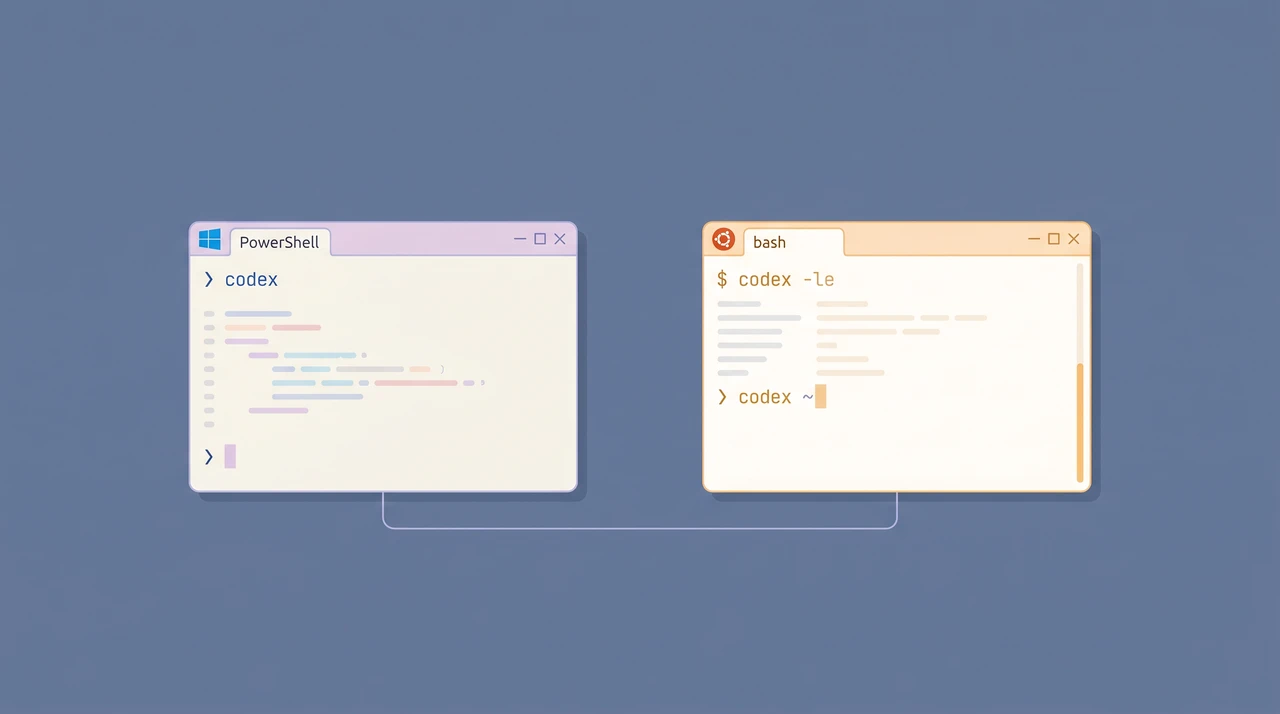
TL;DR: As of 2026, Codex CLI runs on Windows two ways — native (first-party documented, with an AppContainer sandbox that OpenAI now tells you to use by default) and WSL2 (the alternative for Linux-native workflows). Native installs in two commands and is OpenAI’s recommended path; WSL2 provides a Linux environment and its corresponding sandbox. This guide covers both paths end-to-end, the differences in their sandbox models, how to route through OfoxAI instead of paying OpenAI directly, and the three pitfalls that bite Windows users first.
Choose the WSL2 installation for Linux tooling, or the native Windows installation for a Windows workspace. See the current config guide for provider and permission settings.
What Changed for Windows in 2026
For most of 2025 the only credible way to run Codex CLI on Windows was WSL2. Native installation existed but came with a warning label, a half-finished sandbox, and quiet bugs around file path handling. OpenAI closed that gap in early 2026: there is now a first-party Windows install page that says outright “use the native Windows sandbox by default,” the native binary ships with two AppContainer-based sandbox modes, and npm install -g @openai/codex does the right thing in PowerShell without any tricks.
The change is real, but it does not make WSL2 obsolete. The same install page tells you to choose WSL2 “when you need a Linux-native environment on Windows, when your workflow already lives in WSL2, or when neither native Windows sandbox mode meets your needs.” If your AGENTS.md calls make, expects find -name, or assumes a /tmp exists, WSL2 makes that prompt work without translation.
The right framing: native is the default for “Windows is just my desktop OS, my code is normal,” and WSL2 is the default for “I actually use Linux tooling and Windows is the shell around it.”
What You Need Before You Start
| Requirement | Native Windows | WSL2 |
|---|---|---|
| OS | Windows 10 22H2 or Windows 11 | Windows 10 22H2 or Windows 11 |
| Virtualization | Not required | VT-x or AMD-V enabled in BIOS |
| Node.js | 22 LTS or newer | 22 LTS or newer (installed inside the distro) |
| Disk | ~80 MB for Codex + node_modules wrapper | ~2 GB for the distro + Codex |
| Admin rights | Only to add npm bin to PATH | Required for wsl --install |
| Auth | ChatGPT account or OpenAI-compatible API key | Same |
Codex CLI itself is the same Rust binary in either path — the install just delivers it through a different package layer.
Path A — WSL2 Install (For Linux-First Workflows)
OpenAI now recommends native by default, but WSL2 is still the right choice if your stack is Linux-first. Run it once, treat the WSL distro as your Codex workstation, and you have parity with macOS and Linux developers.
1. Install WSL2
Open PowerShell as Administrator and run:
wsl --installThis installs WSL itself, enables the virtual machine platform feature, and installs Ubuntu as the default distro. Reboot when prompted. On the next login Ubuntu finishes provisioning and asks you to set a username and password — these are Linux-side credentials, unrelated to your Windows account.
If wsl --install says WSL is already installed but you have no distro yet, explicitly pull one:
wsl --install -d Ubuntu2. Install Node.js 22 Inside WSL
Open the Ubuntu terminal (from Start Menu) and install Node via nvm:
curl -o- https://raw.githubusercontent.com/nvm-sh/nvm/master/install.sh | bash
exec "$SHELL"
nvm install 22
node --version  # should print v22.x.x
Apt’s nodejs package on Ubuntu still defaults to Node 18 on most LTS releases, which Codex will refuse. nvm is faster than fighting with apt repositories.
3. Install Codex CLI
npm install -g @openai/codex
codex --version
The package downloads a Linux-musl binary on postinstall; the “npm package” is mostly a launcher.
4. Authenticate
The first time you run codex with no arguments it opens a browser tab — yes, from inside WSL — and walks you through ChatGPT login. The OAuth token is cached at ~/.codex/auth.json on the Linux side.
codex
# > Sign in with ChatGPT (recommended)
# > Provide an API key
If you have a ChatGPT Plus, Pro, Business, Edu, or Enterprise subscription, the OAuth path is the cheapest — Codex usage rides on top of your existing plan up to the monthly tier limit.
For per-token billing or for routing through OfoxAI, skip the OAuth flow and use Option B below.
5. (Optional) Work With Your Windows Files
WSL2 mounts your Windows drives at /mnt/c/, but do not put repos there if you care about performance — file I/O across the WSL/Windows boundary is slow enough to make Codex feel sluggish. Keep your code under ~/repos/ inside the Ubuntu home directory, and use VS Code’s Remote-WSL extension to edit from Windows.
mkdir -p ~/repos && cd ~/repos
git clone git@github.com:youruser/yourrepo.git
cd yourrepo
codex
Path B — Native Windows Install
If you want Codex to operate on a Windows-native project without the WSL detour, the path is shorter than it used to be.
1. Install Node.js 22
Download the LTS installer from nodejs.org and run it. Accept the default install location. The installer adds npm and node to your system PATH automatically — you may need to open a new PowerShell window for the change to take effect.
node --version
# v22.x.x
2. Install Codex
In PowerShell (no admin required if you installed Node for your user):
npm i -g @openai/codex
codex --version
If you see codex: The term 'codex' is not recognized, the npm global bin is not on PATH. Find the prefix with npm prefix -g and add the resulting directory to your User PATH variable through Settings → System → About → Advanced system settings → Environment Variables. Restart PowerShell.
3. Authenticate
Same flow as WSL — codex with no arguments opens a browser, or set OPENAI_API_KEY first:
$env:OPENAI_API_KEY = "sk-..."
codex
To persist across PowerShell sessions, set it as a user environment variable:
setx OPENAI_API_KEY "sk-..."
# Open a new PowerShell window for the change to take effect
4. Configure the Sandbox (Important)
Native Codex runs sandboxed by default, but you should know which mode you’re getting. Edit %USERPROFILE%\.codex\config.toml:
sandbox_mode = "workspace-write"

# Pick one of "elevated" or "unelevated" under the [windows] table.
# Elevated is preferred — it needs admin rights for first-time setup.
[windows]
sandbox = "elevated"
# sandbox = "unelevated"   # fallback when you can't run setup as admin
# sandbox_private_desktop = false   # only set to false if private desktop breaks UI tools
Elevated mode creates dedicated lower-privilege Windows sandbox users to run shell commands, applies filesystem permission boundaries on your repo so writes stay in-bounds, and uses firewall rules tied to the sandbox users to block unsanctioned network egress. This is the closest Windows analog to the Linux Landlock + seccomp setup.
Unelevated mode skips the dedicated-user impersonation step. It runs commands with a restricted token derived from your current user, applies ACL-based filesystem boundaries, and uses environment-level offline controls instead of dedicated firewall rules — meaning network blocking is weaker and easier for a misbehaving command to bypass. Use it only when admin install genuinely isn’t available.
Routing Through OfoxAI
Both install paths use OpenAI’s default endpoint out of the box. To route Codex through a different OpenAI-compatible provider — for unified billing across multiple AI tools, or for access in regions where direct OpenAI connectivity is flaky — set two environment variables.
On Native Windows (PowerShell)
setx OPENAI_API_KEY "<your OFOXAI_API_KEY>"
setx OPENAI_BASE_URL "https://api.ofox.ai/v1"
# Open a new PowerShell window after setx
codex --model openai/gpt-5.3-codex "Refactor this function"
Inside WSL2 (bash/zsh)
# Add to ~/.bashrc or ~/.zshrc
export OPENAI_API_KEY="<your OFOXAI_API_KEY>"
export OPENAI_BASE_URL="https://api.ofox.ai/v1"
source ~/.bashrc
codex --model openai/gpt-5.3-codex "Refactor this function"
The model id openai/gpt-5.3-codex matches OfoxAI’s catalog identifier for GPT-5.3 Codex — see the full model list for the other GPT-5 family variants you can swap in for non-coding work.
For the full Codex routing config — config.toml syntax, model swap rules, MCP servers — see our Codex CLI custom API configuration guide. For a side-by-side with the macOS and Linux setup paths, see the official Codex install walkthrough.
Sandbox Comparison: What’s Actually Different
The sandbox is where the WSL2-vs-native decision gets practical. Same sandbox_mode = "workspace-write" config, two different enforcement stacks underneath:
| Capability | WSL2 (Linux) | Native Windows (elevated) | Native Windows (unelevated) |
|---|---|---|---|
| Filesystem write isolation | Landlock LSM | ACLs + sandbox user | ACLs only |
| Network egress control | seccomp + nftables | Windows Firewall rules per sandbox user | None |
| Process isolation | namespace + cgroups | AppContainer + low-privilege user | AppContainer only |
| Tested against in training | Yes — primary | Limited | Limited |
| Workflow fit | Linux-native tools | Native Windows workflow | Check documented restrictions |
Choose WSL2 when the project depends on Linux tooling or POSIX shell scripts; use native Windows when the workflow belongs on the Windows filesystem.
Three Pitfalls That Bite Windows Users First
1. node: command not found after install. Most often: you installed Node from the .msi installer in a PowerShell window that was already open. The PATH update only applies to new windows. Close PowerShell, reopen, retry. If still missing, check Settings → Apps → Installed apps for the Node.js entry — sometimes the installer fails silently if a previous Node install is half-removed.
2. WSL2 says “the requested operation requires elevation.” You opened a regular PowerShell, not an Administrator one. Right-click PowerShell → Run as Administrator → retry wsl --install. The install needs to enable the Virtual Machine Platform optional component, which is a privileged operation.
3. Codex hangs on the first run inside WSL. Check the process, login URL, DNS/proxy configuration and listening or outbound connections. A firewall dialog is one possibility, not a diagnosis from a quiet terminal. Read the error before changing firewall rules.
Which One Should You Actually Pick?
Honest decision rules, no hand-waving:
- Pick WSL2 if your repo’s build tools are Linux-first (Makefile, bash scripts, Docker Compose with Linux images), you already have WSL installed for other reasons, or you want maximum sandbox confidence for an unfamiliar codebase.
- Pick native if your project is a JavaScript/TypeScript/Python app that’s already happy on Windows, you don’t want a second OS in your stack, or you’re on a managed Windows machine where you can’t enable virtualization.
- Run both if you bounce between projects with different toolchains — they don’t conflict, you can install Codex in both places, and switching is
wslversus a fresh PowerShell window.
Windows is no longer a second-class Codex target — but the right install is still the one that matches the toolchain you actually use. If your AGENTS.md assumes Linux, install Linux. If it doesn’t, save the VM.
For an end-to-end walkthrough of using Codex once it’s installed — agent loops, approval modes, when to use it instead of Claude Code — see our Codex CLI real-world workflow guide and the terminal coding agents comparison. If you’re setting up Claude Code on the same Windows box, our Claude Code OfoxAI configuration guide covers that side, and the API gateway primer explains why a single endpoint for both tools is worth the small setup tax.
Sources
- OpenAI Codex CLI install docs — Windows
- OpenAI Codex CLI overview
- OfoxAI model catalog (machine-readable)
- WSL2 install reference
The Codex error index has the ones that survive a correct install.
Frequently Asked Questions
- Is Codex CLI on native Windows production-ready?
- OpenAI documents native Windows support; suitability still depends on your workflow and policy. Its Windows install page tells you to 'use the native Windows sandbox by default' — it ships first-party install docs and an AppContainer-based sandbox with two modes: 'elevated' (lower-privilege sandbox users plus firewall rules) and 'unelevated' (ACL-based filesystem boundaries). WSL2 is positioned as the alternative for Linux-native workflows or when neither native mode meets your needs, not as the production default.
- Do I need WSL2 if I have native Codex working?
- Only if your repos already live in WSL2, you rely on Linux-only tooling (make, specific Docker workflows, POSIX shell scripts in AGENTS.md), or you want the Linux Landlock/seccomp sandbox specifically. For pure JavaScript/TypeScript/Python work on a Windows filesystem, native Codex is what OpenAI now recommends by default.
- Which Codex model is the default on Windows?
- The available and default model depends on the installed client, authentication mode, account and provider. Check the model picker or current CLI help instead of assuming a fixed Windows default. A provider catalog ID must match the selected provider.
- Why does
wsl --installfinish butwslthen says no distribution is installed? - Two common causes. Virtualization is disabled in BIOS — check
systeminfo | findstr Hyper-Vand enable VT-x/AMD-V. Or the install needs a reboot before the default Ubuntu distro finishes provisioning — restart, then runwsl --install -d Ubuntuexplicitly.