How to Set Up Gemini 4 Computer Use
Build a Gemini Computer Use browser loop, test action handling locally, choose desktop or Android adapters and handle approvals, screenshots and stopping.
 Ofox

Gemini 4 Computer Use proposes screen actions; your application must execute them and return a fresh observation. Start with Google’s Interactions API, a supported model such as gemini-4-hydrogen, and a computer_use tool whose environment matches your executor. Setting environment: "desktop" does not give the model control of your computer or install an operating-system driver.
This guide takes you through a small browser setup, explains what changes for desktop and Android, and gives you a downloadable controller with explicit approval and stopping behavior. Documentation and package checks are dated November 13, 2026. Google’s current Computer Use documentation lists Carbon, Argon and Hydrogen among the supported models. The example uses Hydrogen; choosing among them is a separate Gemini 4 model-selection decision.
Ofox publishes this article. Our evidence consists of 22 offline tests using synthetic model responses, plus a real Chrome check of the local test page operated through a separate UI tool. The supplied Python Playwright runner has not been executed against a model or validated end to end. We did not run paid inference, test a desktop or Android executor, or measure model performance. Those distinctions matter when deciding what you can reuse and what you must still validate in your environment.
Choose the API contract before the execution environment
A Computer Use agent has three jobs: the model proposes actions, an executor performs supported actions, and a verifier checks the application result. You supply the last two. A final model message saying “done” is not proof that a form was submitted, a file was saved or a button was clicked.
Use one API contract consistently. This guide uses Interactions, including steps, function_call, function_result and previous_interaction_id. The official reference repository we checked at commit 77c9797e943aad63bbc963b7fd092a9e51c07863 uses GenerateContent. Its source also distinguishes current actions from legacy preview actions. It is useful reference code, but you cannot copy its response parser unchanged into an Interactions loop.
| Boundary | This Interactions example | What must stay consistent |
|---|---|---|
| Model | gemini-4-hydrogen | Google project key and model access |
| Tool declaration | {"type":"computer_use","environment":"browser"} | Environment and actions your executor implements |
| Proposed action | A function_call in steps | Call id, name and arguments |
| Observation returned | function_result with matching call_id | Result of that action, current URL and new screenshot |
| Conversation continuation | previous_interaction_id | The interaction that requested the actions |
| Task completion | Application-specific check | Not merely the model’s final text |
For Google access, use the project and key setup in the Hydrogen API guide. Keep the Google key in GEMINI_API_KEY for this example. An Ofox key belongs to Ofox’s separately documented authentication flow.
Ofox documents Chat Completions and a Gemini-native API route. General protocol support does not by itself establish support for Google’s current Interactions Computer Use contract. This tutorial therefore uses Google’s native route and makes no claim that replacing its base URL with Ofox makes the browser loop work. If your task only needs repository file tools, the Hydrogen Cline and OpenCode guide covers that different integration.
Install the local kit and verify it without a model key
Download the complete Computer Use fixture kit. Extract it and enter the gemini-computer-use-kit directory. It contains the controller, offline tests, a local HTML fixture, an optional live runner and a README. You do not need to reconstruct the missing parts of a code fragment.
Use Python 3.11 or newer for the package version checked here:
python3 -m venv .venv
source .venv/bin/activate
python -m pip install 'google-genai==3.3.0'
python test_controller.py
On Windows, activate the environment with .venv\Scripts\Activate.ps1 in PowerShell instead of source. The offline checks do not require Playwright or an API key. The expected result is 22 tests passed. We repeated them from a fresh extraction of the downloadable archive, not only from the working source directory.
The tests use real google-genai response classes with synthetic data and a fake page that records attempted actions. They check coordinate validation, matching call IDs, rejection before side effects, approval acceptance and refusal, repeated calls, incomplete responses, timeouts and the action limit. They do not launch a browser or prove that Google will accept a particular live request.
For the separate browser integration, install Playwright and its browser:
python -m pip install playwright
python -m playwright install chromium
From the kit directory, open another terminal and serve the fixture locally:
python -m http.server 8877 --bind 127.0.0.1Open http://127.0.0.1:8877/fixture.html. You should see an English page asking for ORANGE-42, an empty Marker field and a Check marker button. Enter the marker and click the button to confirm the page itself works. Reload it afterward so an agent starts from an empty field, not an already-completed task.
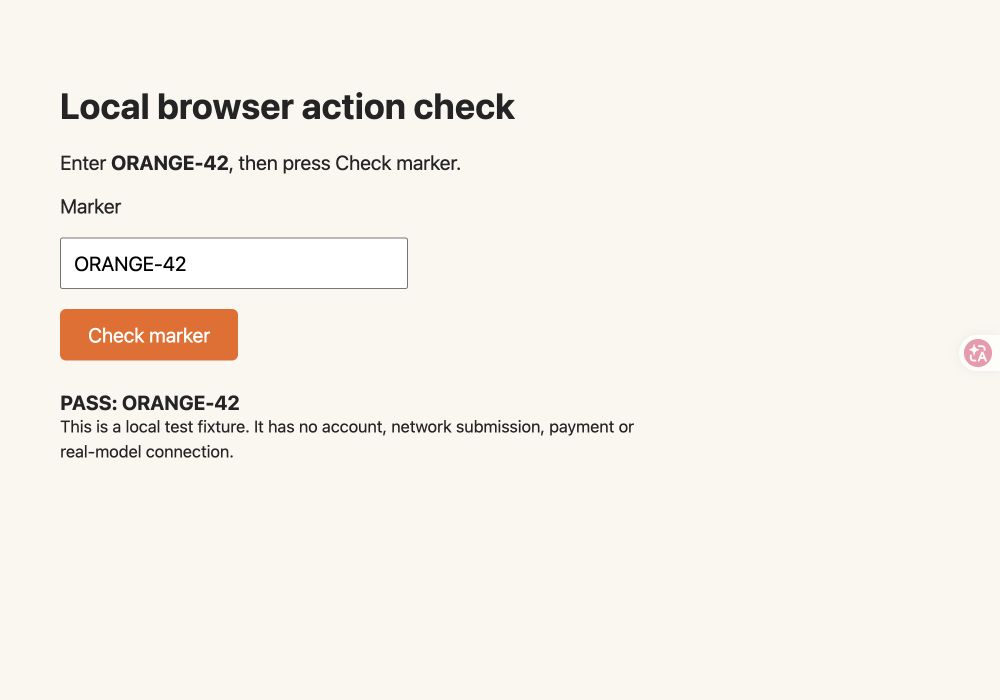
Actual Chrome screenshot of the local fixture, operated through a separate UI tool at a 1000 × 700 viewport. This proves the fixture’s visible behavior, not that Hydrogen or the supplied Python runner completed it. No model was connected for this screenshot.
Run the optional Google browser integration
Keep the local HTTP server running. In the activated Python environment, set your Google GEMINI_API_KEY using your normal secret-management method. Do not put the key in the fixture or commit it to source control. The next command calls the real service and may consume your project’s allowance or paid usage; unlike the offline tests, it is not a no-model test.
python run_live.pyThe runner creates a fresh browser context with a 1000 × 700 CSS-pixel viewport, a device scale factor of 1, blocked service workers and disabled downloads. Its browser request filter permits only the fixture’s exact URL. This keeps the demonstration small; it is not an operating-system sandbox or a general defense for arbitrary websites.
The complete task prompt in the runner is:
Read the local page instructions. Enter the marker in its field and click Check marker. Stop when the page shows PASS. Stay on this page.
The first request includes that prompt, the initial screenshot and the Computer Use tool. The key settings are:
interaction = client.interactions.create(
    model="gemini-4-hydrogen",
    input=[
        {"type": "text", "text": task_prompt},
        {"type": "image", "data": screenshot_base64, "mime_type": "image/png"}
    ],
    tools=[{
        "type": "computer_use",
        "environment": "browser",
        "enable_prompt_injection_detection": True
    }],
    timeout=120.0,
    automatic_continuation=False
)
This excerpt explains the request boundary; use the complete kit to run it. The kit additionally excludes predefined actions it does not implement and rejects them in the executor. It supports click, type, wait and take_screenshot for this one fixture. It does not silently report an unsupported action as successful.
If approval is requested, the terminal displays the intent and explanation. Type APPROVE only to authorize the shown action; any other response stops the run. The runner’s application-level success condition is exactly PASS: ORANGE-42 in the page’s result element. It then saves result.png. A model that stops while the page still says “Waiting for input” fails this acceptance check.
Because we did not execute this live runner, treat a successful run in your own account as new evidence. Record its client version, model ID, actual result and usage. Do not reuse the offline test duration as a speed measurement or its fake responses as billing data.
Keep coordinates, screenshots and call IDs aligned
Google’s current actions use normalized integer coordinates from 0 through 999, scaled against a 1000-unit axis. Convert them using the dimensions of the observation your executor actually uses:
def to_pixel(value, size):
    if type(value) is not int or not 0 <= value <= 999:
        raise ValueError("Expected an integer coordinate from 0 to 999")
    return int(value * size / 1000)
For a 1000 × 700 screenshot, a synthetic action at (400, 500) maps to (400, 350) CSS pixels. This is a conversion example, not a recorded Hydrogen prediction. The kit validates coordinates before execution and captures screenshots with scale="css" so its browser coordinate system stays consistent.
Do not use a full desktop screenshot with browser-viewport coordinates, or crop an image and forget the crop offset. On high-DPI desktops, screenshot pixels and input coordinates can differ. Mobile rotation creates another transform. A successful API request cannot compensate for an executor clicking in the wrong coordinate space.
After each executed call, return its own ID, the current URL and a fresh screenshot. The kit’s result follows this structure:
{
  "type": "function_result",
  "name": "click",
  "call_id": "the-id-from-the-model-function-call",
  "result": [
    {"type": "text", "text": "{\"url\":\"http://127.0.0.1:8877/fixture.html\"}"},
    {"type": "image", "data": "BASE64_OF_NEW_SCREENSHOT", "mime_type": "image/png"}
  ]
}
The placeholders above are explanatory, not a response you can send unchanged. If a response contains several calls, each executed call needs a matching result. The following request uses previous_interaction_id for the interaction containing those calls. That interaction ID is not interchangeable with a function’s call ID.
The example relies on stored interaction state. Do not add store=False without redesigning history handling using the Interactions documentation. If you implement a different protocol or maintain history yourself, preserve its required model state and signatures. The Gemini missing-thought-signature guide explains one failure pattern; it does not establish that this example has passed a live signature test.
Adapt the executor for desktop or Android
The environment tells the model which action vocabulary to use. It does not provision a browser, virtual machine, desktop session or phone. Google’s environment reference distinguishes these three targets:
| Target | Interactions tool setting | Executor you must supply | First acceptance check |
|---|---|---|---|
| Browser | "environment": "browser" | Browser screenshot, pointer, keyboard and permitted navigation | One local form changes to the expected state |
| Desktop | "environment": "desktop" | OS screen capture and input control in the same coordinate space | A harmless local application receives text at the intended location |
| Mobile | "environment": "mobile" | Device/emulator capture and Android-oriented action handlers | A test app changes state after a tap and text entry |
The downloadable kit implements only the browser fixture. To wire a desktop adapter, keep the request/result loop but replace the browser page operations:
- Choose a dedicated test desktop or virtual machine and a single display. Fix its size for the first run; avoid a personal session containing unrelated windows.
- Verify screen capture independently and record the captured image’s width and height. Verify one harmless input action independently in a local test app before connecting a model.
- Map normalized coordinates into the same input coordinate system. If the capture library returns device pixels while the input library uses logical coordinates, resize the observation or apply a documented scale transform consistently.
- Bind each supported desktop action to an explicit handler: pointer click, text insertion, key operation, scrolling and a new capture. Exclude or reject unimplemented actions; browser navigation is not a generic desktop action.
- Change the tool setting to
desktop, reuse call-ID/result correlation, and verify the application state after the first action. Do not infer success from a cursor movement alone.
On macOS, screen-recording access and Accessibility control are separate permissions. Being able to capture the screen does not prove the chosen process can click or type. Grant only the access required by the executor you deliberately installed; these settings do not require a different Gemini API key. Windows and Linux need their own capture/input backends and session checks; the browser kit does not provide those drivers.
For an Android device or emulator, first establish the device connection and capture path using the official Android Debug Bridge instructions. With an authorized test device connected, these commands identify it and retrieve a screenshot without calling Gemini:
adb devices
adb -s YOUR_TEST_SERIAL shell screencap /sdcard/computer-use-test.png
adb -s YOUR_TEST_SERIAL pull /sdcard/computer-use-test.png ./computer-use-test.png
Replace the serial with the intended test device, not an arbitrary device from a multi-device list. An unauthorized device must be authorized on the device before proceeding. Open the captured PNG, verify that it shows the expected test app, and lock orientation for the first run.
Next, implement the mobile action mapping for that device: click becomes a device tap after coordinate conversion; type inserts text into the focused field; go_back performs device Back; and open_app/list_apps must resolve real package identities. Map drag and long-press behavior explicitly if you enable those actions. Return a new device screenshot after execution, then set environment to mobile and run one small test-app task. Google’s documented mobile action set is Android-optimized; it is not evidence that this ADB workflow controls an iPhone.
Neither the desktop nor Android steps above were tested on a device for this article. Their purpose is to identify the actual integration work and its acceptance points, rather than imply that changing one environment string completes a port.
Handle confirmation, stopping and recovery explicitly
Keep the model’s intent as an explanation of the proposed action, not as authorization. When a function call includes safety_decision.decision: "require_confirmation", pause for the user. Google’s safety-decision documentation specifies acknowledgement after approval. The kit adds safety_acknowledgement: true inside the action-result text only after the user approves.
The controller validates the whole batch and obtains required approvals before executing any member. It stops on unsupported actions, malformed safety metadata and other explicit decision states. This is intentionally conservative for the fixture. An absent safety decision does not replace your application’s own rules about which tasks a user authorized.
The defaults allow 12 action batches and 120 seconds per model request, with automatic continuation disabled. They are not a global time limit or a dollar budget: a human approval can wait, a batch may contain several actions, and screenshots plus repeated context contribute to usage. The SDK may also have transport-level retry behavior. We make no zero-retry or fixed-cost claim.
If the request after a click times out, the click may already have happened. The application does not replay that action automatically. Stop, inspect the real page, retain the interaction and call IDs, and decide whether to continue the recorded conversation or start a fresh task. Do not restart an unknown form submission blindly. For this local fixture, inspect the field and output, then reload to clear state before a clean test.
A screenshot or browser failure after an action cannot roll that action back. For a production workflow, define an independent result check appropriate to the application, such as a saved record identifier or a changed document value. The fixture’s visible marker is sufficient only for this simple page; it is not a universal transaction verifier. The earlier offline Computer Use controller lab explores a different, OpenAI-oriented controller and receiver-checking approach.
Diagnose failures at the layer that produced them
| Symptom | Check first | Concrete next step |
|---|---|---|
| Tool or model is rejected | Model access, API contract and SDK | Confirm Google project access and the exact Interactions tool schema; use the Hydrogen access guide |
Parser expects candidates but sees steps | Mixed GenerateContent and Interactions examples | Choose one contract and change parser plus continuation together |
| Executor receives an unfamiliar action | Current versus legacy names, or an unimplemented handler | Compare the action name with the selected environment reference; stop rather than reporting fake success |
| Click lands beside the target | Screenshot scale, viewport, crop or orientation | Measure the observation and executor coordinate spaces and apply one consistent transform |
| Screenshot works but typing does not | Local input permissions or focus | Test a harmless manual input action through the chosen backend, separately from the model |
| First action works; next request fails | Call ID, interaction ID or preserved model state | Match each result to its call and keep the correct conversation continuation |
| Model says finished; application is unchanged | Missing independent completion check | Inspect the actual application result; the kit fails unless the fixture shows its exact expected state |
| Too many turns or repeated actions | Loop state, stale observations or task ambiguity | Stop at the configured limit, inspect the newest screenshot and start with a smaller task |
Authentication, quota and malformed requests are also covered in the Gemini API error guide. It was written around Argon, so apply its general error categories to the actual Hydrogen response rather than assuming all model-specific details transfer. If investigating a separate Ofox route, use Ofox’s documented error handling for that route; it does not replace Google project diagnostics.
Decide whether you need an API loop or a packaged agent
Use this API approach when you need to own the executor, approval behavior, observations and application verifier. If your immediate goal is to use a ready-made desktop product, the Antigravity platform overview addresses a different starting point. The Chrome extension, Computer Use and remote-control comparison also separates those product categories.
Before moving beyond the fixture, save the model and SDK version, selected API, environment, screenshot dimensions, implemented action list, approval policy and independent success condition. Keep a test record that distinguishes offline controller checks, browser operation and real model inference. For this kit, only the first two have evidence, and the browser check was separate from the Python runner.
Your next milestone is one live task with the intended account, executor and verifier all working together. Expand the action set or move to desktop/mobile only after that result is observable and repeatable. Adding more model capability does not remove the need to know which action ran and what it changed.