Gemini Omni 1.2 Flash API: Generate, Download and Check a Video
Use the Gemini Omni 1.2 Flash API with a complete Python kit for video generation, file polling, download recovery and media validation, plus editing limits.
 Ofox

Use gemini-omni-1.2-flash with Google’s Interactions API, request video output, and check three separate results: the interaction completed, the video file is ready, and the downloaded media passes your acceptance checks. A completed API response is not the same thing as a downloaded, playable video. Generating again because a file is still processing can create unnecessary work and charges.
This guide takes a small text-to-video request through that entire path. It includes a downloadable Python runner, recovery commands and a local media verifier, then explains which settings change for references, editing and extension. Official documentation was rechecked on November 15, 2026.
Ofox publishes this guide. Our evidence is 24 offline helper and runner tests using synthetic responses and the actual Google SDK, plus 10 local media-verifier checks using original FFmpeg-generated test files. No real Omni generation, model-quality comparison, latency measurement or billing test was performed. The supplied live runner is an integration template validated offline, not a claim of a successful end-to-end Google call. No synthetic test clip is presented as an Omni output.
Choose the model and API route before writing the request
The current Google model card identifies gemini-omni-1.2-flash and documents text, image and video inputs, with video and native audio output. Do not substitute a text-only Gemini model or a legacy Veo request schema. Our existing Veo 3.1 API tutorial covers a different model integration.
Use a Google project with access to the model and the necessary billing or allowance configuration. Obtain and manage its key through Google’s API-key documentation. A consumer app subscription does not by itself establish that an API project can run the request. Keep the key in GEMINI_API_KEY through your normal secret-management method; do not insert it in the prompt or a public troubleshooting log.
This guide uses the Google endpoint https://generativelanguage.googleapis.com/v1beta/interactions. Ofox has a separately documented video-task API, including task creation, status retrieval and its own authentication. Those contracts are useful when you use an Ofox-supported video model, but they are not interchangeable with the Google request below. This article does not establish Omni availability through Ofox or quote an Ofox Omni price.
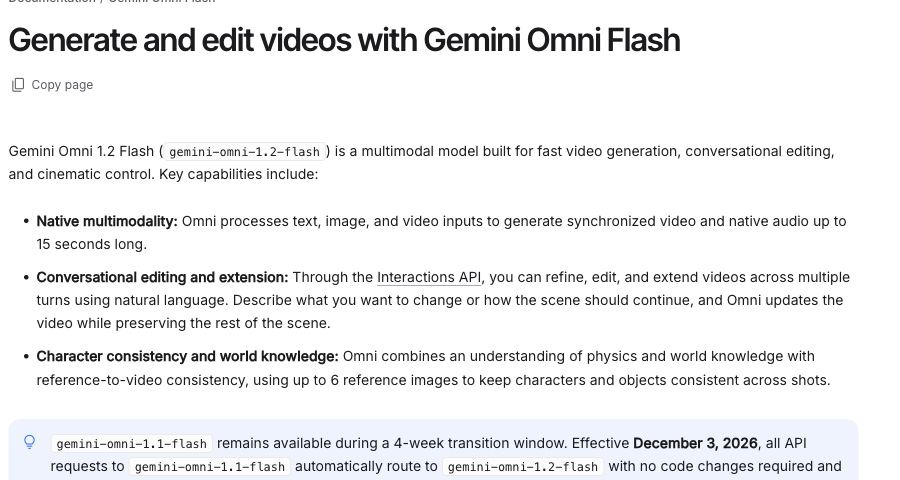
Real screenshot of Google’s English documentation, cropped to exclude account information. It shows published product guidance, not a generated result or an Ofox integration test.
Google documents a future routing change: requests to gemini-omni-1.1-flash switch to 1.2 on December 3, 2026. As of this article’s verification date, that date has not arrived. Use the explicit 1.2 ID for this example instead of relying on the future alias change. The model card also marks gemini-omni-flash-preview as shut down.
Install the kit and run its offline checks
Download the complete Omni video kit, extract it and enter the omni-video-kit directory. It contains the live runner, result-handling helpers, media verifier, two test modules and an English README. You do not need to assemble the core program from disconnected snippets.
Use Python 3.11 or newer and an isolated environment:
python -m venv .venv
source .venv/bin/activate
python -m pip install 'google-genai==3.3.0' httpx
python -m unittest test_video_result.py test_runner_offline.py -v
On Windows PowerShell, activate with .venv\Scripts\Activate.ps1. Installing packages contacts the package registry. The tests themselves use synthetic data, mocked service calls and a blocked-network harness for the runner; they do not need your Google key. The expected result is 24 tests passed.
The helper tests cover completed versus incomplete interactions, URI validation, file-processing states and bounded polling. The runner tests exercise the installed SDK’s serialized request, recovery via GET, timeout and service-error behavior, preservation of partial downloads and refusal to overwrite an output created concurrently. In particular, a mocked 503 or timeout results in one creation POST, not an automatic repeat.
The media verifier is a separate layer. It requires ffmpeg and ffprobe installed from a trusted package manager or official distribution. Check that both commands are available before the real workflow. Its local tests used generated patterns and tones, silent audio, malformed files and deliberately inconsistent track durations. Passing those tests validates the checker, not the model’s output.
Generate one small video with explicit settings
Start with one subject, one movement and a fixed camera so you can judge whether the output follows the request. The runner’s prompt is:
A single green leaf drifts across a still pond from left to right. Fixed wide shot, soft daylight. Quiet natural water sounds, no speech, no music, no text.
Its intended result is a three-second, landscape, 720p video with natural water audio. That is a requested outcome, not a result we observed. The exact creation call inside the complete runner is:
interaction = client.interactions.create(
    model="gemini-omni-1.2-flash",
    input=(
        "A single green leaf drifts across a still pond from left to right. "
        "Fixed wide shot, soft daylight. Quiet natural water sounds, "
        "no speech, no music, no text."
    ),
    response_format={
        "type": "video",
        "delivery": "uri",
        "duration": "3s",
        "resolution": "720p",
        "aspect_ratio": "16:9"
    },
    store=True,
    timeout=180,
    automatic_continuation=False
)
The excerpt assumes the client and recovery handling supplied in run_live.py; use the full script for execution. It sets an HTTP timeout and disables SDK automatic retries with retry_options.attempts=1. It also reserves a local recovery record before submitting the request. These are deliberate safeguards against resubmitting creation when the server outcome is uncertain, not guarantees of exactly-once execution across arbitrary infrastructure.
After setting your own Google project key, the following command creates a real request and can consume allowance or paid usage:
python run_live.py --create --out leaf.mp4We deliberately use store=True so the result can be retrieved and used in a subsequent editing conversation. Google’s Omni guide also describes synchronous one-shot generation with storage disabled. That choice trades away later editing through previous_interaction_id; it is not appropriate to silently apply it to this recoverable example.
URI delivery avoids requiring a large video to fit inside the JSON response. It does not mean all generation must run as a background task. Generation mode, interaction completion and file readiness are separate concerns. The next section explains the states the runner handles rather than treating every wait as another generation request.
Separate interaction completion, file readiness and download recovery
The runner saves leaf.mp4.interaction.json and prints the interaction ID and status when a response arrives. Treat this as a private recovery record: it can contain content or media data, and it is not proof of a completed video.
| Boundary | What the program checks | What to retain or do next |
|---|---|---|
| Creation submitted, response unknown | Pending local record exists even if no ID arrived | Inspect account/provider records before another creation |
| Interaction returned | Status is completed, no reported errors, a video output exists | Preserve the interaction ID and response |
| Video delivered by URI | URI maps to an expected Google file resource | Poll that resource; do not interpret a file URI as a new task ID |
| File processing | PROCESSING, ACTIVE or FAILED | Wait while processing, download when active, stop on failure or unknown state |
| Download transfer | Bytes written to a new .part file | Preserve partial data on failure; do not present it as finished media |
| Local publication | Nonempty result published without replacing an existing output | Run media and creative acceptance before using it |
The helper accepts only the documented HTTPS Google file origin and resource-path shape. It normalizes a download URI such as a /v1beta/files/...:download?alt=media resource into the files/... name needed by the Files API. It rejects credential-bearing or unrelated URLs rather than fetching arbitrary links found in output. The SDK handles authentication; a key does not belong in a copied download URL.
The demonstration polls file readiness at most 60 times, with five-second pauses. Its HTTP timeout is 180 seconds. This is a poll-count bound plus per-request timeout, not a five-minute total deadline or a promised generation latency. Transport errors propagate without triggering another creation. The current runner selects the SDK’s first video output; adapt and test it if your application expects multiple outputs.
To recover an existing interaction, use its actual returned ID:
python run_live.py --resume YOUR_INTERACTION_ID --out recovered-leaf.mp4This uses a retrieval GET, not a creation POST. It does not continuously poll an unfinished interaction: inspect the saved status and retrieve again later if appropriate. If the initial request timed out before any ID arrived, this script cannot discover the unknown server operation. The pending record blocks a second creation under the same output name; investigate the original request instead of bypassing that guard with a new filename.
Existing output or .part files stop the program before submission. A failed download may leave its partial file and recovery record intact. For recovery of a known existing interaction, choose a fresh output name as above. Final publication uses a same-directory hard link followed by removal of .part, so an output created concurrently is not overwritten. If your filesystem does not support that operation, preserve the complete partial file and resolve local publication; do not generate another video to fix a filesystem issue.
Check the file, then watch and listen
Once the runner reports a saved file, verify the local media:
python verify_video.py leaf.mp4 --seconds 3 --require-audioThe verifier requires a nonempty local file, a normal video stream with valid dimensions, positive duration and an audio stream when requested. It checks the container and each normal video track against the requested duration using a 0.25-second tolerance selected for this fixture. It then decodes normal video tracks and audio with FFmpeg. Missing track-duration metadata fails the strict duration check instead of being silently replaced by the container duration.
That track check matters: a three-second container can contain only one second of video and three seconds of audio. Checking the container alone would miss the short picture. Similarly, an audio stream can exist while containing silence. The verifier reports stream presence, not audibility, synchronization or artistic quality.
For this leaf fixture, complete a separate viewing check:
| Acceptance question | What to inspect | If it fails |
|---|---|---|
| Is the requested subject present? | One green leaf on a pond, rather than unrelated subjects | Revise one subject constraint and record the new attempt |
| Is motion correct? | Leaf moves left to right; camera remains fixed | Distinguish subject motion from camera motion in the prompt |
| Is the clip continuous? | No unexpected cut, flicker or abrupt ending | Compare the start, middle and final frames before editing or regenerating |
| Is the sound usable? | Audible water, no unwanted speech or music | Listen; stream existence alone cannot pass this check |
| Is it fit for the destination? | Requested framing, readable subject, no unwanted text | Check the actual target layout, not only the file metadata |
We did not generate or score a real leaf clip. These are concrete acceptance criteria for your authorized run. Keep the requested prompt, exact settings and actual result together so a second attempt can be compared. A successful decode is a technical milestone, not a reason to claim that the model followed the brief.
Choose references, editing and extension settings deliberately
The model specification and task-specific Omni documentation describe different limits for different modes. Do not apply the longest new-generation duration to every operation.
| Operation | Documented boundary | Practical consequence |
|---|---|---|
| New video | Whole seconds from 3–15; default 10 | Set a duration explicitly for a reproducible fixture |
| First and last frames | 3–10 seconds | Two endpoint frames do not support a 15-second interpolation |
| Image references | Up to six across durations | Keep the role of each reference clear |
| Video references for new generation | 3–10-second outputs: up to three references; 11–15-second outputs: one; each reference up to three seconds | Count references separately from final output length |
| Edit input video | At most 15 seconds | Trim or split an unsuitable input before attempting an edit |
| Extension | Add 3–10 seconds per turn, up to 30 seconds total; last 10 seconds provide context | Track total duration and reintroduce important earlier details |
| Resolution | 360p, 720p, 1080p, 4k; 720p default | Google labels 1080p and 4K as upscaled; do not describe them as native capture |
Use natural language to identify what an image should preserve or how a video should influence the new shot. Video-reference audio is ignored, and video references are for new generation rather than editing or extension. Native audio output does not mean the API accepts uploaded audio inputs or audio references. Voice editing is unsupported.
Google also warns that referencing or reasoning across multiple videos is not supported and that multi-video prompting can produce degraded or unexpected results. The reference-count limits above are not a promise of reliable cross-video reasoning.
For a first reference-driven attempt, use a prompt with explicit roles rather than obsolete control tags:
Create a 5-second landscape shot.
Use the attached image as the appearance reference for the green leaf.
Keep its shape and color consistent.
The leaf drifts from left to right across still water.
Keep the camera fixed, with soft daylight and gentle water sounds.
Do not add speech, music, captions or extra leaves.
This template requires you to attach the actual image through the documented media-input contract; text mentioning an image does not upload it. Check that you have the right to use the material and that the target account accepts the requested operation. Google’s guide recommends trying clear natural-language roles before forcing a video_config.task, because that setting can impose stricter media combinations.
For editing a previously generated, stored video, this separate example creates an editing interaction. Save it as edit_saved_video.py; it reads a real prior ID from OMNI_PREVIOUS_INTERACTION_ID. It is another potentially billable operation, not an offline test or the resume-download command:
import os
from pathlib import Path
from google import genai

client = genai.Client(
    api_key=os.environ["GEMINI_API_KEY"],
    http_options={"timeout": 180000, "retry_options": {"attempts": 1}}
)
try:
    edit = client.interactions.create(
        model="gemini-omni-1.2-flash",
        previous_interaction_id=os.environ["OMNI_PREVIOUS_INTERACTION_ID"],
        input="Make the daylight warmer. Keep the leaf, its motion and the camera framing unchanged.",
        response_format={"type": "video", "delivery": "uri"},
        store=True,
        timeout=180,
        automatic_continuation=False
    )
    Path("edit-interaction.json").write_text(edit.model_dump_json(indent=2))
    print(edit.id, edit.status)
finally:
    client.close()
In the same activated environment and kit directory, keep GEMINI_API_KEY set and supply the ID of the stored generation you want to edit. On macOS or Linux:
export OMNI_PREVIOUS_INTERACTION_ID='YOUR_STORED_GENERATION_ID'
python edit_saved_video.py
In Windows PowerShell, set $env:OMNI_PREVIOUS_INTERACTION_ID = 'YOUR_STORED_GENERATION_ID', then run python edit_saved_video.py. Replace the placeholder with your actual generation interaction ID, not a Files API resource name. Keep edit-interaction.json private and retain each attempt’s record before another run.
After a successful returned interaction, retrieve its new ID with run_live.py --resume and a fresh output filename, then repeat media and visual acceptance. Unlike the packaged initial-generation runner, this short editing example does not reserve a pending record before its POST. If it times out without an ID, investigate account records before rerunning it; do not assume the edit never happened. Neither this editing call nor a live extension was executed for the article.
Uploaded-video editing or extension has regional restrictions in the EEA, Switzerland and the UK that differ from editing or extending model-generated videos. Extension appends to the end, not the middle or beginning. Adding dialogue to an uploaded video that already contains speech is restricted, while multi-turn voice extension of previously generated video is documented separately. Check the specific operation’s limitations rather than treating “video editing supported” as a universal permission.
Diagnose failures at the layer that failed
Start with the exact model, endpoint, SDK version, redacted error body and available interaction or file identifier. Our existing Gemini 4 API error guide explains how to separate authentication, access, malformed requests and quota failures. Its model-specific examples use Argon; keep the Omni model ID and video request contract here.
| Symptom | Likely boundary to inspect | Appropriate next step |
|---|---|---|
| HTTP 200 but no video in your parser | Response contract or incomplete interaction | SDK output_video is a convenience property; raw REST video content is inside steps |
| Invalid duration with first/last frames | Operation-specific parameter limit | Use a valid duration for that mode rather than repeating the same request |
| Request rejects a generation setting | Unsupported parameter | Remove unsupported system instructions, temperature, top_p, stop sequences or separate negative-prompt fields; put constraints in ordinary prompt text |
| Interaction complete, file still processing | File readiness | Continue checking that resource without submitting new generation |
File state is FAILED or unknown | Service processing or schema change | Stop and retain evidence; do not treat any non-processing state as success |
| Client timeout, unknown creation outcome | Transport versus server execution | Preserve pending record and investigate before another POST |
| Download succeeded, verifier fails | Media bytes, tracks or local tools | Inspect the local file and checker output before deciding to retrieve or regenerate |
| Uploaded-video operation unavailable | Region, source type or policy restriction | Check the documented account and operation limits rather than changing credentials blindly |
Safety-filter rejections require changing the request within the service’s supported policies, not retrying the same blocked prompt. Do not reuse temporary or credential-bearing URLs in public examples. For an application using Ofox’s separate contract, follow its video error codes and general retry guidance; these do not replace Google’s error contract.
Keep a task record before scaling the workflow
For each real attempt, retain the model ID, prompt version, reference identities, duration, resolution, aspect ratio, storage choice, interaction ID, file resource, local output hash and acceptance result. Keep secrets and private content out of shared reports. Record whether a recovery was a GET for existing work or a POST creating new work; counting all requests as new generations obscures both debugging and cost analysis.
Check Google’s current Omni pricing for the exact mode and resolution before estimating spend. This article supplies no measured generation bill or Ofox rate. Track failed attempts, edits and extensions separately where their usage is known, and distinguish unknown usage from zero. A shorter draft can still increase total task cost if it is followed by multiple paid revisions; compare the accepted final workflow rather than one isolated request.
Start with one accepted small fixture, then add one complexity at a time: a reference image, a different aspect ratio, a stored edit, or an extension. Keep the earlier working configuration available for comparison. Scale only after your real account can produce, retrieve and validate the output you need. The deliverable is the usable video and its acceptance record, not merely a model message saying generation is complete.