GPT Image local edits: check the mask and the supposedly unchanged pixels
Run a GPT Image masked edit and inspect pixels outside the target area. Includes real outputs, alpha-mask checks, a pixel comparison and reproducible inputs.
 Ofox
Ofox 
A mask tells an image-editing request where you want a change, but you should still inspect the rest of the returned image. In our GPT Image 2.5 Flare test, a masked background edit looked close to the original outside the target strip, yet pixel comparison found differences there. The output was not a lossless patch.
This tutorial shows the original, mask convention, actual returned images and a simple pixel check. It is for developers and creators who need to change part of a product image without silently accepting changes to the product. It does not claim that every masked edit behaves the same way or that a single example measures overall model quality.
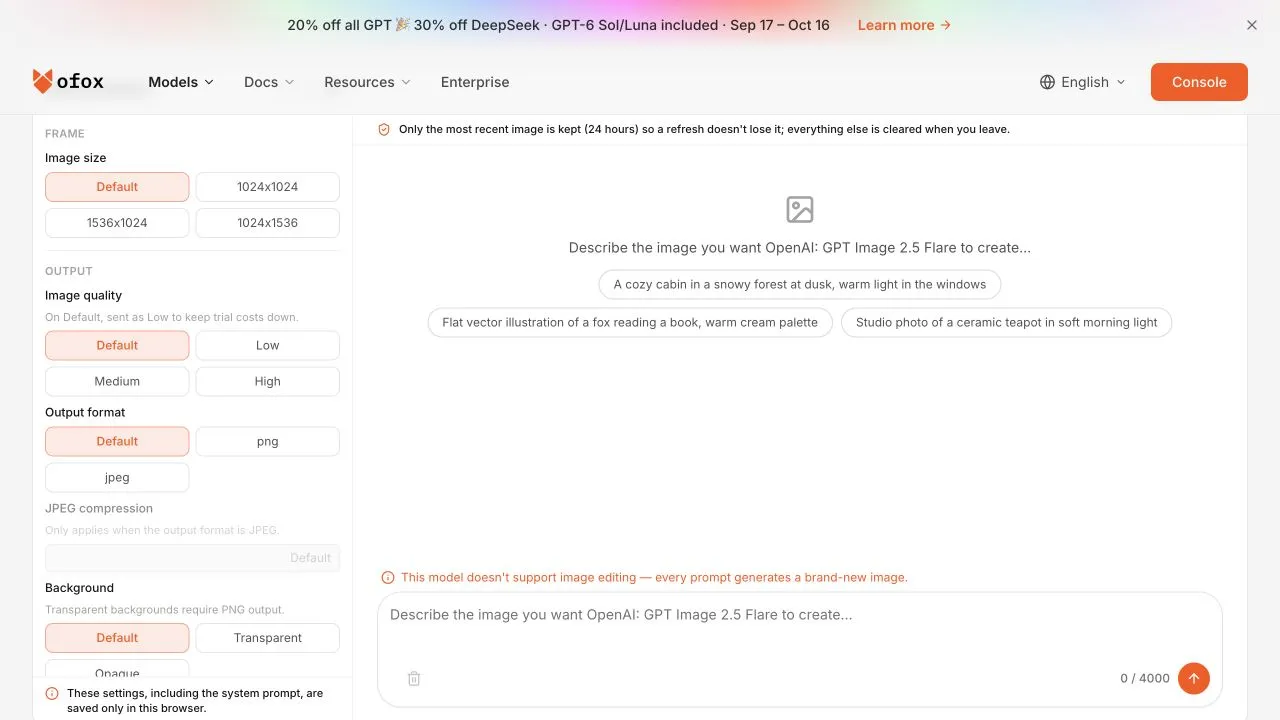
The public embedded playground captured October 12 displayed a notice that image editing was unavailable in that interface. The editing results in this article came from the API route shown below, not from this playground. Do not look for a mask or reference-upload control in this captured interface.
Define the area before making the request
We reused an Ofox-generated reference from September 13: an unbranded amber bottle with an ivory cap. It is a synthetic product image, not a photograph of a customer’s product. The source is a 1024 × 1024 PNG. There is no label text, so this test says nothing about preserving logos, ingredients or regulatory copy.
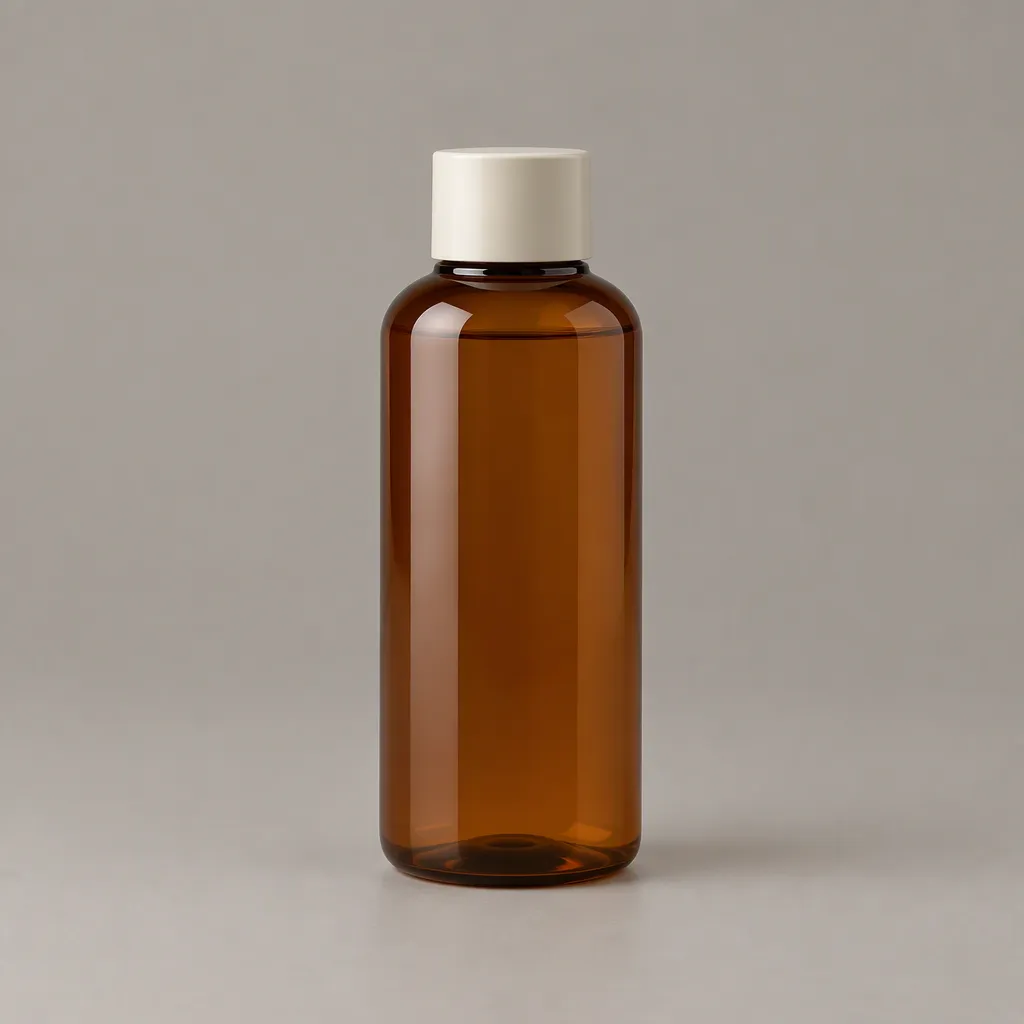
Our target area is deliberately simple: the leftmost 256 columns, from x = 0 through x = 255. The bottle sits outside that strip. We request a muted sage background only inside the strip, keeping the bottle, cap, position and other areas unchanged.
The mask is an RGBA PNG of the same dimensions. Alpha is zero in the editable strip and fully opaque elsewhere. A grayscale image that merely looks black and white is not equivalent to this alpha mask. OpenAI’s image-edit reference documents transparent mask regions and the relationship between the mask and the input image; always check the endpoint’s current file constraints.
Validate the mask locally
Before uploading, inspect the file mode, dimensions and alpha distribution. This code validates our fixture; adjust the region to your actual intended edit.
from PIL import Image

source = Image.open("source.png")
mask = Image.open("mask-left.png")
assert source.size == mask.size == (1024, 1024)
assert mask.mode == "RGBA"
alpha = mask.getchannel("A")
assert alpha.crop((0, 0, 256, 1024)).getextrema() == (0, 0)
assert alpha.crop((256, 0, 1024, 1024)).getextrema() == (255, 255)
These assertions catch a reversed or flattened alpha channel before a billable request. In a typical editor, check the actual transparency rather than relying on the mask’s preview color. Save the original and the mask separately so neither is overwritten by an output image.
If several reference images are supplied, confirm which one the endpoint applies the mask to. Keep the intended base image first and do not assume the mask is a global instruction over every reference. Our mask test supplied exactly one image.
Send the actual edit
The successful test used openai/gpt-image-2.5-flare at the Ofox /v1/images/edits endpoint. It sent size=1024x1024 and n=1, with no explicit quality setting. The response reported quality: low; that is a recorded response field, not a promise about every request’s default.
curl --silent --show-error --fail-with-body \
  --connect-timeout 15 --max-time 120 \
  'https://api.ofox.ai/v1/images/edits' \
  -H "Authorization: Bearer $OFOX_API_KEY" \
  -F 'model=openai/gpt-image-2.5-flare' \
  -F 'image=@source.png;type=image/png' \
  -F 'mask=@mask-left.png;type=image/png' \
  -F 'size=1024x1024' -F 'n=1' \
  -F 'prompt=Change only the background strip at the far left quarter to muted sage green. Keep the amber bottle, cap, its position, and every other area unchanged.' \
  -o edit-response.json
Set OFOX_API_KEY securely before running. The command can incur API usage. Read the saved response before decoding: an error response has no image to decode. Our successful responses contained data[0].b64_json; decode that field as base64, save the bytes and verify that the image opens at the expected dimensions.
The downloadable kit contains the original input, mask, returned files and a bounded script that performs this operation. The general GPT Image API guide covers initial access and saving an image response.
Compare the two actual outputs
We sent the same textual edit request once without a mask and obtained a successful output. The first masked attempt timed out at the client; a later masked request succeeded. A client timeout does not prove that no generation or charge occurred, so do not exclude it from a later billing reconciliation.
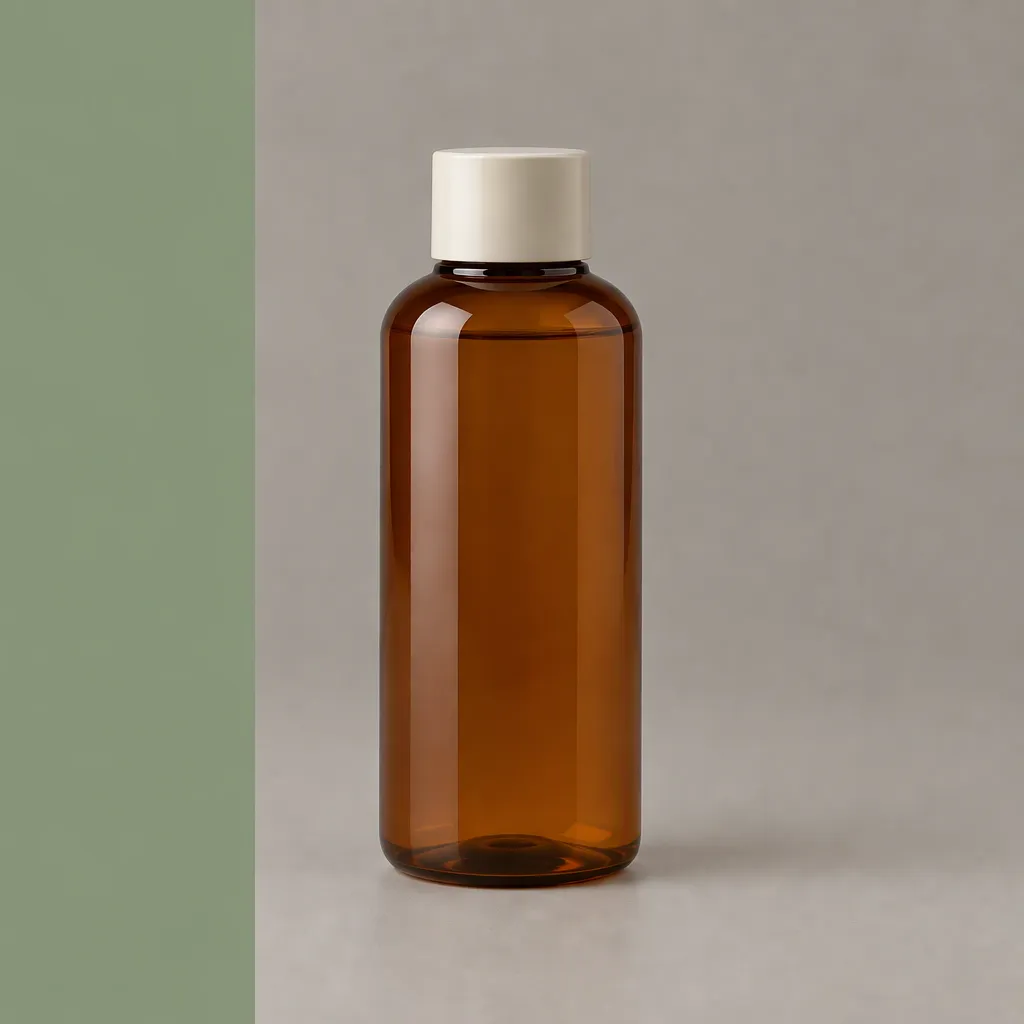
The successful masked result has a visibly flat sage strip at the left. The bottle’s overall identity and position appear close to the source, but appearance alone is not proof that the protected area is unchanged.
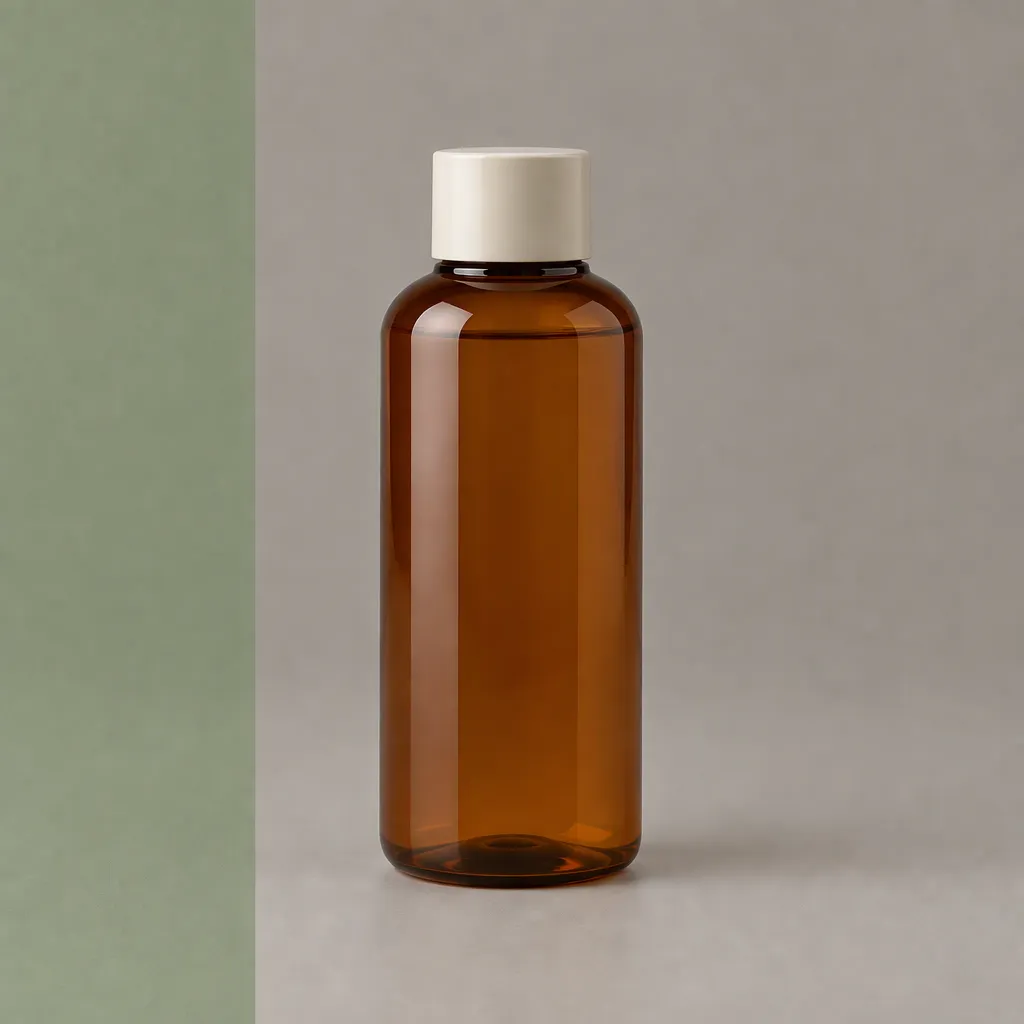
Without a mask, the model also placed a sage strip at the left, with a more textured appearance in this sample. Both requests produced a plausible interpretation of the prompt. That does not make the two outputs interchangeable for a workflow requiring exact preservation.
We compared decoded RGB values in x = 256 through 1023, all 1024 rows. This region contains 786,432 pixels. A pixel counts as changed if any of its three channels differs, even by one level.
| Successful output | Changed pixels outside the target strip | Mean absolute channel difference, 0–255 scale |
|---|---|---|
| With mask | 784,316 of 786,432 | 3.493 |
| Without mask | 785,921 of 786,432 | 5.464 |
The masked result had a lower mean difference in this pair. The sample is too small to claim a general advantage of that magnitude. More importantly, neither result met an exact-pixel-preservation requirement. A high changed-pixel count can include very small differences; it does not mean every changed pixel is visibly damaged.
Repeat the protected-area check
Use original downloaded files, not screenshots, JPEG previews or resized thumbnails. Those transformations introduce differences unrelated to the model edit.
from PIL import Image, ImageChops, ImageStat

a = Image.open("source.png").convert("RGB")
b = Image.open("edited.png").convert("RGB")
if a.size != b.size:
    raise ValueError("Output dimensions changed; inspect before comparing")
region = (256, 0, 1024, 1024)
diff = ImageChops.difference(a.crop(region), b.crop(region))
changed = sum(any(pixel) for pixel in diff.getdata())
mean_difference = sum(ImageStat.Stat(diff).mean) / 3
print(changed, mean_difference)
This measures pixel differences, not brand accuracy, perceptual quality or product geometry. Inspect the cap, silhouette, material, edges, text and shadows separately. If the product changes position, a direct pixel difference becomes a poor description of perceived similarity, but it still correctly indicates failure of a fixed-position pixel contract.
For exact preservation, a conventional compositing workflow can place only the accepted edited region over the original. Inspect the seam and lighting; a hard boundary may be unacceptable. This is a separate postprocessing step, not a claim that the model itself protected those pixels. Do not use it to conceal changes in a published model comparison.
Diagnose failures before rerunning
If the wrong side changes, inspect alpha values and coordinates first. If the whole image changes, check whether the mask was actually attached to the request, whether the route accepts that parameter, and whether the image order matches the mask’s intended source. Keep the request metadata alongside the output.
If the server rejects the file, check file format, byte size, dimensions and the current endpoint limits. Renaming a JPEG to .png does not convert it. If the request times out, check the request record before retrying; treat a repeat as another potentially billable operation.
If a result looks good at thumbnail size, review the original at full size before accepting it. For labeled products, add explicit text and logo checks; this unlabeled bottle fixture cannot certify those properties. For changing the full scene while keeping the product, see the single-versus-two-reference test.
Frequently Asked Questions
- Does a mask guarantee that all other pixels stay identical?
- Our successful masked sample did not preserve exact RGB values outside the target region. Use an explicit pixel check if exact preservation is part of your delivery contract.
- Is the masked output always better?
- This pair is insufficient to establish that. It had a lower mean protected-region difference, but both outputs still need task-specific visual acceptance.
- Can I use a black-and-white JPEG as an alpha mask?
- Not as a substitute for the transparent PNG mask used here. Inspect the alpha channel and follow the selected endpoint's documented input requirements.