Video tools by use case: a guide to 24 options
Compare 24 video tools for ads, product demos, avatars, interviews, clips and localization. Choose by input, editing needs, export and a reusable test brief.
 Ofox

Choose a video tool by the material you already have and the file you need to deliver. Generating a cinematic shot, recording a software tutorial, turning a webinar into clips and translating an existing video are different jobs. A tool that is a strong candidate for one may add unnecessary work to another.
This guide covers 24 tools across nine production tasks. It compares their role, suitable scenarios, limitations and a practical way to choose between overlapping options. It also includes three reusable trial briefs and a downloadable selection matrix.
Research scope: official product pages, help documents and vendor announcements checked on November 6, 2026. Recommendations are our editorial interpretation of those documented capabilities. We did not run a controlled, paid generation benchmark across these tools, and do not rank their visual quality, speed or reliability. Screenshots below show public official pages, not our own in-app production tests. Plans, regions and model access can change.
Publisher disclosure: this is an Ofox publication. Ofox is included as a generation and integration option, with its implementation boundary explained alongside the other tools.
Start with the task, not the model name
Three layers often get mixed together:
- A model produces or transforms media. It does not necessarily provide a timeline, captions or project handoff.
- A platform exposes models, presets, assets and editing controls. Two platforms using the same model can offer different references, exports and billing.
- A workflow connects recording, generation, editing, translation and review to deliver the finished film.
For a product launch, the sensible workflow might be real product footage plus one generated background, assembled in a conventional editor. For a tutorial, the central asset should be an accurate recording or approved screenshot, even if an agent helps write the narration. Generating a plausible interface is not a substitute for demonstrating the actual product.
The nine-scenario shortlist
| What you need to deliver | Start with | The deciding question |
|---|---|---|
| New visual shots, B-roll or concept scenes | Runway, Flow, Kling, Luma, Firefly, Jimeng, Higgsfield | Which references and revision controls does this exact model/entry support? |
| A short social or marketing video | CapCut, Canva, InVideo | Are you mainly trimming footage, arranging branded layouts or delegating the first cut? |
| A presenter-led lesson or announcement | Synthesia, HeyGen | Can you revise the script, pronunciation and scenes without rebuilding the film? |
| A real software demonstration | Screen Studio, Loom | Do you need a polished reusable recording or a quick explanation shared by link? |
| A podcast or interview | Riverside, Descript | Is the bottleneck capturing separate tracks or editing the conversation? |
| Several shorts from a long recording | OpusClip, Vizard | Can the tool find complete arguments and preserve context after reframing? |
| A detailed final edit | Premiere, DaVinci Resolve | Which project, color, audio and handoff workflow can your team maintain? |
| A localized version of an existing video | VEED, ElevenLabs | Do you need translated subtitles, a replacement voice track, or both? |
| Repeatable animations or an automated pipeline | Remotion, Ofox | Are you rendering a designed template or generating footage inside a larger system? |
These are starting points rather than exclusive categories. Several platforms now combine generation, agent editing and conventional controls. Choose by the part of the job that must work reliably for you.
1. Generating new shots: seven platforms with different control paths
Use this category when the missing asset is a shot: an imagined setting, a concept sequence, a background or a visual transition. It is less suitable as the sole method for exact product demonstrations, factual reconstructions or footage where every label must remain unchanged.
Runway: reference-guided visual development and shot revision
Runway is a candidate when a creative team wants to iterate on the look of a shot rather than accept the first text-to-video result. Its documentation describes reference media and model-dependent editing workflows. Check the selected model’s supported inputs; a reference feature on one model does not establish support on every other model. Runway reference-media guide, editing workflow
Useful scenario: develop several visual directions for the same campaign, then refine the chosen shot. Input/output: prompts and supported reference media to generated or edited footage. Choose it when the reference and revision controls match your brief. Test first: request one change while keeping the subject, composition and other details fixed. If unrelated details keep changing, budget for a different workflow or manual finishing.
Google Flow: scene development inside Google’s creative workspace
Flow brings generation and editing into a creative workspace rather than presenting only a single model endpoint. The current product page describes reference-based creation and conversational changes; access and features depend on the available product, plan and region. Google Flow
Useful scenario: explore a short narrative or campaign scene while keeping related assets together. Input/output: supported prompts and references to visual assets and sequences. Choose it over a standalone generation endpoint when the workspace itself saves you organizational and revision work. Test first: carry the same subject through two shots and revise the second without unintentionally changing the first. A coherent demo on the landing page is not evidence that your character will remain consistent.
Kling: motion-led scenes and reference-based action
Kuaishou’s official Kling announcements describe multimodal references, native audio and multi-shot capabilities in the 3.0 generation, with motion-control capabilities also documented in its corporate reporting. These establish feature families, not identical support in every interface or current plan. Kling 3.0 announcement, Kuaishou results and product updates
Useful scenario: a fashion concept, character action or shot whose movement matters more than on-screen typography. Input/output: the inputs supported by the chosen mode to moving footage. Choose it when your required motion or reference mode is actually exposed in your account. Test first: examine hands, object contact and the beginning/end of the action frame by frame. Motion resemblance does not guarantee anatomical or product accuracy.
Luma Dream Machine: changing an existing shot’s visual treatment
Luma’s Ray documentation covers generation, keyframes and video modification. That makes it worth considering when you have a starting image or recorded motion and want to explore a different visual treatment. The particular controls depend on the selected model and mode. Ray3.14 guide, Ray3 Modify guide
Useful scenario: restyle a short sequence or explore an alternative environment around a performance. Input/output: supported images, keyframes or video to a generated variation. Choose it when retaining the movement is more important than inventing a scene from scratch. Test first: compare source and output at several matching moments. Do not infer that modification preserves every logo, face or background detail exactly.
Adobe Firefly: generated footage for an Adobe-centered workflow
Firefly offers AI video generation and includes both Adobe and partner-model choices. It is a candidate when a team already handles creative assets within Adobe products and wants to add generated footage to that process. The selected model matters for both capabilities and applicable terms. Adobe Firefly video generator
Useful scenario: fill a missing atmospheric shot in an otherwise edited campaign. Input/output: supported prompts or visual inputs to video assets. Choose it when the actual handoff to your existing editing process is convenient. Test first: export the clip, import it into the target project and check color, dimensions and revision options. Adobe-model training or commercial-use statements should not automatically be applied to every partner model offered in the same interface.
Jimeng: Chinese-language prompting and image-led video exploration
Jimeng’s official Chinese product page presents text-to-video and image-to-video creation, including first/end-frame control. It is a practical candidate for Chinese-speaking creators who want to develop visual ideas in that environment. Jimeng is a product; Seedance is a model family. Their names are not interchangeable. Jimeng
Useful scenario: animate an approved image into a short visual concept, using a Chinese brief. Input/output: text or supported frame references to generated footage. Choose it when the Chinese interface and available controls fit the team. Test first: confirm your region/account can access the required feature and export format. Do not assume that a subscription or feature in CapCut, 剪映 or another ByteDance product transfers to Jimeng.
Higgsfield: exploring visual treatments and campaign concepts
Higgsfield’s current platform presents several studios and workflows, including Cinema Studio, Marketing Studio and Lipsync Studio, alongside model choices. Its value to evaluate is the creative workflow around those models, not the assumption that every output comes from a single proprietary generator. Higgsfield
Useful scenario: try several visual directions for a short ad or social campaign. Input/output: a brief and the selected workflow’s required assets to generated media. Choose it when a studio or preset closely matches the treatment you need. Test first: replace the sample asset with your own approved material and check how much control remains. A compelling preset can still be a poor fit when precise product geometry, text or repeated revisions are mandatory.
How to choose among these seven
Use one approved input and one small shot brief. Keep the intended duration, aspect ratio and acceptance criteria comparable, while recording each platform’s actual supported settings. Test only the two or three candidates that expose the controls you need.
A useful tie-break is revision quality: “Keep the subject and framing; change only the background.” Review both the requested change and everything that should have stayed fixed. Save all attempts, not just the best frame. If the brief requires exact packaging text, preserve the approved asset and composite it in an editor instead of repeatedly hoping a generator will reproduce it.
2. Short marketing videos: CapCut, Canva or InVideo?
These tools are candidates when you already have material and need a complete short video with pacing, text, sound and a clear ending. The central question is how you want to control the edit.
CapCut: hands-on short-form editing
CapCut’s editing environment covers arranging and trimming clips, captions and other production functions; its current offering also includes AI-assisted creation. It suits a creator who wants to make timing decisions directly. Feature availability differs across platform and plan. CapCut
Useful scenario: turn phone footage into a product demonstration or social post. Input/output: clips, images and audio to an edited video. Choose it when frequent cuts, captions and visual pacing are the main work. Test first: export a representative project with the exact effects, fonts and assets you intend to use. A free download does not mean every element or export condition is free. Treat CapCut and 剪映 as separate product/account environments unless your actual account confirms otherwise.
Canva: layout-led videos built from brand assets
Canva’s video editor combines video with a design and template workflow. It is a candidate for teams whose main task is arranging approved copy, brand graphics and short clips into a consistent layout. Canva video editor
Useful scenario: an event announcement, simple product promotion or recurring branded update. Input/output: images, clips and design elements to a video composition. Choose it over a more detailed editor when layout consistency matters more than complex shot-level manipulation. Test first: replace the template’s text with your real, longer copy and inspect the mobile version. Also verify the plan and usage conditions of the actual template, font and stock elements; the editor’s availability alone does not settle those questions.
InVideo: delegating an initial edit, then reviewing it
InVideo’s current site describes an agentic editing workflow with footage upload, requested edits and timeline-based review. It should no longer be evaluated solely as an older script-to-stock-video product. InVideo
Useful scenario: give a collection of footage and a clear brief to an editing assistant, then refine the draft. Input/output: supplied material and instructions to an assembled video project/output. Choose it when selecting and arranging material is the bottleneck and you can specify what a good cut contains. Test first: ask for one surgical revision, such as replacing a shot while retaining the voiceover and timing. If the result requires extensive manual reconstruction, include that labor in the comparison.
Practical tie-break: start with CapCut for direct control over footage, Canva for recurring branded layouts, and InVideo when you want to evaluate delegated assembly. All three may overlap; the winning trial is the one that yields an editable, approved export with less correction work for your particular brief.
3. Presenter-led training: Synthesia and HeyGen
Synthesia: structured lessons and explainers
Synthesia presents a workflow for converting scripts and documents, including slides, into presenter-led video scenes. That makes it a candidate for repeatable training and internal explanations where the script changes more often than the visual format. Synthesia
Useful scenario: onboarding lessons, process updates or a series of short training modules. Input/output: approved content to avatar-led scenes. Choose it when scene-by-scene script maintenance is central. Test first: change one procedure and regenerate only the affected material where supported. Check names, acronyms, timing and whether the lesson shows the actual workflow. A presenter reading a script is not proof that viewers can complete the task.
HeyGen: avatar presentation and translated presenter footage
HeyGen offers avatar creation and video translation workflows. It is a candidate both for new presenter-led content and for adapting existing speaker footage to another language. HeyGen
Useful scenario: a repeated product announcement or a localized presenter message. Input/output: supported scripts, avatar assets or source footage to presenter video. Choose it when your main requirement aligns with its avatar or translation path. Test first: use a paragraph with brand names and a difficult sentence boundary, then review pronunciation, facial movement and timing. Obtain permission for any person’s likeness or voice; a convincing preview is not a substitute for that permission.
For a course, compare how easily each platform supports your actual review and revision process. For translated presenter footage, compare the translated meaning and visible mouth movement. Do not select by avatar count alone. Keep a human review step for the target language and for factual claims.
4. Software demos: record the real interface
Screen Studio: polished screen recordings on Mac
Screen Studio is a Mac screen-recording product with presentation features such as automatic zoom and cursor treatment. It is a candidate for reusable product walkthroughs where viewers need to follow a small interface action. Screen Studio
Useful scenario: demonstrate a three-step workflow for a tutorial or launch page. Input/output: actual screen activity to an edited recording. Choose it when polished framing matters and the recorder’s Mac requirement fits your setup. Test first: record the smallest important label and inspect it on a phone. A smooth zoom that hides the next control can make a tutorial harder to follow.
Loom: quick explanations shared asynchronously
Loom centers on recording and sharing screen/video explanations. It is a candidate when the primary deliverable is a clear message a colleague or customer can watch by link. Loom
Useful scenario: explain a bug, review a design or answer a customer question. Input/output: screen and supported camera/audio capture to a shareable recording. Choose it when rapid communication matters more than a detailed final edit. Test first: open the link as the intended recipient and check permissions. If you also need an independently downloadable file, verify that export path under the relevant account and workspace policy.
For a public demo, use a clean account with sample data, show the result before the detailed steps, and record enough context to explain what was clicked. If you only have approved screenshots, our screenshot-to-product-demo workflow explains a separate motion-graphics route. Label that as a demonstration built from screenshots, not a live interaction recording.
5. Podcasts and interviews: capture first, edit second
Riverside: capture separate participant tracks
Riverside documents local recording and separate participant tracks. It is a candidate when the main risk is losing useful source material from a remote conversation. Resolution and other limits depend on the setup and plan. Riverside
Useful scenario: a remote interview with participants in different locations. Input/output: recorded participants to source tracks for editing. Choose it when separate capture is more important than fixing a merged call recording later. Test first: run a short rehearsal with every participant’s real microphone and browser, then confirm all tracks finish uploading. Local recording does not eliminate the need to retrieve and verify those files.
Descript: edit a conversation through its transcript
Descript supports text-based video editing alongside other editing tools and its Underlord assistant. It is a candidate for content where the spoken argument determines the structure. Descript video editing
Useful scenario: remove repetition from an interview, tighten a lesson or assemble a spoken explainer. Input/output: recorded audio/video to a transcript-driven edit. Choose it when moving and deleting spoken passages is the central task. Test first: correct the transcript, remove one sentence and listen to the join. Text that reads smoothly can still produce an abrupt breath, awkward expression or misleading answer.
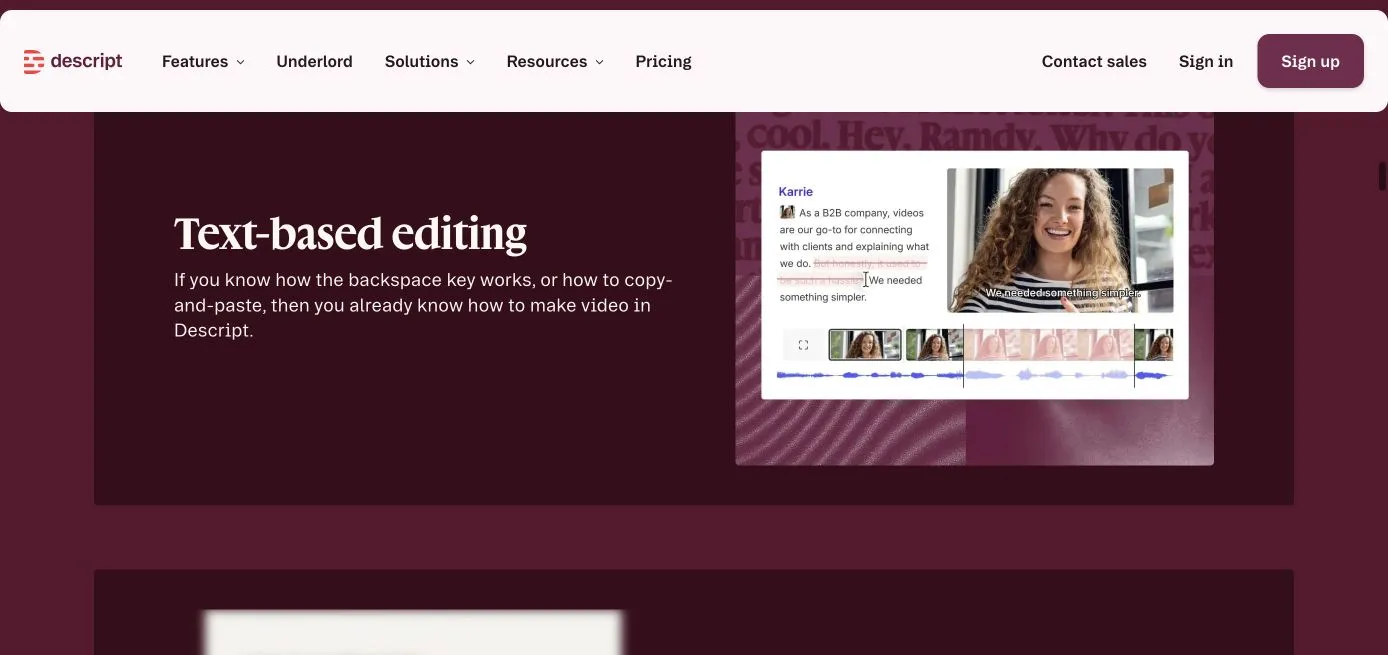 Public Descript product-page screenshot captured November 6, 2026. This illustrates the vendor’s documented editing approach; it is not a recording of our own editing session.
Riverside and Descript can serve different stages of one workflow. You do not have to choose a single winner for both capture and editing. Preserve the original tracks before making editorial cuts.
6. Turning long recordings into shorts: OpusClip and Vizard
OpusClip: finding and reframing candidate clips
OpusClip presents long-video clipping, reframing and captioning workflows. It is a candidate for turning a webinar, interview or talk into several proposed short clips. Its name is unrelated to Anthropic’s Opus model family. OpusClip
Useful scenario: produce a shortlist of clips from a long conversation. Input/output: a supported long-form source to suggested short edits. Choose it when finding moments is taking more time than polishing them. Test first: inspect whether the opening makes sense without the previous minute and whether the closing contains a complete answer. A platform’s “viral” score or label is not a prediction you can rely on.
Vizard: clipping with an editing and agent workflow
Vizard also offers AI clipping and editing, with an agent workflow presented on its current site. It is another candidate for repurposing long-form material into short deliverables. Vizard
Useful scenario: create clips from recurring webinars or interviews and revise them before distribution. Input/output: source recordings and supported instructions to candidate clips. Choose it when its review and correction process fits your team. Test first: use the same source segment as the OpusClip trial, then compare cut boundaries, captions and subject framing. Evaluate the version you can actually export, not only the preview.
A useful comparison set contains a speaker change, an important slide and an answer that depends on a qualification. Reject clips that remove the qualification or crop out the evidence. Count approved, context-complete clips, not the number generated. For vertical delivery, inspect the layout rather than assuming an automatic crop is sufficient; see our horizontal-to-vertical workflow.
7. Detailed finishing: Premiere and DaVinci Resolve
Adobe Premiere: a maintained timeline for complex edits
Premiere is a candidate when the work requires a detailed editing project, repeated revisions and integration with an established Adobe production process. Adobe Premiere, official editing guide
Useful scenario: assemble recorded interviews, screen captures, generated B-roll, graphics and sound into one controlled deliverable. Input/output: mixed media to an editable project and final exports. Choose it when the team already knows its workflow or must hand off a compatible project. Test first: move the project and its linked media to the actual recipient’s setup. A video that plays on your machine does not prove the project is portable.
DaVinci Resolve: editing, color, effects and sound in one application
DaVinci Resolve combines editing with color, Fusion effects and Fairlight audio tools. It is a candidate when finishing involves more than arranging clips, especially when color and audio need dedicated attention. The free and Studio editions have different capabilities. DaVinci Resolve
Useful scenario: finish a film with mixed camera sources, matching color and a carefully controlled sound mix. Input/output: media and project assets to an edited and finished master. Choose it when the workflow and available hardware fit the project. Test first: use representative media on the actual editing computer, including the intended effects and export settings. Do not infer that every advertised AI feature belongs to the free edition.
Neither tool is automatically the efficient choice for a simple one-off announcement. Their value grows when you need controlled revisions, media organization and reliable handoff. Pick the editor the person responsible for maintenance can actually operate.
8. Localization: distinguish subtitles from dubbing
VEED: browser-based subtitle and localized-video work
VEED presents browser editing, subtitles and translation among its tools. It is a candidate when the main deliverable is a localized video with corrected on-screen language. VEED
Useful scenario: add translated subtitles to a product explanation and prepare a reviewable final version. Input/output: existing footage and language edits to a localized video. Choose it when browser-based review and visible text are central. Test first: correct a brand name, adjust a long subtitle and inspect the final export. Check whether you need burned-in captions, a separate subtitle file or both; these are different deliverables.
ElevenLabs: the speech layer of a localization workflow
ElevenLabs Dubbing handles translated speech, with Dubbing v2 editing available in its UI. It is a candidate when the audio track is the main problem to solve, rather than the whole visual edit. The legacy Dubbing Studio uses v1 and is now in maintenance mode; check which workflow you are entering. Current Dubbing documentation, legacy Studio status
Useful scenario: produce a translated voice track for an existing explanation. Input/output: supported source media to dubbed speech and related workflow outputs. Choose it when voice and translation control matter more than assembling the whole film in one interface. Test first: review meaning, speaker assignment, pronunciation and duration, then align the approved track in the final edit. The official documentation treats the dubbed video as a preview: use the downloaded dubbed audio with the original video for final production. Permission to use the original video does not automatically establish permission to clone a person’s voice.
For any localization, review four layers separately: meaning, pronunciation, timing and visible text. A dubbed English interface is not a fully localized Japanese tutorial if the learner cannot identify the controls. Preserve necessary UI context and explain language differences rather than fabricating a translated product screen. Our voiceover and subtitle synchronization guide covers the assembly problem separately.
9. Repeatable production: Remotion and Ofox occupy different roles
Remotion: render videos from a maintained template
Remotion uses React to build and render videos. It is a candidate for repeatable motion graphics whose content changes while the layout and timing logic remain controlled. Coding agents can help author a project, but the project still needs dependencies, assets and a working render step. Remotion
Useful scenario: weekly data updates, product screenshot sequences or many versions of a branded animation. Input/output: a coded composition and parameters to rendered video. Choose it when repetition justifies technical setup and someone can maintain the template. Test first: change a title to a longer one, replace an image and render again. Check overflow, missing fonts and output playback. A browser preview or generated code block is not an exported MP4.
Ofox: generation access inside a larger workflow
Ofox’s video documentation describes asynchronous generation tasks, result retrieval and model-dependent parameters. Its role in this comparison is access to generation within a workflow, rather than a claim to replace every editor or recording tool. Ofox video API documentation
Useful scenario: a team with technical help wants to generate assets and pass them into an existing editing or rendering process. Input/output: supported generation requests to video results. Choose it when integration is a real requirement and someone owns job handling, downloads and review. Test first: confirm the exact model, supported parameters and result retrieval path before planning a batch. This guide did not run a live Ofox video-generation test, and does not claim a no-code, end-to-end film can be delivered through every Ofox entry point.
For a nontechnical creator making one video, a direct editing application is usually the easier trial. For recurring production, a maintained template plus a generation service can be worth evaluating. Keep their responsibilities distinct: a generator creates footage; a renderer assembles the designed project; a reviewer approves the result.
Why Sora is not on the active shortlist
Older lists may still recommend Sora as an available tool. OpenAI’s current notice states that the Sora web and app experiences were discontinued on April 26, 2026, and the API on September 24, 2026. We therefore exclude it from the active 24-tool shortlist. Use the current status notice rather than an older launch page when deciding whether a product can be adopted. OpenAI’s Sora discontinuation notice
Five practical workflows to try
The following are proposed workflows, not claims that these combinations were benchmarked together.
| Project | Suggested sequence | Acceptance gate |
|---|---|---|
| A short product ad | Approved product assets → optional generated background → CapCut or Canva → review | Product shape and claims stay accurate; logo and CTA are readable |
| A software tutorial | Real recording in Screen Studio or Loom → trim and explain → captions → export/share | A new viewer can reproduce the task and see the result |
| A recurring training module | Approved script → Synthesia or HeyGen → factual/language review → final export | A changed procedure can be updated without leaving contradictory scenes |
| A remote interview plus shorts | Riverside capture → Descript or a timeline editor → OpusClip/Vizard candidates → manual review | Source tracks are complete; every short preserves the speaker’s meaning |
| A repeated branded animation | Approved template in Remotion → replace data/assets → render → visual and playback review | Long copy and new assets fit; the delivered file plays independently |
Start with one production route and one fallback. Adding subscriptions before identifying the bottleneck can increase handoffs without improving the finished video.
Compare the cost of an accepted video, not a generation
Monthly price alone is a weak comparison. Record the unit that actually limits your task: credits, generated seconds, processed minutes, seats, storage, exports or premium assets. Also check whether the specific model, resolution and commercial use you need are included in your account.
Use a simple worksheet:
Cost per accepted deliverable = (allocated subscription cost + generation/processing charges + licensed assets + editing/review labor) ÷ accepted deliverables.
For a hypothetical comparison, suppose one workflow costs 30 units in tools and 120 in labor to deliver three approved videos: 50 per accepted video. Another costs 60 in tools and 60 in labor for the same three: 40 per video. These are invented arithmetic examples, not product prices or observed results. The more expensive subscription can be the less expensive workflow, but only if the reduction in work actually occurs.
Before subscribing, export a small real project. Verify watermark behavior, resolution, subtitle files, source-project access, asset licensing and what remains accessible after cancellation. Do not assume that “free,” “commercial use” or “unlimited” on a landing page answers every one of those questions for your chosen assets and plan.
Three reusable briefs for a useful trial
Use the same source material and acceptance rules for each candidate. Record the date, plan, selected model, settings, all attempts and manual correction time. The following targets are testing requirements, not claims that every listed product supports every output.
Brief A: a 20-second product advertisement
Use the supplied approved product image, logo and copy. Create a 20-second concept with an opening problem, product demonstration and closing CTA. Deliver a 16:9 version and a separately reviewed 9:16 version. Keep product geometry, packaging text and claims unchanged. Keep final text editable. Generated backgrounds are allowed, but do not invent a real customer testimonial. Provide the exported MP4, the editable project or a clear description of what cannot be handed off, and a list of assets that require a separate license.
Pass: product details remain correct, text is readable on a phone, the CTA is visible, both exports play, and a requested text change can be made without rebuilding everything. If it fails: preserve the product as an original asset, reduce generation to the background, and finish in an editor.
Brief B: a 60-second software walkthrough
Record or use approved screenshots of the actual three-step workflow. Show the initial state, each action and the final result. Use sample data. Add narration and captions using the supplied terminology list. Deliver a playable MP4 and a caption file if the chosen workflow supports it; state any missing deliverable. Do not invent UI controls, successful actions or performance claims.
Pass: another person can reproduce the steps, important controls remain readable, narration matches the visible action and no private data appears. If it fails: simplify the script, re-record the confusing step and adjust framing before adding more effects. A generated animation cannot repair missing evidence of the actual workflow.
Brief C: three shorts from one interview
From this approved interview, propose three 30–45-second clips, each making one complete point. Preserve qualifications and attribution. Produce a reviewed vertical layout with readable captions. Identify each clip’s original start/end times and explain any cut inside a sentence. Keep an untouched copy of the source.
Pass: each clip stands alone, retains the speaker’s meaning, includes essential visual evidence and has corrected names. If it fails: choose boundaries manually, restore the missing context and reframe the shot. Reject the clip if the argument cannot fit without distortion.
A final selection checklist
- Write the input you already have and the output you must deliver.
- Mark non-negotiable constraints: real product accuracy, language, device, region, export, project handoff and permissions.
- Pick two candidates from the relevant scenario, not two tools from unrelated production stages.
- Run one brief through a complete export and one revision cycle.
- Record accepted outputs, correction time and total cost. Keep the evidence behind the choice.
Download the 24-tool comparison matrix and the trial brief and acceptance worksheet. The matrix is a documentation-based starting point with source links; fill in your own account access and trial results before treating it as a purchase decision.
Frequently asked questions
Which video tool should a beginner choose?
Start with your material. Try CapCut for short footage editing, Canva for a layout-led branded video, or a recorder for a real software explanation. Use one small project to verify the full export path before committing to a larger plan.
Can one AI tool make the whole video?
Some platforms now combine generation and editing. Test the whole job anyway: content accuracy, narration, captions, editable text, aspect ratios and revisions. A generated shot and a finished, approved film are different deliverables.
Which tool is best for a long interview?
Separate capture from editing. Evaluate Riverside if separate source tracks are the concern, Descript if transcript editing is central, and a timeline editor when the final composition is more complex. Clipping tools can propose shorts after the source recording is secure.
How should I choose between avatar video and a real recording?
Use an avatar when a controlled presenter format and frequent script updates fit the task. Use a real recording when the evidence is the person’s actual demonstration, experience or interaction. Do not present an avatar as an actual customer endorsement.
What should I verify before using generated video commercially?
Check the applicable terms for the selected service, model, plan and assets, plus permission for any likeness, voice, music or supplied material. Save the relevant records. A platform-level marketing phrase does not establish the rights for every element in your final film.
Related documentation
For the integration route, use the Ofox video workflow documentation and model-specific capability fields to check accepted inputs and outputs before building a pipeline.
Frequently Asked Questions
- Which video tool should a beginner choose?
- Start with your source material. Short phone footage points toward CapCut; branded layouts toward Canva; a real software demonstration toward a screen recorder. Test a complete export before paying for a larger plan.
- Is an AI video generator enough to make a finished advertisement?
- Sometimes a platform covers the whole job, but a generated clip alone is not a finished advertisement. Check product accuracy, editable text, captions, sound, aspect ratios and the final call to action.
- Is Sora included as a current recommendation?
- No. OpenAI's discontinuation notice states that Sora web and app ended on April 26, 2026, and the API ended on September 24, 2026.
- Were all 24 tools tested hands-on?
- No. This is a documentation-based selection guide checked on November 6, 2026. The scenario recommendations are editorial judgments, not measured rankings of generation quality, speed or reliability.