Convert PNG or JPG to editable SVG: tracing, AI redraws and file checks
Turn a raster image into editable vector shapes, compare tracing with AI redraws, and inspect real downloadable examples before handing over an SVG.
 Ofox
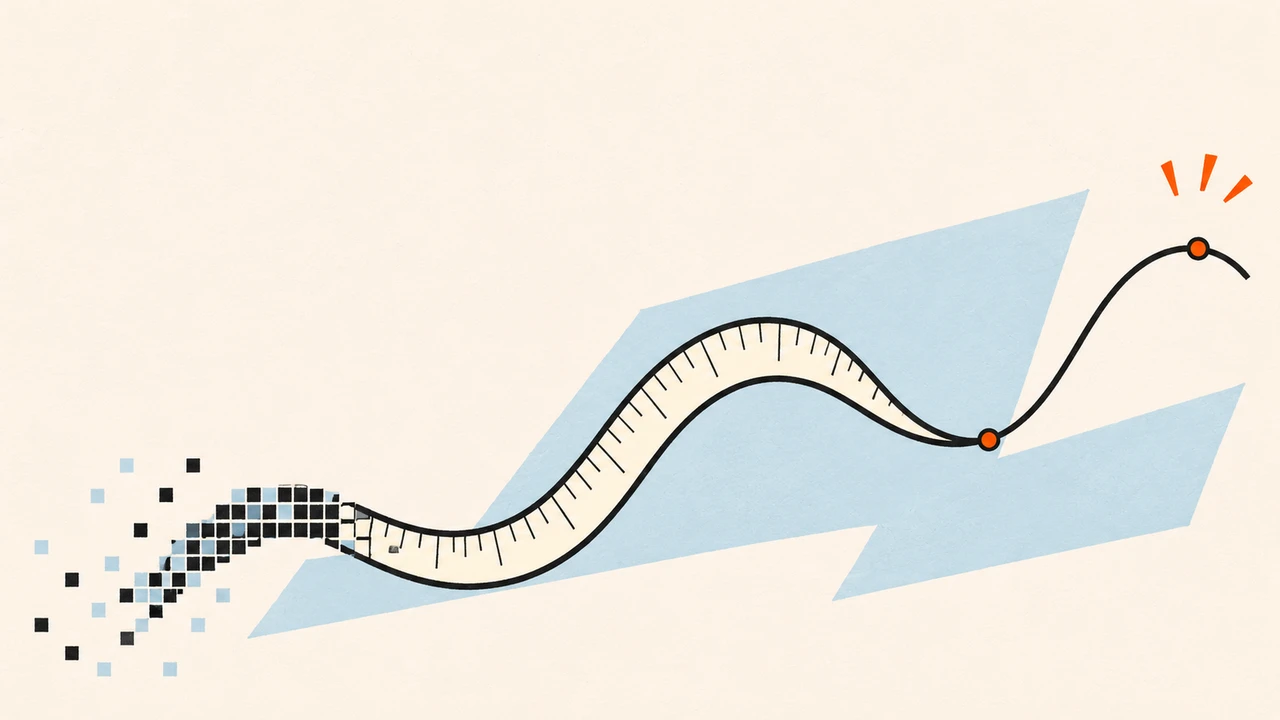
To convert a PNG or JPG into an editable SVG, trace its visible shapes or redraw them as vectors. Saving the image inside an SVG container does not vectorize it. The practical test is whether you can change a component’s fill or contour after removing the original bitmap—not whether the filename ends in .svg.
Tracing works especially well for flat icons, clean silhouettes and simple illustrations. A photograph, soft shadow or textured painting usually needs a compromise: preserve it as a raster image, accept a simplified vector interpretation, or rebuild selected elements manually. AI can help redraw an illustration, but that is a new interpretation and needs a separate fidelity check.
This tutorial includes an original geometric mug fixture, actual local tracing outputs, a deliberately misleading bitmap wrapper and a recolored vector. The fixtures were authored in code; they are not AI model outputs. The conversion was run with VTracer 0.6.15 on November 11, 2026. We did not test paid Illustrator or AI conversion services for this article.
Download the examples and see the difference
Download the PNG-to-SVG example kit. It contains mug.png, mug-wrapped.svg, mug-traced.svg, mug-recolored.svg, a gradient fixture, the conversion script and the inspection report. Use these files before trying a client logo or a confidential design.
| File | What it contains | What the test establishes |
|---|---|---|
mug.png | Original 512 × 384 pixel fixture | The input, not an editable vector |
mug-wrapped.svg | One embedded PNG, zero paths | A valid SVG can still depend entirely on pixels |
mug-traced.svg | Four paths, no embedded image | The tracer created vector geometry for this fixture |
mug-recolored.svg | The same geometry with one fill changed | A component can be recolored without repainting the bitmap |
gradient-traced.svg | Two paths in this run | A small vector file can discard much of the input’s tonal detail |
The path counts are measurements from these files, not targets. Four paths can represent a useful simple illustration; hundreds of paths can still be hard to edit. Conversely, a vector can legitimately contain rectangles, circles or text without any paths. Inspect the actual content and the change you need to make.
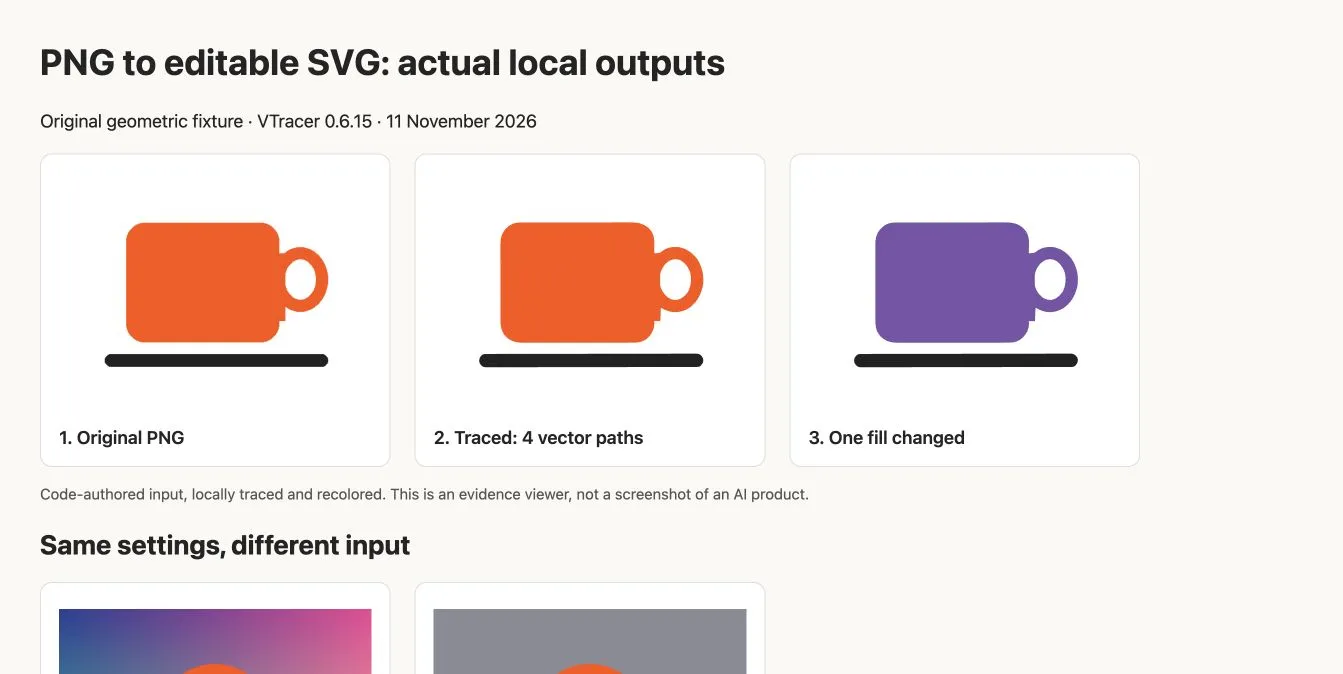
English browser screenshot of our local evidence viewer. The input is code-authored; these are actual tracing results, not an AI product interface.
Choose tracing, redraw or a mixed file
Trace when the existing outline matters. Good inputs have a clear silhouette, sufficient resolution and limited color regions. Start from the best original rather than a thumbnail copied from a presentation. JPEG compression can create tiny color islands; those artifacts may become unwanted shapes.
Redraw when semantic editing matters more than exact pixels. For example, “separate the cup, handle and saucer into named groups” is useful if you will animate or rearrange them. An automatic tracer usually sees connected colors, not meaningful objects. AI may produce cleaner grouping, but it may also change proportions, remove details or invent text. Treat a redraw as a design revision requiring approval.
Keep a mixed file when pixels are appropriate. A photographic background with vector labels can be a legitimate SVG. The error is describing the entire file as a vectorized photograph. Explain which parts remain raster and retain a high-resolution source. Do not promise unlimited photographic detail just because the container is scalable.
For generating new vector artwork rather than converting an existing image, see the Image 2.6 SVG guide. Those are different starting points and require different acceptance criteria. If you use that model and the SVG/GIF request is rejected, consult the Image 2.6 output-format and parameter troubleshooting guide rather than changing the file extension.
Trace in a visual editor
For a graphical workflow, the Inkscape tracing guide explains importing an image and using Path → Trace Bitmap. Use a single scan for a simple monochrome silhouette; use color tracing when distinct color regions need to survive. Preview the result and adjust the settings to the input rather than using one preset for every image.
After applying the trace, move the result aside. Many editors place it over the source, which can make a poor trace look better than it is. Hide or remove the original bitmap in a copy of the document. Inspect the outline, holes and small details. Recolor one component, then save and reopen the SVG. This separates “a trace was generated” from “the trace is useful.”
In Illustrator, the official Image Trace workflow starts with placing the image, selecting it and opening the Image Trace panel. Choose a suitable preset, inspect the preview and expand the result when you need ordinary editable paths. This is a documentation-based alternative; the downloadable outputs here were created with VTracer, not Illustrator.
Text deserves special treatment. Tracing letters usually produces outlines, not editable typography. If the wording must change, recreate the text with an available font and verify line breaks and spacing. Keep an editable-text working copy and, if the recipient requires it, a separate outlined delivery copy. Outlining preserves shapes but removes normal text editing.
Reproduce the local conversion
The VTracer project provides a raster-to-vector converter. This example pins the version actually used; newer versions can expose different APIs. Extract the ZIP into a new folder, open a terminal there, then run:
python3 -m venv .venv
source .venv/bin/activate
python -m pip install vtracer==0.6.15 Pillow==11.3.0
python convert.py mug.png my-mug.svg
On Windows, activate with .venv\Scripts\activate instead of source. The script refuses to overwrite an existing output. It performs local conversion and does not call an AI API or upload the picture. Some systems may need a build toolchain if a compatible package wheel is unavailable; a desktop editor is a reasonable alternative to solving that installation problem.
The tested settings use color tracing, stacked regions and spline curves. Stacked regions can overlap, so deleting a foreground component may reveal a larger background shape beneath it. That is not the same object structure a designer would necessarily create by hand. If you need independent shapes for cutting or fabrication, inspect overlaps and holes in the destination application rather than assuming a web-preview success is sufficient.
The supplied inspector reports raster image elements, vector geometry and canvas attributes:
python inspect_svg.py my-mug.svgThis is a structural aid, not a security audit or proof of visual fidelity. A file with no <image> element can still be visually wrong, depend on an unavailable font, or contain unnecessarily complex geometry. Open only trusted SVGs and inspect generated markup before embedding it into a website.
Recolor, resize and check the result
In our fixture, changing one orange fill to purple changed the mug while retaining the contour. Open mug-recolored.svg beside mug-traced.svg and confirm the handle opening and saucer remain intact. In a visual editor, use object selection to change fills; use node editing only when you intend to alter the outline.
The ZIP includes mug-responsive.svg as the canvas-normalized example. The tracer’s original output specifies width and height but no viewBox. That is valid for a fixed-size document, yet inconvenient for responsive embedding. For this known 512 × 384 fixture, the conversion script adds viewBox="0 0 512 384" to its output. For another file, derive the viewBox from the actual coordinate system; do not blindly paste these dimensions. Test a small and a large render and preserve the aspect ratio.
For a practical handoff, make three deliberate changes in a copy: change one fill, move one object and resize the whole illustration. Reopen the saved file and confirm all three changes survived. This checks the editing workflow the recipient actually needs. It is more useful than accepting a preview thumbnail or a converter’s success message.
Use AI for a redraw without losing the brief
If an AI tool accepts an image reference and returns SVG code or a downloadable SVG, start with a bounded request. This is a reusable prompt template, not a claim that we ran it in every tool:
Rebuild the attached illustration as a standalone editable SVG.
Preserve the silhouette, proportions and important negative spaces.
Use vector paths or shapes; do not embed the original raster image.
Separate meaningful components into named groups.
Use a viewBox matching the intended aspect ratio.
Do not add text, objects, external images, scripts or external fonts.
If a detail cannot be reproduced reliably, identify it rather than
silently inventing a replacement. Return the SVG and a short list
of simplifications. Keep the original image unchanged.
Ask for one controlled revision next, such as changing the cup color while preserving geometry. Compare the outputs rather than trusting the agent’s statement that nothing else changed. For a brand mark, an exact contour or legally approved lettering, use the source vector or obtain a designer’s review; an attractive redraw may still fail the assignment.
You can start the task in Ofox Chat with a permitted reference and the output requirements above. The local tracing results in this guide do not establish that every Chat mode can produce an SVG or preserve your particular design. Inspect the returned file before use.
Fix the common failures
| Symptom | Likely explanation | Useful next step |
|---|---|---|
| The SVG looks pixelated when enlarged | It contains a raster image, or part of the artwork remains raster | Inspect image elements; trace or redraw the relevant region |
| The result is a solid block | Background and subject were merged by the trace settings | Review contrast and preview; adjust threshold or use color tracing |
| Small holes disappear | Filtering or simplification removed them | Reduce filtering, use a better input, or repair those contours manually |
| Text cannot be edited as text | Letters were converted into shapes | Recreate the text and verify font availability |
| A gradient becomes flat bands or one region | The tracer simplified continuous tones | Keep that region raster, rebuild a gradient, or accept a stylized redraw |
| The image is cropped in a web page | Canvas bounds and drawing coordinates disagree | Check width, height, viewBox and out-of-bounds objects |
Our gradient fixture is a useful warning: the selected settings returned only two paths, substantially simplifying the color field. That result is not evidence that gradients are impossible in SVG. It shows why the same automatic settings can be adequate for a flat icon and unsuitable for a continuous-tone image.
A finished conversion should include the original input, the editable SVG and a preview, with any simplifications disclosed. Keep the working version so the next change does not begin with another lossy conversion.