Seedream 5.5 transparent PNGs: prompts and alpha checks
Prepare transparent-asset prompts, inspect downloaded alpha and fix export problems. Includes a tested local checker and clearly labelled synthetic fixtures.
 Ofox

Seedream 5.5’s announced native RGBA capability is relevant when you need an asset that can sit on different backgrounds. The final test is the downloaded file: it must contain useful transparency, not a white or checkerboard picture of transparency. Ask for the asset explicitly, preserve the original download and inspect it on the backgrounds where you will use it.
This guide supplies prompts and a local verification workflow. We tested the verification code with synthetic files, including an opaque RGBA negative control. We have not generated these examples with Seedream 5.5; neither the fixtures nor the cover illustration represents a model result.
Confirm access and define the asset
ByteDance’s Seedream 5.5 product page describes transparent and semi-transparent output. Product rollout and export options still depend on the service you use. Check our version and access guide before starting. In the Ofox public catalog checked November 10, 2026, we did not find this version; do not send a made-up 5.5 ID to an existing 5.0 endpoint.
Write down what the receiving design needs. For a product sticker, that might be one complete object, a transparent area outside the silhouette, no caption, enough space around the edge and an output large enough for the intended placement. For a glass object, some pixels inside the silhouette may also need partial transparency. These are different requirements.
Decide whether a shadow belongs in the asset. A fully opaque studio floor is usually wrong for an isolated cutout. A translucent contact shadow may be useful, but it can look wrong over a destination with incompatible light. If you need a reusable product cutout, request no floor or cast shadow and add those deliberately during composition.
A complete prompt for an isolated object
Here is an untested prompt template for a fictional enamel badge. It contains a concrete subject, composition and export requirement. Adapt it to your service’s supported controls rather than assuming the prompt enables a hidden output parameter.
Create one isolated enamel badge shaped like a small orange sailboat.
Use a clean black outline, pale blue enamel details and a simple front view.
The complete badge must fit inside the image with clear space around every edge.

Deliver the badge as a reusable transparent asset.
Everything outside the badge silhouette must be transparent, not white,
not gray and not a checkerboard pattern painted into the image.
Keep the badge itself opaque. Do not add a floor, cast shadow, caption,
watermark-like decorative text or extra objects.

If this interface supports an original PNG with alpha, preserve that output.
Do not flatten the asset onto a background for presentation.
Choose the transparent or alpha-preserving export option if the service exposes one. We are not naming a universal switch because it has not been verified across the rollout interfaces. A prompt cannot make an export format support transparency if that format or download path discards it.
For partial transparency, change the material requirement rather than just adding “transparent background”:
Create a single pale amber glass loop with a visible opening through its center.
Keep the outside background and the opening fully transparent.
The glass body should have partial transparency, with subtle edge definition.
Do not fill the opening with white, paint a checkerboard into the image,
or add a photographic scene behind the glass.
Keep the entire loop inside the canvas, with space around its outer edge.
This second prompt is also untested. A flat RGBA asset can blend color with a background, but it does not automatically simulate physically correct refraction of every future scene. Check it in its destination rather than assuming a convincing standalone preview guarantees a realistic composite.
Download the original, then check alpha
Use the service’s original-file download. A screen capture, copied preview or JPEG export can lose transparency even if the original asset had it. Renaming a .jpg file to .png does not add the missing information.
The PNG specification permits transparency, including alpha; PNG is not a guarantee that transparency is present. Even a file labelled RGBA can have every alpha value set to fully opaque. For ordinary 8-bit alpha, zero means transparent and 255 means opaque, with intermediate values between them.
Download the local checking kit. It contains check_alpha.py, small synthetic fixtures, edit-checking tools for the related tutorial and a README. Nothing in this kit sends a network request or generates an image through a paid API.
Use Python 3 and Pillow. These terminal commands use macOS/Linux virtual-environment syntax; on Windows, activate the environment using your shell’s equivalent command.
python3 -m venv .venv
source .venv/bin/activate
python3 -m pip install Pillow
python3 check_alpha.py your-original.png --previews your-original-previews
Run the command from the extracted seedream55-checks directory, or provide the full path to the script and image. Use a different previews directory for each input if you want to retain all comparisons.
The script reports the source format, source mode, dimensions and counts of fully transparent, partly transparent and opaque pixels. It also saves three composites on white, dark and magenta backgrounds. Its conversion to RGBA is for inspection; it does not manufacture missing transparency or alter your original file. The compositing implementation follows the Pillow image API.
Interpret the result correctly
| Result | Meaning | Next action |
|---|---|---|
| No transparent pixels | The decoded file is entirely opaque | Check the original download and export mode before regenerating |
| Some transparent pixels and visible content | There is actual transparency | Inspect silhouette, holes and edge behavior visually |
| Every pixel fully transparent | The file has no visible asset | Reject it and investigate the export or generation |
| Partial alpha exists | Some pixels blend with backgrounds | Check whether that partial transparency is intentional |
There is no universal percentage of transparent pixels that makes an asset good. A tightly cropped object can occupy most of the canvas. A tiny object can have lots of transparency but still be unusable. The counts answer a technical question; they do not judge composition or object fidelity.
Reproduce the checker test before trusting it
The included fixtures/transparent.png is a synthetic 100 × 100 pixel fixture. It contains 7,499 fully transparent pixels, 2,500 opaque pixels and one partly transparent pixel. We ran the checker and verified these counts.
python3 check_alpha.py fixtures/transparent.png --previews fixture-transparent
python3 check_alpha.py fixtures/opaque-rgba.png --previews fixture-opaque
The second fixture is also stored as RGBA but has 10,000 opaque pixels and no transparent pixels. It should fail your transparency requirement even though its mode includes the letter A. This negative control is the reason to inspect alpha values instead of relying only on a filename or mode label.
These are intentionally simple test images authored for the checker. They prove that the code distinguishes those known cases. They say nothing about Seedream 5.5’s generation success rate, edge quality or performance on real product photographs.
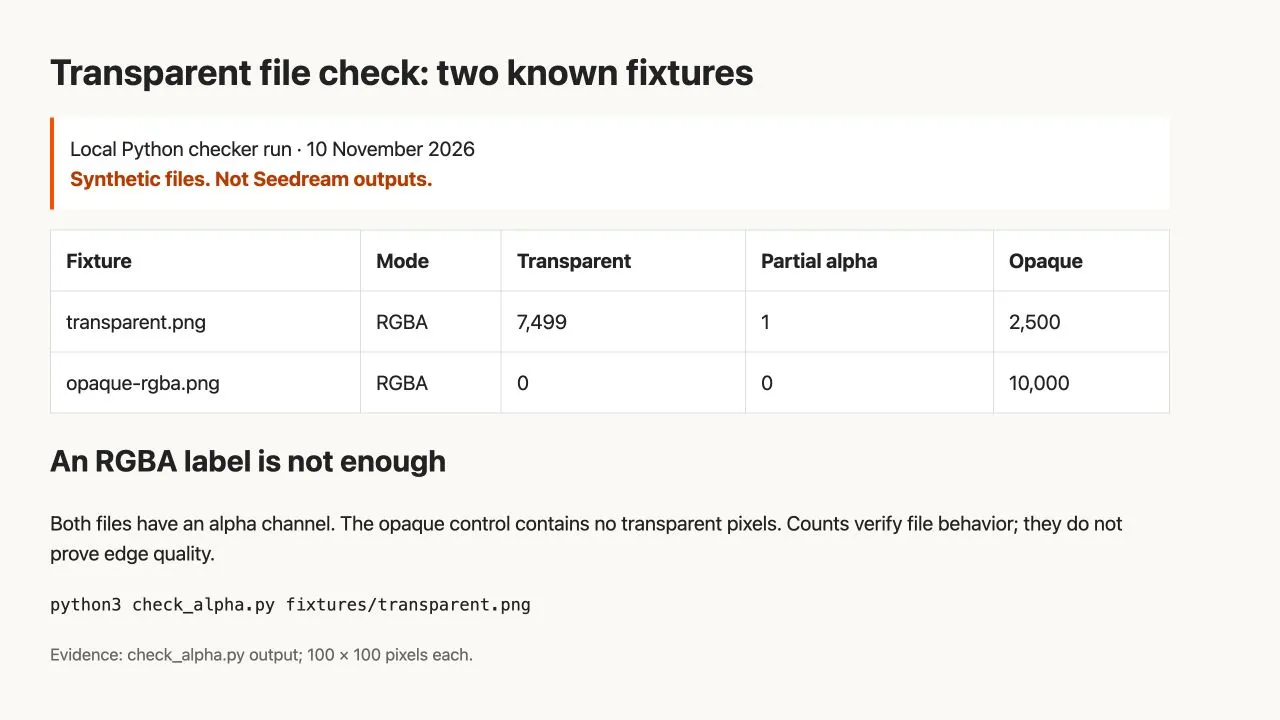
Browser screenshot of our local test report. The inputs are synthetic checker fixtures, not Seedream outputs.
Inspect the edges on three backgrounds
Open the saved white, dark and magenta previews at the intended placement size, then zoom in on important edges. Use a viewer that does not automatically crop the image or hide its background.
On dark, look for white fringes, washed-out semi-transparent edges and a pale rectangle around the subject. On white, look for dark halos and missing light details. On magenta, look for unremoved background islands, holes that should be empty and unexpectedly translucent parts of an opaque subject.
Pay particular attention to thin lines, hair, mesh, handles and openings. A sailboat badge has a relatively simple contour; that does not make it a useful proxy for a lace garment. Choose inspection areas that match the real asset you need to deliver.
Then place the file in the actual slide, shop layout or design tool. Export the final deliverable and inspect it again. A clean source asset can be flattened or resampled later in the workflow. Preserve the original alongside the final export so that you can identify which stage introduced a problem.
What to do when the result is wrong
A checkerboard appears inside the image. Switch between the three composites. If the checkerboard stays attached to the object as pixels rather than changing with the background, it is baked into the image. Return to the source export or request a new output. Do not call it transparent just because a preview resembles a graphics editor.
The file is opaque after download. Confirm that you downloaded the original rather than a preview and that the export preserves alpha. If the service only gives an opaque result, use a deliberate background-removal workflow or another supported export path. Record that extra step; it is not native transparent delivery.
An opaque subject becomes translucent. Specify which regions must be opaque. For a badge, transparent enamel may be an unwanted change. Revise only that requirement and compare the new silhouette with the previous version.
Fine edges look wrong on dark backgrounds. Do not fix the problem by judging only the white preview. Inspect the original alpha, request cleaner isolation if appropriate, or perform controlled edge cleanup in an editor. Keep a before/after copy and repeat all three composites.
The API request fails before any image arrives. Alpha inspection cannot solve an invalid request. Use the image API troubleshooting guide for IDs, parameters, authentication and returned errors. Do not copy transparent-output parameter names from another model into a Seedream route without documentation.
Deliver an asset someone else can reuse
Hand over the original transparent file, the intended placement size and any limitations such as a built-in shadow or semi-transparent material. If the asset will undergo further generation, keep the accepted file as a named checkpoint and follow the controlled editing guide.
For text-based stickers, also use the poster text proofing process: real transparency does not make spelling correct. A successful deliverable needs both the right content and the right file behavior.