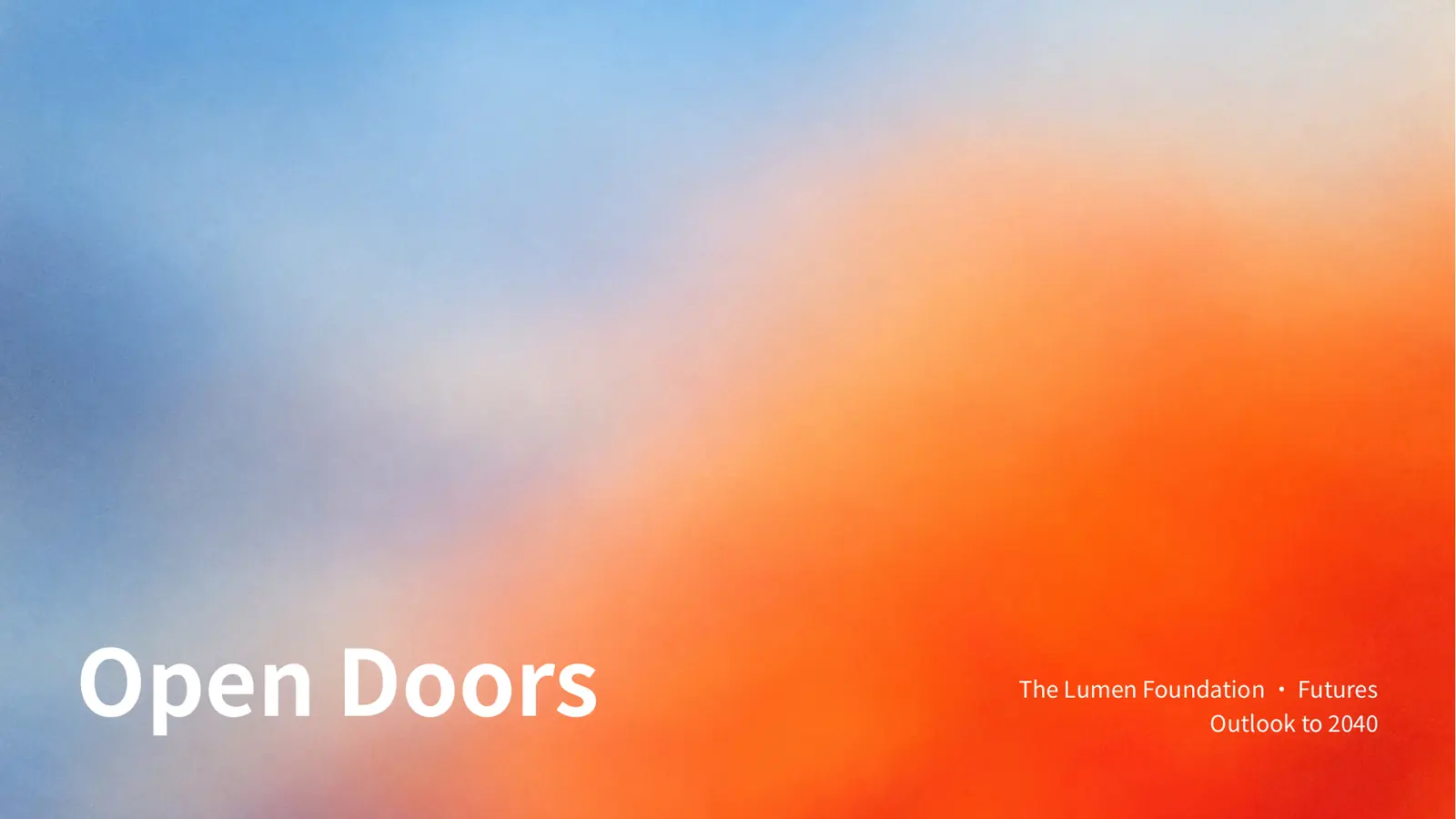
Aura
Covers and section pages washed in a soft blue-to-orange gradient with large white type — gentle yet striking. For keynotes, investor pitches and annual reports.
- Template
- Ofox Chat template
- Source
- Ofox
How to use
- 1
Tap “Make one like this”
Ofox Chat opens with this template already selected. Sign in first if you haven’t.
- 2
Add your topic
Type the topic of your presentation in the input box, and attach an outline or materials if you have them.
- 3
Send and create
Send it and Ofox Chat builds the whole deck in this template’s style — preview, present or download it. Keep chatting to revise.
FAQ
What kind of file do I get?
A PowerPoint file (.pptx). Flip through and present it right in the chat, or download it and keep editing.
Will my deck look like this template?
It keeps this template’s layouts and colors; the text and the number of slides follow your topic.
Do I need to prepare anything?
Your topic alone is enough — Ofox Chat makes a first version. Add an outline, data or existing documents (paste them in, or upload PDFs, Word files and more) and the content fits your situation much better.
Can I change it afterwards?
Yes. Keep chatting to say what to change — reword a slide, add or remove slides — and Ofox Chat updates the deck.
More like this
More Report prompts

Have an idea of your own? Start creating
Describe the image you want in one sentence, and Ofox Chat creates it from scratch.