Extract Tables from PDF to Excel with AI
Upload a text-based PDF and say what you need. OfoxAI extracts tables into an Excel file, splits or merges PDFs, makes simple edits you describe and tells you which pages ended up in each file.
Example result
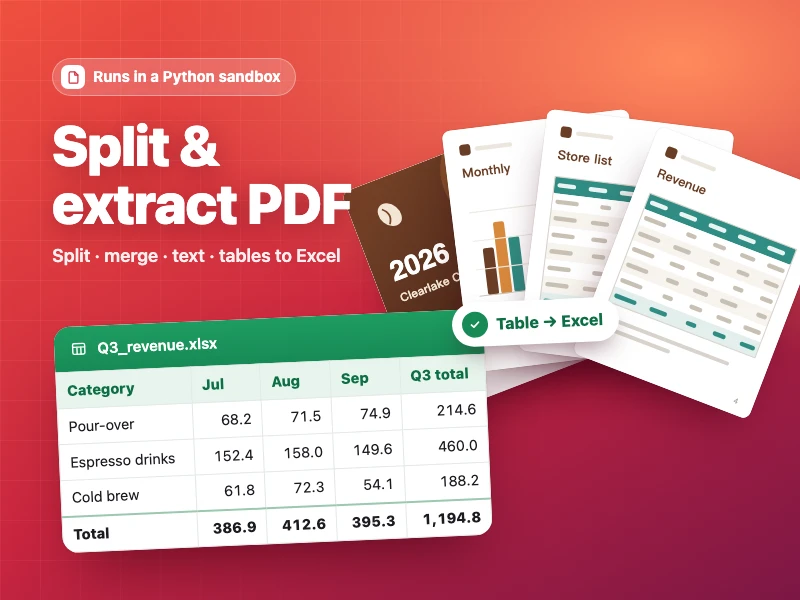
Split & extract PDF
Split or merge PDFs, or pull text and tables out into TXT or Excel — processed for real in a sandbox and delivered as files.
- Source
- Ofox
How it works
- 01
Fill in the blanks
Swap the highlighted parts for your own content, or keep the example.
- 02
Start
Hit the generate button and continue in Ofox Chat.
- 03
Keep refining
Not quite right? Say what to change and Ofox Chat keeps going.
FAQ
What do I need to provide?
Upload the PDF in the conversation and replace the two highlighted parts in the box at the top of the page: how to split the file and what to extract. Give the page number of the table you want, for example page 3. You can upload up to 10 files at a time, 8 MB each.
What do I get back?
You get files, not just a chat answer: the split PDFs, an Excel (.xlsx) file with the extracted table, or a TXT file if you asked for text. The numbers in the table are converted into a format you can calculate with, and it lists which pages each output file contains.
Does it work with scanned or password-protected PDFs?
It works with text-based PDFs, where the text can be selected and copied. Scanned PDFs (pages saved as images), password-protected files and forms may not work, so check the output carefully or use a text-based version of the document if you have one.
Can I make more changes after the first result?
Yes. In the same conversation you can ask it to change a title in the PDF text, delete or rotate a page, merge two PDFs or compress the result, and it reports each change it made. Open the new file and check it before you use it.
Does it access my accounts or files?
No. It does not connect to your accounts, email or systems and works only with what you type or upload. Do not upload documents you are not allowed to share, and remove passwords or personal data you do not need processed.
How much does it cost?
You need to sign up first, then you pay only for what you use.
About Extract Tables from PDF to Excel with AI
This tool lets you extract tables from a PDF into Excel and handles other routine PDF jobs, such as splitting a long file or merging several into one. Upload the PDF, replace the highlighted parts in the box at the top of the page, and OfoxAI processes the file in a sandbox and delivers the results as files, with a list of the pages each file contains. It suits anyone who receives reports, price lists or statements as PDFs and needs the numbers in a spreadsheet, or who needs to send only part of a long document.
Be specific about pages and output. In the first highlighted part, describe the split, for example "split off pages 5 to 8 as a separate file" or "split it into one file per chapter: pages 1 to 4, 5 to 9 and 10 to 15". In the second, describe the extraction, for example "extract the price table on page 2 into Excel and keep the column headers" or "extract all text into a TXT file". If the table uses thousands separators, currency symbols or percentages, say how you want those values stored.
After the first result, keep working in the same conversation. You can ask it to fix a column that came out wrong, change a title on page 1 in the PDF text, delete or rotate a page, merge two PDFs and compress the merged file; it reports each change so you can follow what happened. You can also upload more PDFs or reference files there: PDF, Word (.docx), TXT, Markdown and more, up to 10 files at a time, 8 MB each.
Check every file before you rely on it. In the Excel file, compare a few rows and any totals with the PDF, and look closely at decimals, negative numbers and dates, since these are where conversions most often go wrong. Compare the page list with the split files, and after a text edit, open the PDF to see that the wording and layout look right.
It is meant for text-based PDFs. Scanned documents, password-protected files, forms and PDFs with unusual embedded fonts may not work, so treat those results with extra care. The tool does not connect to your accounts, email or systems and works only with what you upload; process only documents you have the right to use, and do not edit contracts, statements or other records in a way that misrepresents what they originally said.