GPT Image 2.6 repeated edits: use the original or the last version?
Compare two real product-illustration revisions, reproduce the requests and track image versions. Learn when to restart from the original and what to verify.
 Ofox
For another GPT Image 2.6 edit, use the last version only if you want to carry its changes forward. If that version contains unwanted changes, return to the original and describe the complete desired final state—including edits you still want to keep. Neither route guarantees identical product details. Review the returned file against the original and the revision brief before accepting it.
We compared those two input choices through Ofox on November 6, 2026. Both outputs made the requested color changes. Both also changed regions that were supposed to stay fixed. The original-input result had smaller pixel differences in the three sampled protected regions, but one result per branch cannot establish that restarting is always better. This tutorial gives you the files, exact prompt, request settings and a version-checking workflow to inspect the distinction yourself.
Download the revision example
Download the complete revision example. It contains four PNGs, sanitized request and usage records, a final-state prompt, a version manifest, an offline integrity checker and a response decoder. Downloading the files and running the integrity checker do not call an API.
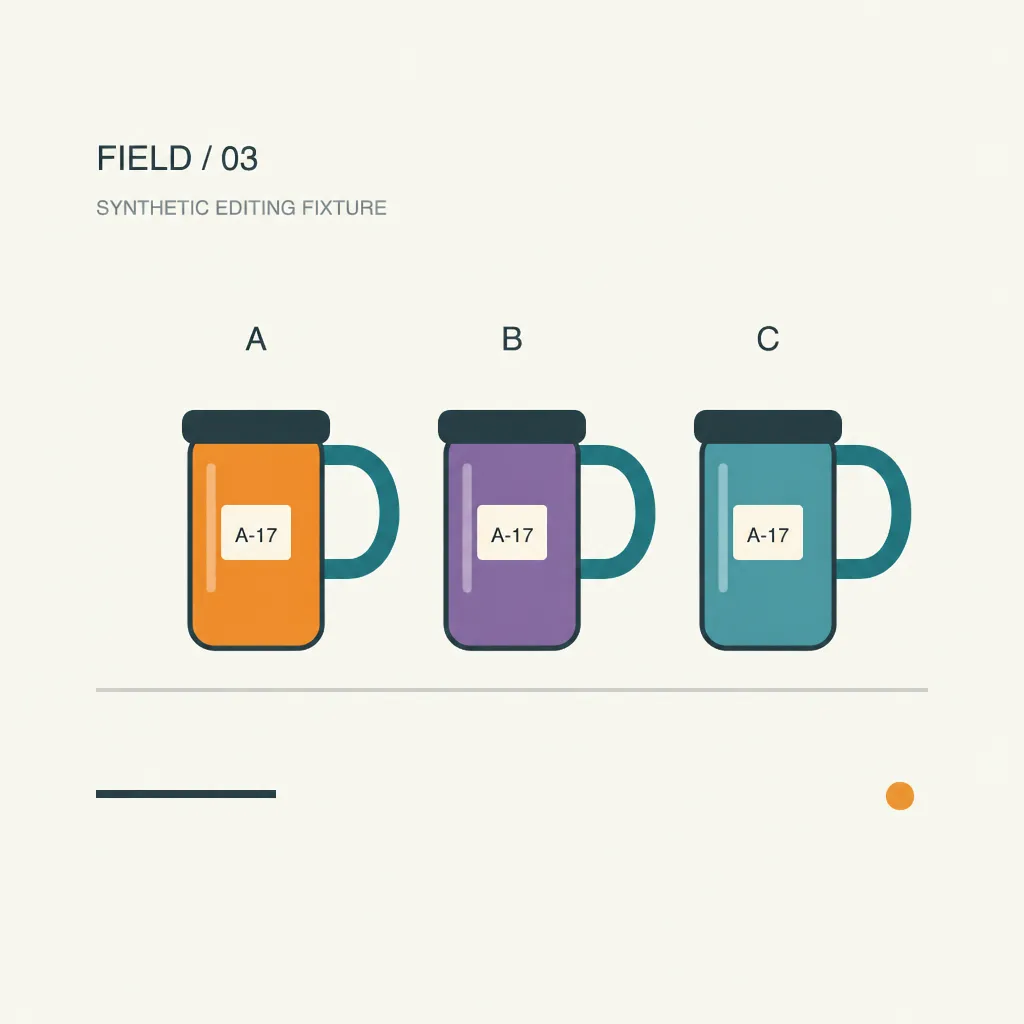
The source is a synthetic illustration we authored, not a photograph of a real product. It has three teal mugs labelled A, B and C, with A-17 on each cream label. The earlier markup editing example changed A to orange. Its returned file becomes previous.png here, byte-for-byte. That first edit already introduced texture and other differences; it is a candidate version, not an example of perfect preservation.
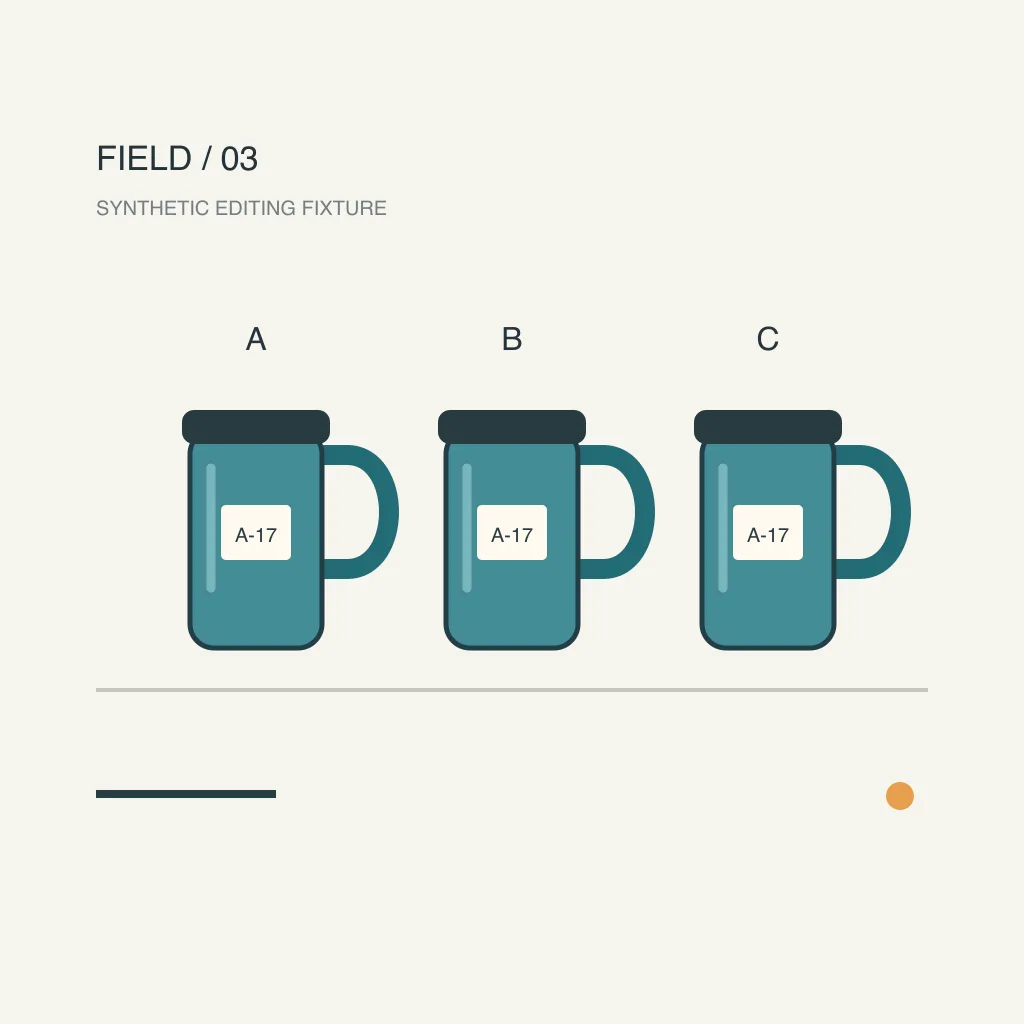
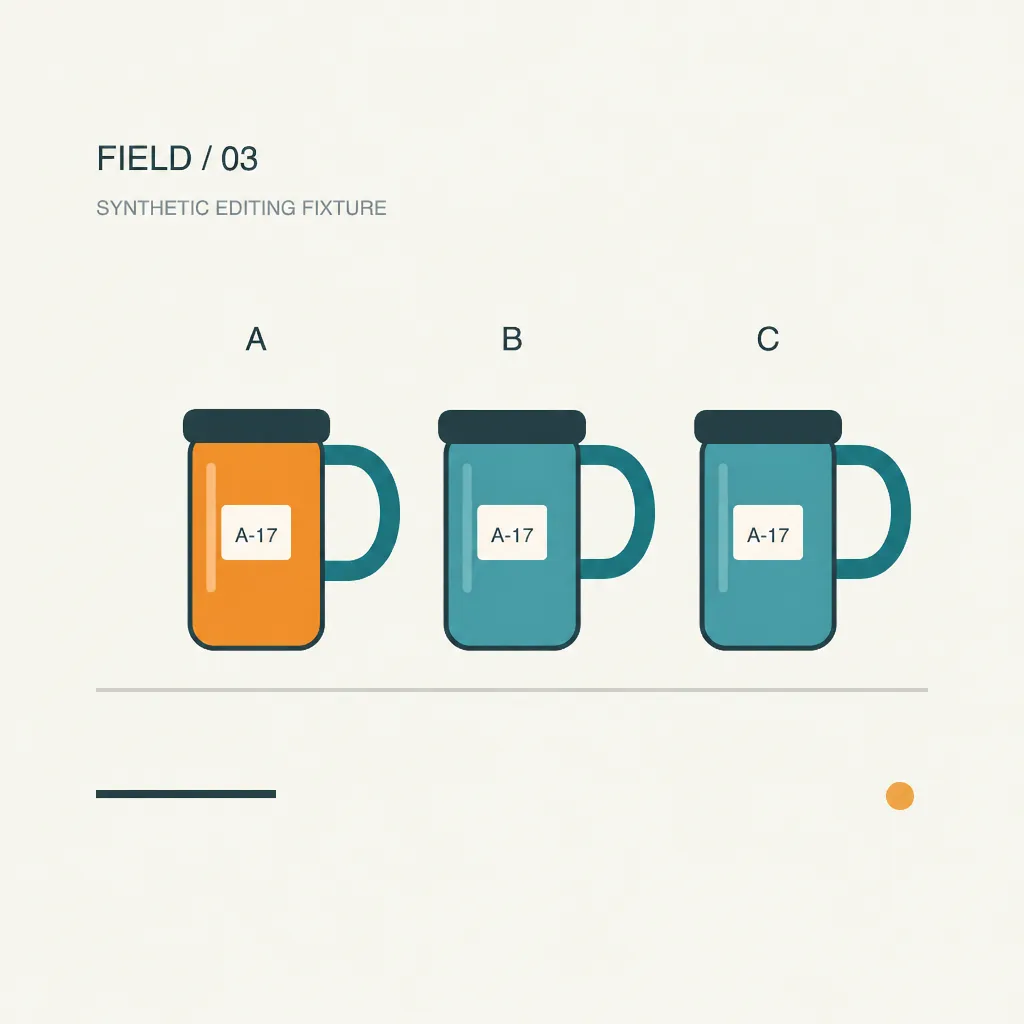
The new request is to make B violet while keeping A orange and C teal. This creates a real revision decision: use the orange-A result, or start from the all-teal original and explicitly request both final colors. We did not add a second reference, a mask or another annotation. For a different question—how many reference images to supply—see the single-versus-two-reference product scene comparison.
Choose the input by what you intend to preserve
Keep a read-only copy of the original and name each downloaded result separately. Avoid repeatedly overwriting final.png: a later rejection should not destroy the last usable candidate or its input history.
| Situation | Input to consider | What the next instruction must include |
|---|---|---|
| Last version has an accepted composition and needs one small change | That specific downloaded version | New change plus protected details |
| Last version changed a label, shape or background you did not approve | Original, or an earlier reviewed version | All desired final changes, not just the newest one |
| You need two alternative designs | Separate branches from the same chosen input | A complete specification for each alternative |
| Product pixels must remain exact | A layered editing/compositing workflow | Which original layer stays untouched and how the composite is checked |
These are workflow choices, not a claim that an API parameter locks a product. Returning to the original removes an unwanted generated file from the input chain; it does not prevent new variation. Continuing from a candidate can retain useful composition, but it also supplies any defects already present in that candidate.
The OpenAI image generation guide documents conversation-based iteration through the Responses API. Our experiment is narrower: two independent Images API edit requests with different uploaded PNGs. It does not test previous_response_id, persistent conversation memory or Ofox Chat’s internal attachment selection. Do not copy a Responses-specific field into this multipart request and expect equivalent behavior.
Write the full final-state prompt
This is the exact prompt used in both new requests:
Create the final revised version of this flat product illustration. Mug A on the left must have a warm orange body. Mug B in the center must have a muted violet body. Mug C on the right must remain teal. Keep all three dark lids, handles, shapes and positions, cream A-17 labels and their exact text, A B C headings, FIELD / 03 title, subtitle, pale background, bottom line and small orange dot unchanged. No additional objects, no red annotation, no texture or photographic shading. Preserve the original flat illustration style and framing.“Make B violet” alone would leave the reset branch underspecified: its original still has a teal A. Naming the complete final state makes the intended result understandable without the earlier conversation. The protected list identifies what to inspect afterward; it is not evidence that those details will stay unchanged.
For a real product, replace the mug identifiers with unambiguous descriptions and list the features that matter to approval: exact packaging text, proportions, material, color, crop and background. Keep instructions that describe the same feature consistent. “Preserve the original color” and “make every object orange” cannot both govern the same object. Resolve the conflict before spending another request.
The image prompting guide provides broader editing patterns. Here we kept the final prompt identical across branches so the uploaded image was the intended experimental difference. There was no controlled seed or repeated sampling, so stochastic variation remains a limitation.
Reproduce one branch through the API
Our route was https://api.ofox.ai/v1/images/edits, with Ofox model ID openai/gpt-image-2.6-flare, 1024x1024, medium quality, low complexity and one PNG output. We omitted input_fidelity, markup and mask. Check your account’s available model and the Ofox Images API documentation before adapting the request.
Extract the kit into a new directory. Set OFOX_API_KEY privately in your environment, then choose one input. This command is a billable generation request; it does not run both branches or retry automatically. The shell syntax is for macOS/Linux.
: "${OFOX_API_KEY:?Set OFOX_API_KEY privately first}"
INPUT='previous.png'
RESPONSE='my-chain-response.json'
test -f "$INPUT" && test -f prompt.txt || exit 1
test ! -e "$RESPONSE" || exit 1
curl --silent --show-error --fail-with-body \
  --connect-timeout 15 --max-time 240 \
  'https://api.ofox.ai/v1/images/edits' \
  -H "Authorization: Bearer $OFOX_API_KEY" \
  -F 'model=openai/gpt-image-2.6-flare' \
  -F "image=@${INPUT};type=image/png" \
  -F 'size=1024x1024' -F 'quality=medium' \
  -F 'complexity=low' -F 'n=1' -F 'output_format=png' \
  -F 'prompt=<prompt.txt' -o "$RESPONSE"
For a separate original-input request, set INPUT='source.png' and use a new response filename such as my-reset-response.json. Leave the final-state prompt and other settings unchanged. Each invocation can incur its own charge. Do not run another request just because a download is slow; inspect the first request’s status and saved response first.
Our successful responses contained base64 PNG data. Decode your saved successful response with the supplied standard-library helper:
python3 decode_edit.py my-chain-response.json my-chain.pngUse a fresh output filename; the helper refuses to overwrite an existing file. A JSON error, an empty data array or a different response representation is not a PNG. If the route returns an image URL instead, handle that documented representation separately rather than renaming JSON to .png. Keep keys out of filenames, manifests and screenshots.
What the two new outputs show
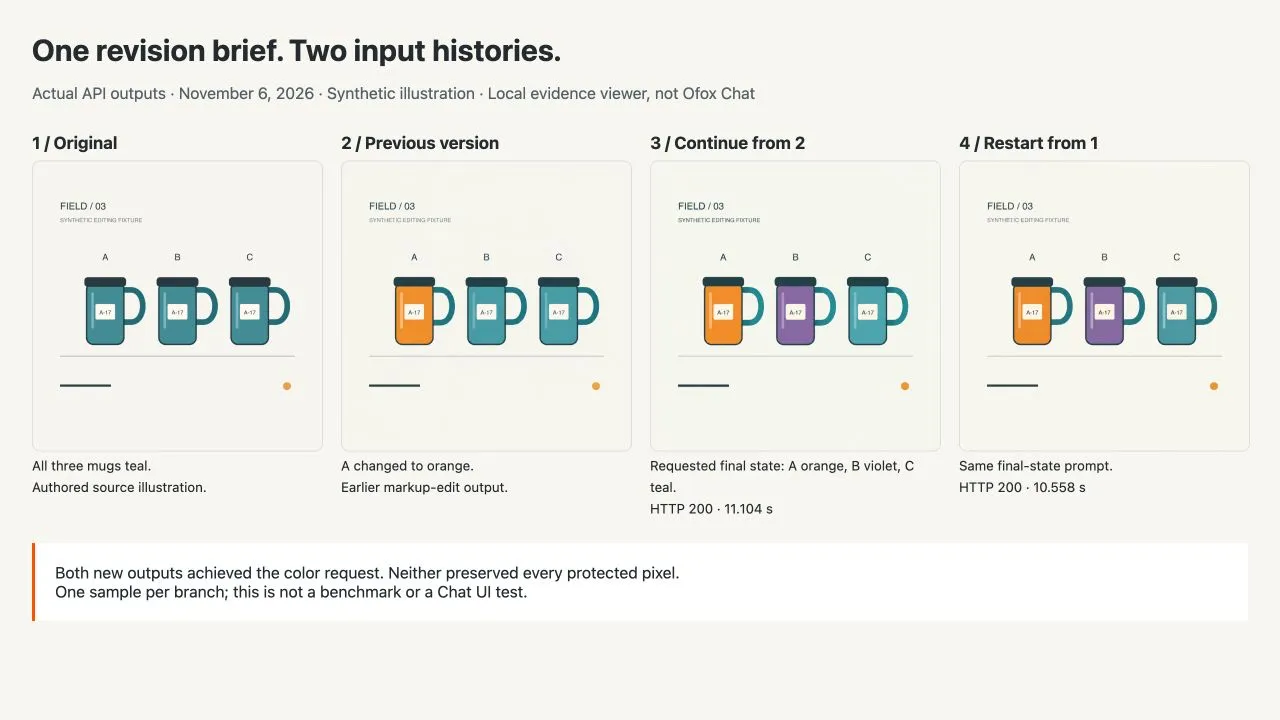
This is a screenshot of our local evidence viewer, not the Ofox Chat interface. The full-resolution files below and in the download are the inspection source.
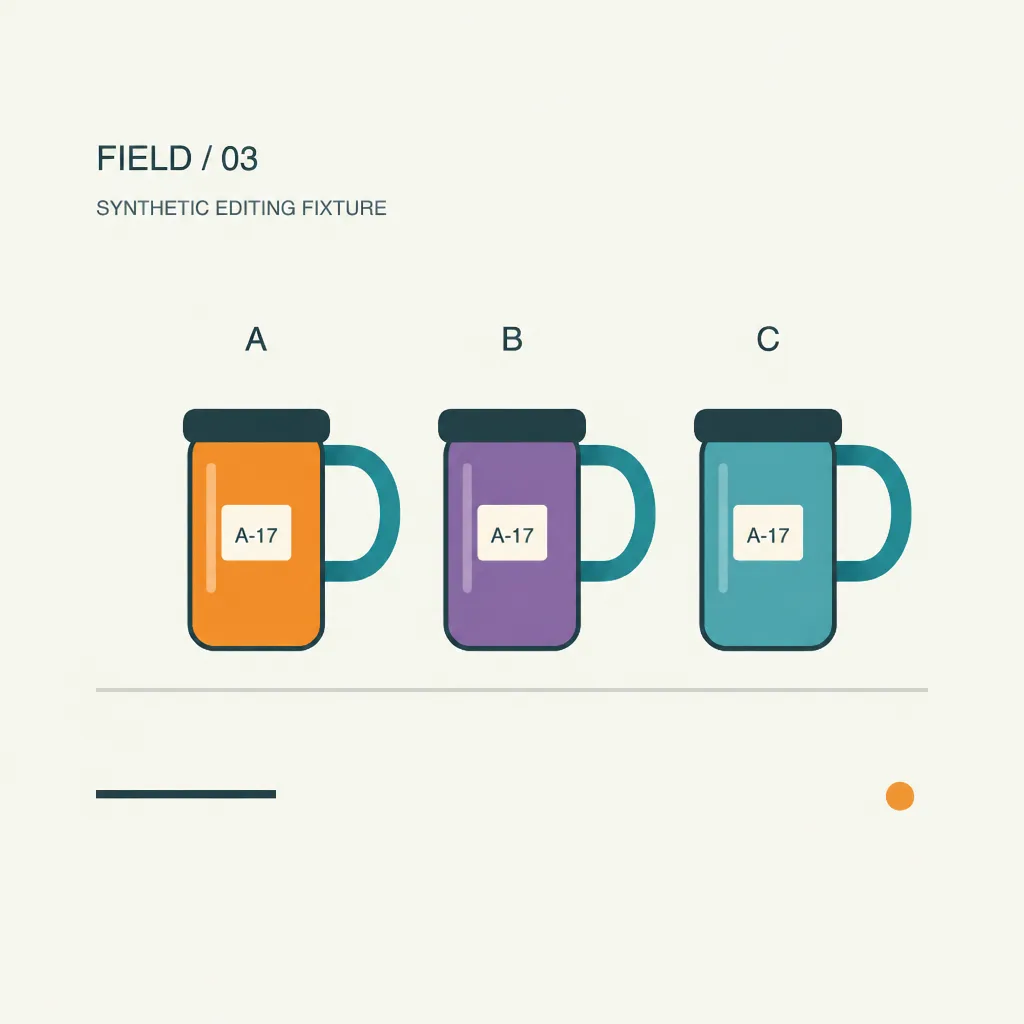
Both requests returned HTTP 200 and 1024 × 1024 PNGs. The continuation took 11.104 seconds and the original-input request 10.558 seconds in this run. Each reported 1,153 input tokens, including 1,024 image tokens, and 1,449 output image tokens. These are individual request observations, not a latency benchmark or a current price quote.
Visually, both results show the intended orange A, violet B and teal C. The A-17 labels and headings remain readable. Both also have shading/texture and small differences in regions the prompt asked to preserve. A successful HTTP response therefore establishes delivery, not approval of the artwork.
We compared three fixed crops against source.png, without image registration. The table reports mean absolute RGB difference on the 0–255 channel scale; it is not an identity, accuracy or quality score. A small shift in an edge can change this value even when a human considers the image acceptable.
| Protected region | Previous version | Continue from previous | Restart from original |
|---|---|---|---|
C body, (712,575)-(822,625) | 12.494 | 19.526 | 11.299 |
Title, (90,130)-(400,225) | 3.141 | 4.747 | 3.300 |
Bottom line, (90,780)-(280,810) | 1.853 | 4.468 | 1.751 |
None of these crops was pixel-identical to the source. The original-input branch was closer on these particular measurements. That is useful evidence for rejecting an exact-preservation claim, but insufficient evidence for a general preference across products, prompts or models. We tested one synthetic illustration, two new outputs and no retries. Real logos, small legal text, faces and photographic materials need their own evaluation.
Keep a version record you can actually audit
The supplied versions.json records the original, its earlier edit and the two new branches. Each entry has a parent ID, filename, SHA-256 hash and review status. The generated candidates deliberately remain review-required; the manifest does not silently approve them.
source
├── previous
│   └── chain-result
└── reset-result
Run the offline checker from the extracted directory:
python3 verify_versions.py .Expected output is PASS: 4 version files and parent links verified. Visual review still required. The script verifies file bytes and the recorded parent relationships. It cannot prove that a model used the file, judge color accuracy or substitute for visual inspection. Request records provide the separate input provenance.
For your own job, keep the exact source file, prompt, model and settings beside each response. Record who accepted a candidate and which requirements they checked. If you alter a file after review, give it a new version and compute a new hash. A hash mismatch should prompt investigation, not an automatic rewrite of the expected hash.
Review the whole result before another revision
Separate a rejected request from an unacceptable image. If the service rejects complexity, GIF or SVG parameters, consult the Image 2.6 parameter errors and applicable routes. If an image was returned but its colors, labels or input version are wrong, use the visual and version checks below. Parameter troubleshooting does not replace output review.
Open the original and candidate at full resolution. First check the requested change, then the parts that were meant to stay fixed. For this example, verify A remains orange, B is violet, C stays teal, all three labels still read A-17, no mug is missing or duplicated, and the title and framing are acceptable.
For production work, use three distinct decisions: accept, reject, or inspect further. A pleasing background cannot compensate for an inaccurate product label. If exact product pixels are mandatory, preserve the original product layer and evaluate a composite in an image editor; the mask and product-preservation guide explains the separate checks. Compositing itself still requires edge, perspective and shadow review.
| Failure | Check before another generation | Next action |
|---|---|---|
| Earlier approved change disappears | Does the reset prompt include it? | Add the full final state and use the intended input |
| An unwanted defect persists | Is it already in the uploaded candidate? | Select an earlier reviewed file or the original |
| Right colors, wrong label or geometry | Compare at original resolution | Reject that candidate; isolate the failing requirement |
| Wrong file was edited | Check filename, hash and parent record | Correct the input selection before resubmitting |
| Timeout, 429 or server error | Preserve response and request time; check route status | Resolve the error before deciding whether a paid retry is needed |
Apply the same revision brief in Ofox Chat
You can use Ofox Chat to work on image tasks without writing the multipart request. Attach the exact image you want revised, identify it by filename, and state the complete intended final result and protected details. If an earlier result is unsuitable, reattach the original and explicitly identify it as the new starting point. Check the available image model in your account and inspect the actual output before saving a new version.
The two outputs in this article were generated through the API, not through a measured Chat session. We have not verified that Chat exposes the API’s complexity setting or selects attachments through an equivalent internal mechanism. Use the versioning and acceptance method, rather than assuming hidden controls or exact preservation.
For the next task in the cluster, use markup to point at a specific object, or turn an accepted design into a separate Image 2.6 GIF workflow. Keep your approved still image as its own version before starting that new output format.