Convert scanned invoices to Excel with AI—and check every line item
Extract invoice line items without losing leading zeros or double-counting page subtotals. Includes a two-page sample, extraction prompt and reconciliation checks.
 Ofox

To turn a scanned invoice into a usable Excel file, extract the line items with their source pages, separate invoice totals from item rows, and reconcile the numbers before accepting the workbook. A spreadsheet that opens successfully can still contain a missing row, a changed SKU or a subtotal counted as a purchase.
This walkthrough uses an author-created, two-page invoice with six item rows. The sample is fictional and contains no customer information. Its PDF pages are raster images with no embedded text layer; text extraction without OCR returns nothing. The known answer lets you check an extraction instead of trusting a plausible-looking result. It is a training example, not a claim about accuracy on all invoices.
Download the source before trying the prompt
Use the scanned invoice PDF and keep the reference values separate from your extraction request. If you give the assistant both, you are testing whether it can copy an answer, not whether it can read the invoice.
The invoice repeats the table heading on page 2. Page 1 ends with a carried-forward amount of USD 185.40; page 2 repeats that amount before the invoice subtotal. Neither is a seventh item. Every SKU begins with zeros. These are deliberately ordinary problems: a clean document can produce a wrong spreadsheet without containing handwriting or a dramatic scan defect.
| What to recover | Correct value in this sample |
|---|---|
| Item rows | 6 |
| Page 1 item subtotal | USD 185.40 |
| Page 2 item subtotal | USD 104.59 |
| Invoice subtotal | USD 289.99 |
| Tax, rounded once on the subtotal | USD 29.00 |
| Invoice total | USD 318.99 |
The sample’s tax rule is printed on the page. It is not a recommendation for another jurisdiction or an instruction to recalculate the supplier’s invoice using your preferred rule. Real invoices can apply line-level rounding, discounts, freight, withholding or multiple rates. Preserve what the source says and investigate differences.
Choose the extraction route for the actual document
First inspect the PDF. If selecting a sentence copies coherent text, it probably has a usable text layer. If it only selects an image, you need OCR or a model that can inspect the rendered page. A searchable PDF can still have a poor OCR layer, so check a SKU and an amount against the visible page rather than assuming selection proves correctness.
For a one-off invoice, a file-capable assistant can combine extraction, exception notes and workbook creation. For thousands of invoices with stable layouts and business rules, a maintained document-processing pipeline is usually easier to monitor and repeat. Model rankings are a starting point for evaluation, not evidence that a particular invoice will be read correctly. Our OCR model-selection article covers the broader choice; this article concentrates on the finished spreadsheet.
Check whether your chosen interface actually accepts PDFs and can create downloadable XLSX files. An image-capable API is not automatically a PDF upload endpoint, and a chat answer displayed as a table is not an Excel attachment. If a tool accepts images but not PDF, export each page as an image and retain the original page order. Do not silently drop page 2 because the first upload succeeded.
Define the workbook before asking for it
Use one row per printed line item. The minimum useful columns are invoice_id, sku, description, quantity, unit_price, line_amount, currency, source_file, source_page and review_status. Add a stable row identifier when the supplier has not printed line numbers. Do not use the SKU alone as a deduplication key: the same product can legitimately appear twice.
Store identifiers as text, quantities and amounts as numbers, and currency separately. A displayed 000101 with a numeric value of 101 is not the same as storing the identifier as text. Custom number formatting may make the worksheet look right while a later CSV export loses the zeros.
Keep an InvoiceSummary sheet for subtotal, tax, total and their source locations. Keep an Exceptions sheet for unreadable fields, arithmetic differences and possible duplicate rows. An empty exception sheet is only meaningful after the actual checks ran; ask the assistant to state what it checked rather than just writing “validated.”
Give the assistant an extraction request it can follow
In Ofox Chat, start a separate conversation for the exercise and attach only the synthetic source. Confirm both pages are represented before sending. The following is a reusable task specification; the interface’s current file support and generated attachment must be checked during the run.
Read the attached synthetic invoice PDF. Extract all printed item rows from
all pages into a downloadable XLSX. Do not browse or use external sources.

Create three sheets:
1. LineItems: invoice_id, sku, description, quantity, unit_price,
   line_amount, currency, source_file, source_page, review_status.
2. InvoiceSummary: the printed subtotal, tax, total, tax/rounding wording,
   and the source page for each value.
3. Exceptions: unreadable fields, inconsistent amounts and any rows that
   require a person to check the image.

Preserve identifiers, including leading zeros, as text. Do not treat repeated
headers, carried-forward amounts, subtotals, tax or totals as item rows.
Do not deduplicate repeated SKUs unless the printed rows are proven duplicates.
For an unreadable value, leave the numeric cell empty and explain why.
Do not infer a missing number just to make the invoice balance.

Compare quantity × unit price with each printed line amount. Reconcile the
item sum with the printed subtotal and the subtotal plus printed tax with
the printed total. Preserve both printed and calculated values when they
conflict. State the page count and item count. Return the actual XLSX file,
not only a Markdown table. Keep the original PDF unchanged.
The prompt deliberately separates reading from arithmetic. If an assistant changes a printed amount until the total works, the spreadsheet stops being an extraction. A discrepancy should remain visible even if the model thinks it knows the intended value.
For private invoices, use copies containing only information you are authorized to process. Remove unrelated bank details or personal data where they are unnecessary. A public tutorial’s synthetic example does not establish that your organization permits sending supplier documents to the same service.
Check the downloaded cells, not only the preview
Open the returned workbook and inspect LineItems first. There should be six rows, with three pointing to source page 1 and three to page 2. Locate 000101 and 000108; check their stored cell values or formula bar, not just the visible formatting. Compare each description and number against its source page.
Then calculate the amount independently. In this sample:
Page 1: 2 × 19.95 + 3 × 8.50 + 1 × 120.00 = 185.40
Page 2: 4 × 6.25 + 2 × 14.80 + 1 × 49.99 = 104.59
Subtotal: 185.40 + 104.59 = 289.99
Tax: 289.99 × 10%, rounded to cents = 29.00
Total: 289.99 + 29.00 = 318.99
A matching total alone is insufficient. Two offsetting mistakes can cancel, and the wrong SKU does not change arithmetic. Validate row identity, page coverage and numeric relationships separately. When checking a larger batch, reconcile each invoice and currency separately before aggregating anything.
If the assistant puts formulas in the workbook, recalculate it in Excel or another compatible spreadsheet application. A Python script reading formula caches may see missing or stale values. The openpyxl documentation explicitly distinguishes writing formulas from evaluating them. For an automated audit, compute the expected amounts independently with decimal arithmetic; do not treat a formula string as a calculated answer.
What the actual Chat run produced
On November 7, 2026, we uploaded only the two-page synthetic PDF to Ofox Chat in Balanced mode; the reference JSON was not supplied. The run returned an Excel workbook you can inspect with LineItems, InvoiceSummary and Exceptions sheets.
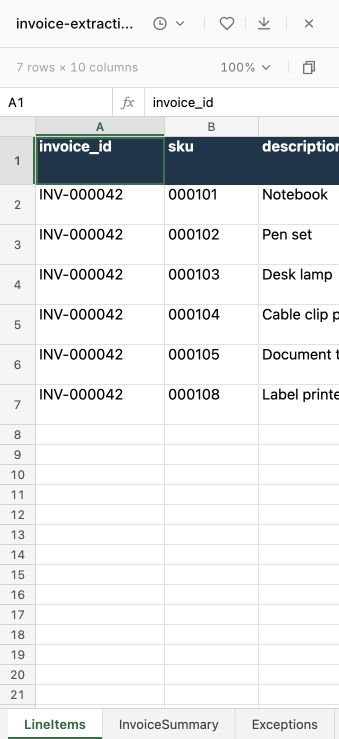
The screenshot is the real English-interface preview. We also inspected the downloaded file: all six SKUs were stored as strings, all descriptions and numeric fields matched the source, and the source-page column contained three rows for each page. Independent decimal arithmetic reproduced the subtotal of USD 289.99 and total of USD 318.99. The carry-forward appeared in the summary sheet and was not counted as a purchase.
The Exceptions sheet contains an informational “No exceptions” row, rather than being literally empty. Do not count that row as a failed item. The summary preserves printed and calculated amounts separately. This run supports the workflow on this clean, synthetic English invoice; it does not establish an OCR accuracy rate or performance on handwriting, damaged scans, other languages or a batch of suppliers.
Repair the smallest failed part
| Symptom | Likely place to investigate | Next action |
|---|---|---|
| Seven or eight item rows | Carried-forward amount or subtotal imported as an item | Compare the extra row with its source position; remove only the proven summary row |
| Correct total, wrong SKU | Text extraction or cell typing | Correct the identifier from the image and keep the cell as text |
| Only three items | Missing second page or partial processing | Reattach page 2 and append its verified rows with provenance |
| Quantity × price differs | OCR error, discount, unit conversion or printed inconsistency | Preserve printed values; record the difference before deciding the business treatment |
| Total is USD 504.39 | Page 1 carry-forward may have been counted again | Inspect the extra USD 185.40 contribution; do not fix by subtracting blindly |
| Workbook link is absent | Output delivery failed | Request a downloadable XLSX; if unsupported, use a documented CSV import route and preserve text columns |
A focused repair request is easier to verify than “try again”:
Reopen the original invoice page 2. The carry-forward amount 185.40 is not
an item row. Remove that row from LineItems only if its source location
confirms it is the carry-forward. Preserve the six printed item rows,
SKUs and source pages. Recompute the reconciliation and export a new
workbook named invoice-reviewed-v2.xlsx. Describe exactly what changed.
Keep both versions. If the issue is unreadable text, changing the prompt may not help: request a clearer scan or inspect the source manually. A model-generated confidence score should not replace that review.
Turn one verified invoice into a repeatable workflow
Before processing a folder, test variations: credit notes, multiple currencies, identical invoice numbers from different suppliers, discounts and multi-page tables. Define whether negative values are permitted and how duplicate invoices are identified. A six-row English sample cannot establish performance on those cases or on Japanese or Russian scans.
Once extraction is correct, follow the Excel analysis workflow for summaries and charts, or the multi-file merge tutorial for combining confirmed records without losing their origin. If building an API pipeline, use text-to-JSON validation after OCR; valid JSON still needs invoice-specific reconciliation.
The useful end product is a workbook another person can trace back to the invoice. Start with this sample in Ofox Chat and apply the same checks before using the result in a real workflow.