Seedream 5.5 frames to GIF: a tested local export workflow
Plan a looping sequence, check PNG frame order and export a GIF with controlled timing. Includes a tested local kit; Seedream generation is not claimed as tested.
 Ofox
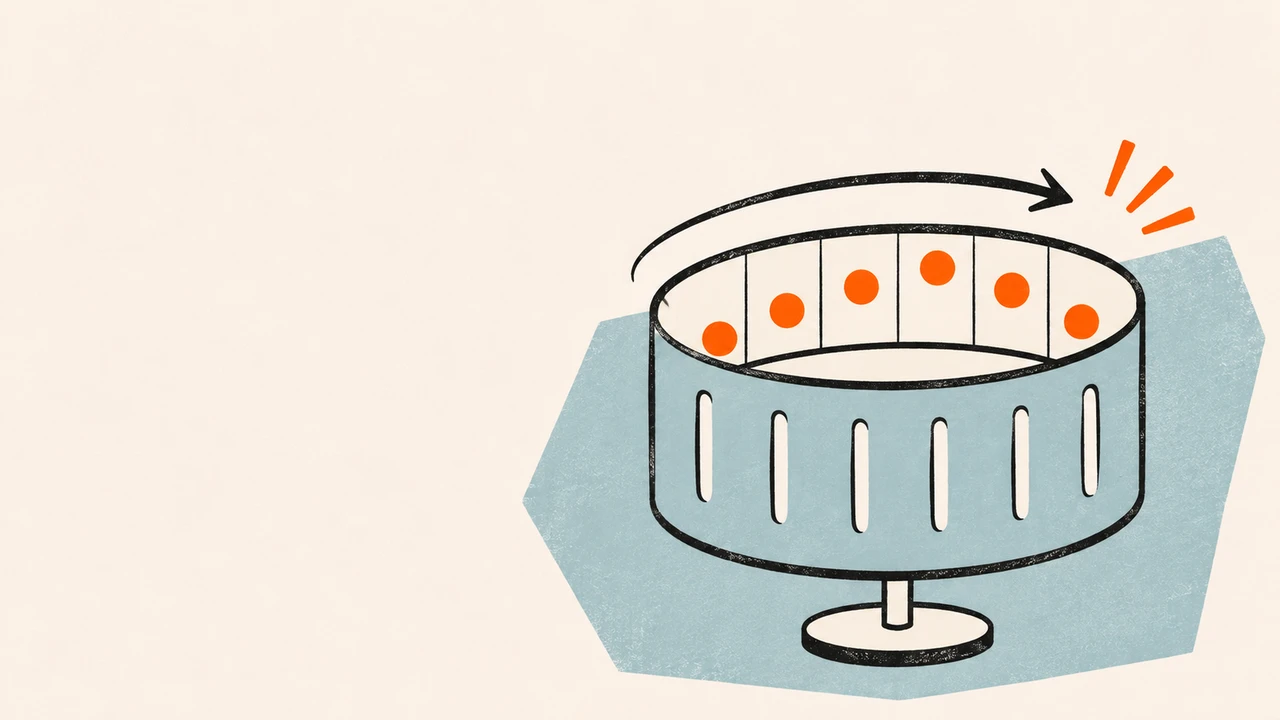
To make a GIF from Seedream 5.5 images, first obtain separate, consistently framed PNGs; then set their order and duration in an animation exporter. A transparent image, a contact sheet and an animated GIF are different deliverables. Do not assume that asking an image model for “a GIF” produces a downloadable animation.
ByteDance’s Seedream 5.5 product page demonstrates a running-character image sequence on separate transparent layers. That supports exploring a frame-based workflow; it does not establish a native GIF endpoint, a frame-count parameter or a particular service’s export controls. This article tests the local PNG-to-GIF stage, using an original mathematical test marker. We did not generate the sample frames with Seedream 5.5, and the prompt below is an untested starting template.
Download and run the working example
The downloadable example kit contains the source PNG frames, their provenance note, the exporter, a fixture generator, the actual resulting GIF and its inspection report. Nothing in the scripts calls a model or uploads a file.
You need Python 3 with Pillow and FFmpeg available on your PATH. Use your normal package manager for FFmpeg. Extract the ZIP into a new working folder and open a terminal in that folder, where export_gif.py and fixture/ are visible. On macOS or Linux, install Pillow and run:
python3 -m venv .venv
source .venv/bin/activate
python -m pip install Pillow
python export_gif.py fixture output --fps 10 --matte '#fff8ee'
On Windows, activate the virtual environment with .venv\Scripts\activate instead of the source line, or use the environment’s Python executable directly.
The tested environment used FFmpeg 9.0.2; the kit records the installed version and output properties in report.json. Installing an unpinned current Pillow release is convenient for a trial. For a repeated production workflow, pin the version that passes your own checks.
The output directory must not already exist. This prevents an accidental rerun from overwriting an accepted animation. The source frames remain unchanged. If a failed attempt leaves a folder containing FAILED.txt, inspect the failure and use a different output folder for the next attempt.
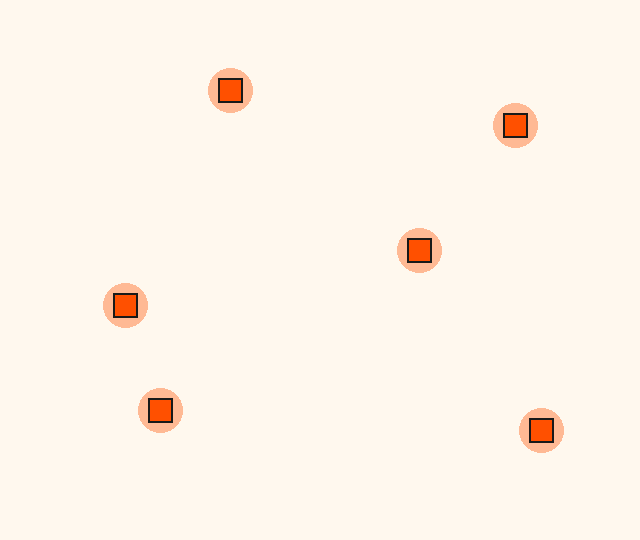
Actual result of the local export, using code-rendered test frames. This is not a Seedream generation, and its simple appearance says nothing about Seedream’s visual quality.
Our run produced a 320 × 180 GIF with 12 encoded frames, 1,200 ms total duration and loop value 0, meaning continuous repetition in the GIF metadata. The file was 6,366 bytes. Those measurements describe this small fixture, not the size or quality you should expect from a detailed character animation.
Define motion before requesting images
A useful animation brief contains an action, a stationary reference and a closing transition. “Cute mascot, beautiful lighting” describes an image style but says nothing about motion. Decide what changes between frames and what must remain fixed: canvas size, camera position, subject scale, baseline, palette and identity details.
For a first loop, use one isolated action such as a small wave. Avoid combining a turn, a jump, camera movement, changing props and a moving background. Each additional change makes it harder to distinguish intended motion from generation drift. Six distinct poses can establish the idea, but six frames do not guarantee smooth movement. Timing and pose spacing determine how the action feels.
Before trying the prompt, confirm that the actual service exposes Seedream 5.5 and can deliver the required files. Our November 10, 2026 Ofox catalog check still found 5.0 Pro and Flash, not 5.5. The version and access guide explains this boundary. Do not substitute a nearby model and label the result as 5.5.
Here is a complete starting brief for a service where access is confirmed:
Create a six-pose sequence for a short looping wave by the character
in my reference. Keep the camera fixed and use the same full canvas,
character scale, foot baseline, clothing and colors in every pose.

Pose order:
0 — neutral, arm resting;
1 — arm lifting;
2 — hand raised and tilted left;
3 — hand raised and tilted right;
4 — arm lowering;
5 — almost neutral, positioned to transition back to pose 0.

The face, torso, feet and background framing should remain stable.
Only the waving arm and hand should move. Avoid new objects or text.
Return separate PNG images with transparent backgrounds if this
service supports that export. Do not draw a checkerboard background.
If only a contact sheet is available, use an exact 3-column × 2-row
grid with equal cells, no gutters, no labels and no outer border.
Save the prompt, model label, reference and downloaded originals together. If the interface cannot return six separate frames or a clean sheet, do not infer that a hidden API flag will solve it. Use the service’s actual export options, or choose a different route with a verified animation output.
Separate poses without changing their alignment
Keep a full, equal-sized canvas for every frame. Independently trimming each image to its nontransparent content can make a stationary character appear to jump: the drawing’s local origin moves even though the pose was meant to stay in place. Use the same crop rectangle and scale throughout.
If you received separate files, rename them in the intended motion order:
frames/
  frame-000.png
  frame-001.png
  frame-002.png
  frame-003.png
  frame-004.png
  frame-005.png
Inspect the pictures before renaming. Download order is not necessarily pose order. Do not sort by file size or assume a filename assigned by the service expresses chronology.
If the output is a sheet, check that it really contains the requested grid before cutting. A 3 × 2 layout with unequal panels or a surrounding title is not a clean sprite sheet. In an image editor or a sprite-sheet converter, specify the real cell boundaries and inspect all extracted cells. A mathematically equal crop cannot fix a drawing that crosses a cell boundary. Our Image 2.6 GIF tutorial contains a separately tested sheet-conversion example and its attribution; it is not evidence that Seedream produced that source sheet.
Keep the source resolution until alignment is correct. Exporting all frames to a smaller canvas before finding a clipping error can hide the defect in preview while making later repairs harder.
Choose the background deliberately
PNG can contain partial transparency. GIF uses palette-based transparency and does not preserve the same continuous alpha values. A faint glow, glass edge or antialiased hair boundary may therefore look different after a transparent GIF conversion. Changing the extension does not preserve those properties.
The supplied exporter takes the predictable route: it composites every input onto one explicit matte color before quantizing and encoding the GIF. The default cream background is a design choice, not a transparent output. Set --matte '#ffffff' for a white placement, or use the actual background color of the target page. If the GIF will appear on many backgrounds, this route may not fit the task.
When true partial transparency matters, retain the original PNG sequence and evaluate an alpha-capable animation format in the actual destination application. APNG and animated WebP are possible alternatives, but support depends on the editor, content system and playback surface. Do not promise that a chat app or ad placement accepts them without testing that destination. See the transparent PNG guide for checking whether the original files have useful alpha rather than a painted background.
The Pillow GIF documentation describes frame duration, looping and disposal controls. It is a file-format reference, not a specification for Seedream generation.
Control timing and inspect the loop seam
At 10 frames per second, each frame lasts 100 ms. Twelve frames therefore last 1.2 seconds. The exporter restricts the frame rate to 5, 10, 20, 25 or 50 fps so that each frame duration is exactly representable in GIF’s hundredths-of-a-second units. This is a deliberate constraint of our script, not a Seedream limit.
A loop’s last-to-first transition matters as much as its internal transitions. If the final pose is far from the first, continuous repetition exposes a visible snap. If the first and last frames are identical and both are held for a full interval, the repeated pose can create an unwanted pause. Sometimes a pause is intentional; inspect the resulting animation rather than applying one universal rule.
The example’s 12 marker positions lie around a closed path and do not duplicate the first position at the end. It is designed to test ordering and timing, not to model natural character motion. For your own sequence, view a contact sheet for identity consistency and then play the animation at the intended size. A still contact sheet cannot reveal an awkward rhythm.
What the exporter checks—and what it cannot judge
The script requires consecutively numbered PNGs, matching dimensions, at least two frames and some variation between them. It refuses an existing output folder and rejects oversized frames before conversion. After encoding, it reopens the GIF and checks that it has multiple frames, the expected total duration and a continuous-loop setting. Source hashes are recorded for later comparison.
The encoding uses FFmpeg’s palette generation and palette-use filters. Those help create a consistent palette across the sequence; they do not restore lost drawing detail or make inconsistent poses coherent. A GIF encoder can also merge identical frames while retaining their combined duration, so encoded-frame count is not always the same as source-file count.
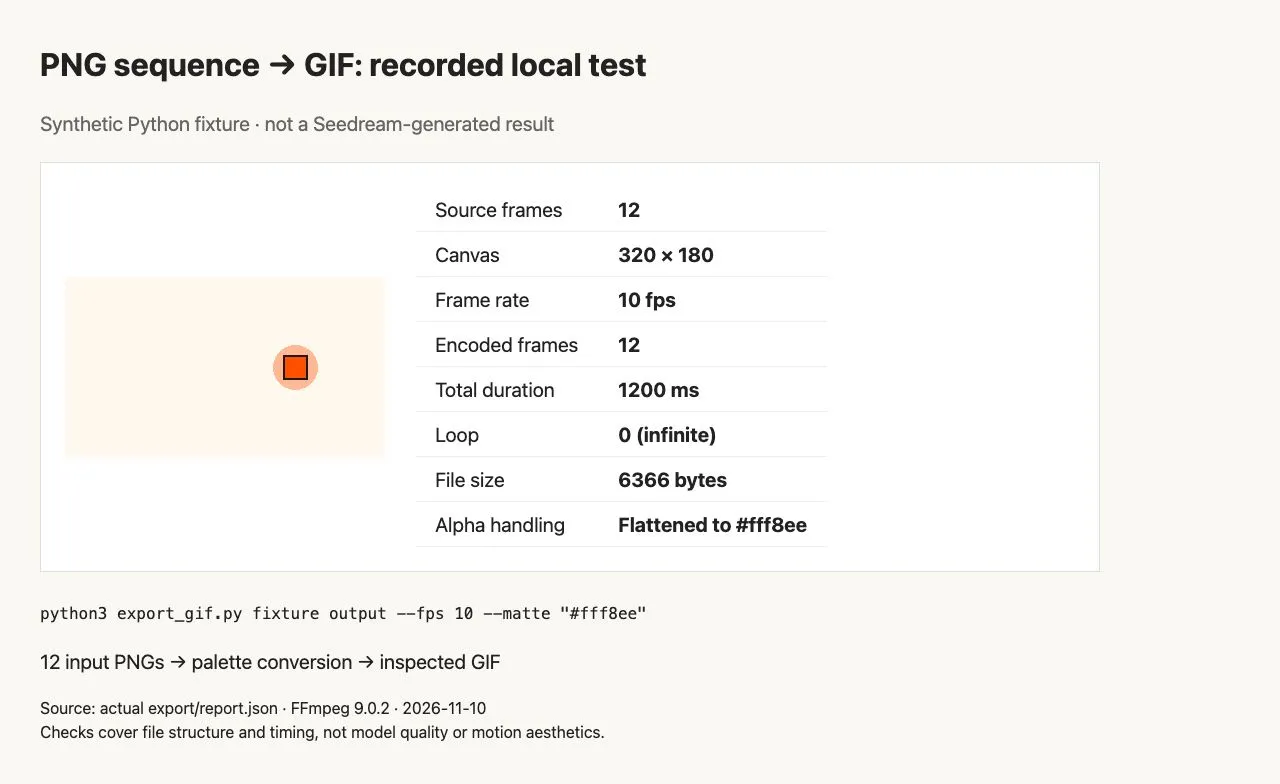
Screenshot of our local test record. It documents file validation and export results, not a model interface or a Seedream generation.
| Symptom | Check first | Appropriate next step |
|---|---|---|
| Only one image appears | Decode the actual downloaded file and count frames | Find the separate source frames or a genuine animation export |
| Character jumps around | Canvas dimensions, shared origin and crop | Realign on the same canvas before encoding |
| A white rectangle appears | Whether the PNG had alpha; chosen matte | Inspect alpha, then choose the right background or format |
| Edges look rough | Palette and alpha conversion, preview size | Keep PNG originals; inspect on the actual placement background |
| Motion snaps at repetition | Final-to-first pose spacing | Revise poses or timing, not the filename |
| A model request fails | Exact model, service and supported request format | Use the image API troubleshooting guide; do not borrow another model’s GIF parameters |
For production, acceptance means more than a file named .gif: it plays on the intended surface, contains the right action, preserves the subject, has acceptable edges and meets that surface’s file-size limit. Keep the editable frames alongside the final export. If your priority is a native generated GIF rather than frame assembly, use the Seedream 5.5 versus Image 2.6 decision guide to choose a route with a verified output contract.
You can open Ofox Chat to prepare the motion brief and work with available image tools. This link is a general Chat entry, not confirmation that Seedream 5.5 is available there; check the model and export options before spending credits.
The downloadable exporter is intentionally bounded: at most 16 million pixels per frame and 64 million pixels across the input sequence. Downsize or split larger material before running it; it is a small local workflow, not a production batch encoder.