Seedream 5.5 vs GPT Image 2.6: choose by the output you need
Compare editing, transparent assets, text and animation workflows. Separate published capabilities from tested routes, then score usable outputs and total task cost.
 Ofox
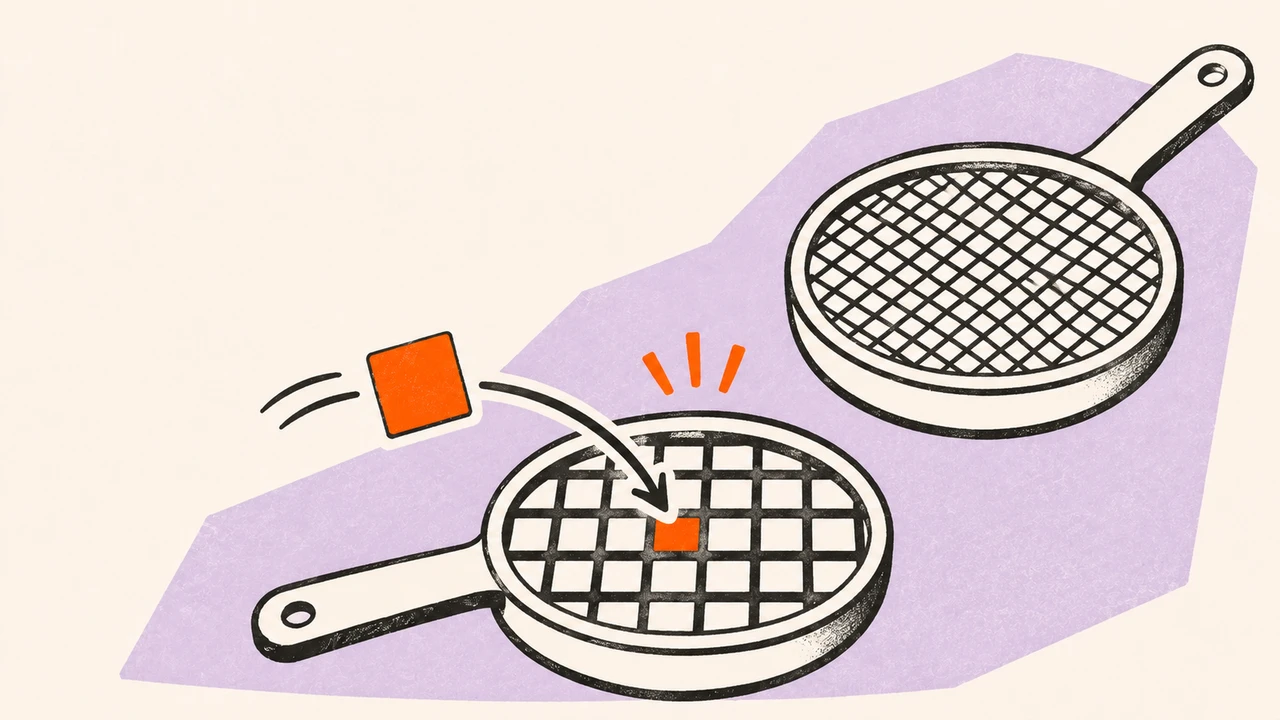
Choose the output contract before choosing the model. Seedream 5.5 is worth evaluating for repeated still-image edits and reusable transparent assets when you have confirmed access. If the job requires a native generated GIF or SVG, GPT Image 2.6 has documented output routes that you can evaluate directly. That difference does not establish which model makes the best product photograph, preserves a face most accurately or needs the fewest corrections.
This is a documentation and workflow comparison, checked November 10, 2026, not a same-prompt visual benchmark. We have not run Seedream 5.5 against Image 2.6 on a shared evaluation set. Ofox publishes this article and offers image models through its services; our integration evidence is useful for checking a route, not independent proof of a universal model winner.
What is actually established
ByteDance’s Seedream 5.5 release announcement describes more stable multi-turn editing, native RGBA output and improvements to realism and text. Its displayed rival comparisons name GPT Image 2.5 Sunburst and Nano Banana 2.1, not GPT Image 2.6. Replacing “2.5” with “2.6” in a chart caption would create evidence the vendor did not publish. The vendor’s editing demonstration is also not our independently measured success rate.
OpenAI’s Image 2.6 documentation identifies the Flare model; the image generation guide documents image generation and editing, including GIF and SVG output controls. Product interfaces and third-party routes may expose only a subset of that contract. A capability in the direct API documentation does not guarantee that the same field works through every gateway.
| Decision | Seedream 5.5 evidence | Image 2.6 evidence | What still needs your test |
|---|---|---|---|
| Several edits to one still image | Vendor emphasizes preserving unchanged regions across edits | Documented editing workflow; Ofox has separate recorded edit examples | Identity, geometry, label and color drift in your own reference |
| Reusable transparent artwork | Native RGBA is a stated capability | Output-format/background controls depend on the documented route | Actual alpha, edge quality and the file your service downloads |
| Exact text in a design | Vendor reports improved text rendering | Text and image prompting are documented | Every required character, date, punctuation mark and small line |
| Native generated GIF | Not established by the official Seedream sources checked here | Documented generation output; a separate Ofox tutorial records an actual route test | Playback, timing, loop seam and task accuracy |
| Editable SVG deliverable | Not established by those Seedream sources | Documented SVG route | Whether the file contains usable vector elements rather than only an embedded raster |
“Not established” is not a claim that a capability can never exist. It means it should not be a purchasing or implementation dependency until the actual service provides a current specification and an output you can inspect.
Confirm the version and route before comparing quality
Our current Ofox catalog contains openai/gpt-image-2.6-flare and openai/gpt-image-2.6-sunburst. It contains Seedream 5.0 Pro and Flash, but we did not find a Seedream 5.5 entry in the November 10 check. Do not use a 5.0 result as the Seedream side of a 5.5 comparison, or invent a 5.5 ID because another provider uses a similar name.
For Image 2.6, record which variant you used. A result labelled only “GPT Image” leaves the comparison ambiguous. Start with the Flare model page or Sunburst model page, then confirm the request route and actual returned file. For Seedream, the 5.5 access guide distinguishes published vendor entry points from Ofox catalog availability.
Save a small provenance record for each candidate: service, visible model label or exact ID, variant, date, request settings, reference hashes and original download. Preserve the service’s request ID if one is available. A screenshot of a selector helps establish what you selected; it does not by itself prove what an undocumented backend ran.
The separate Image 2.6 GIF tutorial reports a real native-generation request and inspected output. The markup-edit tutorial reports its own limited before/after tests. Neither becomes a Seedream head-to-head result simply by linking it from a comparison page.
For product edits, compare preservation rather than attractiveness
A beautiful replacement background is a failure if it changes the product’s logo, proportions or hardware. Choose a reference you own and list the non-negotiable details before asking either model to edit it. If there is no untouched reference, it is difficult to distinguish faithful editing from a plausible redesign.
Use the same source file and task for each candidate. Adapt the request envelope to the service’s documented interface; do not force identical JSON keys onto incompatible APIs. Keep the meaning of the instructions consistent, and record any unavoidable differences in size or quality settings.
This is an original evaluation brief, not a tested prompt result:
Use the attached product photograph as the reference. Replace only
the background with a pale gray studio backdrop and a soft contact
shadow. Keep the product at the same size and position.

Preserve its silhouette, cap, seams, label wording, label placement,
material finish and color. Do not invent a new logo or label text.
Do not crop the product, add accessories or change the viewpoint.
Return the original downloadable image at the requested dimensions.
Compare the label at full resolution, then inspect the silhouette and small hardware against the reference. Finally view the intended placement size. A wide composition can hide a misspelled label that becomes obvious on a product detail page. Human acceptance criteria should distinguish “visually similar” from “the same product”; a small global pixel difference alone does not prove identity preservation.
For a second edit, start from each candidate’s own first output and ask for one controlled change, such as a warmer background. Keep the original reference available for comparison. This reveals how errors accumulate in the workflow you would actually use. Our multi-turn editing guide provides a checkpoint approach; do not overwrite the last accepted image while testing the next step.
For transparent assets, inspect the file and its placement
Use a subject with a demanding boundary: fine hair, a mesh opening or a semitransparent material. First inspect the original PNG’s alpha channel. Then place it on light, dark and saturated backgrounds. A screenshot that looks clean on white can conceal a white fringe; a checkerboard drawn into RGB pixels is not transparency.
A useful brief is:
Create one isolated decorative glass ornament on a transparent
background. Keep the entire ornament within the canvas with margin.
Preserve its fine hanging loop and semitransparent glass edge.
No floor, cast background rectangle, checkerboard, text or watermark.
Return a file with actual alpha if the selected service supports it.
This asks for a specific output; it does not guarantee that either service will supply it. Use the alpha inspection workflow on both downloads. Record whether failures arose at generation, export or downstream conversion. Converting an already correct PNG into an opaque format is an export failure, not evidence that the model failed to generate transparency.
If the destination is a GIF, add a separate format check. Continuous PNG alpha does not survive as equivalent partial transparency in GIF. The frames-to-GIF workflow uses an explicit matte and tests timing locally; it does not present that matte output as transparent.
For text, test the actual copy rather than a visual impression
A poster can be attractive and still have the wrong date, altered punctuation or an unreadable disclaimer. Give both candidates the exact same short copy sheet. Inspect every line rather than accepting an OCR score as the verdict. OCR is useful for triage, but a confident transcription can miss a visual defect or normalize the wrong punctuation.
For a first test, use a fictional, low-stakes brief:
Create a clean event poster with exactly these lines:
NORTHLIGHT STUDIO
Open Workshop
18 November 2026
14:30–16:00
Room B-12

Keep all words, numbers, punctuation and the en dash unchanged.
No additional text. Use a clear hierarchy and generous spacing.
Make the smallest line readable at the final displayed size.
The date is illustrative, not a real event. Test the languages your audience actually reads. Strong English output does not establish Japanese, Korean or Russian accuracy. Do not claim multilingual superiority from a vendor chart that tested a different set of languages. The Seedream poster guide provides a copy-proofing workflow and an editable-text alternative when the visual works but the lettering does not.
For text that must be exact, a sensible fallback is to generate the illustration without final copy and place editable text in a layout tool. That changes the workflow being compared. Include the extra assembly time rather than calling the result a one-shot image-model success.
For animation or vectors, choose a verified deliverable path
If the requirement is “one downloadable animated GIF,” a native GIF route removes the separate frame-assembly step. It does not remove acceptance testing: the file must have more than one frame, the right action, appropriate timing and a usable loop seam. An attractive still frame is insufficient.
Seedream’s transparent sequence examples suggest a different route: acquire aligned still frames and assemble them. That may fit a controlled sprite workflow where you want to inspect and edit individual poses. It also adds responsibility for ordering, timing, palette conversion and export. Choose it because those controls matter, not because a static sequence is automatically equivalent to native animation.
For SVG, inspect the delivered document. A raster image embedded inside an SVG wrapper may render perfectly while failing an “editable vector shapes” requirement. Test whether the parts you need can actually be selected and changed in the target editor. Use the Image 2.6 SVG guide and its GIF/SVG parameter troubleshooting for that route. Those parameter names are not Seedream API instructions.
Use a scorecard that can reject a pretty failure
Download the blank task scorecard. It separates required-file checks, factual preservation, visual acceptance, attempts and cost. Blank cells are intentional: it contains no invented model scores.
Use one row per attempt, not only the best image from a batch. Keep rejected outputs and record why they failed. Decide which requirements are mandatory before seeing the images. For a product edit, a wrong label is a rejection even if the background earns a high aesthetic score. For a GIF task, an excellent static PNG still fails the deliverable requirement.
Calculate cost per accepted deliverable as total generation spend across all attempts divided by the number of accepted deliverables. If none were accepted, report “no accepted output” rather than a zero unit cost. Track correction minutes separately, or apply your own explicit labor rate when estimating total production cost.
For example, a hypothetical, model-neutral workflow spending $9.60 to deliver 12 accepted assets costs $0.80 per accepted asset before labor. A second spending $8.40 for 14 accepted assets costs $0.60. These are arithmetic examples, not Seedream or OpenAI rates or measured results. A cheaper listed generation can still be the more expensive production route if it needs many retries or manual repairs.
Record dimensions, variant and output format with every charge. Comparing a small still image with a multi-frame animation says little about which provider is cheaper for the same job. Consult the actual service’s current pricing; we do not have a verified Ofox Seedream 5.5 quote to put beside an Image 2.6 rate.
Make a reversible choice
For still edits, start with the route you can access and validate against the preservation requirements. Evaluate Seedream 5.5 when exact access is confirmed, without treating the launch comparison as a result against Image 2.6. For native GIF or SVG work, start from a route with documented, inspected output support. For strict typography, retain an editable-text fallback regardless of the image model.
If a request fails, separate unsupported model IDs, authentication, malformed parameters and output-validation failures. The general image API troubleshooting guide covers that separation. A retry cannot fix a model name that the service does not offer.
You can start in Ofox Chat to prepare a brief and try the image models currently available in your account. Confirm the selected model and downloaded result. This general Chat link does not imply Seedream 5.5 availability, and it does not replace a same-task comparison using your own acceptance criteria.