Copilot Excel alternatives: merge workbooks and keep formulas usable
Compare four alternatives by where you edit and what you hand over. Inspect a real workbook merge, a tax-rate revision and the checks that caught stale explanations.
 Ofox

Keep Copilot in Excel when the shared workbook is where the work needs to happen. Consider Ofox or Claude for a separately delivered workbook, Gemini when the working destination is Google Sheets, and Julius for an analysis-oriented workflow. The deciding question is what must survive the handoff: formulas, source rows, collaboration, or all three.
This guide concerns Microsoft 365 Copilot in Excel, not GitHub Copilot. Microsoft now documents direct workbook editing; choosing an alternative because “Copilot only suggests formulas” starts from an outdated premise. A generated XLSX can be useful, but it is not automatically a replacement for editing the existing shared file.
Ofox publishes this guide. On November 6, 2026, we uploaded two synthetic workbooks to Ofox, downloaded the result, requested a bounded revision and checked the files independently. We also changed an assumption in a copy using WPS and verified the saved recalculation. We did not complete a Copilot workbook run: after sign-in, both the uploaded file and a new blank workbook opened a blank Excel editor in our browser. Reloading did not resolve it. This access problem does not establish a Copilot capability limitation. Claude, Gemini and Julius below are documented candidates, not tested winners. This is not an accuracy, speed or price ranking.
First decide where the authoritative workbook belongs
Microsoft’s current FAQ distinguishes edit, plan and chat modes. Edit mode changes the workbook; chat keeps its responses in the conversation. Access depends on the application, license and settings. If you expected a file change but used chat, first check the mode before migrating.
For an ongoing shared workbook, keeping the established file, permissions and editing workflow can matter more than a new generation feature. For a one-off consolidation of two exports, a new file with preserved source sheets may be the intended deliverable. State that difference in the task brief.
| Your requirement | Candidate route | What to verify before switching |
|---|---|---|
| Continue editing the existing Excel workbook | Keep Copilot in Excel | Correct mode, available entitlement and review of actual changes |
| Merge uploaded files into a new auditable XLSX | Ofox Chat | Row reconciliation, formulas, original source sheets and revision scope |
| Create a workbook and accompanying report in a general conversation | Claude | File creation enabled; inspect formulas and final files |
| Build or edit a team spreadsheet in Google Sheets | Gemini in Sheets | Conversion from XLSX and compatibility when exporting back |
| Investigate data and turn findings into reports | Julius | Analysis rules, output format and required formula preservation |
None of the documented routes in this table establishes that your macros, connections, protected ranges or collaboration history will survive. Test the features that your actual workbook uses. Our small example contains none of those features and no hidden sheets.
Four alternatives, with the tradeoff that matters
Ofox Chat: deliver a new file with an audit trail
In our run, Ofox produced an XLSX with accepted rows, exceptions, duplicates, reconciliation and preserved source sheets. It is a candidate when the work ends with a file that another person opens. The useful result was not merely a table in a chat: the workbook contained live formulas and traceable source records.
The revision did not succeed on the first request. An initial request to change only the tax-rate cell failed; a retry produced the checked file after Ofox corrected a save-time column-width change. The final file met the strict preservation check, but retained old prose because we had explicitly forbidden other cell-value changes. Both the success and limitation matter when deciding whether this workflow fits your task.
Claude: general file creation
Claude’s file-creation documentation describes downloadable Excel, Word, PowerPoint and PDF files. This makes it a relevant alternative when the workbook is one of several deliverables. Check that the feature is available in your organization and conversation.
We did not upload this packet to Claude. Ask for the same row disposition and recalculation checks below rather than assuming that support for Excel output proves preservation of every Excel feature. Keep the source workbook intact while evaluating the generated copy.
Gemini in Sheets: change the working destination deliberately
Google’s build-and-edit guide describes creating sheets and completing tasks on existing sheets. It directs users of Excel files to save them as Google Sheets for Gemini features. That is a meaningful workflow change, not merely another name for editing the original XLSX.
Consider it when Google Sheets is already where colleagues collaborate. If an Excel file must eventually be returned, inspect the exported copy in the receiving application. Pay particular attention to formulas, dates and any Excel-specific objects you depend on. We did not perform that conversion in this test, so no lossless-conversion claim is implied.
Julius: evaluate the analysis and its handoff
Julius currently presents data analysis, Excel and report-generation routes. It belongs on the shortlist when you want to investigate data and explain the findings. We did not run its analysis or export here.
Ask for the cleaning rules, excluded records and a reproducible calculation, then request the actual format your recipient needs. A chart or answer can be sufficient for exploration; it is insufficient if finance must update formulas in an XLSX next week. Judge that requirement directly rather than inferring it from the product’s category.
The test packet: eight rows with different problems
Download the synthetic inputs: North_sales.xlsx and South_sales.xlsx. These are invented sales records for an editorial test, not customer data. Each file has a Sales sheet and an Assumptions sheet. Column names differ, dates start as ISO text, and line amounts use formulas.
We defined the expected outcome before running the agent:
| Condition | Required treatment | Count |
|---|---|---|
| Complete, consistent order | Retain once in accepted rows | 4 |
| Second identical N02 record | Remove only the repeated copy; log its source | 1 |
| N03 has one unit in North and two in South | Isolate both versions; do not choose silently | 2 |
| N04 has missing units | Retain as incomplete; do not replace missing with zero | 1 |
| Total raw rows accounted for | Sum of the four disjoint dispositions | 8 |
The accepted IDs are N01, N02, S01 and S02. Their net amounts are 100, 120, 100 and 120 euros: EUR 440 net, EUR 528 gross at the synthetic 20% rate. The two original files show known net totals of 300 and 500. Adding those totals would produce 800, which incorrectly includes the duplicate and conflicting versions. This is why a plausible total is not enough.
The output’s accepted dates became actual spreadsheet dates; the preserved sources retained their original text. Source formulas survived, with references adjusted for renamed source sheets. The result has 11 sheets and 43 formulas. Those counts describe this file, not a performance threshold.
Download the original merged workbook. Inspect Exceptions and Duplicates before reading the final amount. Their classification is a snapshot of this merge: editing source data later does not automatically rerun duplicate and conflict detection. A recurring pipeline needs an explicit refresh procedure.
A bounded revision revealed two different meanings of “unchanged”
We asked Ofox to change Assumptions!B2 from 20% to 10%, return a separate file, recalculate the totals and preserve every other value, formula and style. After the failed first request and successful retry, the revised workbook had the expected EUR 440 net, EUR 44 tax and EUR 484 gross.
Independent file comparison found only the input value and three dependent formula caches changed. The other package members were byte-identical; formulas, source records, styles and column dimensions were preserved. That supports a narrowly defined file-preservation result. It does not prove that all future revisions will behave the same way.
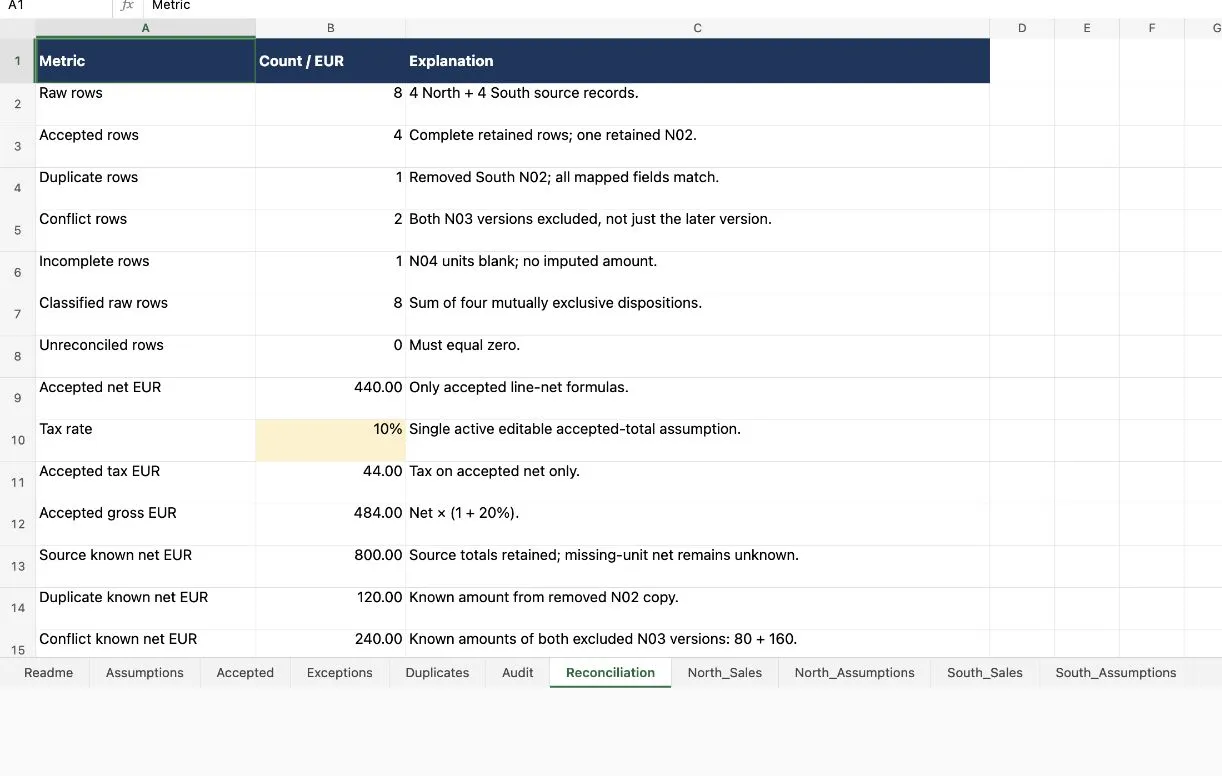
Real English worksheet preview, cropped to exclude account navigation. The stale “20%” explanation is deliberately visible; the image is not a fabricated interface.
The Readme still states the previous 20%/528 result, and Reconciliation’s text explanation still mentions 20%. This follows the strict instruction to leave every other value unchanged, but makes the file unsuitable for an unqualified “everything updated” handoff. Formula correctness and narrative consistency are separate acceptance checks.
For a production revision, explicitly allow the dependent prose to change:
Use the original workbook as the baseline. Change Assumptions!B2 to 0.10.
Preserve source rows, unrelated formulas, formatting and sheet names.
Recalculate dependent formulas. Also update explanatory text and summaries
that explicitly state the old tax rate or affected totals.
Return a separate XLSX and a list of every changed cell with its reason.
Do not rerun classification or choose between conflicting source records.
That is a suggested improved brief, not an additional run we performed. The downloadable revised file remains the strict-preservation result, including its clearly disclosed stale notes.
Recalculate in the receiving application
An XLSX can contain both a formula and a cached result. Inspecting the formula text or seeing a number in a web preview does not establish that a spreadsheet application will recalculate it correctly.
We opened a disposable copy of the original output in WPS, changed Assumptions!B2 to 0.10, saved it and read back the saved formula results: 440 net, 44 tax, 484 gross. This is a real compatibility-application check, not a Microsoft Excel test. It also reproduced the unchanged static explanation. If your recipient uses Excel, repeat the check there before relying on an important workbook.
Use this sequence on any candidate output:
- Save the original inputs and generated baseline under separate names. Record the sheet list and accepted/excluded row counts.
- Open a copy in the destination application. Confirm dates, currency formats and formulas, not just the visual appearance.
- Change one known assumption. Calculate the expected answer independently, then save and reopen the file to check persistence.
- Inspect dependent summaries and explanatory text. A correct formula cannot repair a hard-coded sentence.
- Compare unrelated cells, source sheets and required formatting. Investigate unexpected changes before sharing the file.
- Restore the saved baseline if the change affects unrelated records. Narrow the instruction or perform the bounded edit in the spreadsheet application.
For a repeatable merge, include this acceptance clause in the original task:
Map the two header sets explicitly. Preserve the original source cells and
identify source filename, sheet and row for every record. Keep one copy of
an exact duplicate; isolate all conflicting versions and incomplete rows.
Do not infer missing values. Return an XLSX with formulas, a reconciliation
sheet and separate exception/duplicate logs. Raw row count must equal all
mutually exclusive dispositions. Preserve an untouched input baseline.
The Excel merge walkthrough covers the operation itself. This article adds the choice between staying inside the original workbook and handing over a generated one.
When switching is worth it
Stay with Copilot when the existing Excel file, collaboration and direct editing already meet the requirement. Try a separate-file workflow when you can specify the inputs, exception rules and deliverable, and when a new auditable workbook is the desired outcome. Consider Google Sheets only with an intentional destination change; consider an analysis tool when the question is primarily about interpreting data.
Do not switch because of an unverified claim about cheaper processing, unlimited use or guaranteed formula preservation. This test did not establish any of those things. A useful comparison includes the manual repair and checking work, not just generation.
You can run the synthetic inputs in Ofox Chat and apply the same acceptance checks to another candidate. For PDF-derived comparison workbooks, see ChatPDF alternatives for multiple-PDF comparison.
For a broader view before settling on a tool, our 12 AI agents guide compares research, writing, presentations, visual creation and everyday workflows.
Related Docs
Ofox documentation covers integration; the browser file workflow tested here is distinct from an API integration.