BotGem Setup
BotGem is a cross-platform AI desktop client (macOS, Windows, iOS, Android) that supports custom API providers, making it easy to use for everyday AI conversations.
Prerequisites
- An OfoxAI account with an API Key (Get one here )
- BotGem installed (Download )
Setup Steps
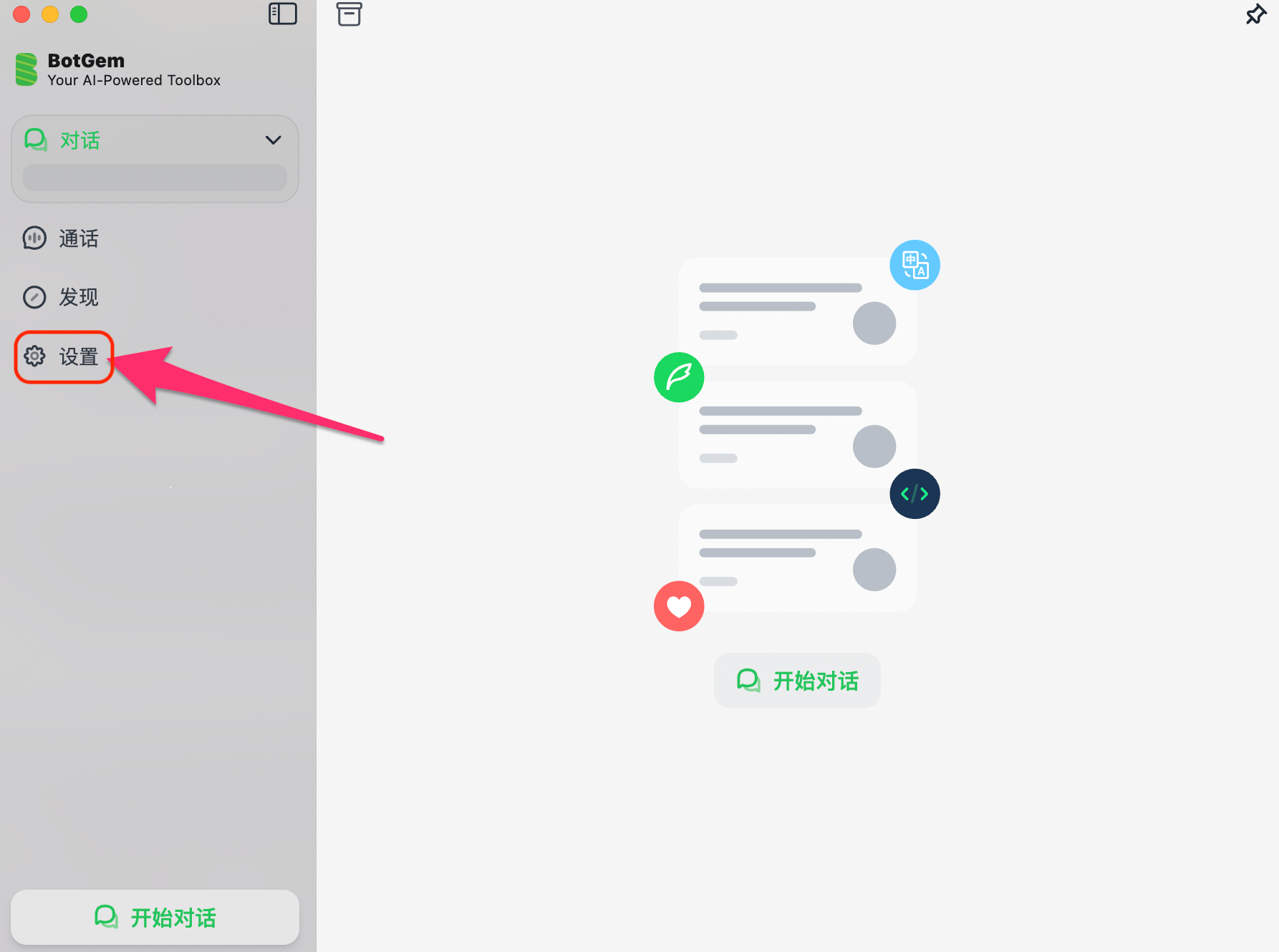
Step 1: Open Settings
Launch BotGem and click Settings in the left sidebar.
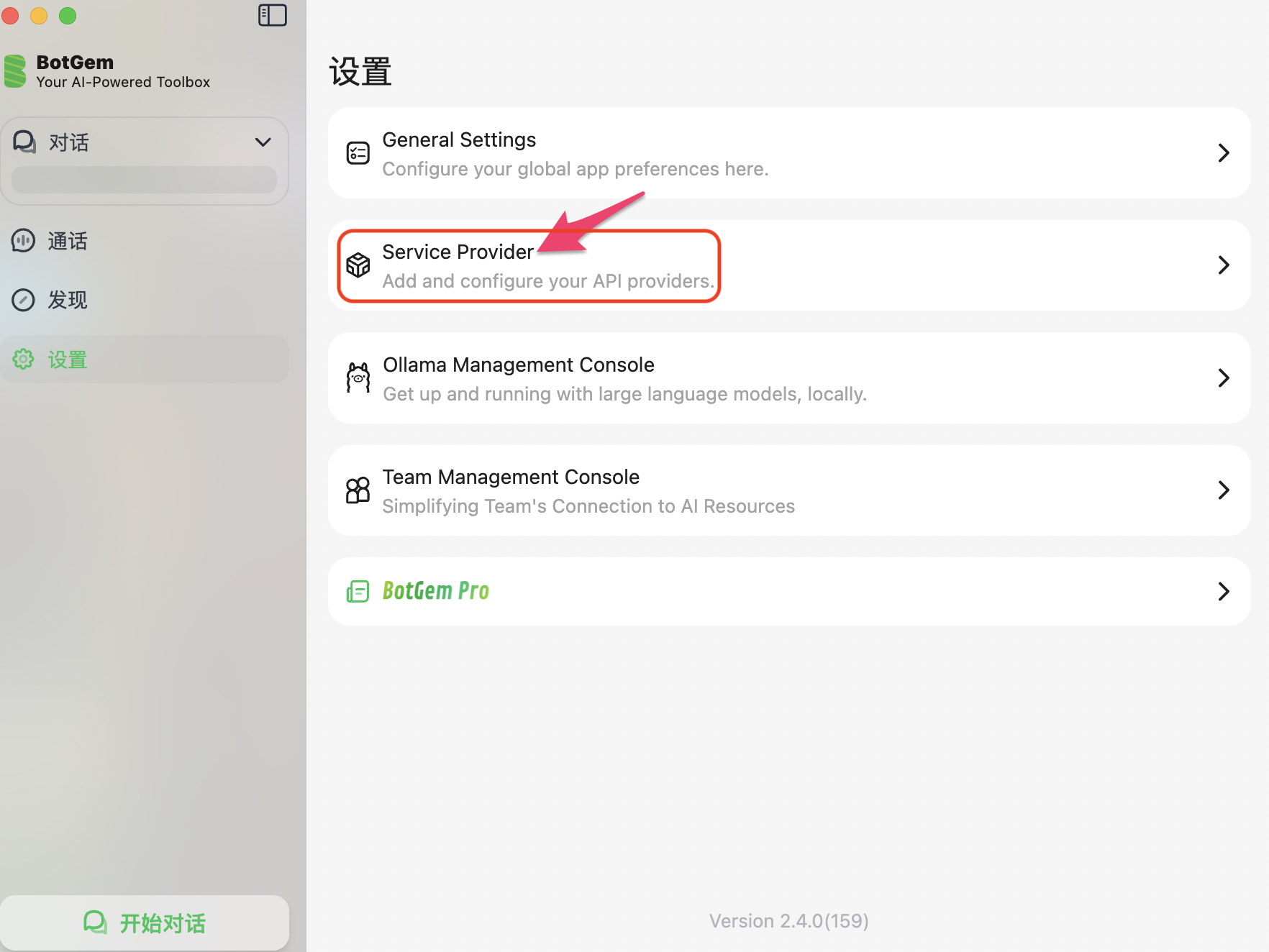
Step 2: Go to Service Provider
In the Settings page, click Service Provider.
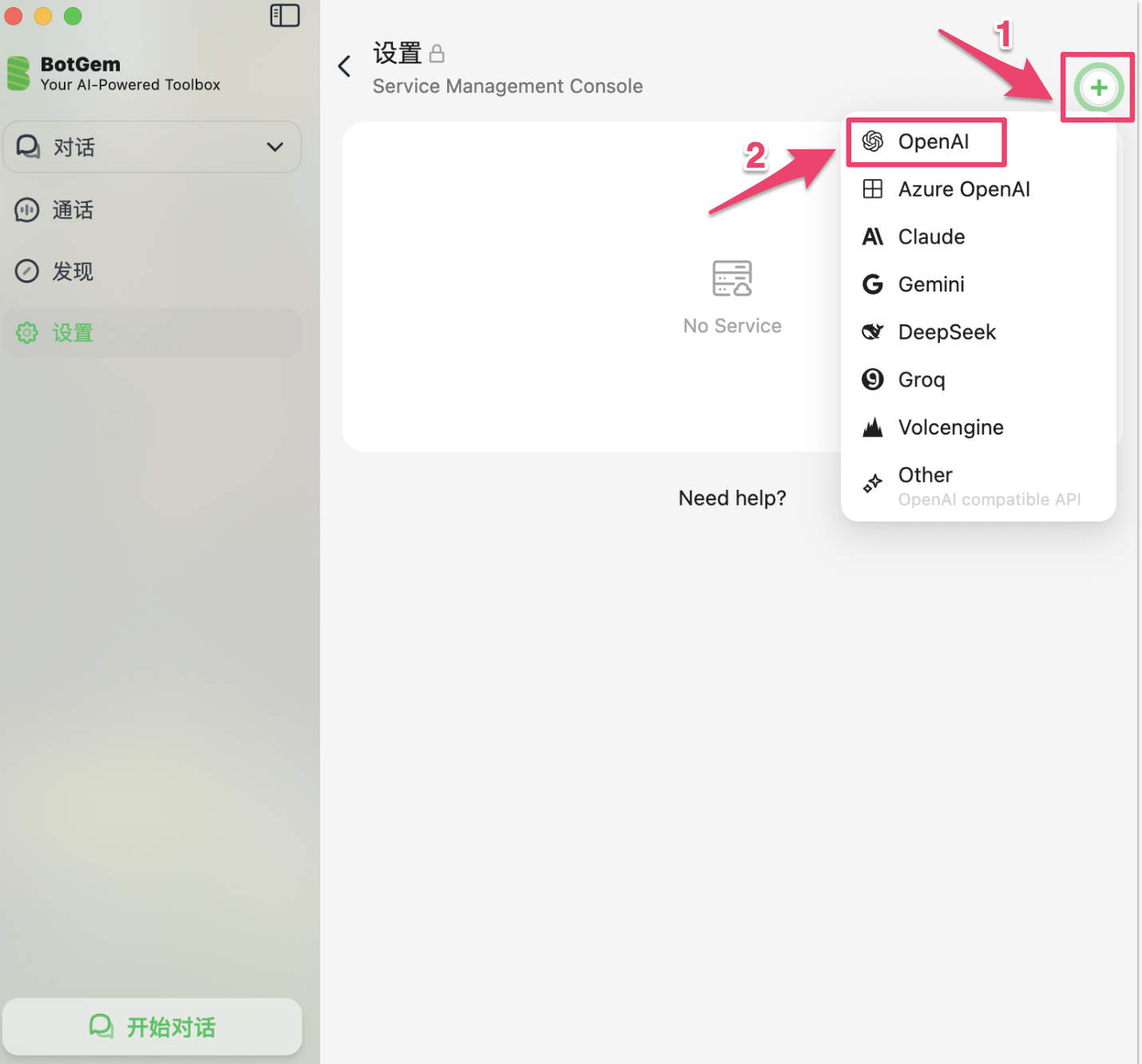
Step 3: Click + and Select a Protocol
Click the + button in the top right and choose a protocol type.
OfoxAI supports three protocols — OpenAI is recommended:
BotGem does not support the OpenAI Responses protocol (/v1/responses). This protocol uses an input field instead of messages, and BotGem only supports the standard Chat Completions format.
Step 4: Fill in the Configuration
Fill in the configuration form based on the protocol selected in Step 3.
API Server by protocol:
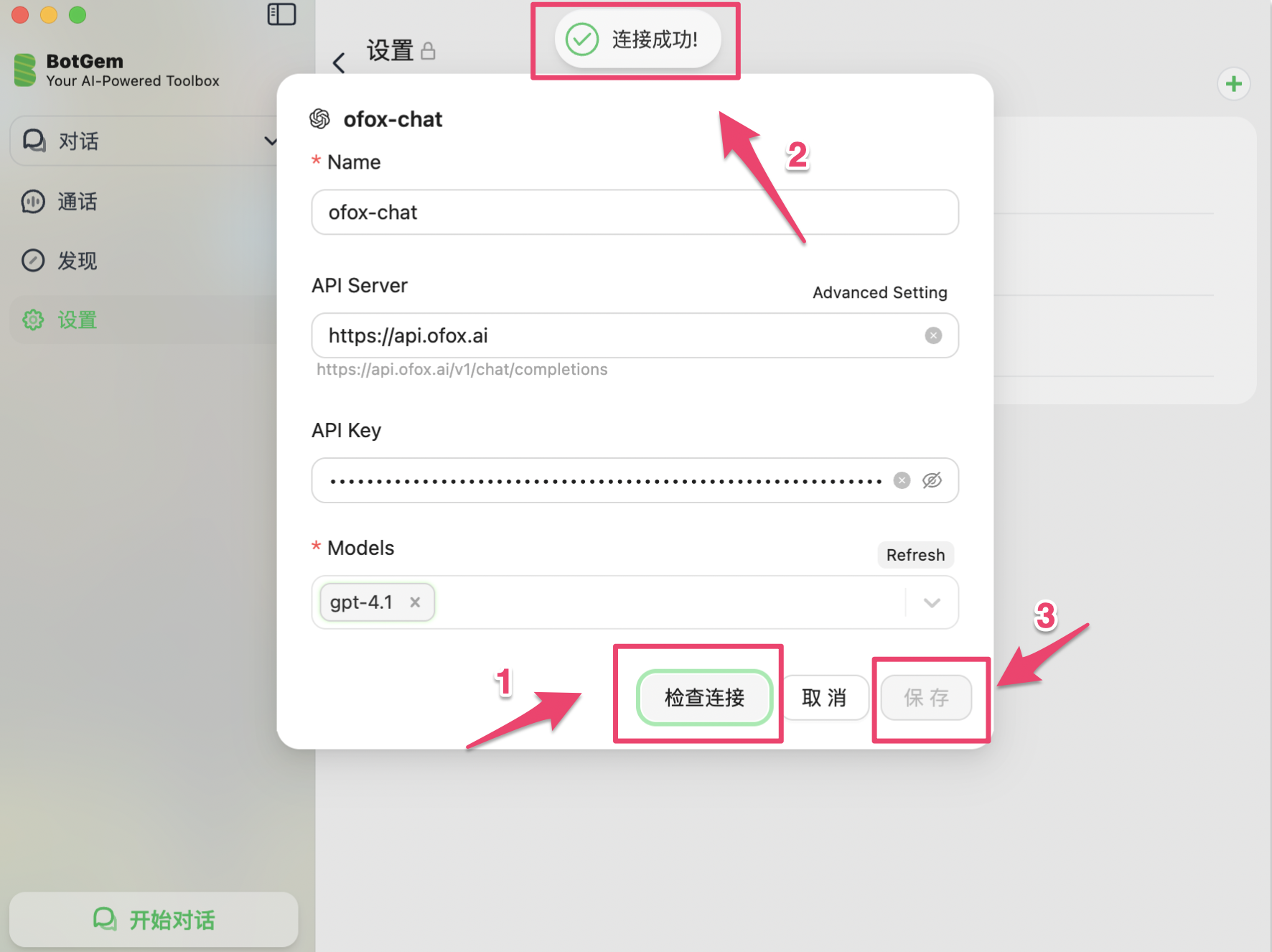
Example using OpenAI Chat:
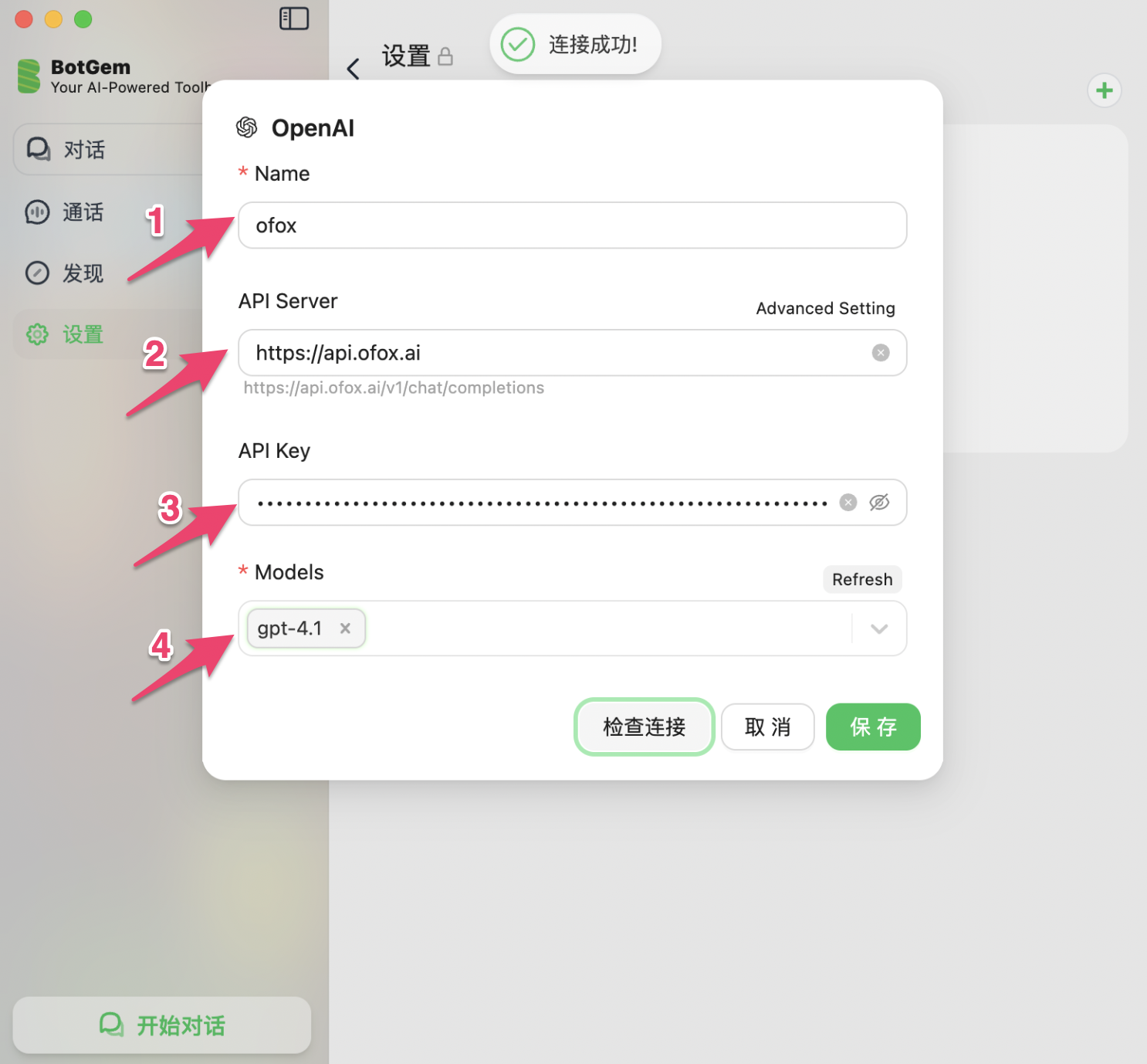
When you enter https://api.ofox.ai, BotGem automatically appends /v1/chat/completions. Using OpenAI Chat, you can call any model — just use the provider/model-name format when typing manually, e.g. anthropic/claude-opus-5.5 or deepseek/deepseek-v4.1-flash.
Step 5: Check Connection and Save
Click Check Connection. Once you see “Connected successfully!” at the top, click Save.
Start Using
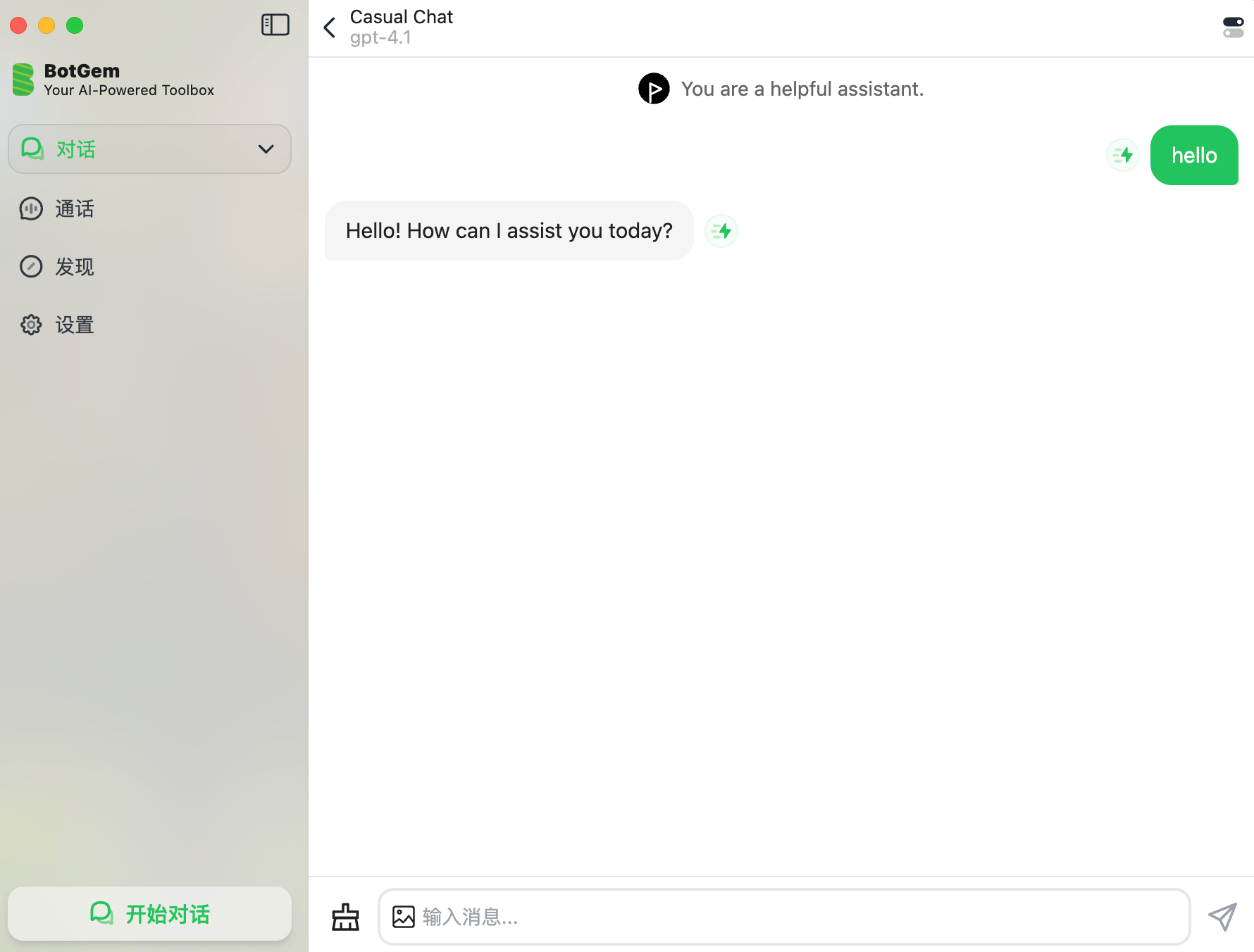
After saving, go back to the main screen and click Start Chat. The current model name is shown at the top of the chat window. Type your message to start.
Troubleshooting
Q: Connection check fails
- Make sure the API Server address is correct (see table above)
- Make sure your API Key is copied in full from the OfoxAI Console with no extra spaces
- Check your network connection
Q: The model I want isn’t in the list
Click Refresh to auto-fetch the model list. Names in the list have no prefix (e.g. gpt-4.1).
To use a model not in the list, type the full model name in the format provider/model-name. See all available models at Models .