RikkaHub Configuration
RikkaHub is an open-source native Android AI chat client with a Material You design. It supports custom OpenAI / Google / Anthropic compatible endpoints, and ships with MCP, web search, memory, multimodal input, and more.
Prerequisites
- A registered OfoxAI account with an API Key (Get one here )
- RikkaHub installed on your Android phone (Download from the official site or Google Play )
Choose a Protocol
RikkaHub has three provider types: OpenAI, Google, and Claude. All three work with OfoxAI:
| Provider Type | Suitable Models | API Base Url |
|---|---|---|
| OpenAI (general) | All models, e.g. openai/gpt-6-luna, deepseek/deepseek-v4.1-flash | https://api.ofox.ai/v1 |
| Claude (recommended for Claude models) | anthropic/claude-sonnet-5, anthropic/claude-opus-4.8, etc. | https://api.ofox.ai/anthropic/v1 |
| Google (recommended for Gemini models) | google/gemini-3.5-flash, etc. | https://api.ofox.ai/gemini/v1beta |
If you are in mainland China, you can switch to the mirror domain api.ofox.io. The paths stay the same and the API Key works on both. The screenshots below use the mirror address.
Configure the OpenAI Protocol
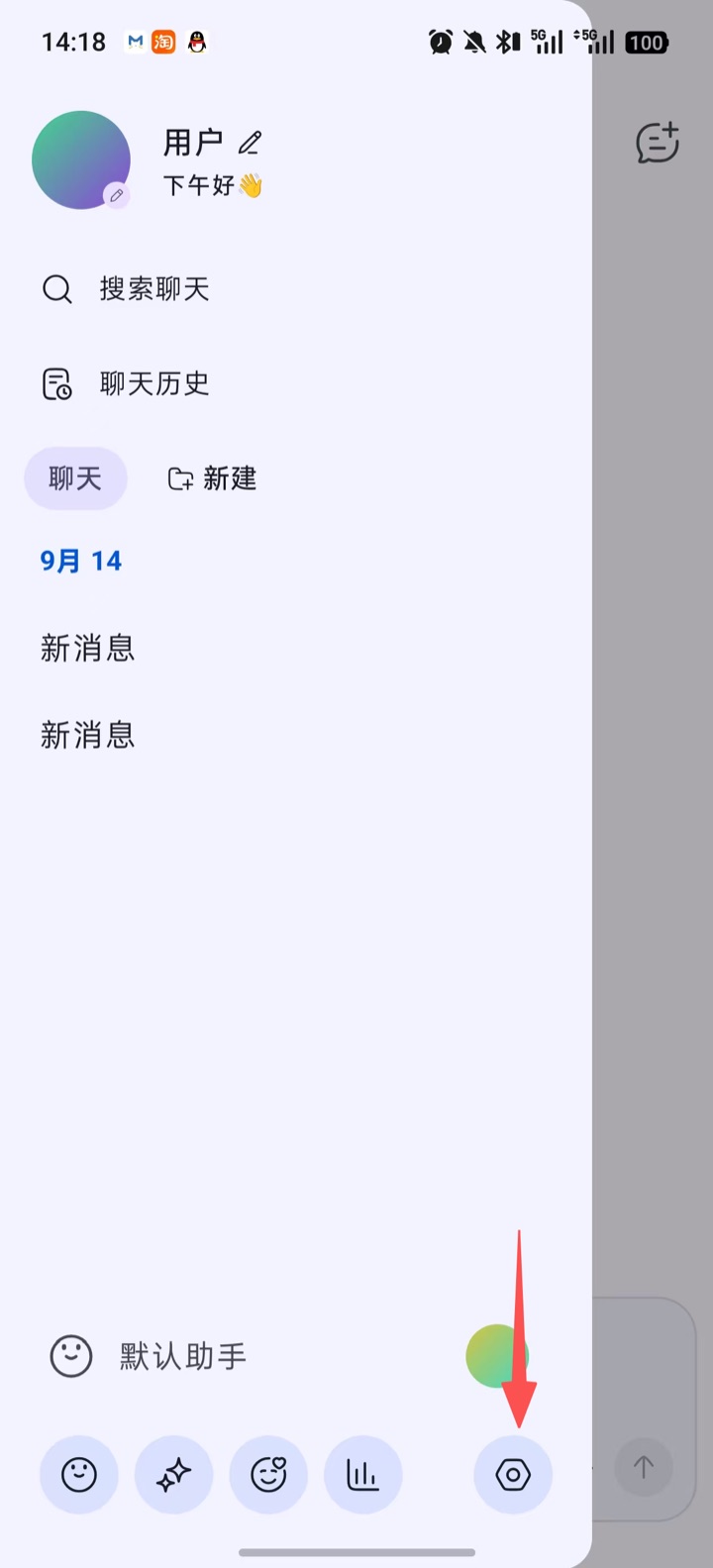
Step 1: Open Settings
Open the RikkaHub left sidebar and tap the Settings icon in the bottom-right corner.
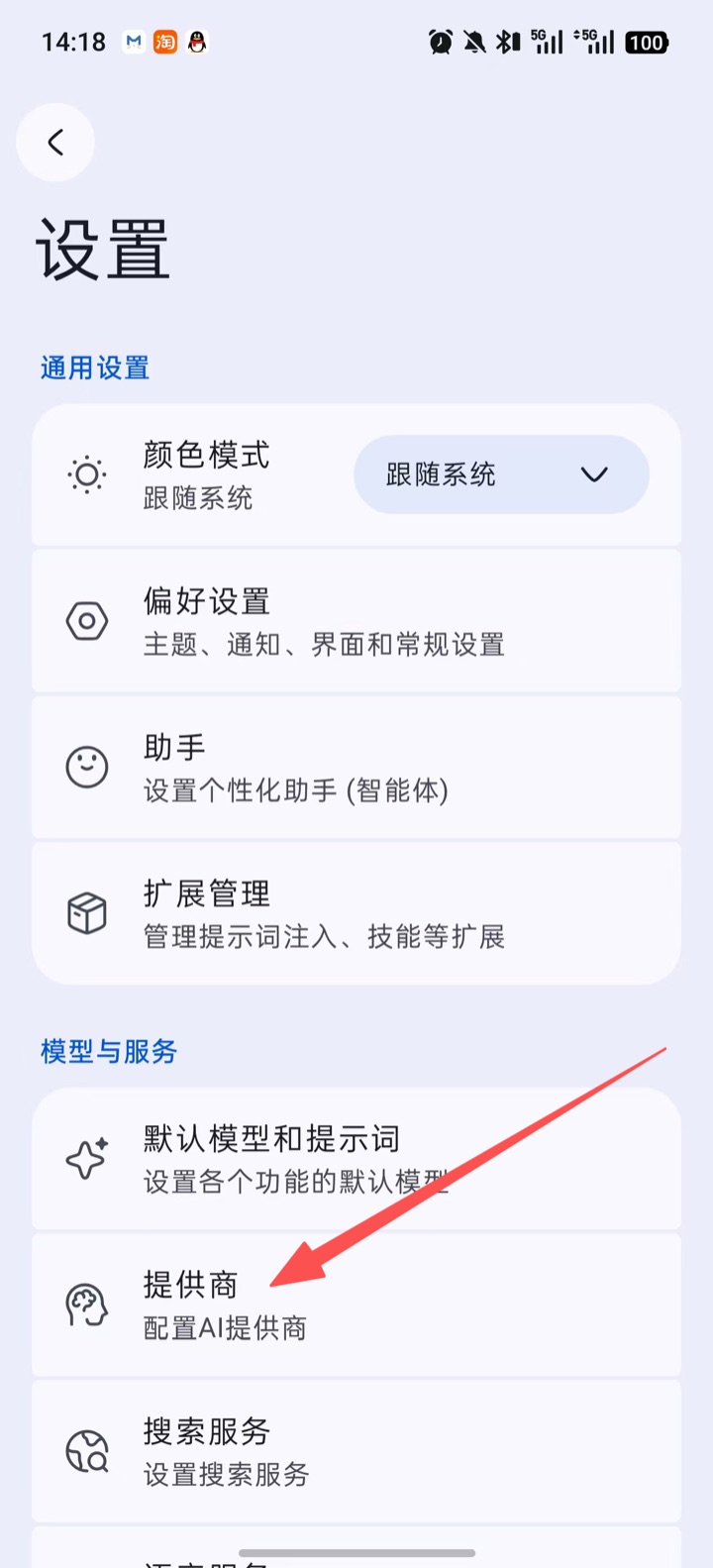
Step 2: Go to Providers
On the settings page, under the Models & Services group, tap Providers.
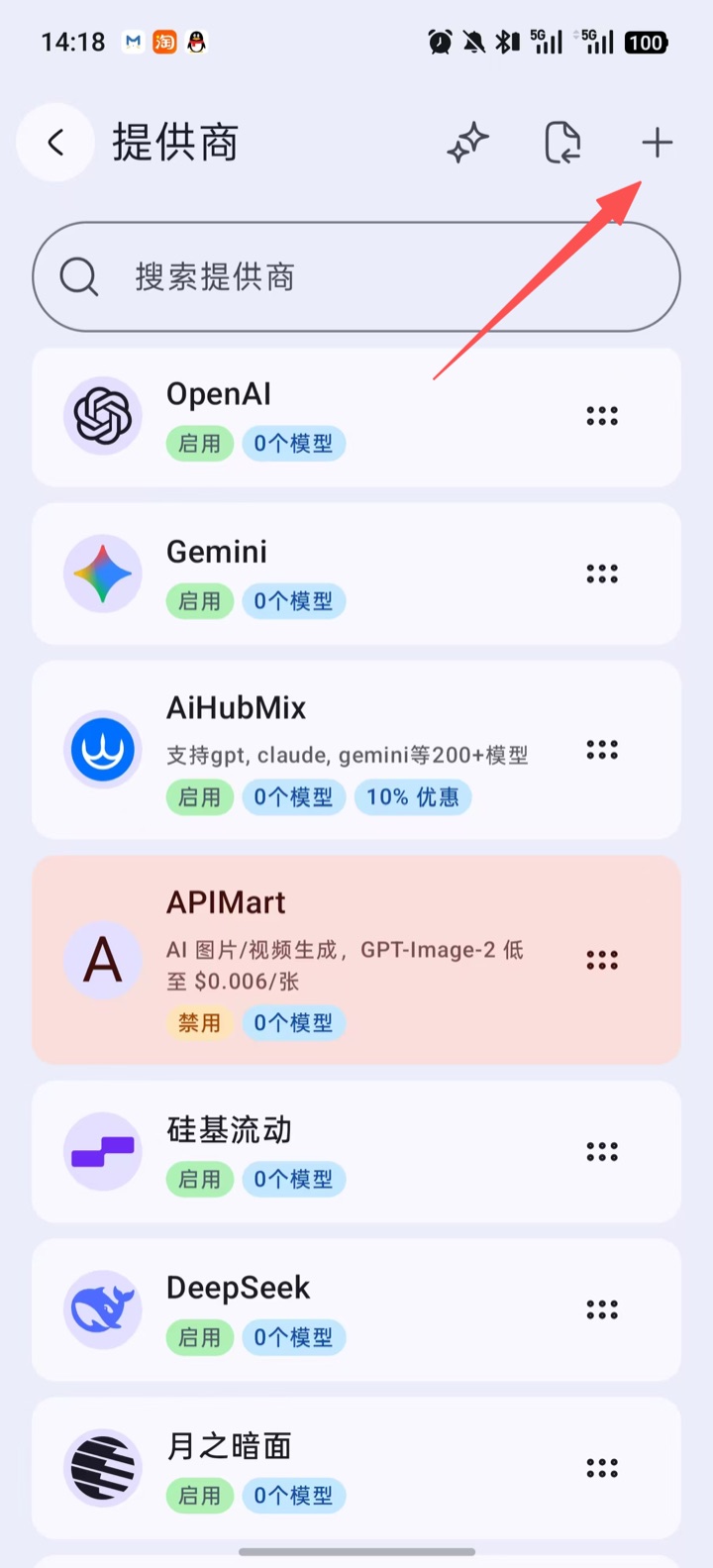
Step 3: Add a Provider
Tap the + in the top-right corner to create a new provider.
Step 4: Fill in the Configuration
Select OpenAI as the type, fill in the following, then tap Save:
| Field | Value |
|---|---|
| Name | ofox (or any name) |
| API Key | Your OfoxAI API Key |
| API Base Url | https://api.ofox.ai/v1 |
| Enable | On |
| Response API | Recommended when using OpenAI models; the API path automatically becomes /responses |
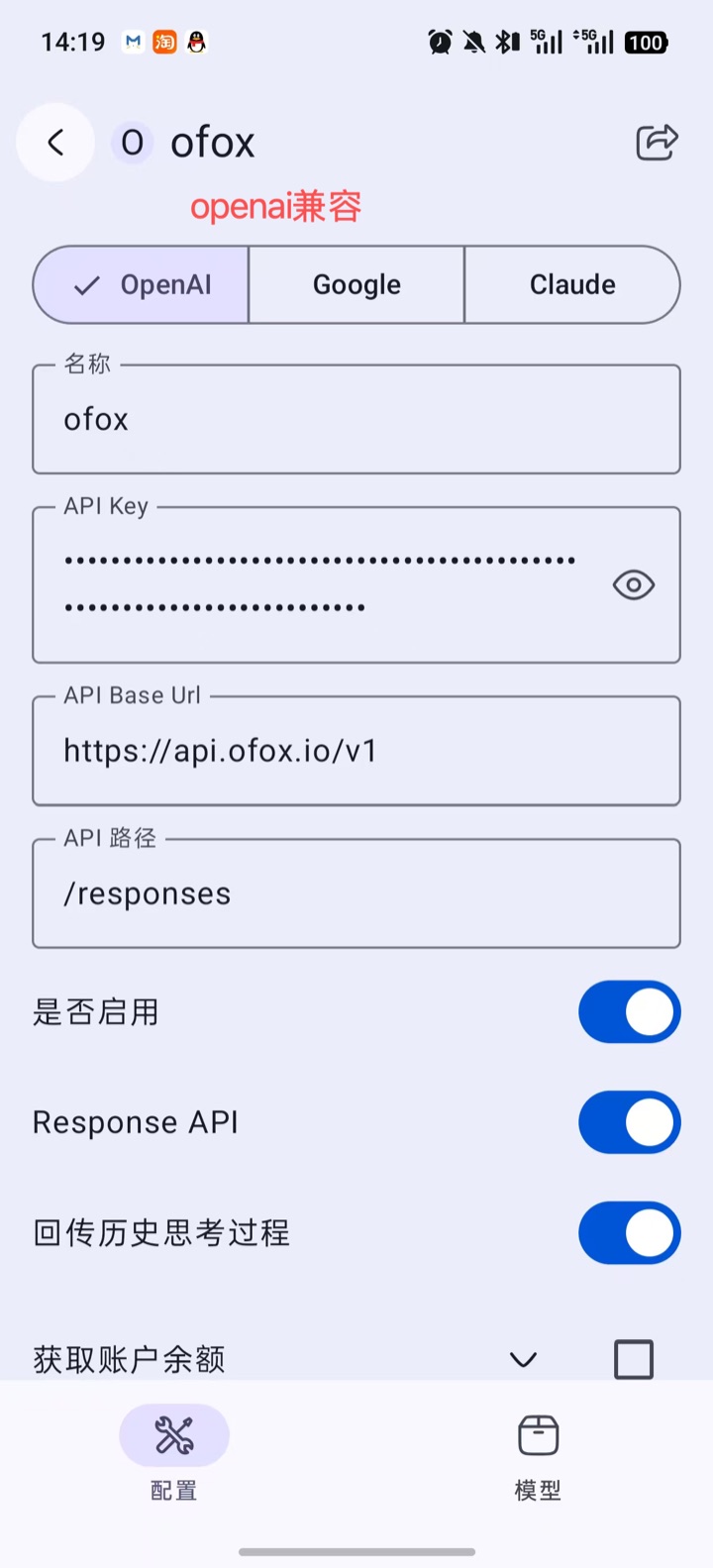
RikkaHub concatenates API Base Url and API Path directly into the request URL. Do not add a trailing slash to the Base Url, and do not include /chat/completions. With Response API off, the API Path defaults to /chat/completions and can call every model on OfoxAI; with it on, requests go through the Responses API that OfoxAI recommends, which gives better native Prompt Caching.
Step 5: Add Models
Switch to the Models tab at the bottom. RikkaHub automatically fetches the OfoxAI model catalog, so you can tick models directly from the Avaliable Models list. You can also tap Add New Model and enter a model ID manually, for example openai/gpt-6-luna.
Model IDs need the vendor prefix. Write openai/gpt-6-luna, not the bare gpt-6-luna. Browse the full catalog in the Model Marketplace .
Step 6: Test the Connection
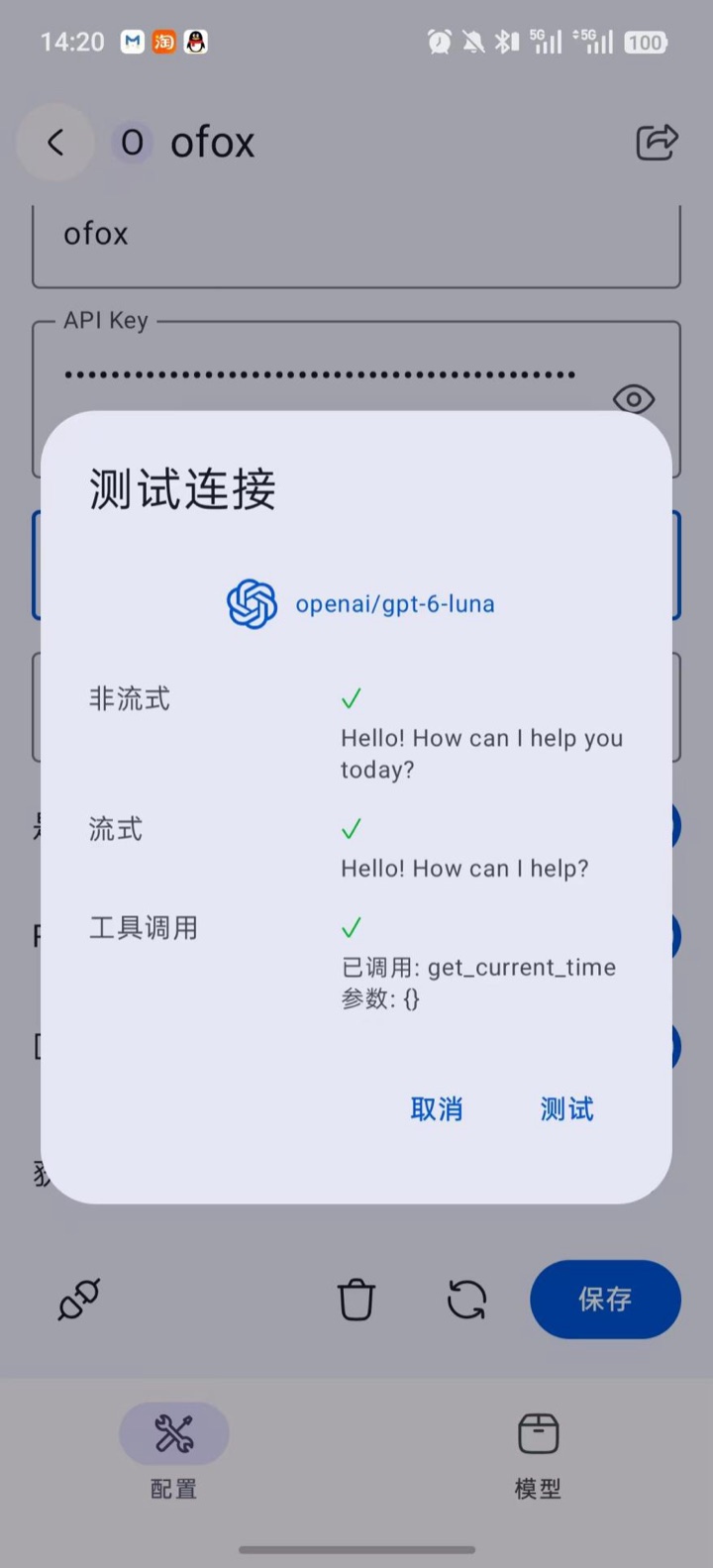
Go back to the Configuration tab, tap the plug icon at the bottom left to open Test Connection, pick a model, then tap Test. When Non-streaming, Streaming, and Tool Call all show a green check mark, the configuration works.
Configure the Claude Protocol (Recommended for Claude Models)
For Claude models, we recommend the native Anthropic protocol, which gives you the full feature set and native caching benefits.
Step 1: Create a Claude-Type Provider
Repeat Steps 1–3 above to create another provider (for example, named ofox-claude), so the OpenAI and Claude protocols can be used side by side. Select Claude as the type, fill in the following, then tap Save:
| Field | Value |
|---|---|
| Name | ofox-claude (or any name) |
| API Key | Your OfoxAI API Key |
| API Base Url | https://api.ofox.ai/anthropic/v1 |
| Enable | On |
| Prompt caching (cache_control) | Optional. Turn it on to save input cost in long conversations. See Prompt Caching |
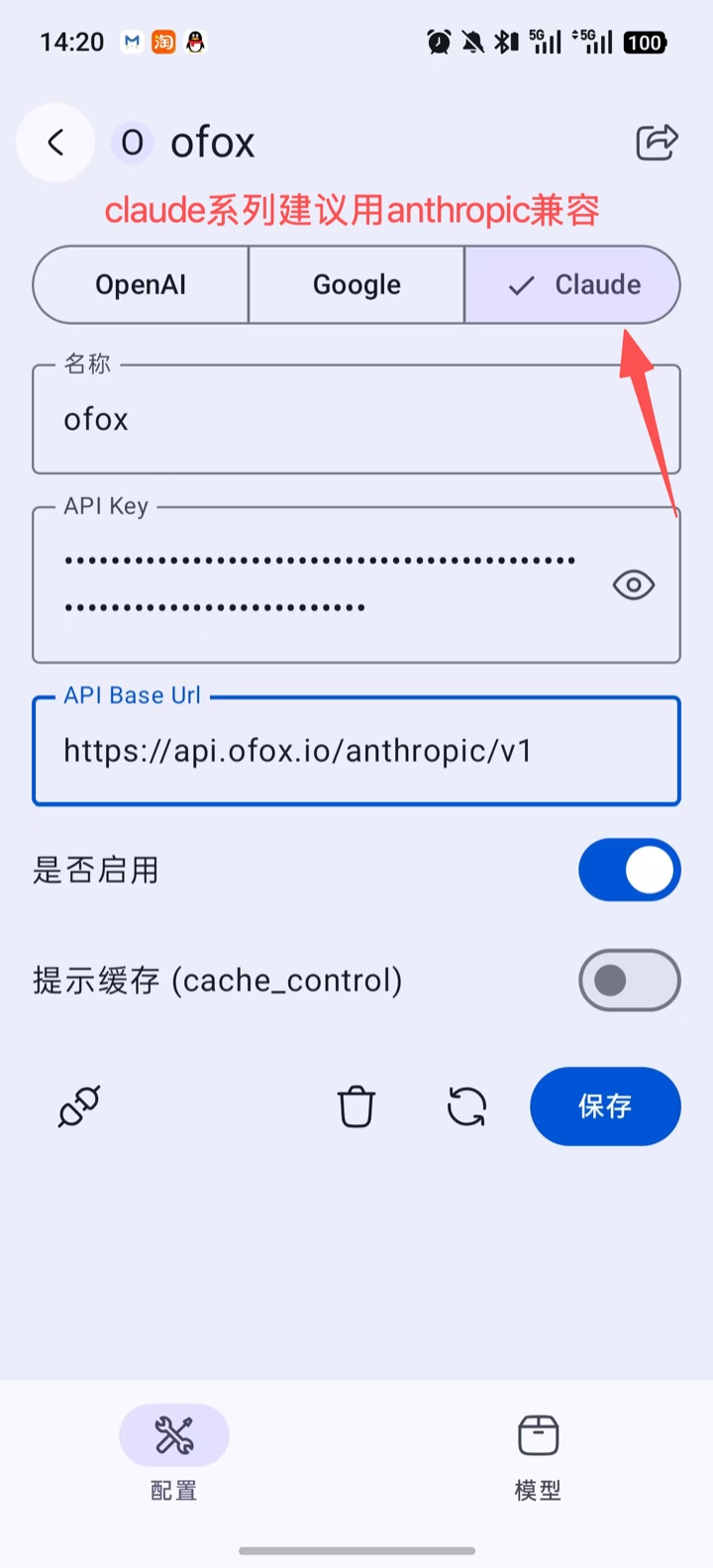
The Base Url for the Claude type must include /v1. RikkaHub appends /messages automatically, so leaving out /v1 sends the request to /anthropic/messages and returns 404.
Step 2: Add Models and Test
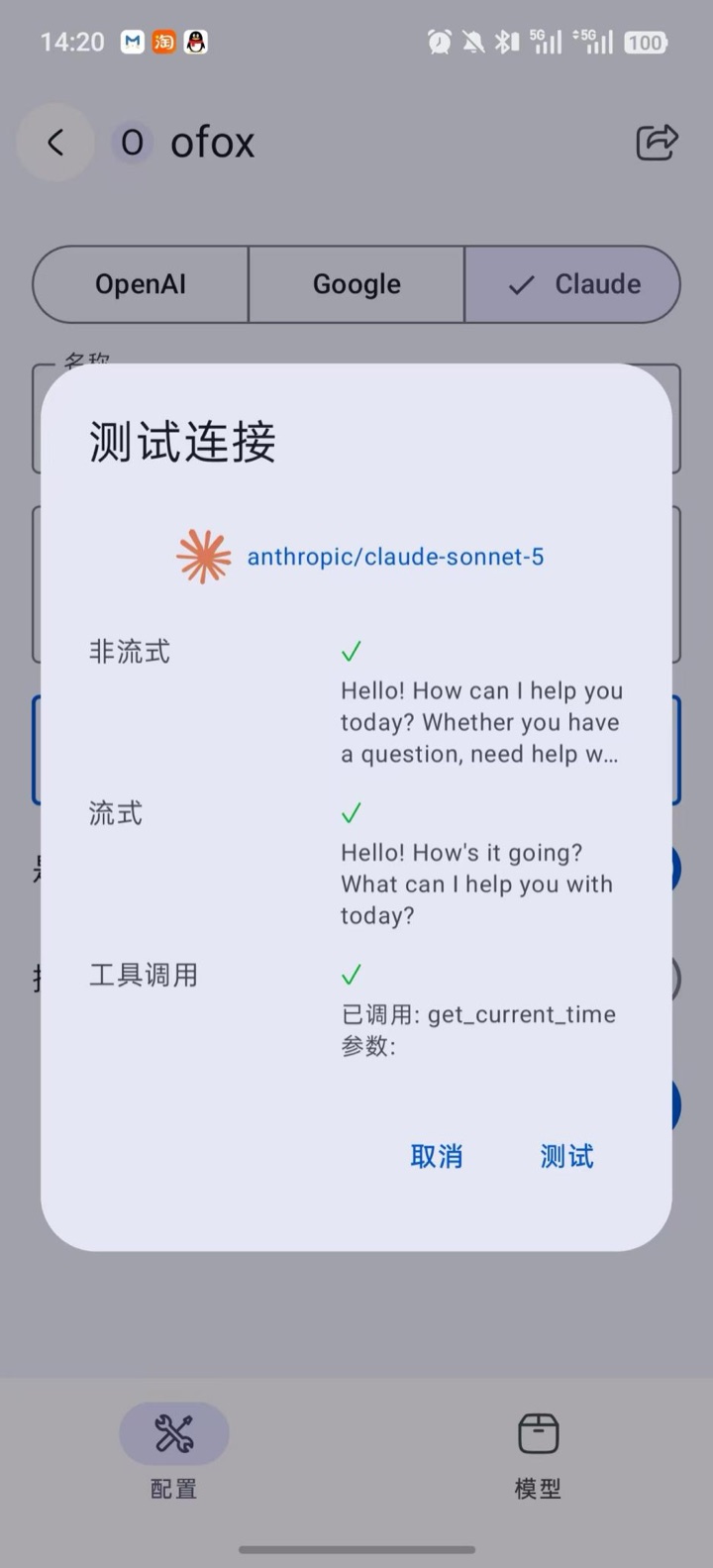
On the Models tab, add a Claude model (for example anthropic/claude-sonnet-5), then go back to the Configuration tab and tap the plug icon to test the connection. All three items should show a green check mark.
Configure the Gemini Protocol (Recommended for Gemini Models)
For Gemini models, we recommend the native Gemini protocol.
Step 1: Create a Google-Type Provider
Repeat Steps 1–3 above to create another provider (for example, named ofox-gemini). Select Google as the type, fill in the following, then tap Save:
| Field | Value |
|---|---|
| Name | ofox-gemini (or any name) |
| API Key | Your OfoxAI API Key |
| API Base Url | https://api.ofox.ai/gemini/v1beta |
| Vertex AI | Off |
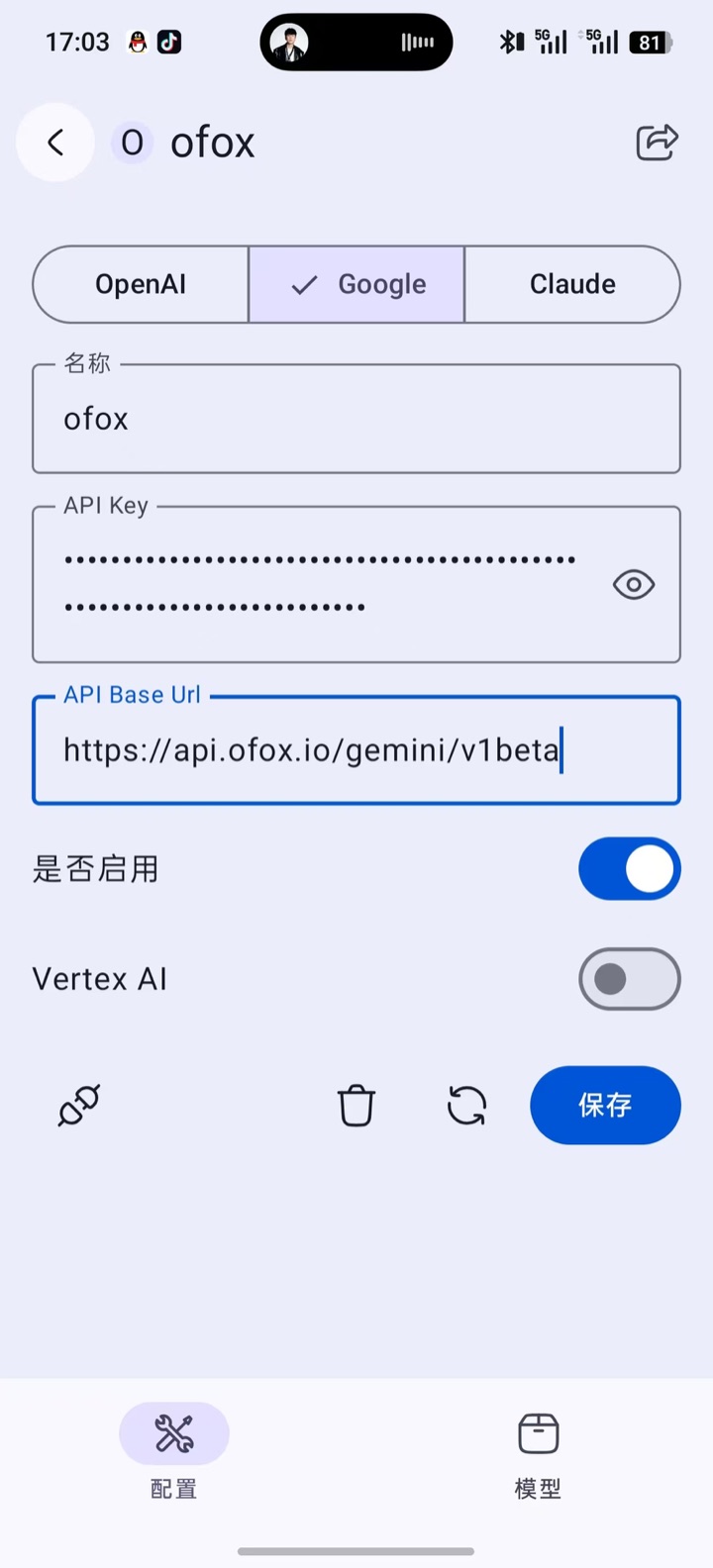
The Google type points at Google’s official address by default. Change the API Base Url to https://api.ofox.ai/gemini/v1beta (with /v1beta, no trailing slash). RikkaHub appends /models/<model ID>:generateContent automatically. Keep the Vertex AI switch off.
Step 2: Add Models and Test
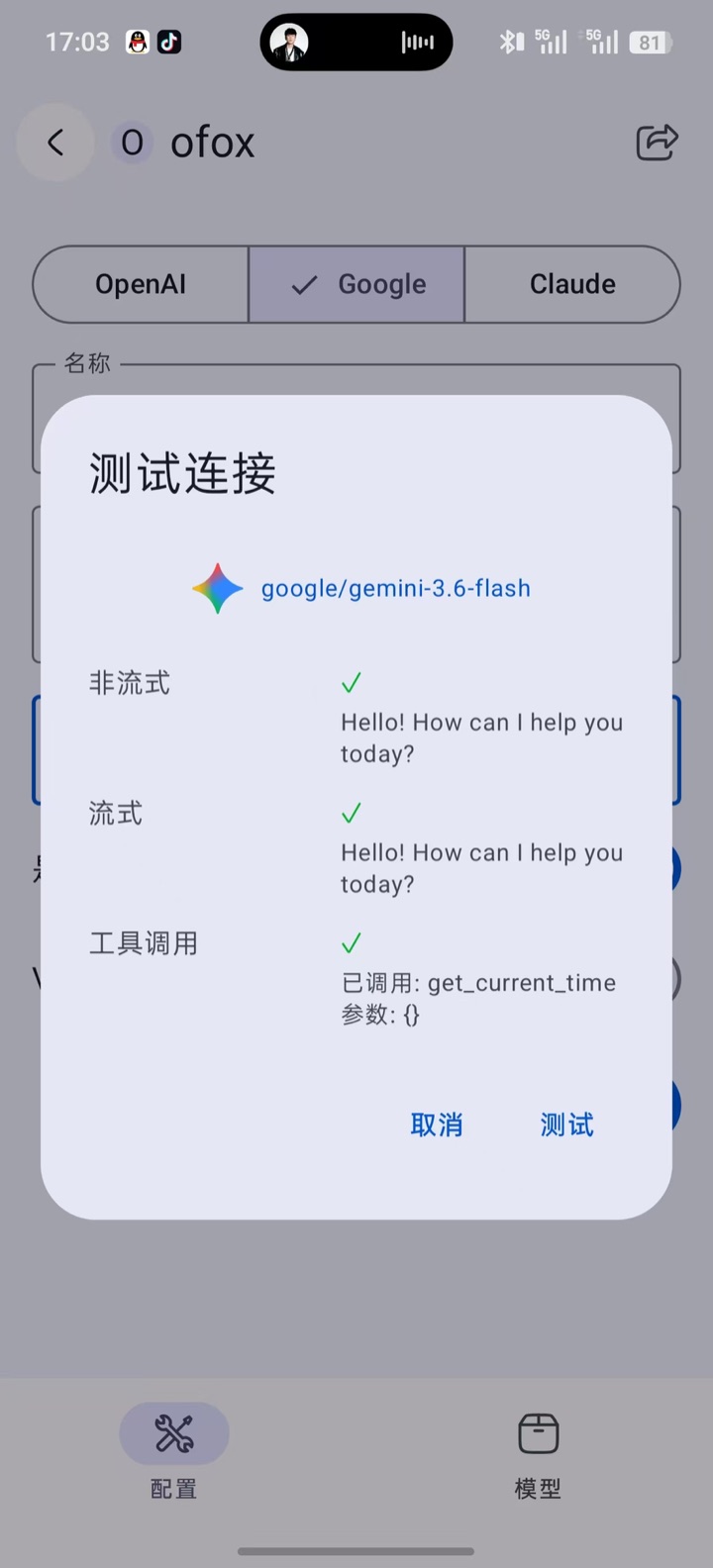
On the Models tab, add a Gemini model (for example google/gemini-3.5-flash, including the google/ prefix), then go back to the Configuration tab and tap the plug icon to test the connection. All three items should show a green check mark.
Recommended Models
| Model ID | Recommended Provider Type | Description |
|---|---|---|
openai/gpt-6-luna | OpenAI | The fastest and cheapest model in the GPT-6 family, good for everyday chat |
anthropic/claude-sonnet-5 | Claude | Flagship Claude Sonnet with 1M context and strong all-round ability |
google/gemini-3.5-flash | Multimodal and fast, good for frequent use | |
deepseek/deepseek-v4.1-flash | OpenAI | Great value with strong Chinese performance |
Getting Started
Go back to the chat page, find the OfoxAI provider you just added in the model selector, and pick a model to start chatting. RikkaHub’s MCP, web search, multimodal input, and other features all work with OfoxAI models.
FAQ
Q: No model to choose from during Test Connection
Test Connection can only pick from models already added to the current provider. Add at least one model on the Models tab first, then go back to the Configuration page to test.
Q: The Claude-type provider test returns 404
Check whether the API Base Url was written as https://api.ofox.ai/anthropic, missing the trailing /v1. The correct value is https://api.ofox.ai/anthropic/v1.
Q: “Invalid API Key” error
Make sure the API Key was copied in full from the OfoxAI Console , with no extra spaces before or after.
Q: “Model does not exist” error
The model ID is missing the vendor prefix. OfoxAI model IDs use the format vendor/model-name, for example openai/gpt-6-luna, anthropic/claude-sonnet-5.
Q: Connection fails in mainland China
Switch the API Base Url to the mirror address: https://api.ofox.io/v1 for the OpenAI type, https://api.ofox.io/anthropic/v1 for the Claude type. The API Key works on both.