Claude Coworks Configuration
Claude Coworks is Anthropic’s official desktop client. Its built-in third-party inference feature lets you route inference requests to OfoxAI via an Anthropic-compatible Gateway, giving you access to 100+ AI models.
Prerequisites
- A registered OfoxAI account with an API Key (Get one here )
- Claude Coworks installed (Download )
Configuration Steps
Step 1: Enable Developer Mode
In the menu bar, click Help → Troubleshooting → Enable Developer Mode.
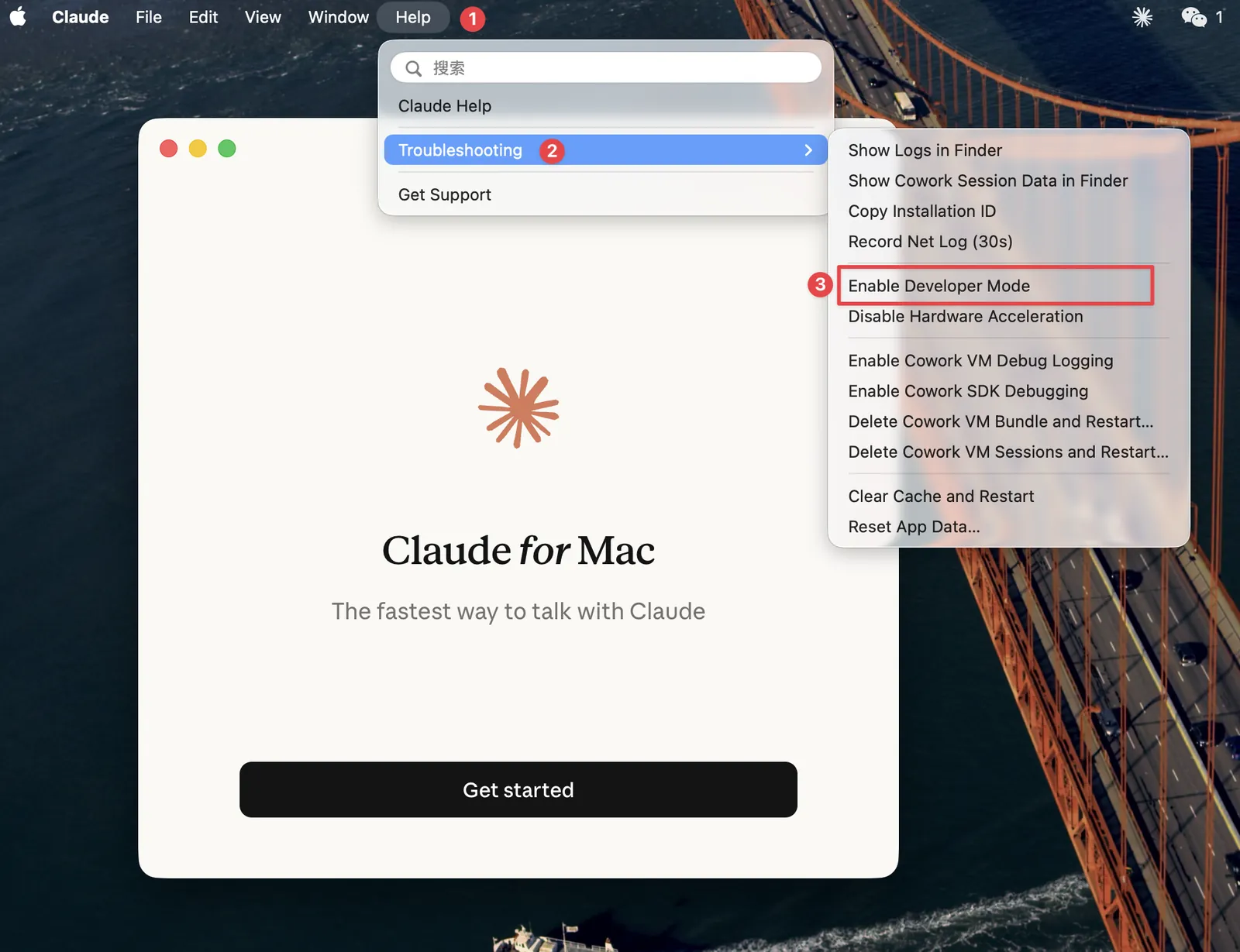
After enabling Developer Mode, a Developer menu will appear in the menu bar.
Step 2: Open the Third-Party Inference Settings
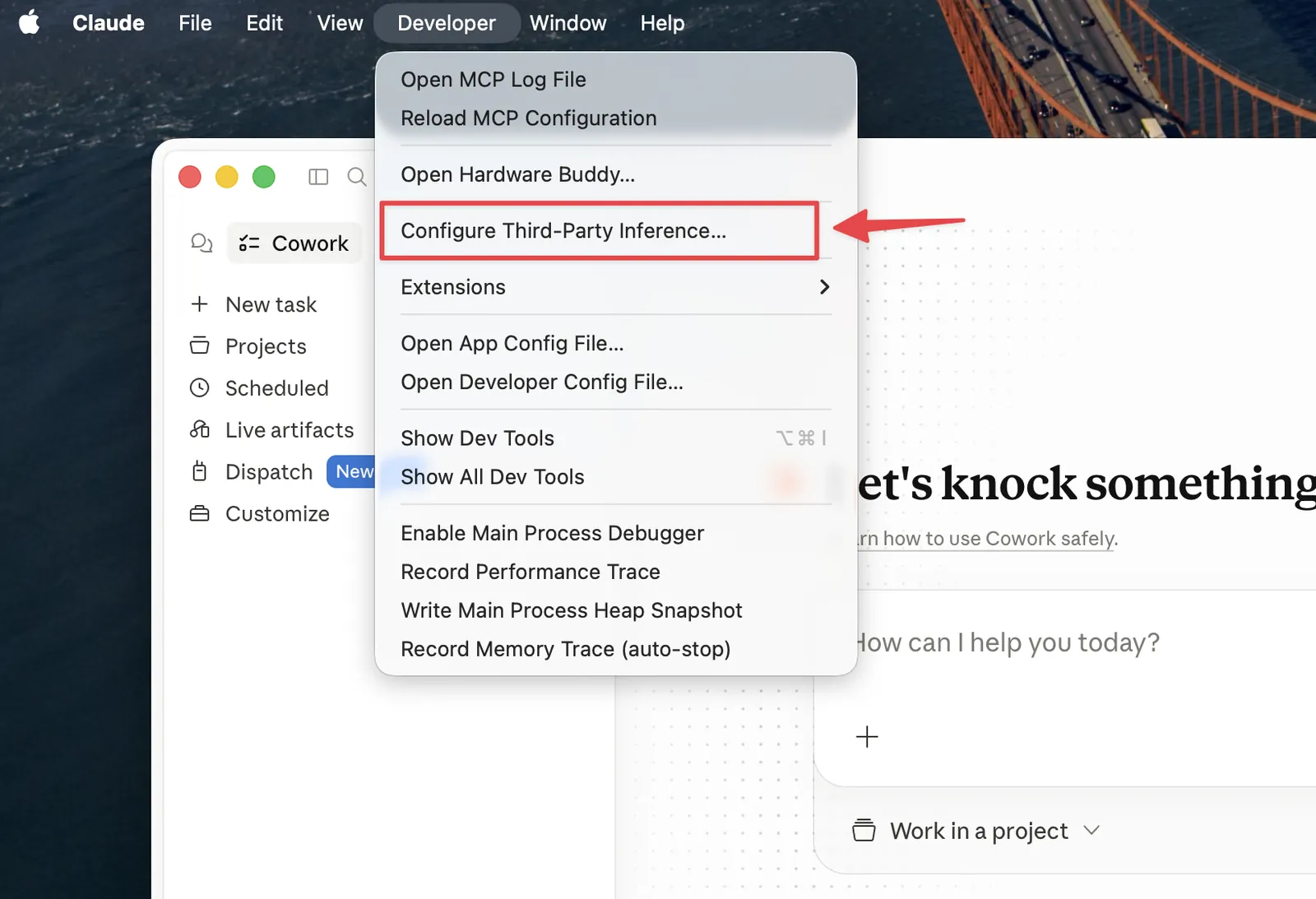
In the menu bar, click Developer → Configure Third-Party Inference… to open the configuration panel.
Step 3: Select Gateway
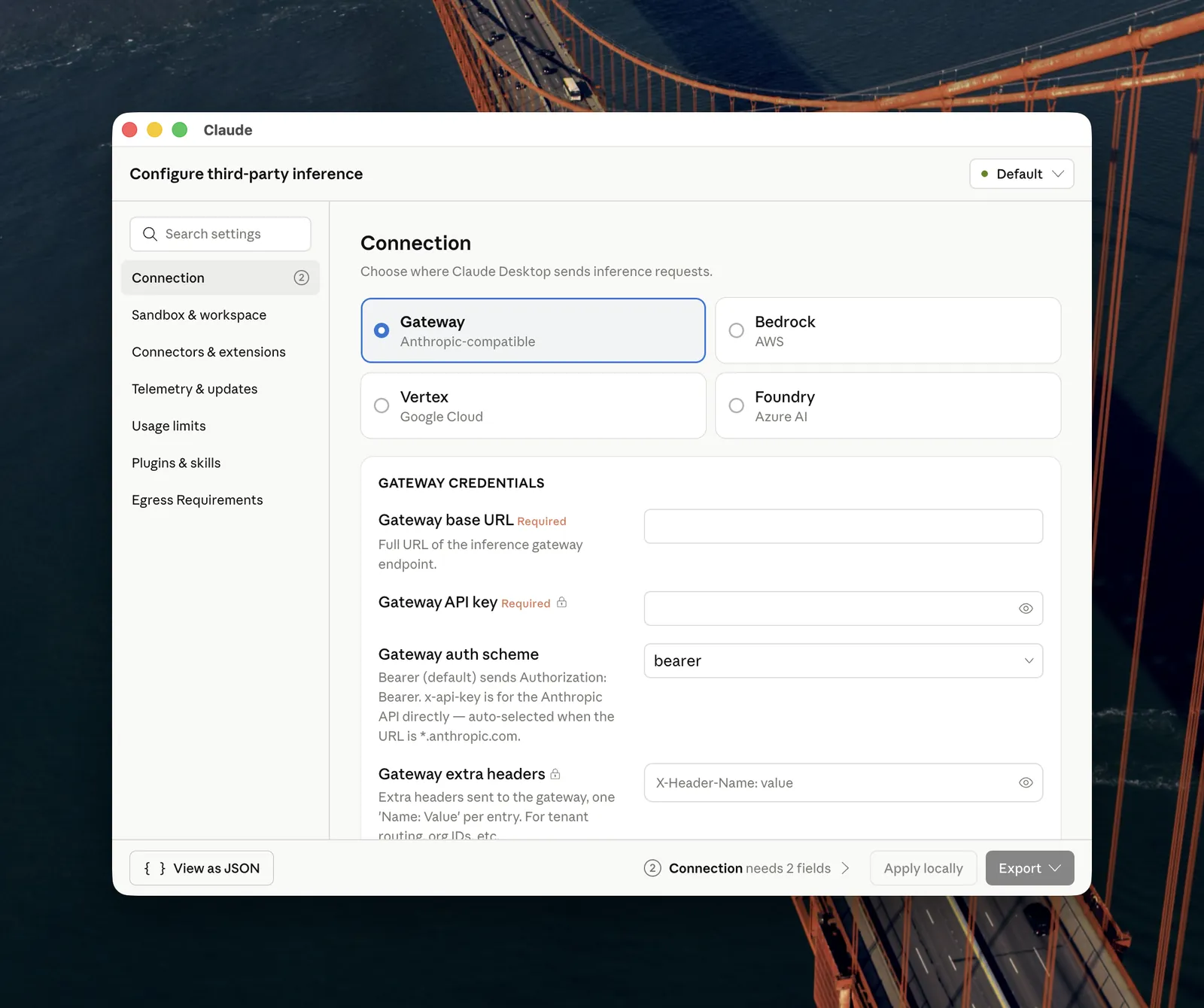
On the Connection page, select Gateway (Anthropic-compatible).
Step 4: Enter Credentials and Apply
Fill in the GATEWAY CREDENTIALS section, then click Apply locally:
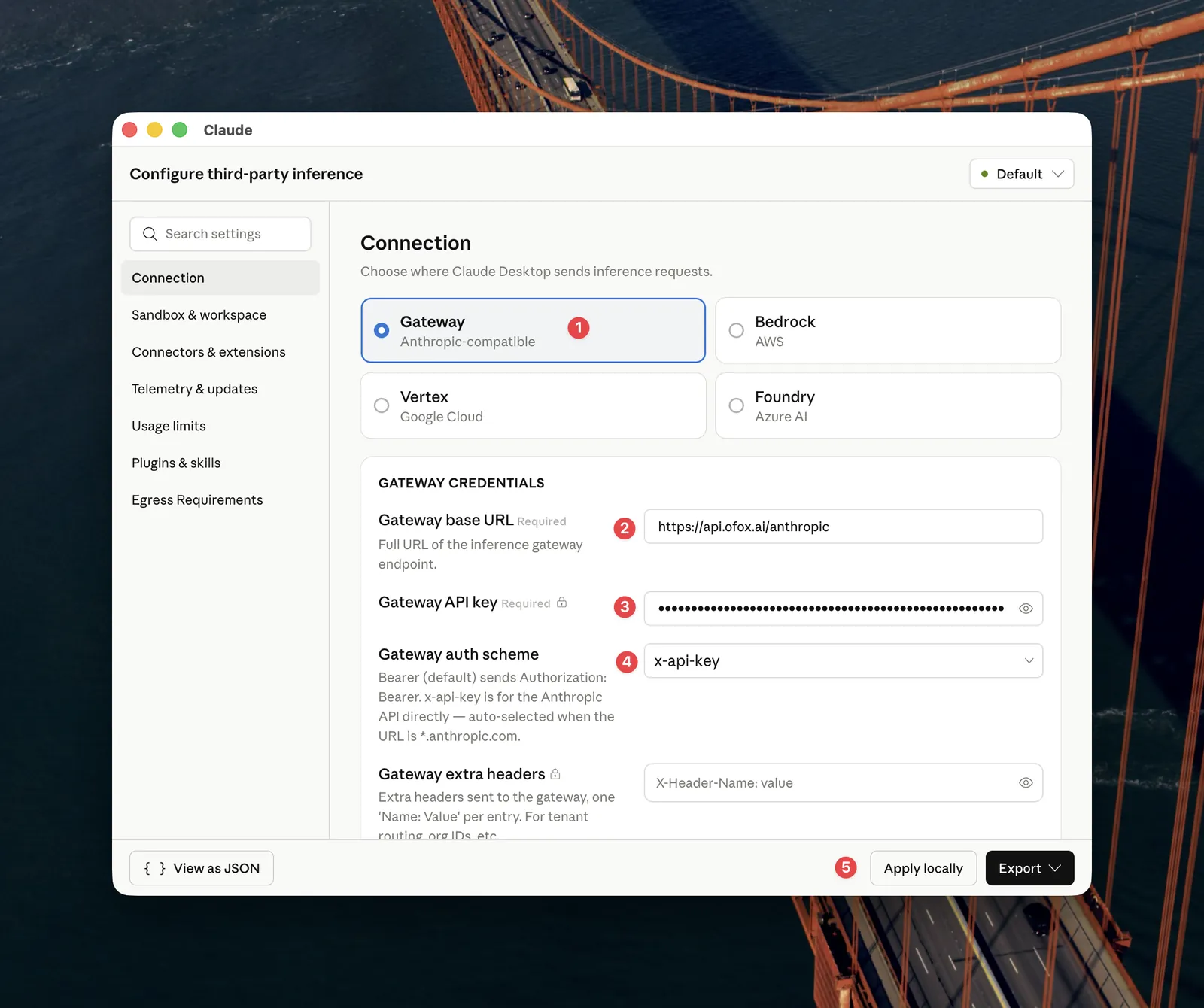
When the status indicator in the top-right turns green, the connection is active.
Step 5: Browse Available Models
Once your connection is established, you can now view all available models through Claude Coworks. Visit the OfoxAI Model Marketplace to explore the complete list of supported models and their capabilities.
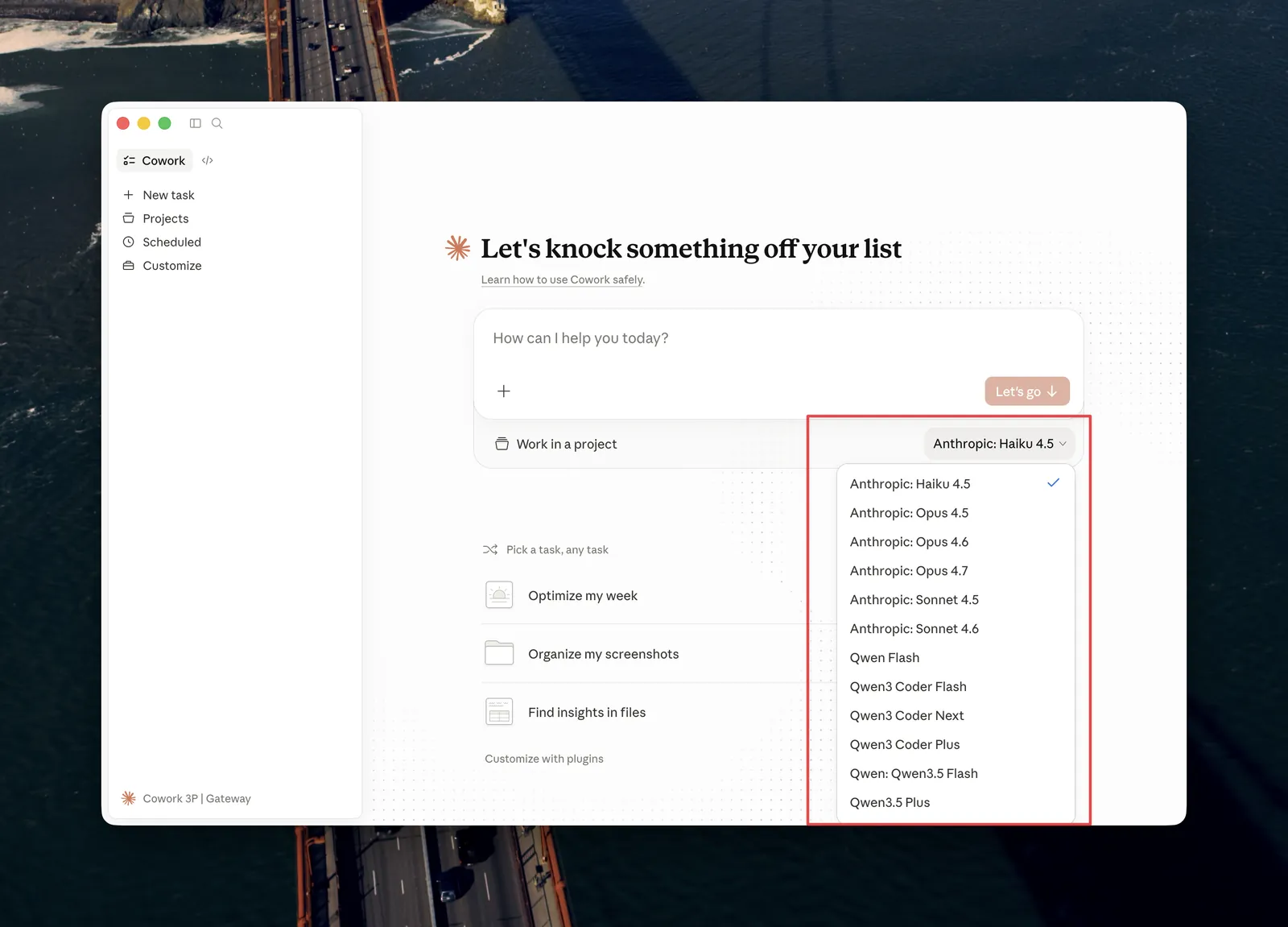
Step 6: Select Your Model
In the Claude Coworks interface, select the specific model you want to use. You can switch between different models at any time depending on your needs. The selected model will be used for all your inference requests.
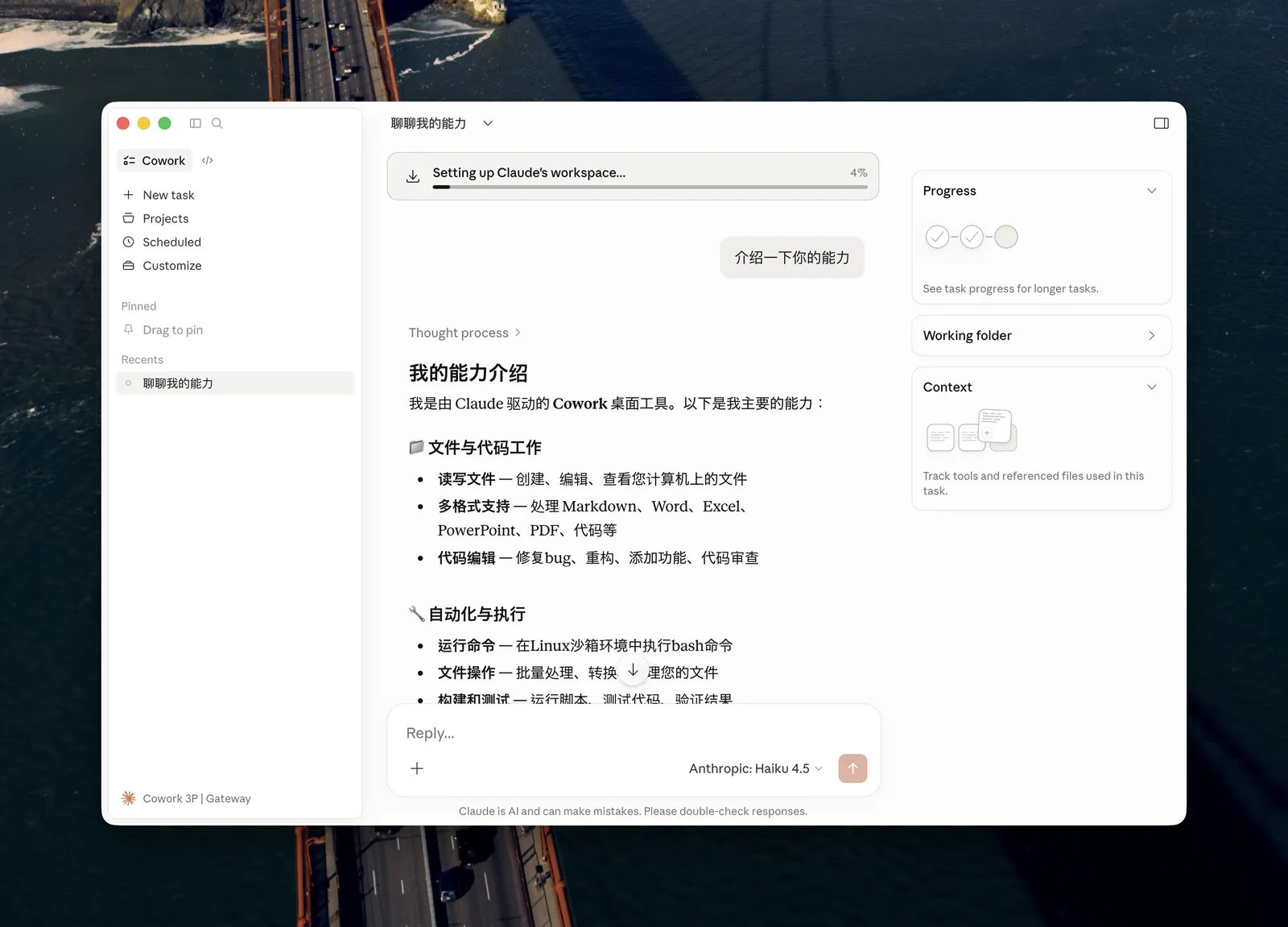
Step 7: Verify and Start Using
Your setup is now complete! Claude Coworks will route all inference requests through the OfoxAI Gateway using your selected model. You can now start using Claude Coworks normally, and all requests will be processed through OfoxAI’s infrastructure.
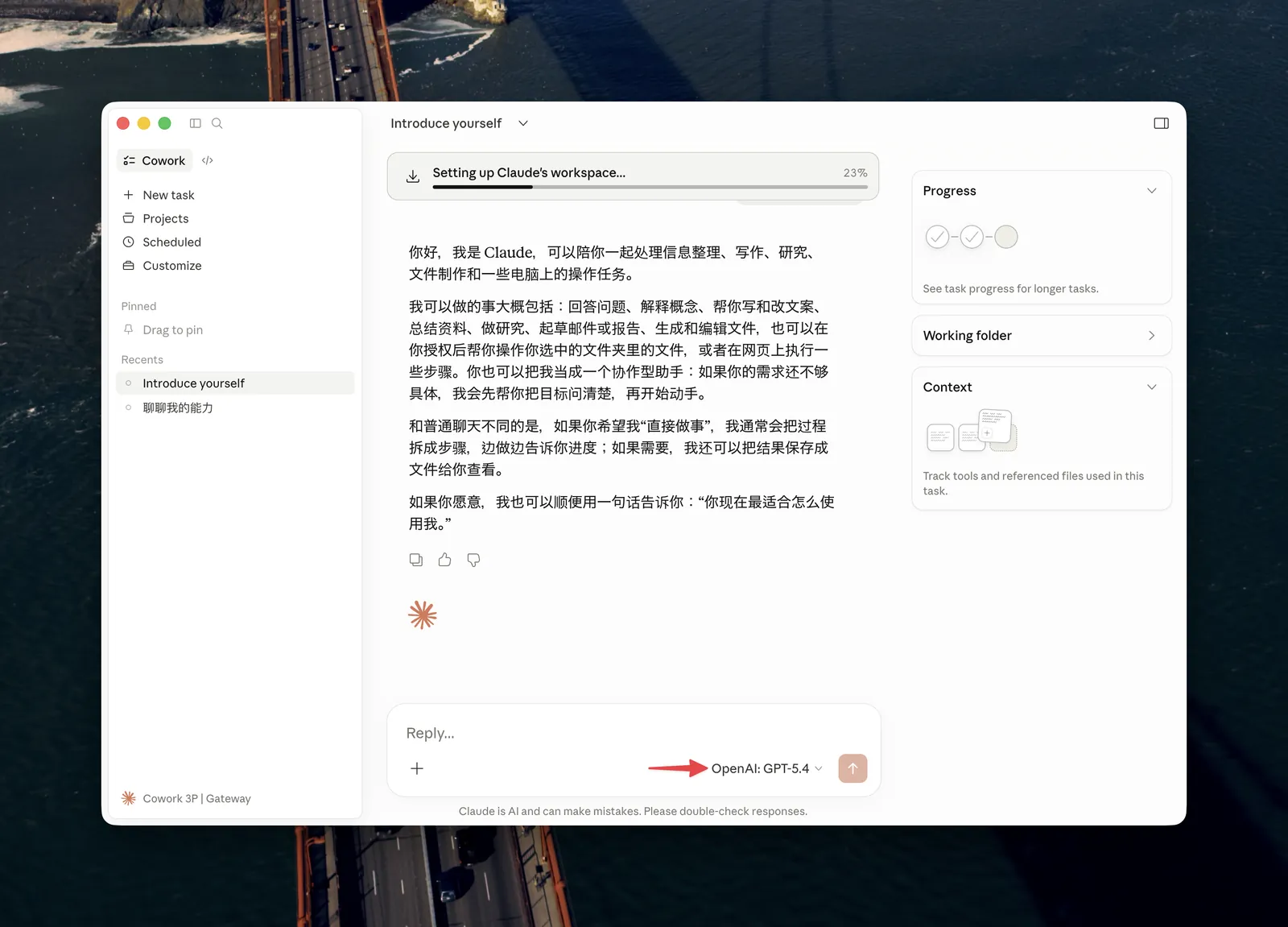
Getting Started
Once configured, all inference requests from Claude Coworks will be routed through the OfoxAI Gateway. Visit the OfoxAI Model Marketplace to browse available models.
FAQ
Q: I can’t find the Developer menu in the menu bar
You need to complete Step 1 first. The Developer menu only appears after Developer Mode is enabled.
Q: The status indicator didn’t turn green after clicking Apply locally / Connection failed
- Confirm the Gateway base URL is
https://api.ofox.ai/anthropicwith no trailing slash - Confirm the Gateway auth scheme is set to
x-api-key - Confirm the API Key was copied in full from the OfoxAI Console with no extra spaces
- Check that your network connection is working