NextChat Setup
NextChat (formerly ChatGPT-Next-Web) is a popular open-source AI client supporting Web, desktop (macOS, Windows, Linux) deployment, with a clean interface and support for multiple AI providers.
By configuring OfoxAI as your provider, you can use GPT, Claude, Gemini, and 100+ models in NextChat with a single API Key.
NextChat supports three protocols with OfoxAI:
Prerequisites
- An OfoxAI account with an API Key (Get one here )
- NextChat installed (Download ) or use the web version
Setup Steps
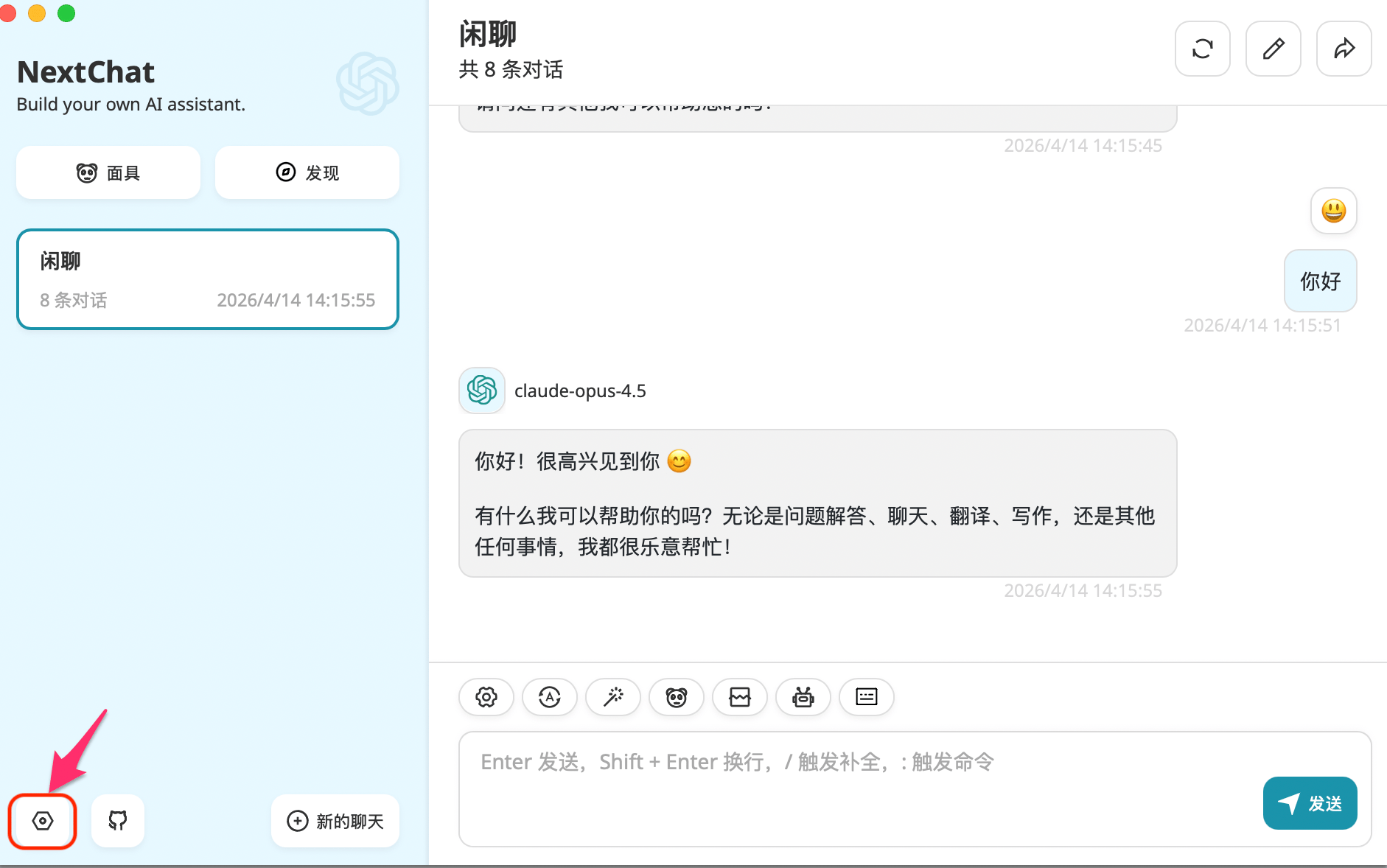
Step 1: Open Settings
Launch NextChat and click the Settings icon in the bottom left.
Step 2: Configure Model Provider and API Key
In the settings page, find the Model Provider dropdown, select the corresponding provider, and fill in the API endpoint and API Key.
Fill in the configuration based on your chosen provider:
OpenAI (supports all models)
Anthropic (Claude series)
Google (Gemini series)
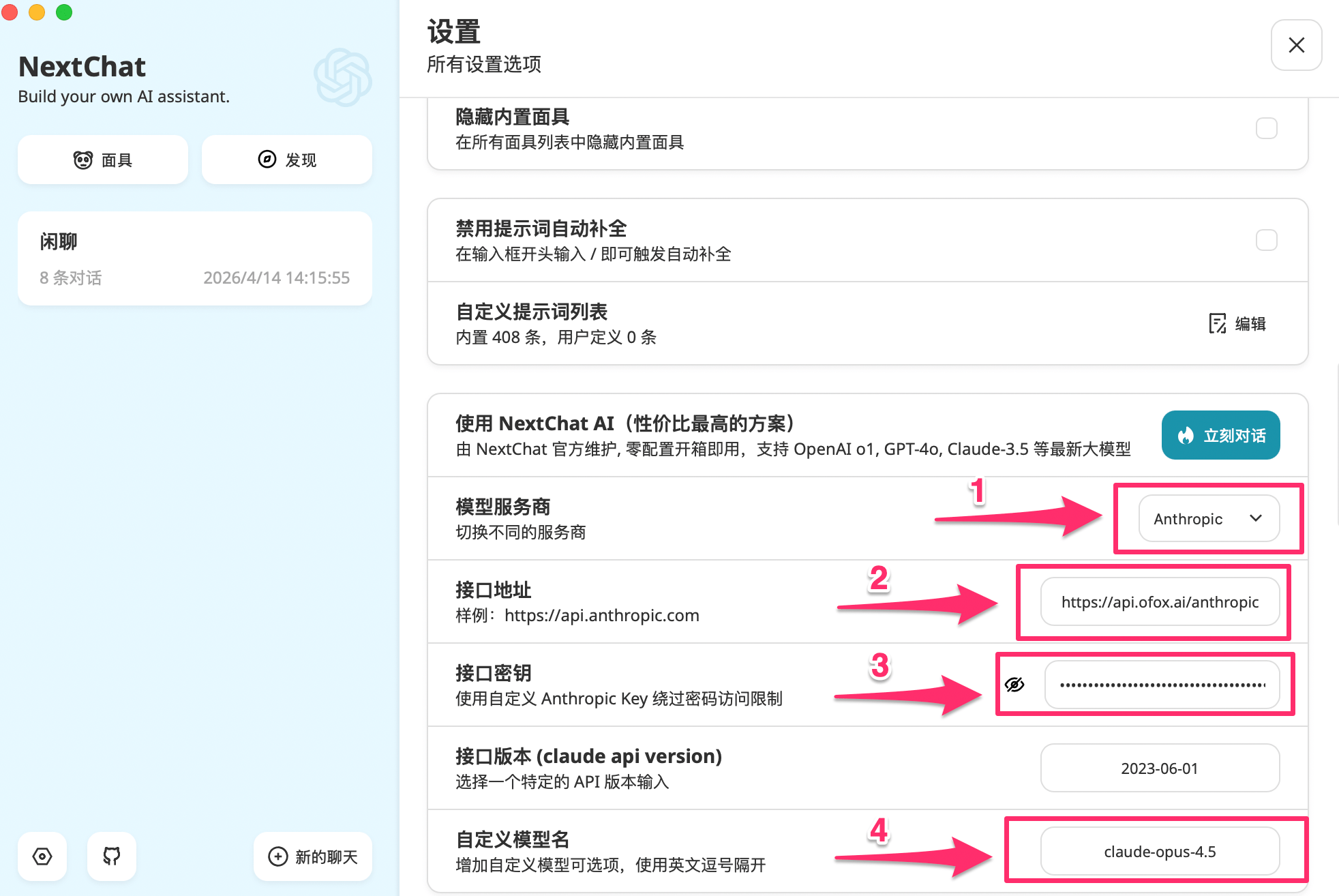
The Custom Model Names field supports multiple models separated by commas. These models will appear in the Model dropdown for selection.
When using the OpenAI provider, set the API Endpoint to https://api.ofox.ai (without /v1). NextChat appends the path automatically. Using https://api.ofox.ai/v1 will cause a duplicate path error.
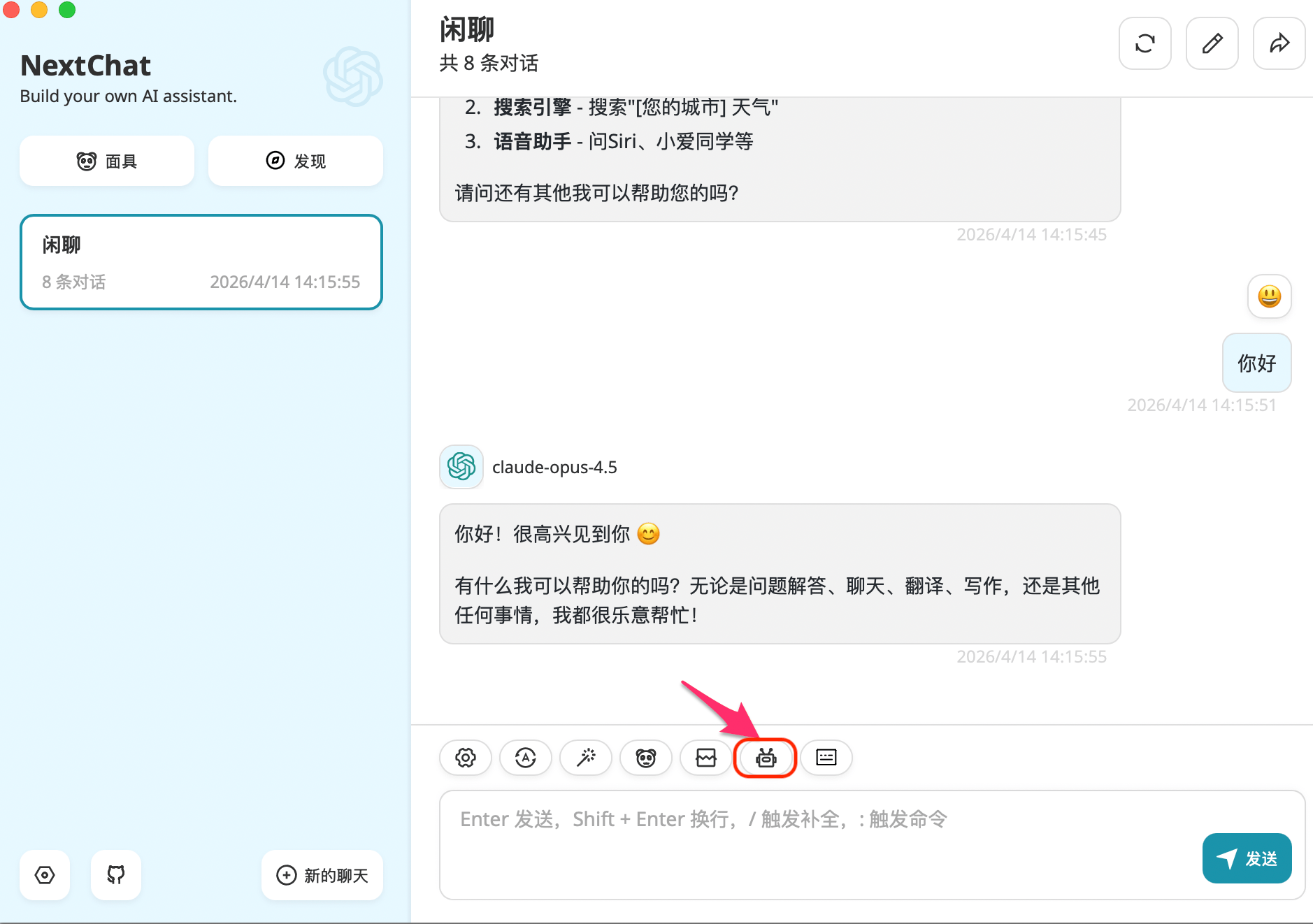
Step 3: Select a Model
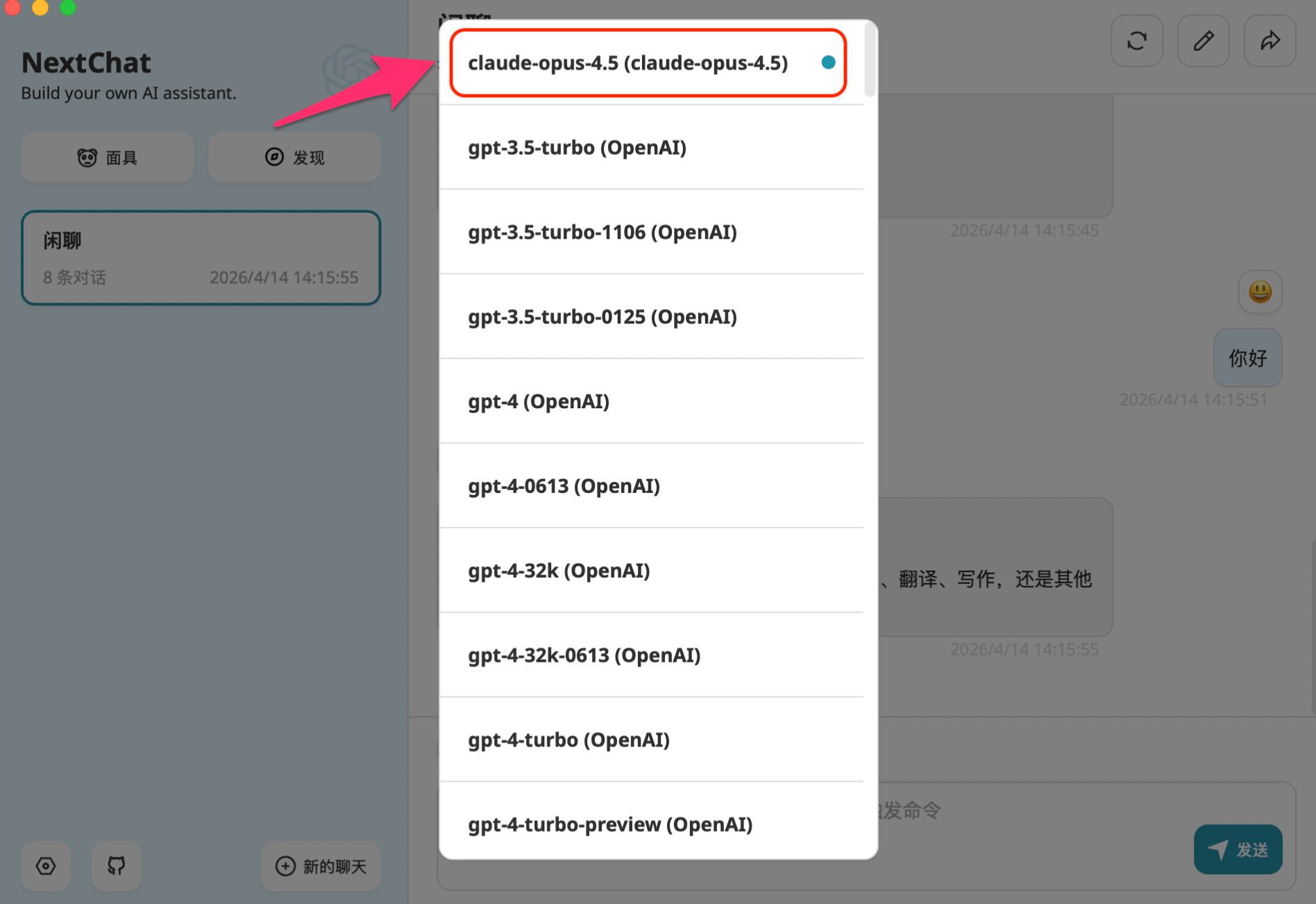
After configuration, in the Model dropdown at the bottom of the settings page, you can see the custom models you just entered.
Click the dropdown to see all available providers and models.
Start Using
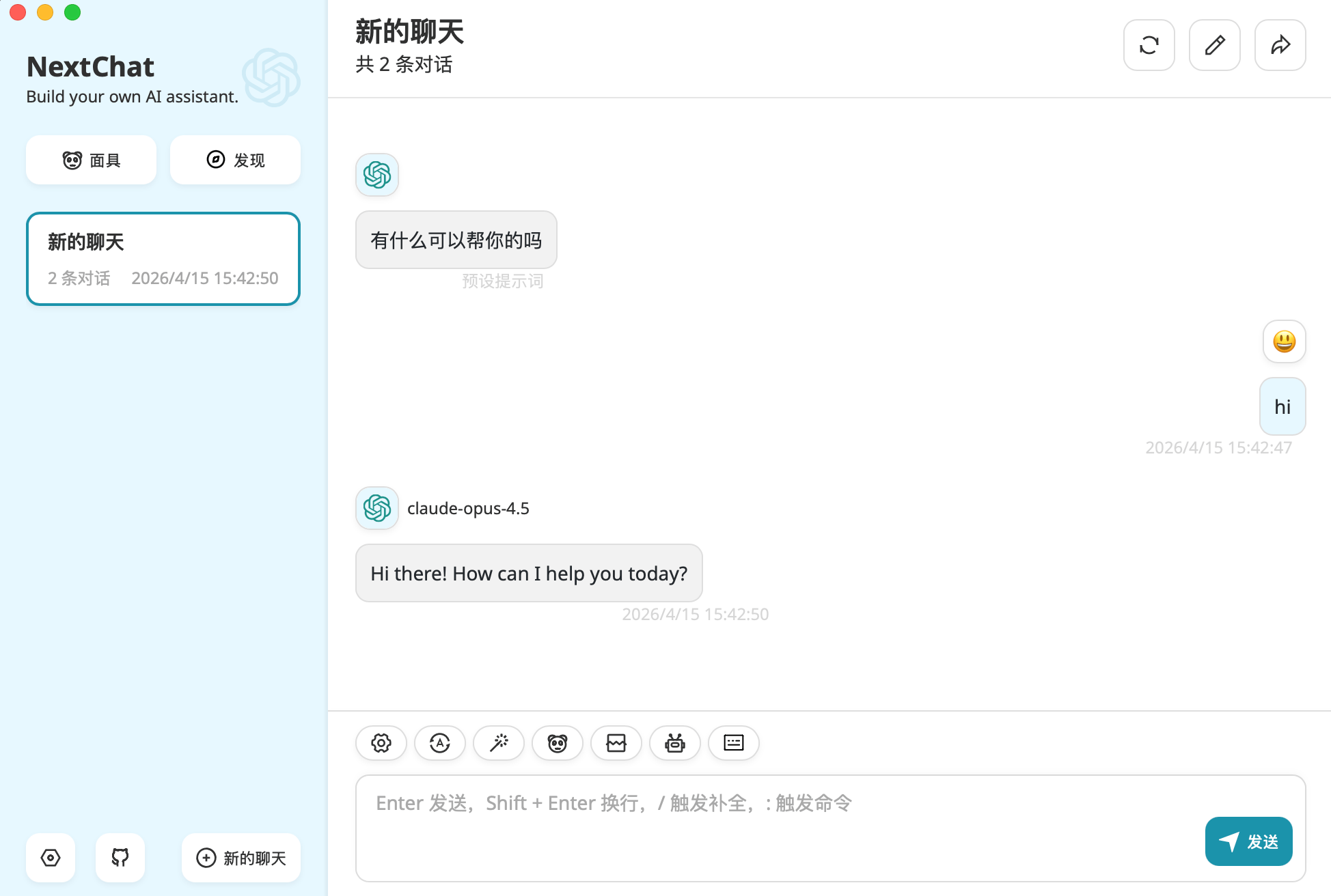
Close settings and go back to the main screen. Select your model and start chatting.
Available Model Examples
For recommended models, see the OfoxAI Model Marketplace .
Troubleshooting
Q: Error No providers support endpoint 'chat_completions'
The model name is incorrect or your account doesn’t have access to that model. Check the model name or try a different one.
Q: Error Unsupported OpenAI API endpoint
The API Endpoint is set to https://api.ofox.ai/v1, causing a duplicate path. Change it to https://api.ofox.ai (without /v1).
Q: Can the OpenAI provider call Claude and Gemini models?
Yes. When using the OpenAI provider, enter the full model name with provider prefix in Custom Model Names (e.g. anthropic/claude-sonnet-5.5), and OfoxAI will route to the correct provider.
Q: Do Anthropic and Google provider model names need a prefix?
For Anthropic, enter just claude-sonnet-5.5 (no prefix). For Google, enter google/gemini-3.8-flash (with google/ prefix).