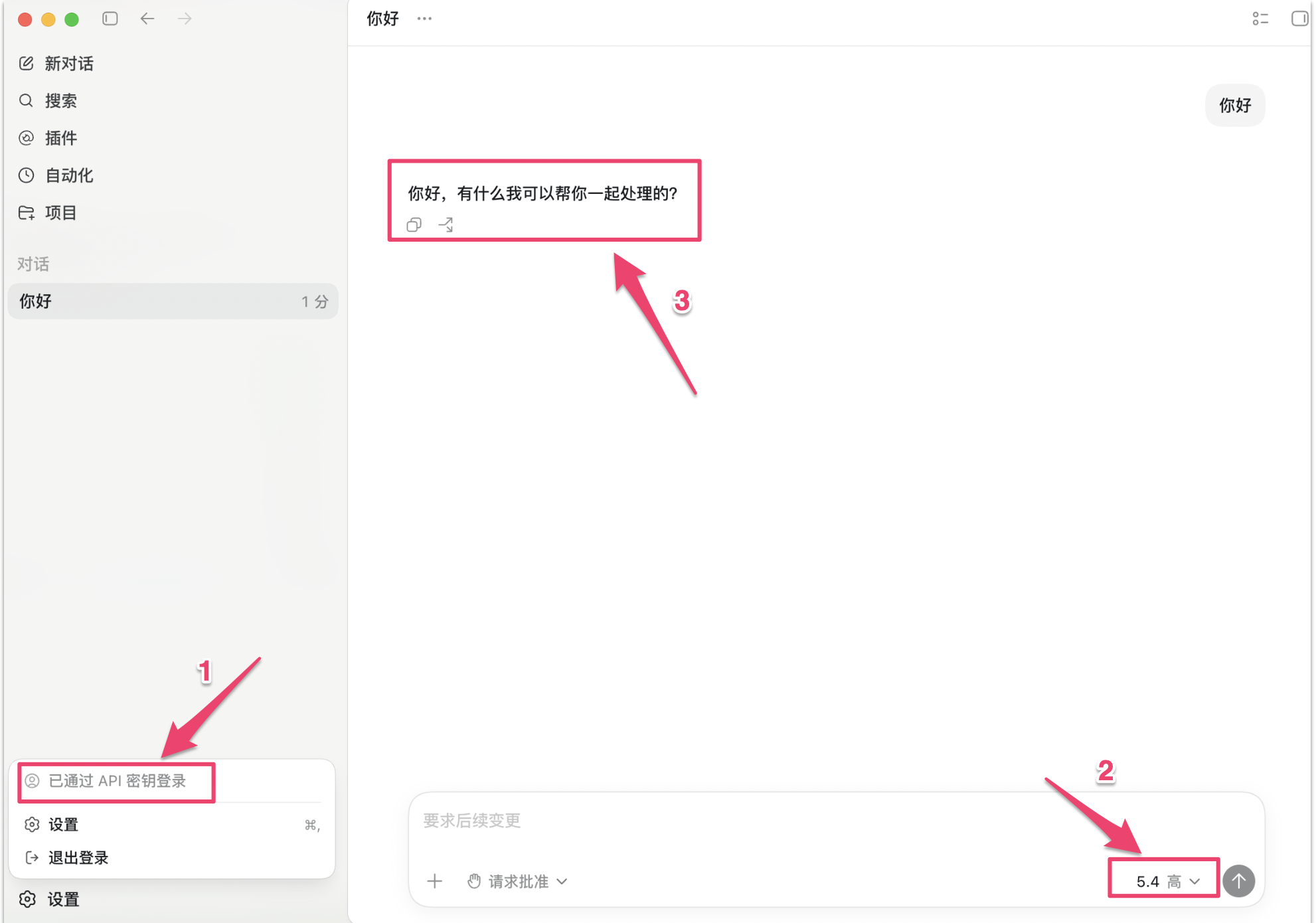
Codex Desktop
After configuring a provider in CC Switch, Codex CLI and Codex Desktop share the same config.toml — the configuration syncs automatically with no extra steps needed for the desktop app.
Verify the desktop app is configured
If you want to confirm the desktop app has picked up the CC Switch configuration, follow these steps:
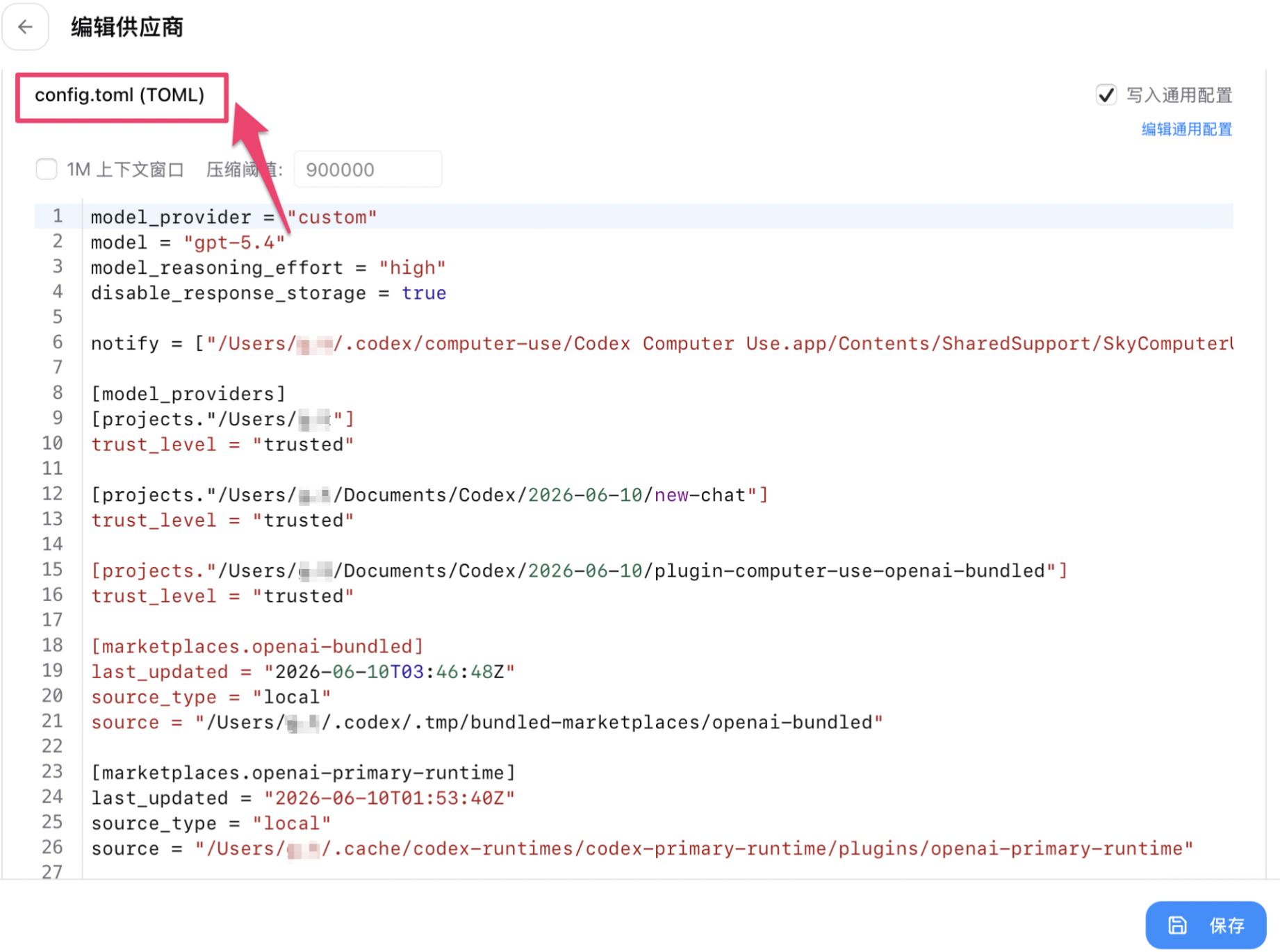
Step 1: View config.toml in CC Switch
Open CC Switch, click the provider entry to open the edit page, then switch to the config.toml (TOML) tab at the top to see the current written configuration.
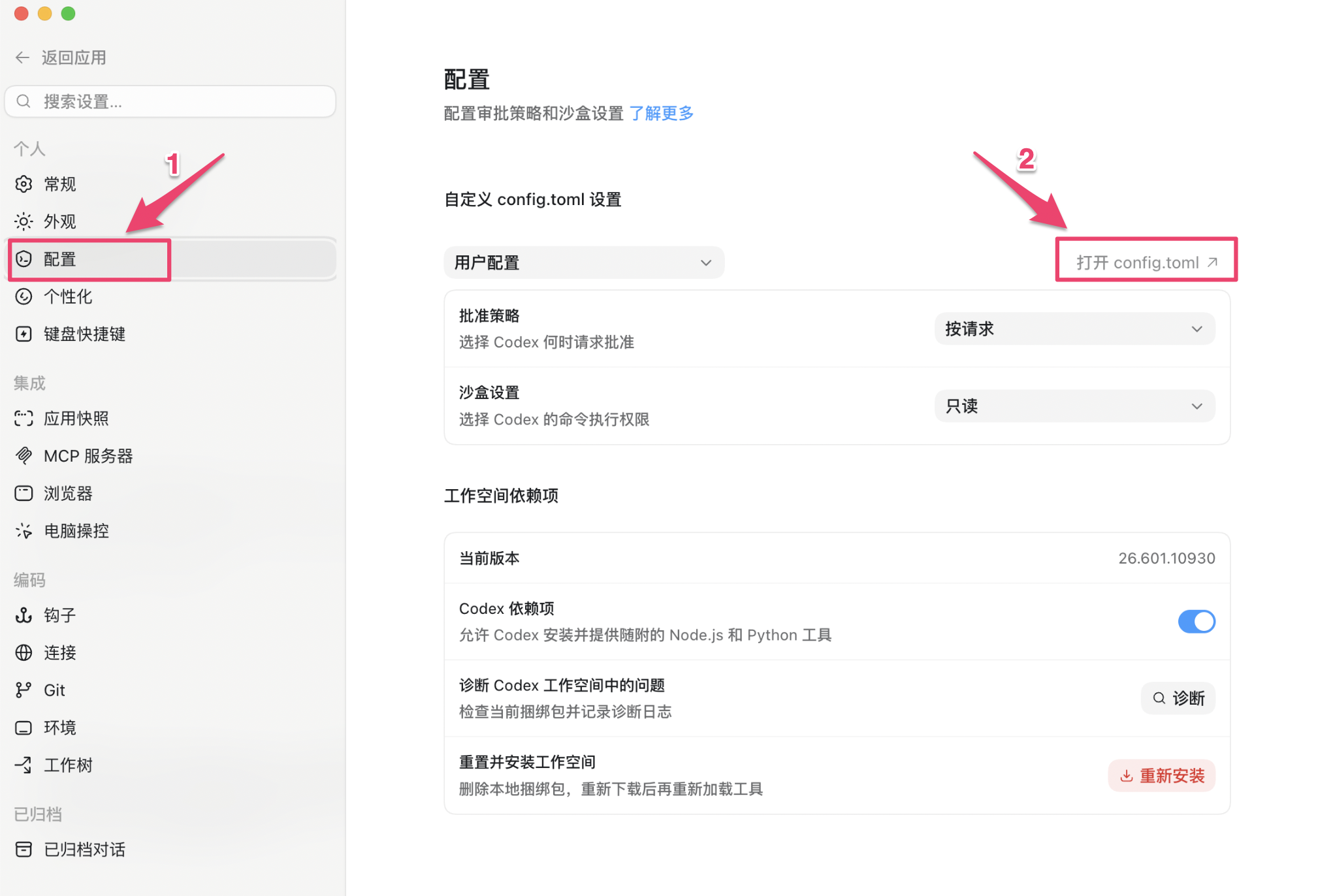
Step 2: Open Codex Desktop’s config.toml
Open Codex Desktop, go to the Settings menu on the left, then click the Open config.toml button in the top-right. The file will open in your default editor.
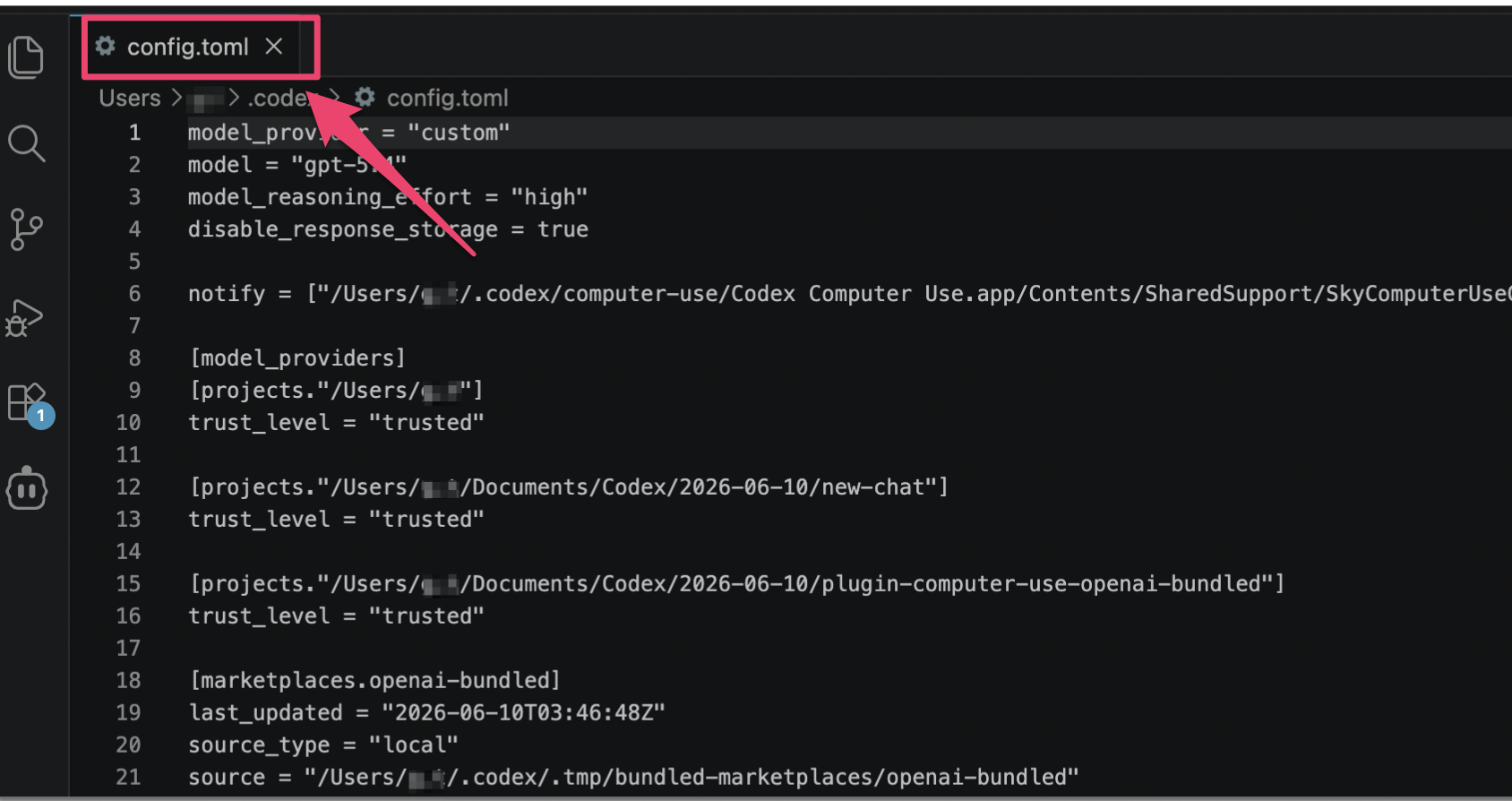
Step 3: Compare the two configs
Compare the key fields on both sides — model_provider, base_url, etc. If they match, the configuration is active.
Step 4: Send a message to verify
Send a test message in Codex Desktop. A normal AI response means the setup is working.