OpenCat Setup
OpenCat is a clean and smooth AI client (macOS, iOS) designed for everyday AI conversations, supporting custom API providers, multi-model switching, and conversation history.
By configuring OfoxAI as your provider, you can use GPT, Claude, Gemini, DeepSeek, and 100+ models in OpenCat with a single API Key.
Prerequisites
- An OfoxAI account with an API Key (Get one here )
- OpenCat installed (Download )
Setup Steps
Step 1: Open Settings
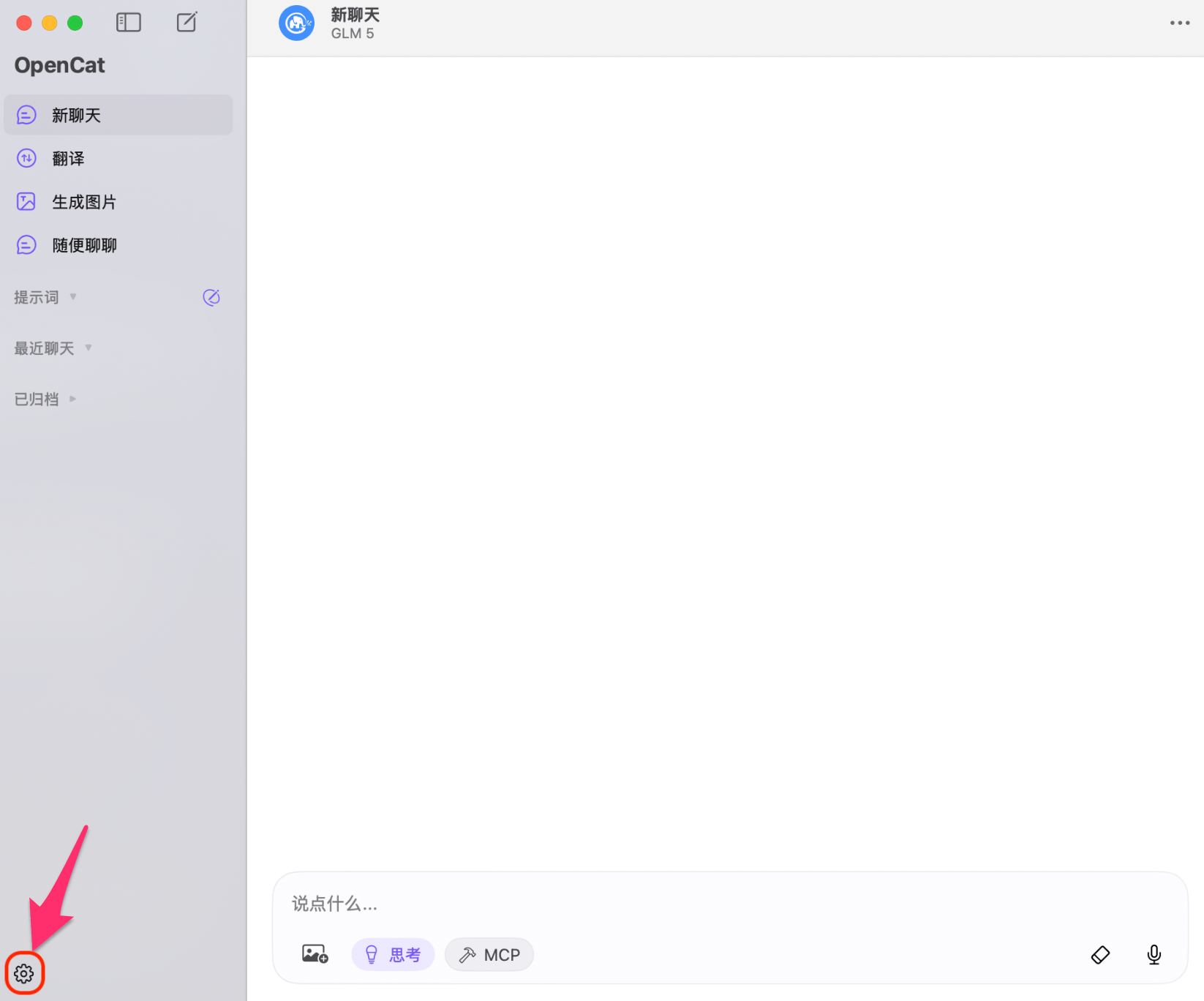
Launch OpenCat and click the Settings icon in the bottom left.
Step 2: Go to Providers and Select OpenAI Compatible
Click Providers in the sidebar, then find and click OpenAI Compatible.
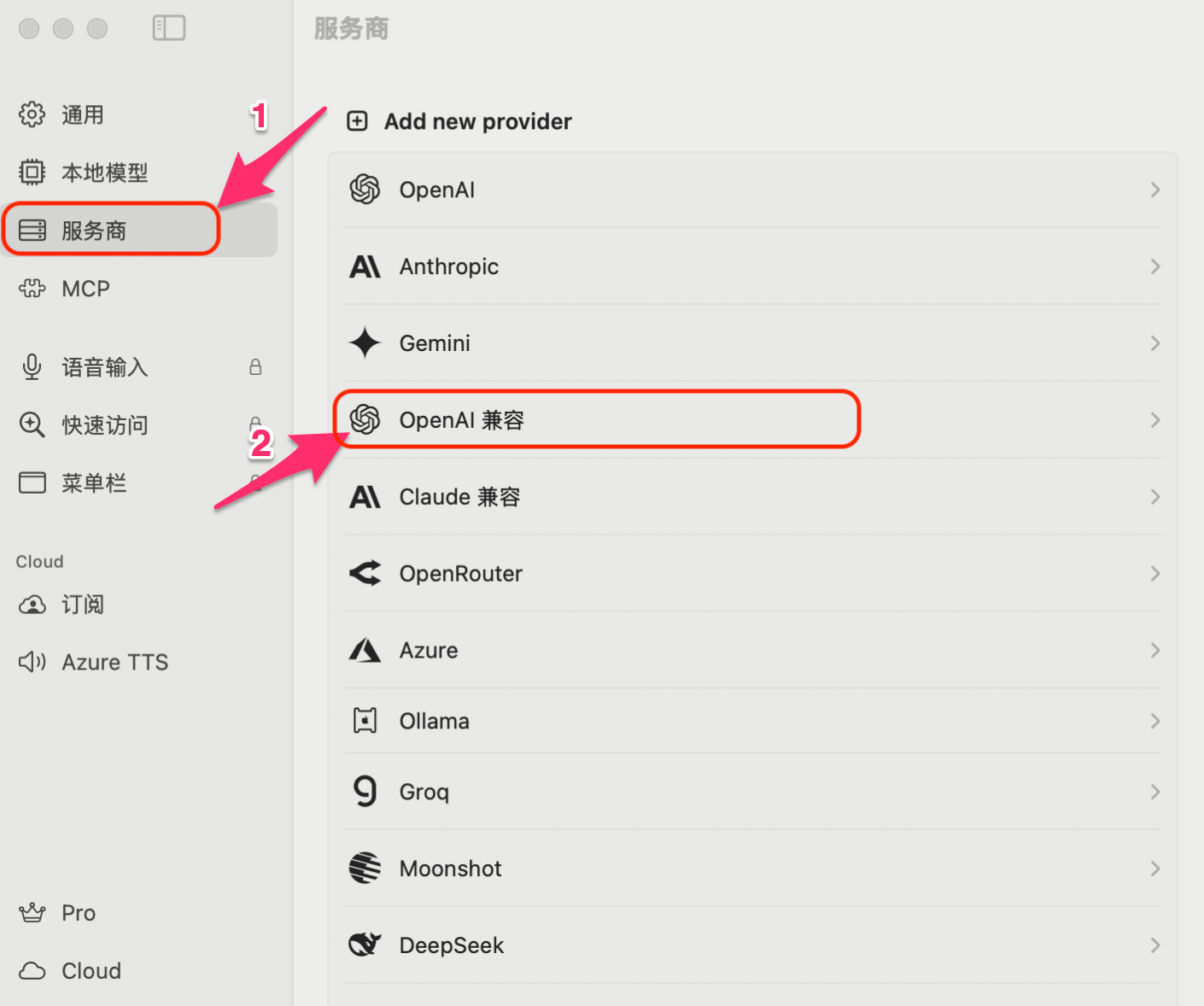
Select OpenAI Compatible, not the native OpenAI option. The native OpenAI option tries to fetch the model list from OpenAI’s official API, which is incompatible with OfoxAI’s model format.
Step 3: Fill in the Configuration
Fill in the following:
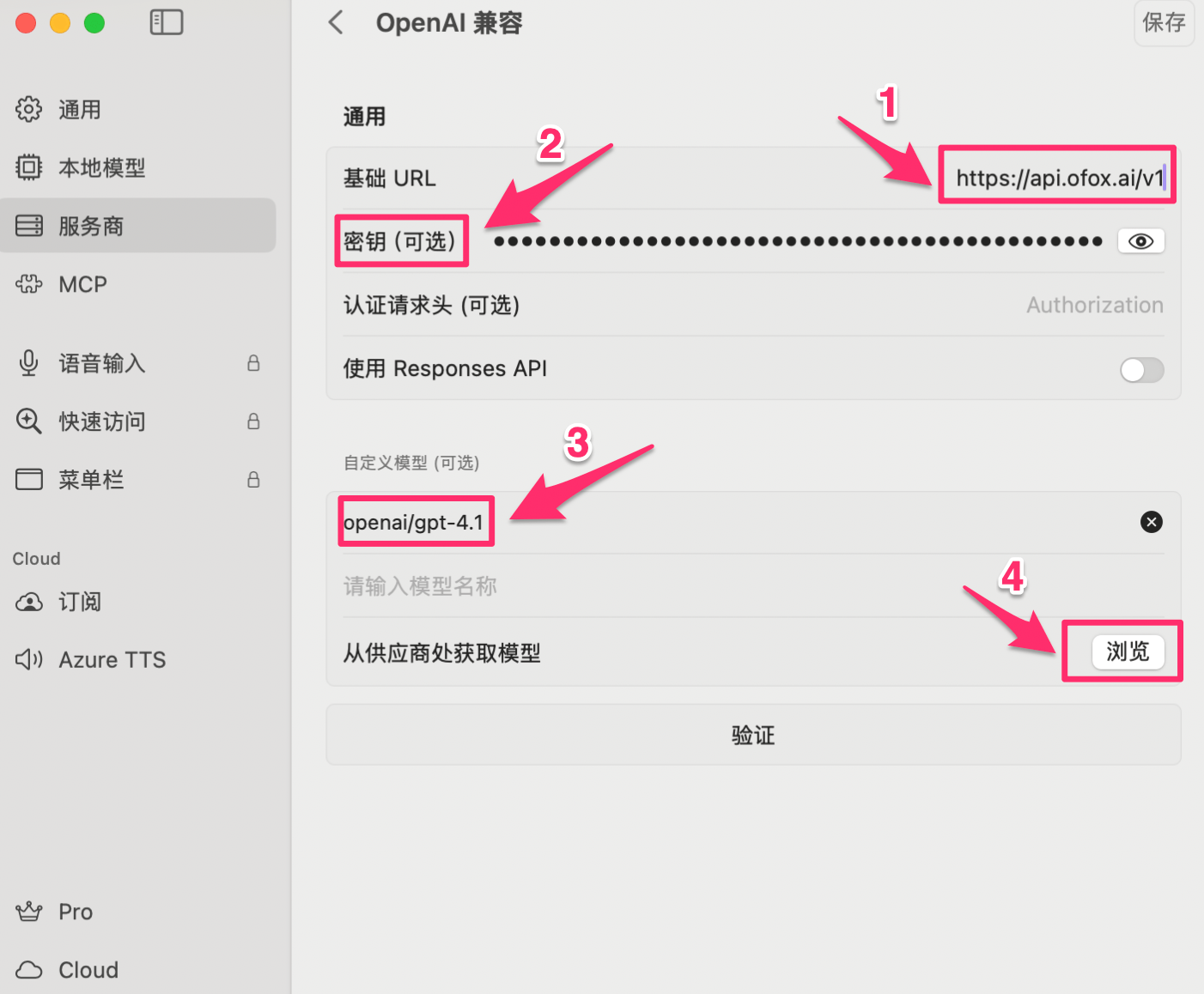
Custom models use the provider/model-name format. You can add multiple models at once for easy switching during conversations.
Step 4: Validate and Save
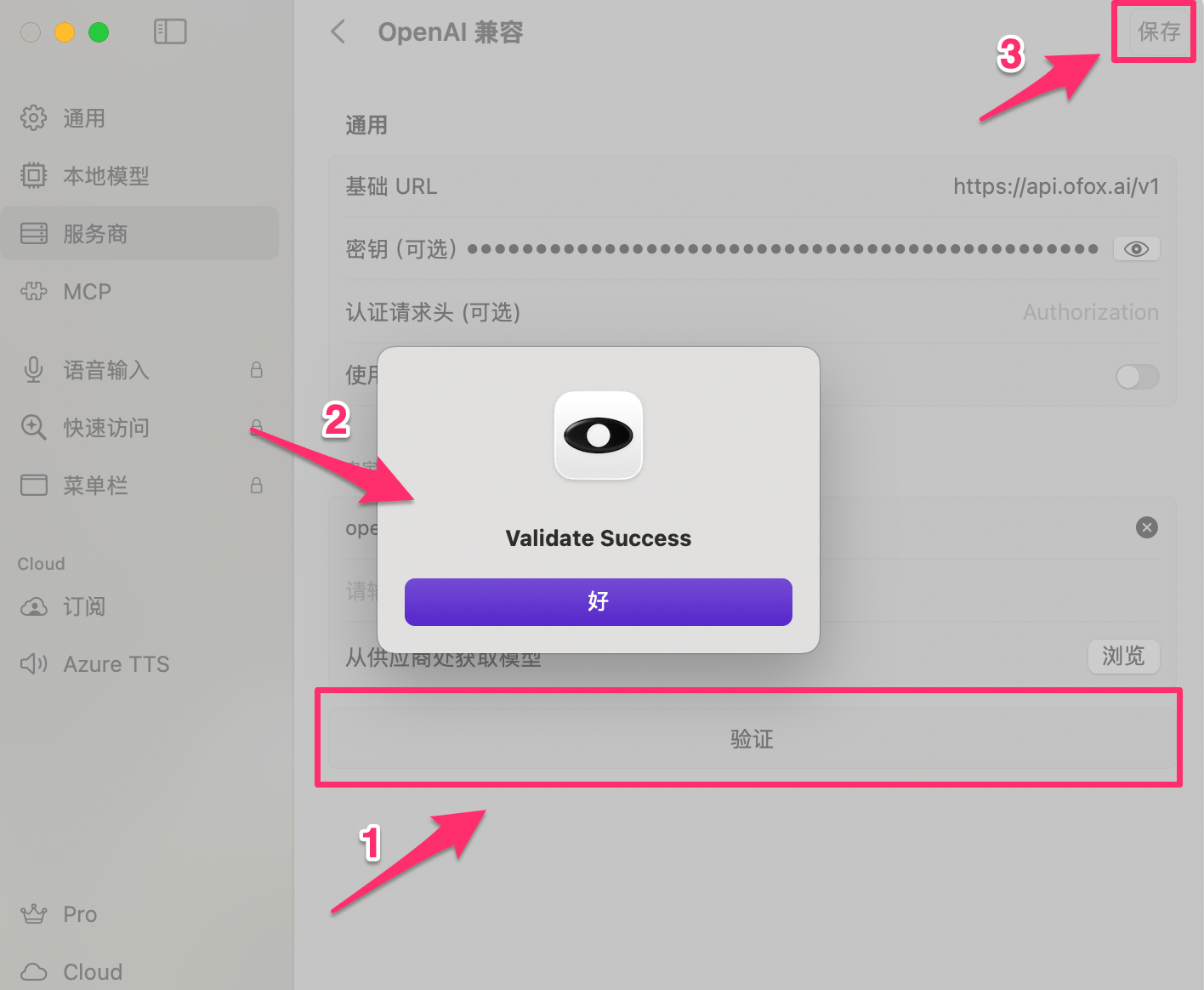
Click the Validate button. Once you see “Validate Success”, click Save in the top right.
Start Using
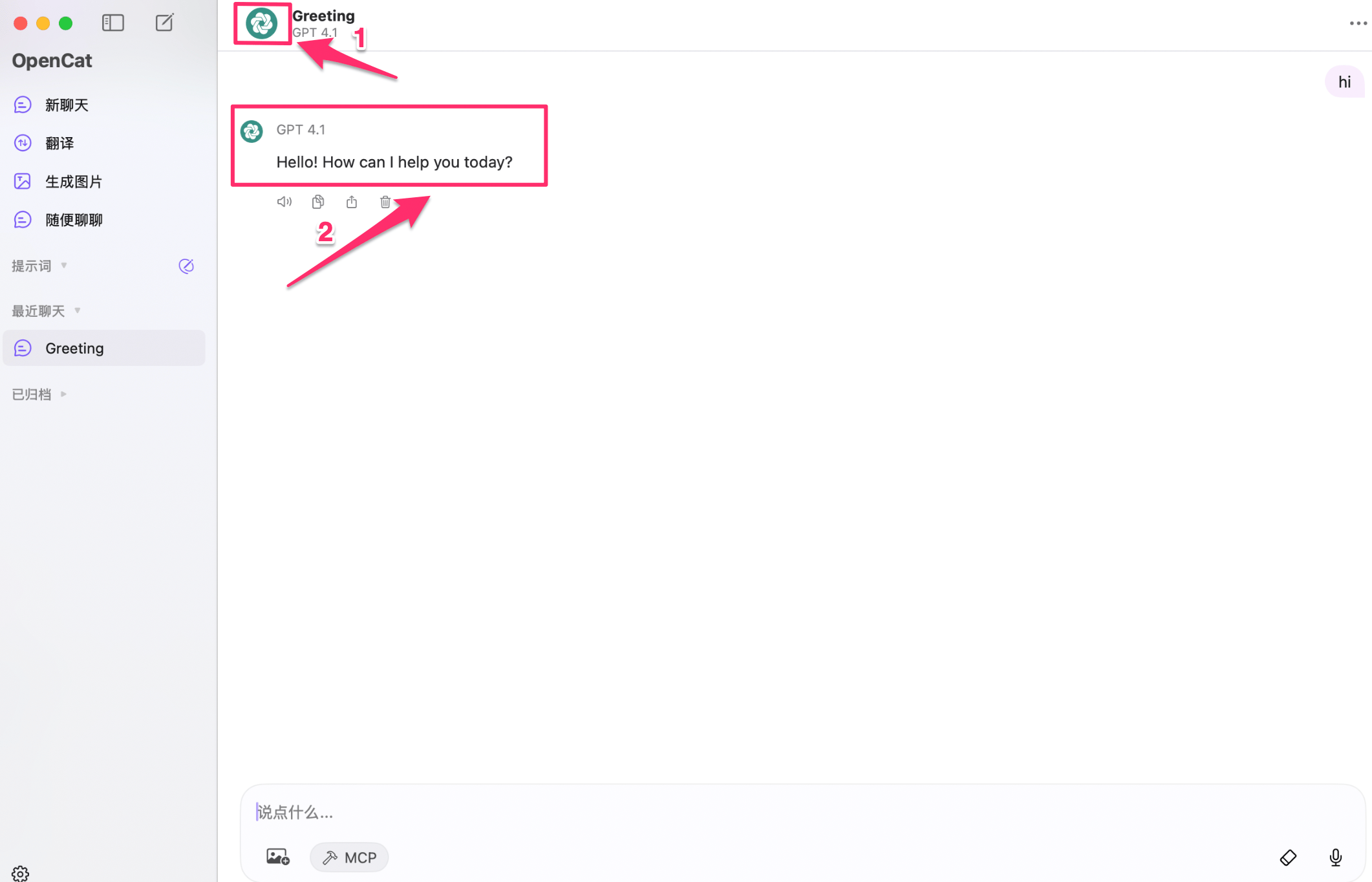
After setup, go back to the main screen to start chatting. The current model name is shown at the top.
Available Model Examples
For recommended models, see the OfoxAI Model Marketplace .
Troubleshooting
Q: Validation fails
- Make sure Base URL is
https://api.ofox.ai/v1(no trailing slash) - Make sure your API Key is copied in full from the OfoxAI Console with no extra spaces
- Check your network connection
Q: Why use OpenAI Compatible instead of native OpenAI?
The native OpenAI provider in OpenCat automatically calls /v1/models to fetch the model list, but OfoxAI’s model names include provider prefixes like openai/ that OpenCat can’t recognize. Using OpenAI Compatible with manually entered model names works around this issue.
Q: Can I add multiple models at once?
Yes — enter multiple model names line by line in the Custom Models field. After saving, you can switch between them during conversations.