PicoClaw Configuration
PicoClaw is an ultra-lightweight, open-source AI assistant from Sipeed. Written in Go, it ships as a single binary, uses under 10MB of RAM, starts in under 1 second, and runs on devices ranging from Raspberry Pi to Linux and RISC-V. It also integrates with messaging platforms like Telegram, Discord, Feishu, and WeChat.
By connecting OfoxAI, you can use GPT, Claude, Gemini, DeepSeek, and 100+ models in PicoClaw with a single API Key.
Prerequisites
- A registered OfoxAI account with an API Key (Get one here )
- PicoClaw downloaded and running (Download )
After launching picoclaw-launcher, open http://localhost:18800 in your browser to access the WebUI.
Configuration Steps
Step 1: Open the Model Configuration Page
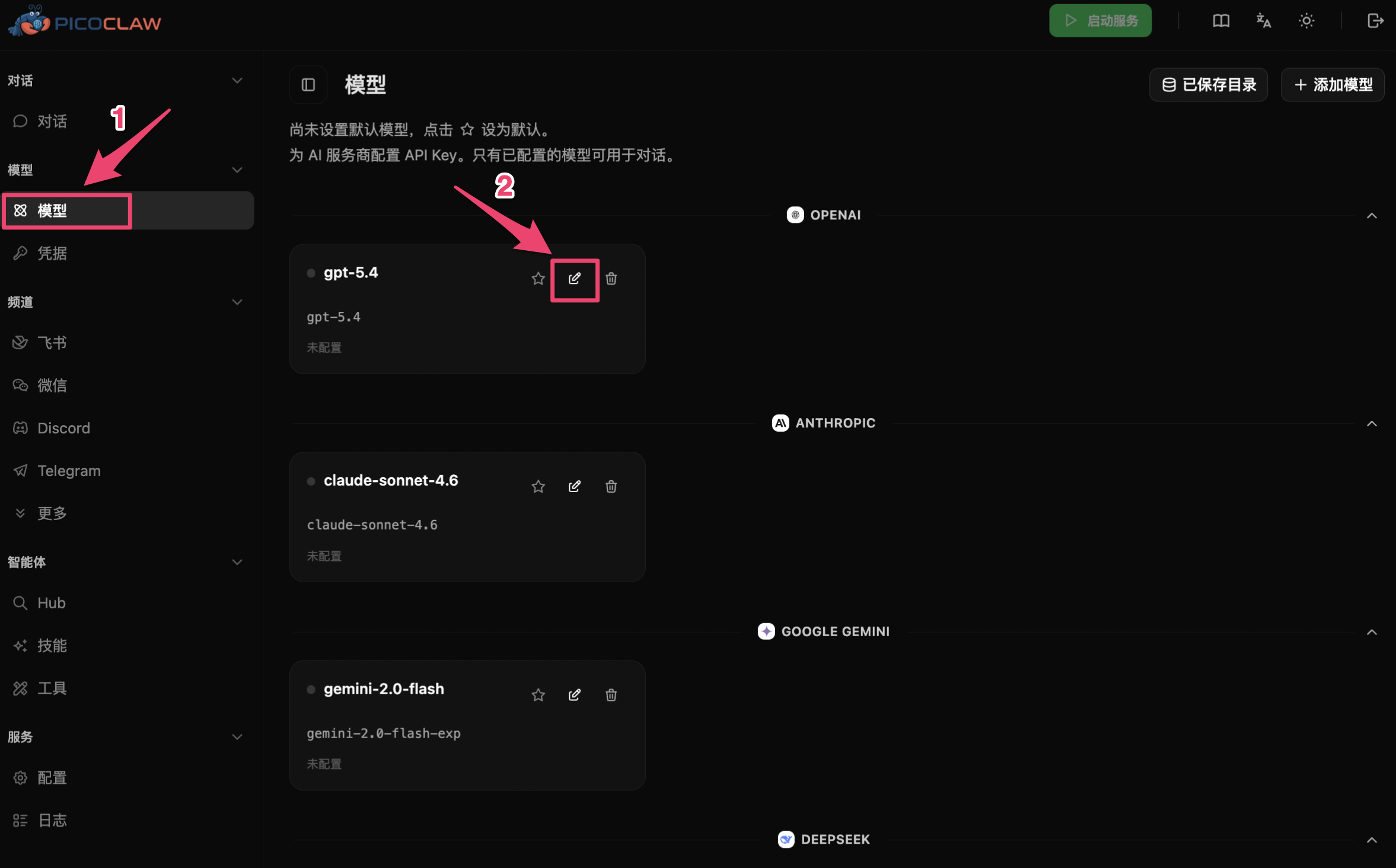
In the WebUI left navigation, click Models → Models to open the model management page. Models are grouped by provider (OpenAI, Anthropic, Google Gemini, DeepSeek, etc.). Click the Edit icon on a model card to configure it.
Step 2: Configure the Model
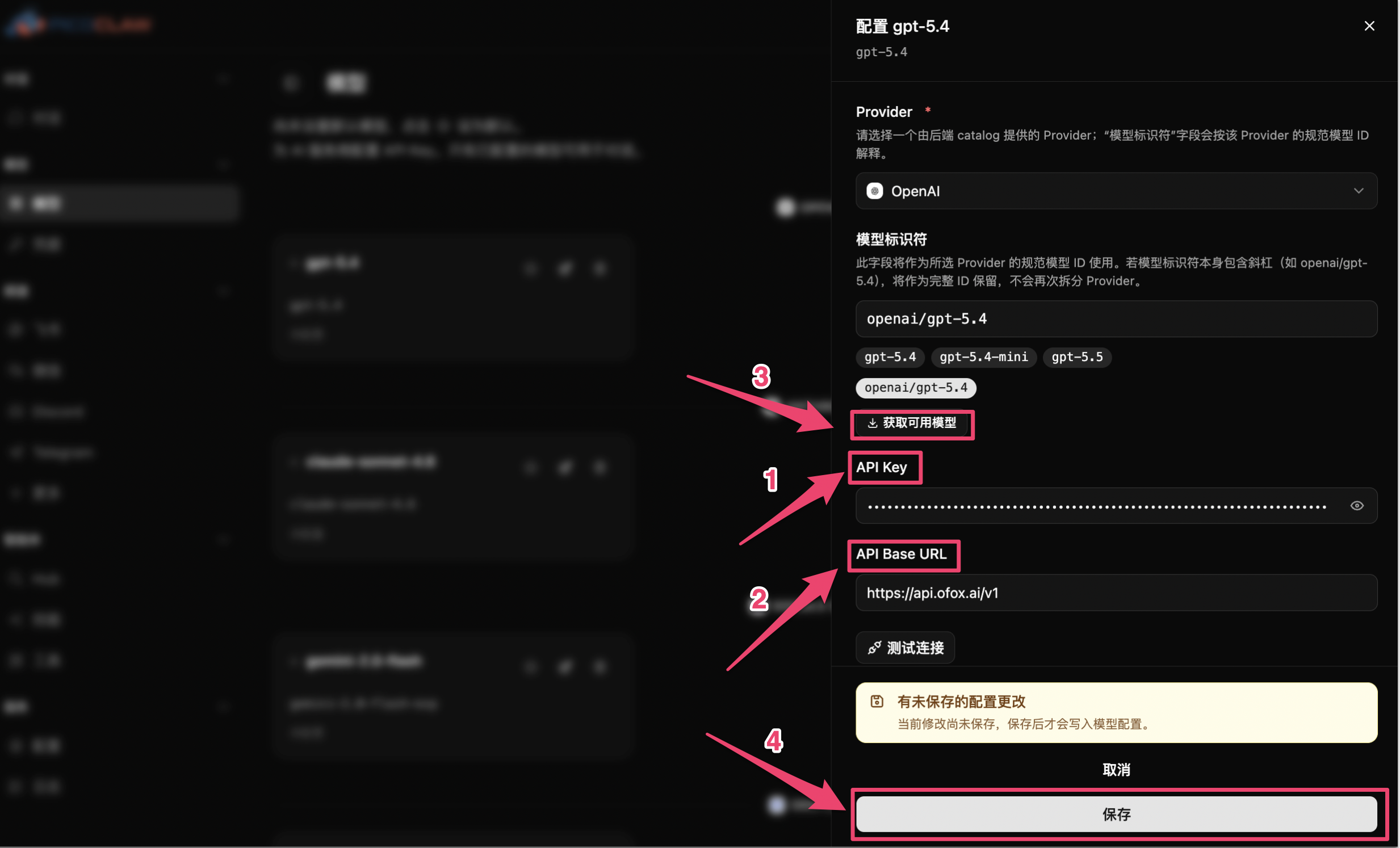
In the configuration panel, fill in the following:
PicoClaw connects to OfoxAI via the OpenAI-compatible protocol and can access all models including GPT, Claude, Gemini, and DeepSeek. Just enter the model ID in the Model Identifier field (see the Model Gallery ) using the full openai/model-name format.
Click Save when done. To set this model as the default, toggle on Default Model or click the ☆ icon in the model list.
Step 3: Confirm the Configuration
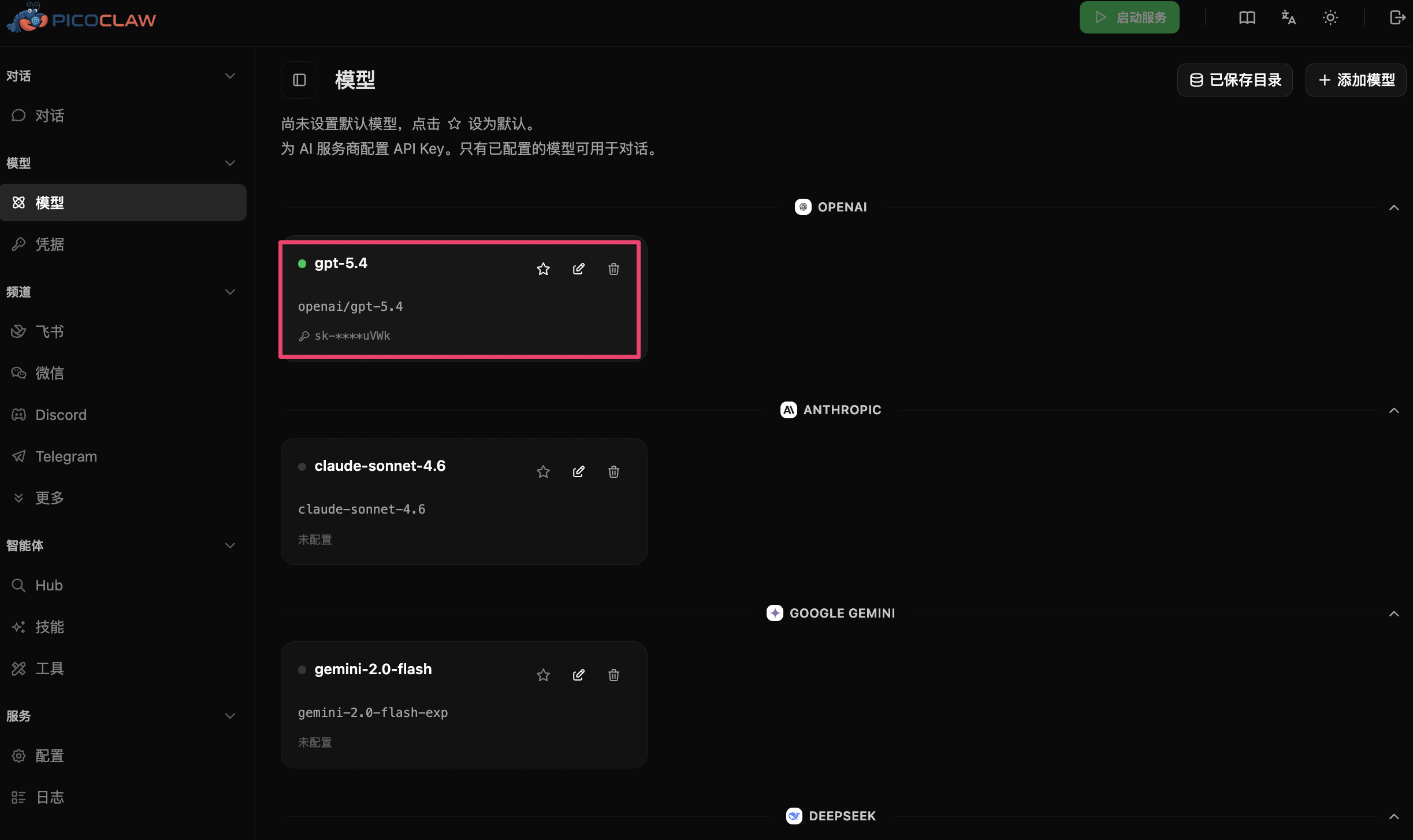
After saving, the status dot on the left of the model card turns green and shows the model identifier and a masked API Key, indicating success.
Step 4: Start the Service and Chat
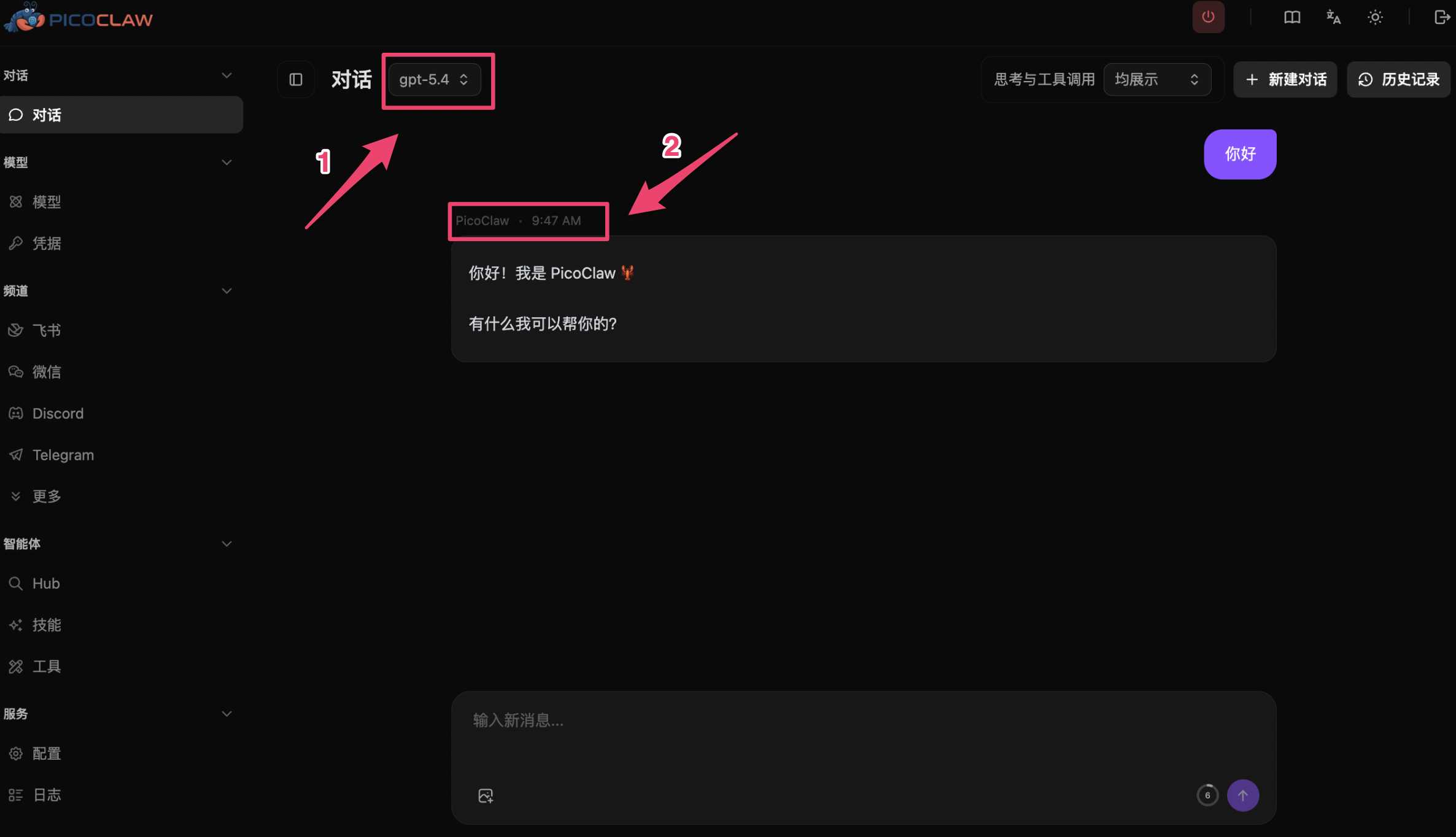
Click Start Service in the top-right corner. Once running, return to the Chat page, select your configured model in the model selector at the top, and send a message to start chatting.
Recommended Models
See the Model Gallery for recommended models.
FAQ
Q: The WebUI shows Failed to execute 'removeChild'
This is caused by a browser translation extension conflicting with the page. Disable auto-translation for the page, or open http://localhost:18800 in an incognito window.
Q: Can I use Claude or Gemini models?
Yes. Through OfoxAI’s OpenAI-compatible endpoint, all models are accessible. Just enter the model ID in the Model Identifier field (see the Model Gallery ).
Q: Connection test or chat fails
- Confirm the API Base URL is set to
https://api.ofox.ai/v1 - Confirm the API Key was copied in full from the OfoxAI Console with no extra spaces
- Confirm you clicked Start Service in the top-right corner